> ## Documentation Index
> Fetch the complete documentation index at: https://docs.rootly.com/llms.txt
> Use this file to discover all available pages before exploring further.
# Installation
> Connect your Notion workspace to Rootly via OAuth to enable automated retrospective page creation, incident documentation, and database population.
## Before You Begin
We recommend performing the installation with a **service account** to ensure the integration does not break if the installing user leaves the company. Ensure you are logged in as an **Admin** in Rootly. You will also need Editor or Owner access to the parent Notion page where Rootly will create pages.
## Connect Notion
To connect Notion to Rootly, you will authorize via OAuth and select which Notion pages Rootly is allowed to access. Rootly can only create pages within the pages you explicitly grant access to during this step.
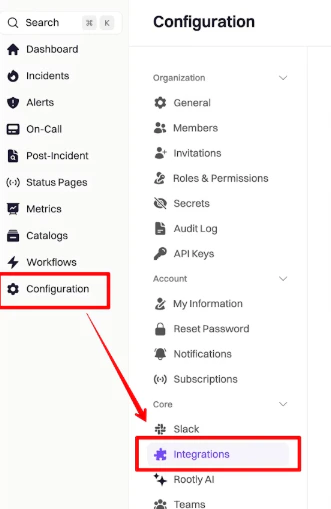
In Rootly, navigate to **Configuration → Integrations** and search for **Notion**.
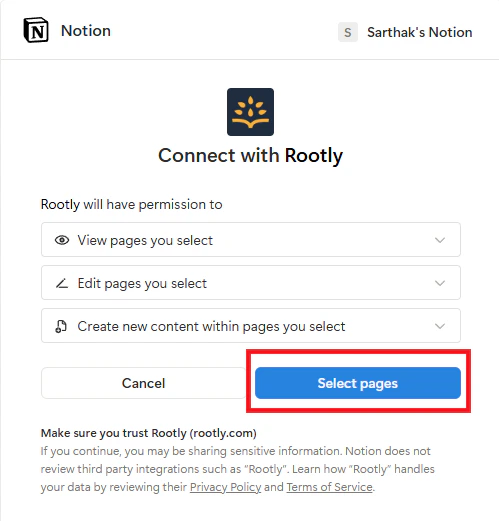
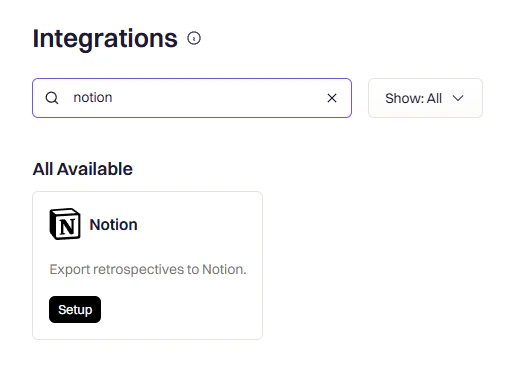 Click **Setup**. You will be redirected to Notion. Click **Select pages** to choose which pages Rootly can access.
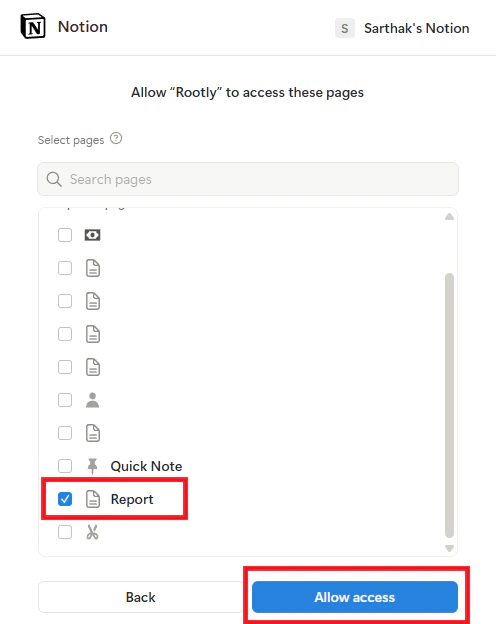
 Choose the parent pages where you want Rootly to create incident retrospective pages, then click **Allow access**.
 You will be redirected back to Rootly with a success message confirming the integration is connected.
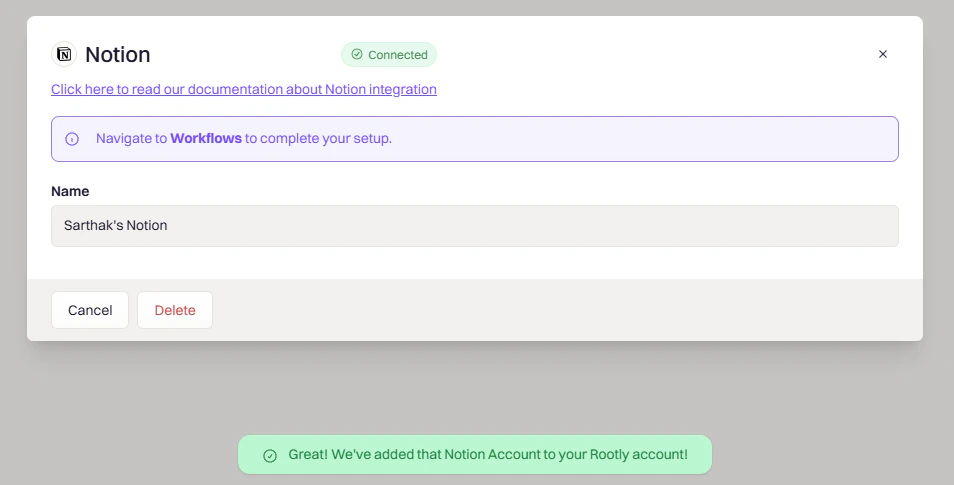 Your Notion workspace is now connected. You can verify the connection in Notion under **Settings and Members → Connections** — Rootly should appear in the list.
## Verify the Connection
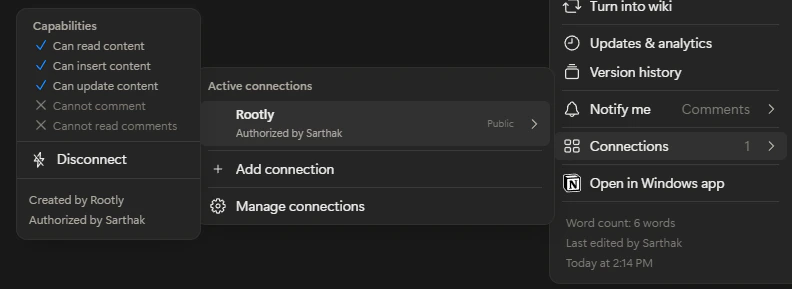
After connecting, confirm in Notion that Rootly has been granted access:
1. Open the parent page you selected during authorization
2. Click the **⋯** menu → **Connections**
3. Confirm Rootly appears in the list
Your Notion workspace is now connected. You can verify the connection in Notion under **Settings and Members → Connections** — Rootly should appear in the list.
## Verify the Connection
After connecting, confirm in Notion that Rootly has been granted access:
1. Open the parent page you selected during authorization
2. Click the **⋯** menu → **Connections**
3. Confirm Rootly appears in the list
 ## Uninstall
**In Rootly:**
1. Go to **Configuration → Integrations** and find **Notion**
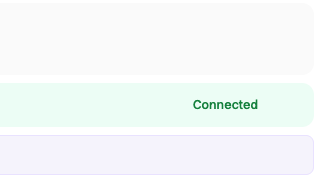
2. Click the **Connected** button to reveal the disconnect option
3. Click **Delete**
## Uninstall
**In Rootly:**
1. Go to **Configuration → Integrations** and find **Notion**
2. Click the **Connected** button to reveal the disconnect option
3. Click **Delete**
 **In Notion** (to fully revoke access):
1. Go to **Settings and Members → Connections**
2. Find **Rootly** and click **Disconnect**
Disconnecting from Rootly does not remove existing Notion pages created by Rootly. Those pages remain in your Notion workspace.
## Frequently Asked Questions
Ensure you granted access to the specific page during OAuth. Go to **Settings and Members → Connections** in Notion to confirm Rootly is listed. If missing, disconnect and reconnect the integration in Rootly. Also check that the page is not in a private or restricted workspace.
Notion only shows pages you have Editor or Owner access to. If the workspace has restricted pages, an admin must grant you access first. Try expanding parent pages in the selector to see nested pages, then restart the authorization flow.
Verify the parent page selected in the workflow action is one you granted access to during installation. Check workflow run logs under **Workflows → Your Workflow → View Runs** for error details. Re-authorize the integration if the connection has expired.
**In Notion** (to fully revoke access):
1. Go to **Settings and Members → Connections**
2. Find **Rootly** and click **Disconnect**
Disconnecting from Rootly does not remove existing Notion pages created by Rootly. Those pages remain in your Notion workspace.
## Frequently Asked Questions
Ensure you granted access to the specific page during OAuth. Go to **Settings and Members → Connections** in Notion to confirm Rootly is listed. If missing, disconnect and reconnect the integration in Rootly. Also check that the page is not in a private or restricted workspace.
Notion only shows pages you have Editor or Owner access to. If the workspace has restricted pages, an admin must grant you access first. Try expanding parent pages in the selector to see nested pages, then restart the authorization flow.
Verify the parent page selected in the workflow action is one you granted access to during installation. Check workflow run logs under **Workflows → Your Workflow → View Runs** for error details. Re-authorize the integration if the connection has expired.