> ## Documentation Index
> Fetch the complete documentation index at: https://docs.rootly.com/llms.txt
> Use this file to discover all available pages before exploring further.
# Workflows
> Automate Notion page creation and updates for incident retrospectives using Rootly workflows with parent page, database, and Liquid template controls.
## Overview
Workflows let you automate Notion page creation and updates for incident retrospectives. You can trigger page creation when an incident resolves or a retrospective begins, and populate the page with timeline data, action items, and custom template content using Liquid variables.
## Available Actions
| Action | Description |
| ---------------------- | ------------------------------------------------------------------ |
| **Create Notion Page** | Creates a new retrospective page in a specified Notion parent page |
| **Update Notion Page** | Overwrites an existing Notion page with the latest incident data |
## Create a Workflow
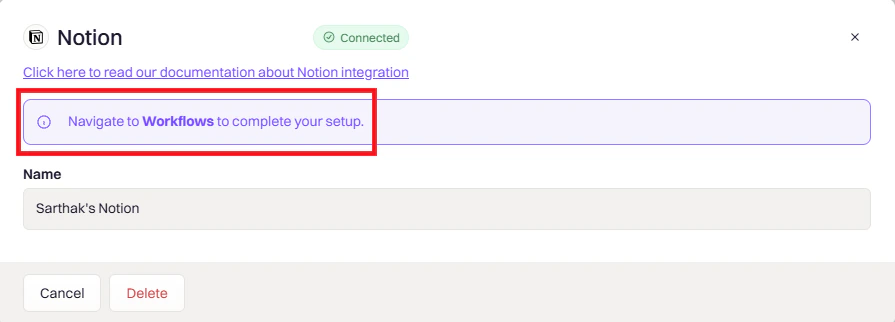
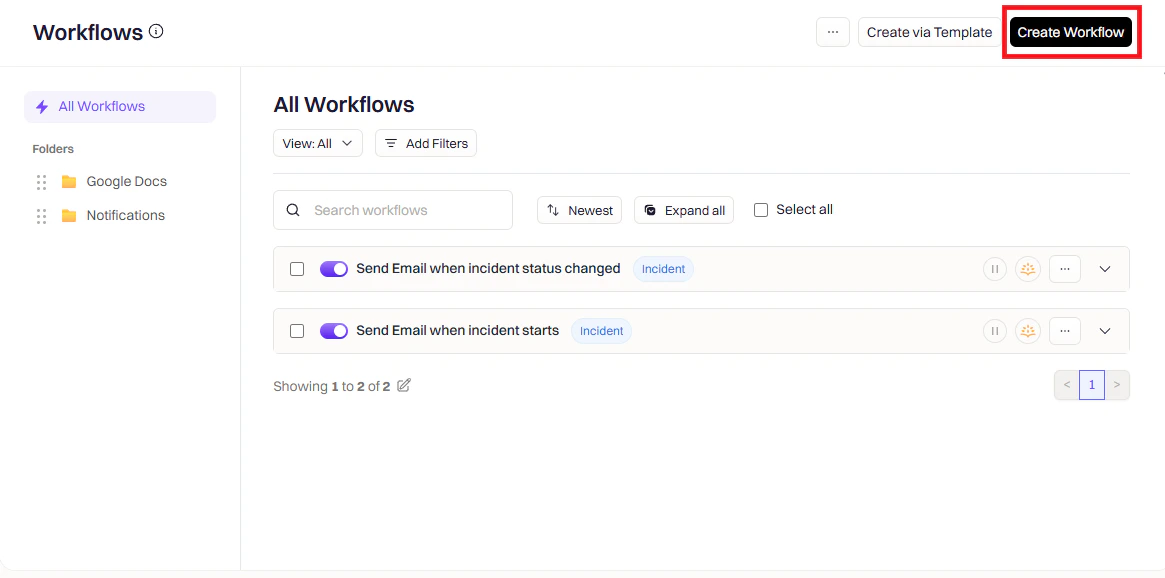
Navigate to **Workflows** in Rootly and click **Create Workflow**.
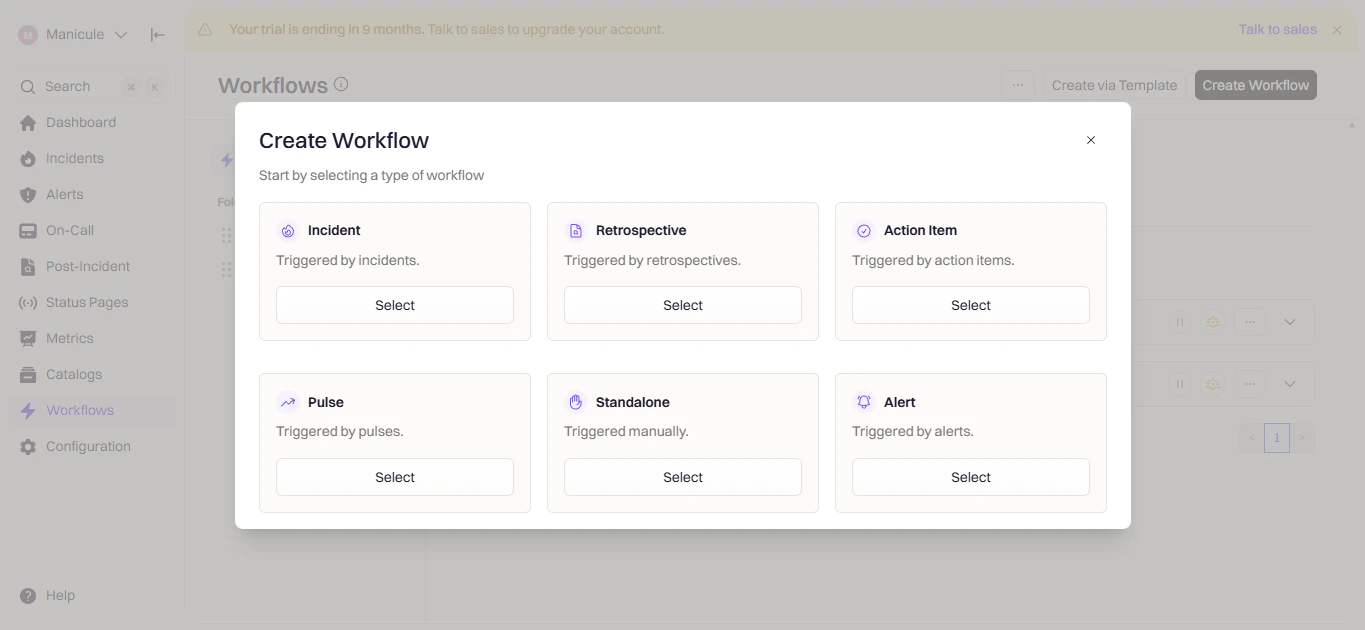
 Select the workflow type that matches your use case — **Incident**, **Retrospective**, or **Pulse**.
 Triggers define when the workflow runs. Choose the event that should kick off page creation.
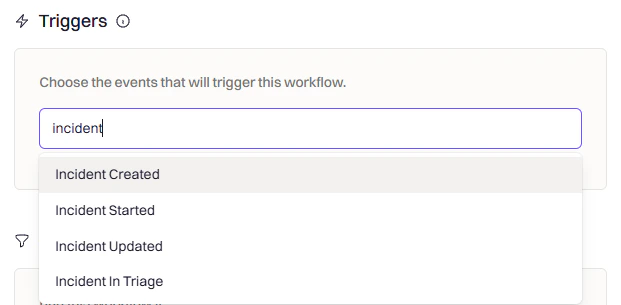 | Trigger | When it fires |
| --------------------------- | ---------------------------------------- |
| **Incident Created** | A new incident opens |
| **Incident Updated** | Severity, status, or other fields change |
| **Incident Status Changed** | The incident moves to a specific status |
| **Incident Resolved** | The incident is resolved |
| **Retrospective Started** | The retrospective process begins |
| **Manual Trigger** | Run on demand from the UI |
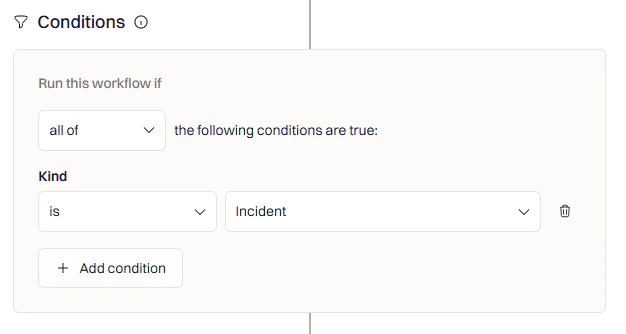
Use conditions to control when the workflow fires after the trigger. For example, only create a Notion page for SEV-1 or SEV-2 incidents, or only for specific teams or environments.
| Trigger | When it fires |
| --------------------------- | ---------------------------------------- |
| **Incident Created** | A new incident opens |
| **Incident Updated** | Severity, status, or other fields change |
| **Incident Status Changed** | The incident moves to a specific status |
| **Incident Resolved** | The incident is resolved |
| **Retrospective Started** | The retrospective process begins |
| **Manual Trigger** | Run on demand from the UI |
Use conditions to control when the workflow fires after the trigger. For example, only create a Notion page for SEV-1 or SEV-2 incidents, or only for specific teams or environments.
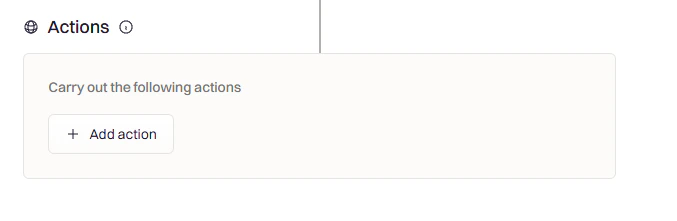
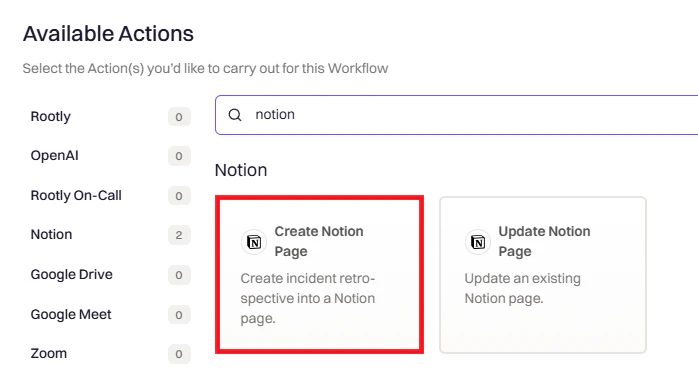
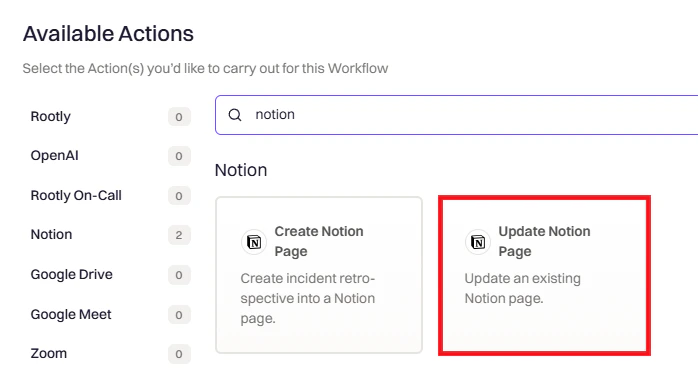
 Click **Add Action** and search for **Notion**.
 ## Create Notion Page
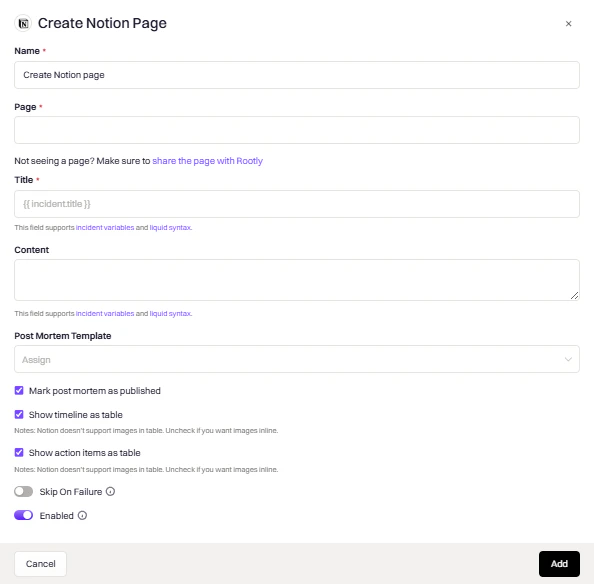
Use this action to create a new retrospective page in Notion for an incident. The page is created under a parent page you select and is populated using the template and fields you configure.
## Create Notion Page
Use this action to create a new retrospective page in Notion for an incident. The page is created under a parent page you select and is populated using the template and fields you configure.
 | Field | Description |
| --------------------------------- | ------------------------------------------------------------------------------------------------------------------------------------------------------------------ |
| **Page** | The parent Notion page where the new page will be created. Must be a page Rootly was granted access to during installation. |
| **Title** | The page title. Supports Liquid syntax — use the incident title or any other variable. |
| **Post Mortem Template** | A pre-built retrospective template from [Retrospective Templates](https://rootly.com/account/retrospective-steps?tab=documents). |
| **Mark Post Mortem as Published** | Set the retrospective status to `published` immediately rather than leaving it as `draft`. |
| **Show Timeline as Table** | Include the incident timeline. Uncheck if you want images to appear inline — Notion does not support images in tables. |
| **Show Action Items as Table** | Include follow-up action items. Only `follow-up` type items are included — tasks are excluded as they are completed during the incident, before the retrospective. |
| **Skip on Failure** | Prevent the workflow from stopping if this action fails. |
| **Enabled** | Toggle this action on or off for testing. |
## Update Notion Page
Use this action to overwrite an existing Notion page with the latest incident data. This is useful for keeping the retrospective page current as the incident progresses.
| Field | Description |
| --------------------------------- | ------------------------------------------------------------------------------------------------------------------------------------------------------------------ |
| **Page** | The parent Notion page where the new page will be created. Must be a page Rootly was granted access to during installation. |
| **Title** | The page title. Supports Liquid syntax — use the incident title or any other variable. |
| **Post Mortem Template** | A pre-built retrospective template from [Retrospective Templates](https://rootly.com/account/retrospective-steps?tab=documents). |
| **Mark Post Mortem as Published** | Set the retrospective status to `published` immediately rather than leaving it as `draft`. |
| **Show Timeline as Table** | Include the incident timeline. Uncheck if you want images to appear inline — Notion does not support images in tables. |
| **Show Action Items as Table** | Include follow-up action items. Only `follow-up` type items are included — tasks are excluded as they are completed during the incident, before the retrospective. |
| **Skip on Failure** | Prevent the workflow from stopping if this action fails. |
| **Enabled** | Toggle this action on or off for testing. |
## Update Notion Page
Use this action to overwrite an existing Notion page with the latest incident data. This is useful for keeping the retrospective page current as the incident progresses.
 This is an overwrite operation. Any manual changes made to the Notion page will be replaced when this action runs.
| Field | Description |
| ------------------------------ | -------------------------------------------------------------------------------------------------------------- |
| **File** | The Notion page to update. Use `incident.notion_page_id` via Liquid to reference the incident's existing page. |
| **Title** | Updated page title. Leave blank to keep the existing title. |
| **Post Mortem Template** | Template to apply when updating. Overwrites existing content. |
| **Show Timeline as Table** | Include the incident timeline. |
| **Show Action Items as Table** | Include follow-up action items. |
| **Skip on Failure** | Prevent the workflow from stopping if this action fails. |
| **Enabled** | Toggle this action on or off for testing. |
## Variable Reference
Use these variables in page titles and templates. Use the [Liquid Variable Explorer](https://rootly.com/account/help/liquid-explorer) to test variables with real incident data.
### Incident Variables
| Variable | Description |
| ------------------------- | ------------------------------ |
| `incident.title` | Incident title |
| `incident.summary` | Incident summary |
| `incident.severity` | Severity level (e.g., SEV1) |
| `incident.status` | Current status |
| `incident.started_at` | When the incident started |
| `incident.resolved_at` | When the incident was resolved |
| `incident.commander.name` | Incident commander name |
| `incident.url` | Link to the incident in Rootly |
### Notion Variables
| Variable | Description |
| -------------------------- | ------------------------------------------------------------ |
| `incident.notion_page_id` | ID of the incident's Notion page — used in the Update action |
| `incident.notion_page_url` | URL to the Notion page |
## Frequently Asked Questions
Check the workflow run log under **Workflows → Your Workflow → View Runs** for error details. Confirm the parent page selected in the action is one Rootly was granted access to during installation. Re-authorize the integration if the connection has expired.
The Update Notion Page action is a full overwrite. If you need to preserve manual edits, disable any workflows that trigger an update on that page, or add conditions to prevent them from running after a certain point in the incident lifecycle.
Yes — define a custom retrospective template in [Retrospective Templates](https://rootly.com/account/retrospective-steps?tab=documents) and select it in the Post Mortem Template field. Use the [Liquid Variable Explorer](https://rootly.com/account/help/liquid-explorer) to build and test your template.
Notion does not support images inside tables. Uncheck **Show Timeline as Table** to render the timeline inline, which will allow images to display correctly.
This is an overwrite operation. Any manual changes made to the Notion page will be replaced when this action runs.
| Field | Description |
| ------------------------------ | -------------------------------------------------------------------------------------------------------------- |
| **File** | The Notion page to update. Use `incident.notion_page_id` via Liquid to reference the incident's existing page. |
| **Title** | Updated page title. Leave blank to keep the existing title. |
| **Post Mortem Template** | Template to apply when updating. Overwrites existing content. |
| **Show Timeline as Table** | Include the incident timeline. |
| **Show Action Items as Table** | Include follow-up action items. |
| **Skip on Failure** | Prevent the workflow from stopping if this action fails. |
| **Enabled** | Toggle this action on or off for testing. |
## Variable Reference
Use these variables in page titles and templates. Use the [Liquid Variable Explorer](https://rootly.com/account/help/liquid-explorer) to test variables with real incident data.
### Incident Variables
| Variable | Description |
| ------------------------- | ------------------------------ |
| `incident.title` | Incident title |
| `incident.summary` | Incident summary |
| `incident.severity` | Severity level (e.g., SEV1) |
| `incident.status` | Current status |
| `incident.started_at` | When the incident started |
| `incident.resolved_at` | When the incident was resolved |
| `incident.commander.name` | Incident commander name |
| `incident.url` | Link to the incident in Rootly |
### Notion Variables
| Variable | Description |
| -------------------------- | ------------------------------------------------------------ |
| `incident.notion_page_id` | ID of the incident's Notion page — used in the Update action |
| `incident.notion_page_url` | URL to the Notion page |
## Frequently Asked Questions
Check the workflow run log under **Workflows → Your Workflow → View Runs** for error details. Confirm the parent page selected in the action is one Rootly was granted access to during installation. Re-authorize the integration if the connection has expired.
The Update Notion Page action is a full overwrite. If you need to preserve manual edits, disable any workflows that trigger an update on that page, or add conditions to prevent them from running after a certain point in the incident lifecycle.
Yes — define a custom retrospective template in [Retrospective Templates](https://rootly.com/account/retrospective-steps?tab=documents) and select it in the Post Mortem Template field. Use the [Liquid Variable Explorer](https://rootly.com/account/help/liquid-explorer) to build and test your template.
Notion does not support images inside tables. Uncheck **Show Timeline as Table** to render the timeline inline, which will allow images to display correctly.