> ## Documentation Index
> Fetch the complete documentation index at: https://docs.rootly.com/llms.txt
> Use this file to discover all available pages before exploring further.
# OpenAI
> Connect your OpenAI account to Rootly to power AI-assisted incident workflows using your own API key, data agreements, and regional endpoint.
## Introduction
The OpenAI integration lets you connect Rootly to your organization's OpenAI account, using your own API key and Organization ID to power AI-assisted incident workflows. This gives your team control over model selection, data handling, and API usage under your organization's specific agreements with OpenAI — including data retention policies that may differ from Rootly's default OpenAI configuration.
With the OpenAI integration, you can:
* Generate AI-powered summaries, analyses, and responses within incident workflows
* Send custom prompts to GPT and reasoning models with full Liquid template support
* Use a system prompt to define the model's role, tone, or output constraints
* Route requests through a regional OpenAI endpoint to meet data residency requirements
* Access OpenAI's reasoning models (`o1`, `o3`) with configurable reasoning effort and summary output
## Before You Begin
Before setting up the OpenAI integration, make sure you have:
* A Rootly account with permission to manage integrations
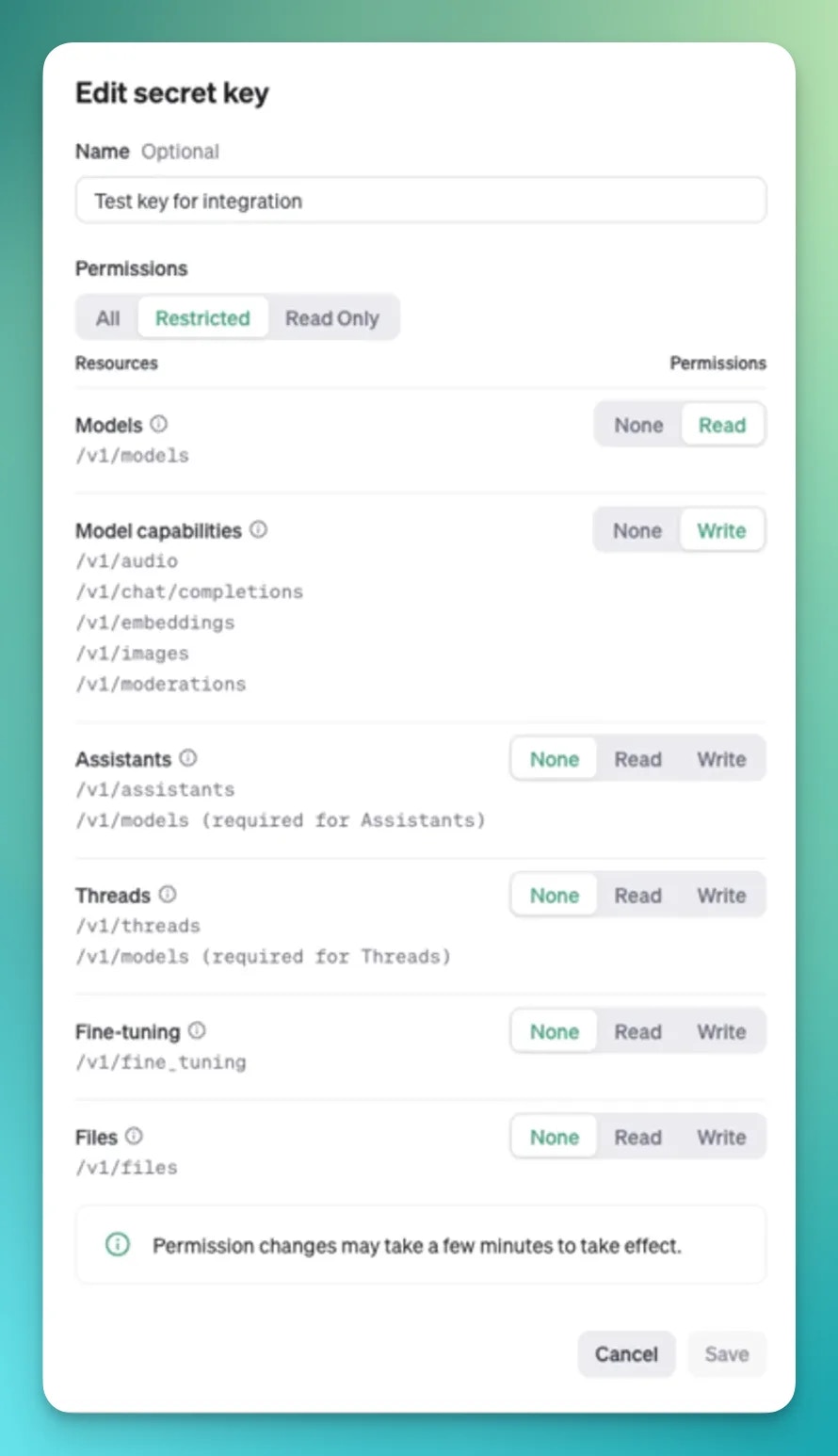
* An [OpenAI API key](https://platform.openai.com/api-keys) with the following permissions:
* **Models** permission set to `Read`
* **Model Capabilities** permission set to `Write`
* Your [OpenAI Organization ID](https://platform.openai.com/settings/organization/general)
We recommend creating a dedicated API key for Rootly rather than using a personal key. Your key is validated on save and encrypted at rest in Rootly.
## Installation
Navigate to the integrations page in your Rootly workspace and select **OpenAI**.
Paste your OpenAI API key and Organization ID into the respective fields. Rootly validates the credentials against the OpenAI API before saving.
 Choose the OpenAI API host for your requests. The default is `api.openai.com`. If your organization requires data to stay within a specific region, select the appropriate regional endpoint:
| Host | Region |
| ------------------- | -------------- |
| `api.openai.com` | Default (US) |
| `us.api.openai.com` | United States |
| `eu.api.openai.com` | Europe |
| `gb.api.openai.com` | United Kingdom |
| `ae.api.openai.com` | UAE |
| `au.api.openai.com` | Australia |
| `ca.api.openai.com` | Canada |
| `jp.api.openai.com` | Japan |
| `in.api.openai.com` | India |
| `sg.api.openai.com` | Singapore |
| `kr.api.openai.com` | South Korea |
Your OpenAI integration is active. The **Create OpenAI Chat Completion** workflow action is now available in your incident and action item workflows.
## Workflow Actions
### Create OpenAI Chat Completion
Sends a prompt to an OpenAI model and captures the response as a workflow output. Supports both standard GPT models via the Chat Completions API and reasoning models (`o1`, `o3`) via the Responses API.
| Field | Description | Required |
| ----------------- | -------------------------------------------------------------------------- | -------- |
| Model | The OpenAI model to use — fetched from your account | Yes |
| Prompt | The user message — supports Liquid templating | Yes |
| System Prompt | Instructions for the model's role or behavior — supports Liquid templating | No |
| Temperature | Sampling temperature between `0.0` and `2.0` — controls randomness | No |
| Max Tokens | Maximum number of tokens in the response | No |
| Top P | Nucleus sampling probability between `0.0` and `1.0` | No |
| Reasoning Effort | For reasoning models: `minimal`, `low`, `medium`, or `high` | No |
| Reasoning Summary | For reasoning models: `auto`, `concise`, or `detailed` | No |
Use Liquid variables in your prompts to include live incident context — for example `{{ incident.title }}`, `{{ incident.severity }}`, and `{{ incident.description }}`. See the [Liquid variables reference](/liquid/incident-variables) for all available fields.
The **System Prompt** field sets the model's persona or output format — for example: *"You are an incident response assistant. Respond in bullet points. Be concise."*
**Reasoning models** (`o1-*`, `o3-*`) use the OpenAI Responses API instead of the Chat Completions API. When using these models, use **Reasoning Effort** to control how much compute the model uses before responding, and **Reasoning Summary** to control how much of that reasoning is surfaced in the output.
## Troubleshooting
Rootly validates your credentials by making a test request to OpenAI. Confirm that the API key is active, has not been revoked, and has the correct permissions: **Models** set to `Read` and **Model Capabilities** set to `Write`. Also verify that the Organization ID matches the organization the API key belongs to.
If the integration was working and then stopped, the API key may have been rotated or revoked. Update the key in the integration settings — Rootly re-validates on save. Also confirm the Organization ID has not changed.
OpenAI enforces rate limits based on your usage tier. Running many concurrent workflows may exceed requests-per-minute or tokens-per-minute limits. Consider staggering workflows, reducing token usage with more focused prompts, or upgrading your OpenAI tier.
The model list is fetched dynamically from your OpenAI account. Rootly filters for `gpt-*`, `o1-*`, and `o3-*` models. If a model you expect to see is missing, confirm your API key has access to it — some models require specific OpenAI tiers.
Reasoning effort and reasoning summary only apply to `o1-*` and `o3-*` models using the Responses API. If you select a standard GPT model, these fields are ignored and only the Chat Completions parameters (temperature, max tokens, top p) apply.
Check your Liquid syntax — unclosed tags or undefined variables can cause rendering failures. Use the [Liquid variables reference](/liquid/incident-variables) to confirm variable names and test your template in a low-stakes workflow first.
## Related Pages
Build workflows that use OpenAI models to analyze, summarize, or respond to incidents.
Reference for all incident variables available in Liquid-templated prompts.
Learn about Rootly's built-in AI features for incident management.
Choose the OpenAI API host for your requests. The default is `api.openai.com`. If your organization requires data to stay within a specific region, select the appropriate regional endpoint:
| Host | Region |
| ------------------- | -------------- |
| `api.openai.com` | Default (US) |
| `us.api.openai.com` | United States |
| `eu.api.openai.com` | Europe |
| `gb.api.openai.com` | United Kingdom |
| `ae.api.openai.com` | UAE |
| `au.api.openai.com` | Australia |
| `ca.api.openai.com` | Canada |
| `jp.api.openai.com` | Japan |
| `in.api.openai.com` | India |
| `sg.api.openai.com` | Singapore |
| `kr.api.openai.com` | South Korea |
Your OpenAI integration is active. The **Create OpenAI Chat Completion** workflow action is now available in your incident and action item workflows.
## Workflow Actions
### Create OpenAI Chat Completion
Sends a prompt to an OpenAI model and captures the response as a workflow output. Supports both standard GPT models via the Chat Completions API and reasoning models (`o1`, `o3`) via the Responses API.
| Field | Description | Required |
| ----------------- | -------------------------------------------------------------------------- | -------- |
| Model | The OpenAI model to use — fetched from your account | Yes |
| Prompt | The user message — supports Liquid templating | Yes |
| System Prompt | Instructions for the model's role or behavior — supports Liquid templating | No |
| Temperature | Sampling temperature between `0.0` and `2.0` — controls randomness | No |
| Max Tokens | Maximum number of tokens in the response | No |
| Top P | Nucleus sampling probability between `0.0` and `1.0` | No |
| Reasoning Effort | For reasoning models: `minimal`, `low`, `medium`, or `high` | No |
| Reasoning Summary | For reasoning models: `auto`, `concise`, or `detailed` | No |
Use Liquid variables in your prompts to include live incident context — for example `{{ incident.title }}`, `{{ incident.severity }}`, and `{{ incident.description }}`. See the [Liquid variables reference](/liquid/incident-variables) for all available fields.
The **System Prompt** field sets the model's persona or output format — for example: *"You are an incident response assistant. Respond in bullet points. Be concise."*
**Reasoning models** (`o1-*`, `o3-*`) use the OpenAI Responses API instead of the Chat Completions API. When using these models, use **Reasoning Effort** to control how much compute the model uses before responding, and **Reasoning Summary** to control how much of that reasoning is surfaced in the output.
## Troubleshooting
Rootly validates your credentials by making a test request to OpenAI. Confirm that the API key is active, has not been revoked, and has the correct permissions: **Models** set to `Read` and **Model Capabilities** set to `Write`. Also verify that the Organization ID matches the organization the API key belongs to.
If the integration was working and then stopped, the API key may have been rotated or revoked. Update the key in the integration settings — Rootly re-validates on save. Also confirm the Organization ID has not changed.
OpenAI enforces rate limits based on your usage tier. Running many concurrent workflows may exceed requests-per-minute or tokens-per-minute limits. Consider staggering workflows, reducing token usage with more focused prompts, or upgrading your OpenAI tier.
The model list is fetched dynamically from your OpenAI account. Rootly filters for `gpt-*`, `o1-*`, and `o3-*` models. If a model you expect to see is missing, confirm your API key has access to it — some models require specific OpenAI tiers.
Reasoning effort and reasoning summary only apply to `o1-*` and `o3-*` models using the Responses API. If you select a standard GPT model, these fields are ignored and only the Chat Completions parameters (temperature, max tokens, top p) apply.
Check your Liquid syntax — unclosed tags or undefined variables can cause rendering failures. Use the [Liquid variables reference](/liquid/incident-variables) to confirm variable names and test your template in a low-stakes workflow first.
## Related Pages
Build workflows that use OpenAI models to analyze, summarize, or respond to incidents.
Reference for all incident variables available in Liquid-templated prompts.
Learn about Rootly's built-in AI features for incident management.