> ## Documentation Index
> Fetch the complete documentation index at: https://docs.rootly.com/llms.txt
> Use this file to discover all available pages before exploring further.
# Outlook
> Automatically schedule Microsoft Outlook calendar events from incident workflows — ideal for retrospectives, reviews, and follow-ups.
## Overview
Rootly's Outlook integration lets you schedule calendar events directly from incident workflows. The most common use case is automatically booking a retrospective meeting when an incident resolves, with attendees, description, and timing all populated from incident data.
Trigger calendar event creation at any workflow step — on incident creation, escalation, or resolution.
Populate event titles, descriptions, and attendees dynamically using incident variables.
Schedule events a set number of days out, with optional weekend exclusion, so meetings always land on business days.
Optionally attach a Microsoft Teams meeting link to the calendar event so attendees can join online.
## Before You Begin
* You must be a Rootly admin to set up the integration
* You do **not** need to be an admin of your company's Microsoft account
Use a **service account** rather than a personal Microsoft account. If the connected user leaves or loses access, the integration will stop creating calendar events.
## OAuth Permissions
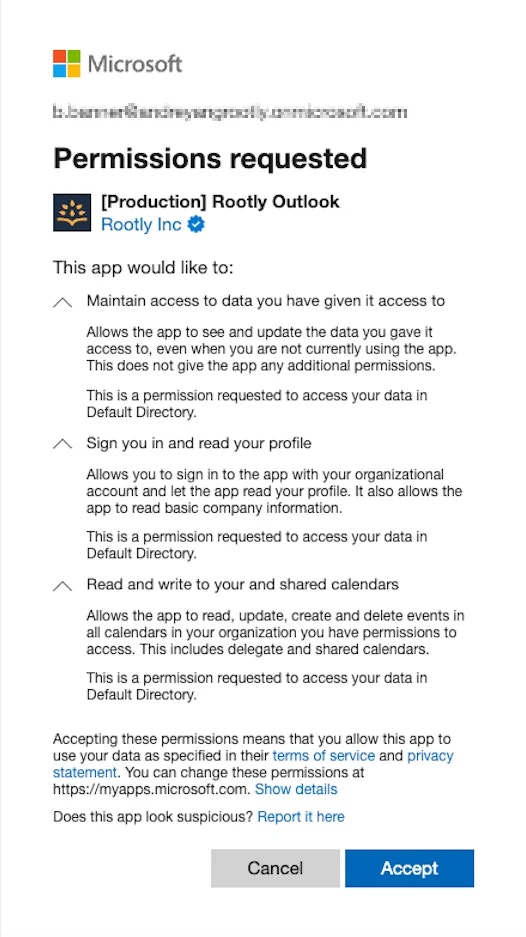
When connecting, Rootly requests the following Microsoft permissions:
| Permission | Purpose |
| ---------------------------- | -------------------------------------------------------------------------------------------------------------- |
| `offline_access` | Keeps the integration connected without requiring re-authentication |
| `User.Read` | Reads the connected account's profile and organization info |
| `Calendars.ReadWrite.Shared` | Creates and manages events across calendars the account has access to, including shared and delegate calendars |
## Installation
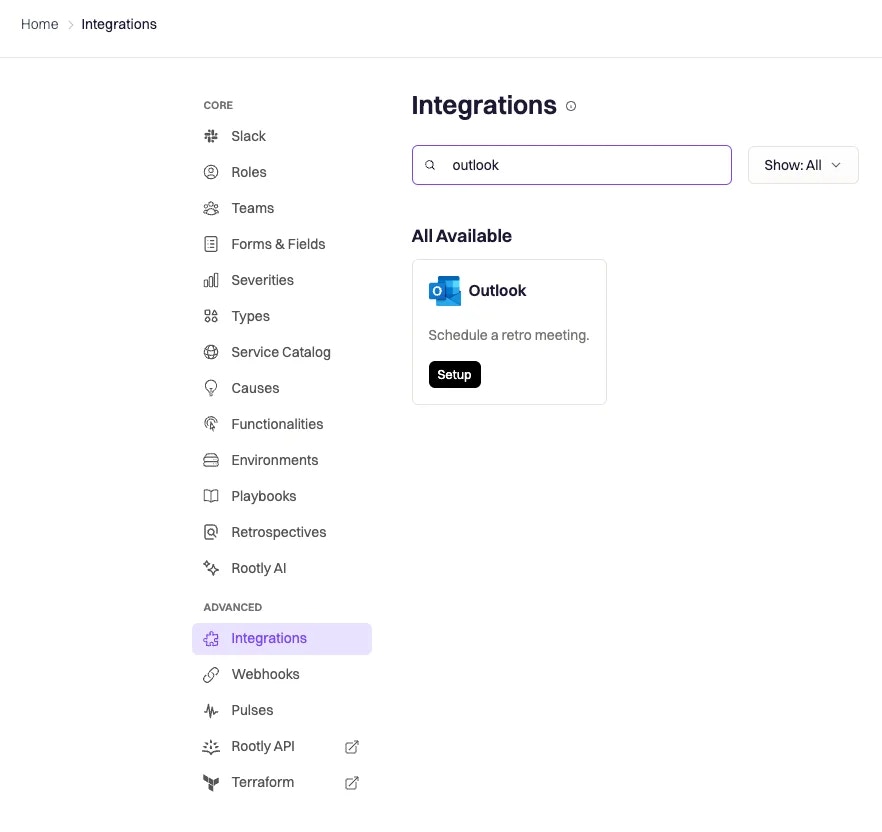
Go to **Configuration → Integrations**, find **Outlook**, and click **Setup**.
 You'll be redirected to Microsoft to sign in. Review the permissions Rootly is requesting and click **Accept**.
 After authorizing, you'll be returned to Rootly and the integration will show as connected under the account's email address.
## Workflow Action
### Create an Outlook Event
Schedules a calendar event on the connected Outlook account. Commonly used to book a retrospective after incident resolution.
After authorizing, you'll be returned to Rootly and the integration will show as connected under the account's email address.
## Workflow Action
### Create an Outlook Event
Schedules a calendar event on the connected Outlook account. Commonly used to book a retrospective after incident resolution.
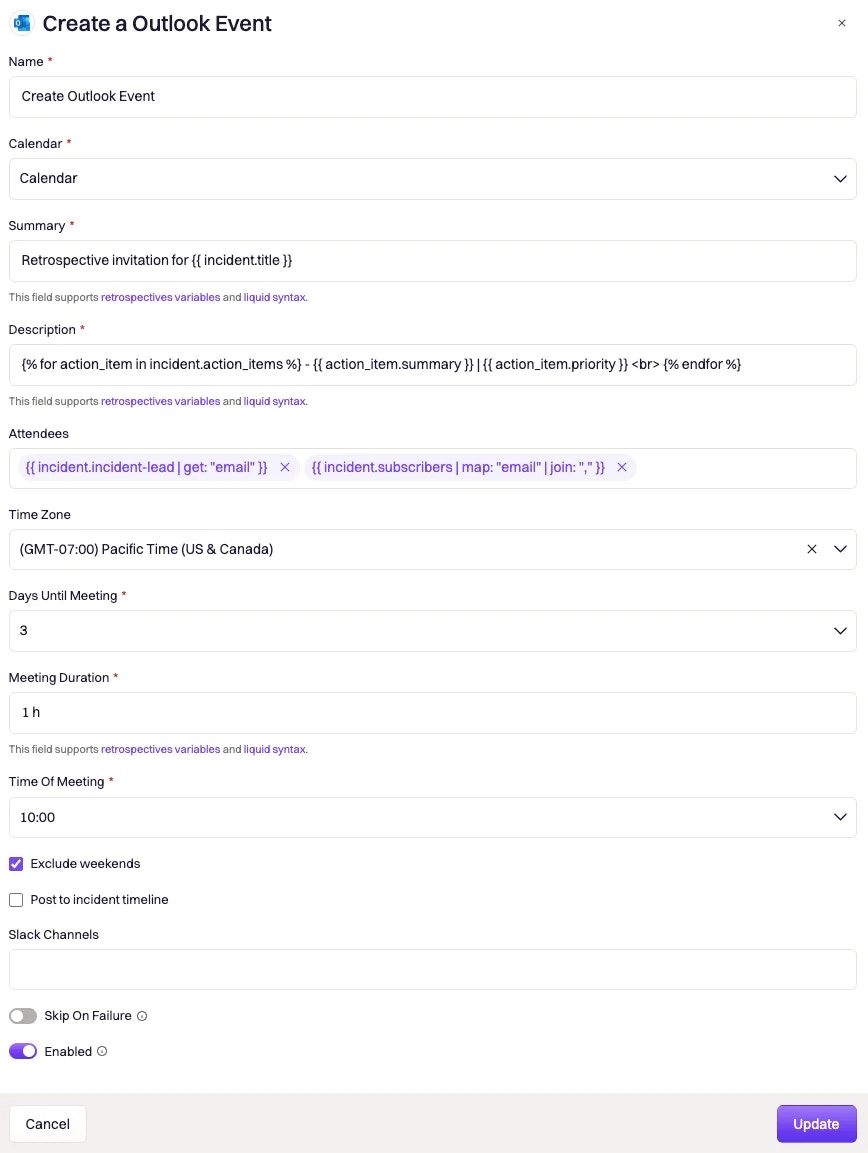 The Outlook calendar to create the event on. Rootly fetches the list of available calendars from your connected account.
The event title. Supports [Liquid variables](/liquid/incident-variables) — for example, `Retrospective for {{ incident.title }}`. Maximum 200 characters.
The event body. Supports Liquid and Markdown. Maximum 200 characters.
Email addresses to invite. Supports Liquid — for example, `{{ incident.incident_lead | get: "email" }}` or `{{ incident.subscribers | map: "email" | join: "," }}`.
The timezone for the event's start and end times. The **Time of Meeting** value will be interpreted in this timezone.
How many days from the workflow run to schedule the event. Range: 0–31. A value of `0` schedules the event for today.
The length of the event. Minimum 15 minutes. Accepts natural language — for example, `30min`, `1h`, `1h 30min`.
The start time in `HH:MM` format (24-hour). Interpreted in the timezone selected above. Defaults to `12:00`.
When enabled, weekend days are not counted when calculating the event date from **Days Until Meeting**. Defaults to `true`.
When enabled, attaches a Microsoft Teams meeting link to the calendar event.
Logs the created event to the incident timeline.
One or more Slack channels to share the event details to.
The most common setup is a workflow triggered on **incident resolved** that creates a retrospective event 3–5 business days out, with the incident lead and subscribers as attendees. Set **Exclude Weekends** to `true` so the meeting always lands on a weekday.
## Uninstall
To remove the Outlook integration:
1. Go to **Configuration → Integrations** and find **Outlook**
2. Click **Connected** to reveal the disconnect option
3. Click **Disconnect**
The Outlook calendar to create the event on. Rootly fetches the list of available calendars from your connected account.
The event title. Supports [Liquid variables](/liquid/incident-variables) — for example, `Retrospective for {{ incident.title }}`. Maximum 200 characters.
The event body. Supports Liquid and Markdown. Maximum 200 characters.
Email addresses to invite. Supports Liquid — for example, `{{ incident.incident_lead | get: "email" }}` or `{{ incident.subscribers | map: "email" | join: "," }}`.
The timezone for the event's start and end times. The **Time of Meeting** value will be interpreted in this timezone.
How many days from the workflow run to schedule the event. Range: 0–31. A value of `0` schedules the event for today.
The length of the event. Minimum 15 minutes. Accepts natural language — for example, `30min`, `1h`, `1h 30min`.
The start time in `HH:MM` format (24-hour). Interpreted in the timezone selected above. Defaults to `12:00`.
When enabled, weekend days are not counted when calculating the event date from **Days Until Meeting**. Defaults to `true`.
When enabled, attaches a Microsoft Teams meeting link to the calendar event.
Logs the created event to the incident timeline.
One or more Slack channels to share the event details to.
The most common setup is a workflow triggered on **incident resolved** that creates a retrospective event 3–5 business days out, with the incident lead and subscribers as attendees. Set **Exclude Weekends** to `true` so the meeting always lands on a weekday.
## Uninstall
To remove the Outlook integration:
1. Go to **Configuration → Integrations** and find **Outlook**
2. Click **Connected** to reveal the disconnect option
3. Click **Disconnect**
 ## Frequently Asked Questions
Yes. The `Calendars.ReadWrite.Shared` permission gives Rootly access to any calendar the connected account can manage, including shared and delegate calendars. These will appear in the **Calendar** dropdown in the workflow action.
If **Exclude Weekends** is enabled, Rootly skips Saturday and Sunday when counting days, so the event will always land on a weekday. If disabled, the event will be scheduled on the weekend day.
Yes. There is no one-per-incident restriction. Each **Create an Outlook Event** workflow action creates a new calendar event independently.
Rootly automatically refreshes the token in the background using the stored refresh token. If refresh fails — for example, if the connected account's permissions were revoked — event creation will fail until you reconnect. This is why a service account is recommended.
## Frequently Asked Questions
Yes. The `Calendars.ReadWrite.Shared` permission gives Rootly access to any calendar the connected account can manage, including shared and delegate calendars. These will appear in the **Calendar** dropdown in the workflow action.
If **Exclude Weekends** is enabled, Rootly skips Saturday and Sunday when counting days, so the event will always land on a weekday. If disabled, the event will be scheduled on the weekend day.
Yes. There is no one-per-incident restriction. Each **Create an Outlook Event** workflow action creates a new calendar event independently.
Rootly automatically refreshes the token in the background using the stored refresh token. If refresh fails — for example, if the connected account's permissions were revoked — event creation will fail until you reconnect. This is why a service account is recommended.