> ## Documentation Index
> Fetch the complete documentation index at: https://docs.rootly.com/llms.txt
> Use this file to discover all available pages before exploring further.
# Smart Defaults
> Use PagerDuty Smart Defaults to enable common incident and alert behaviors in Rootly without building every workflow from scratch.
## Overview
Smart Defaults help teams get started with the PagerDuty integration faster by preconfiguring common behaviors that would otherwise require manual workflow setup.
This is useful for teams that want a simpler PagerDuty setup in Rootly without having to build every automation from scratch on day one.
Smart Defaults cover two directions of activity:
* **Rootly to PagerDuty** for paging, inviting responders, and resolving linked PagerDuty incidents
* **PagerDuty to Rootly** for alert ingestion, Slack notifications, incident creation, and sync-related behaviors
To review or update these settings, go to **Integrations > PagerDuty > Configure**.
## Before You Begin
Before using PagerDuty Smart Defaults, make sure you have:
* A working [PagerDuty integration](/integrations/pagerduty/installation)
* PagerDuty services and escalation policies available if you want to page or invite on-call responders from Rootly
* Slack connected as well, if you want to use Slack-based invite or alert notification settings
* An understanding of your existing workflows if your team has already customized PagerDuty automation
If you also plan to use PagerDuty-to-Rootly sync or import features, make sure your PagerDuty services and teams are available in the connected PagerDuty workspace.
Smart Defaults simplify common PagerDuty use cases, but teams with existing custom workflows should review these settings carefully before making changes.
## Rootly to PagerDuty
The first section of Smart Defaults controls actions that begin in Rootly and trigger behavior in PagerDuty.
In the PagerDuty configuration screen, locate the **Rootly to PagerDuty** section.
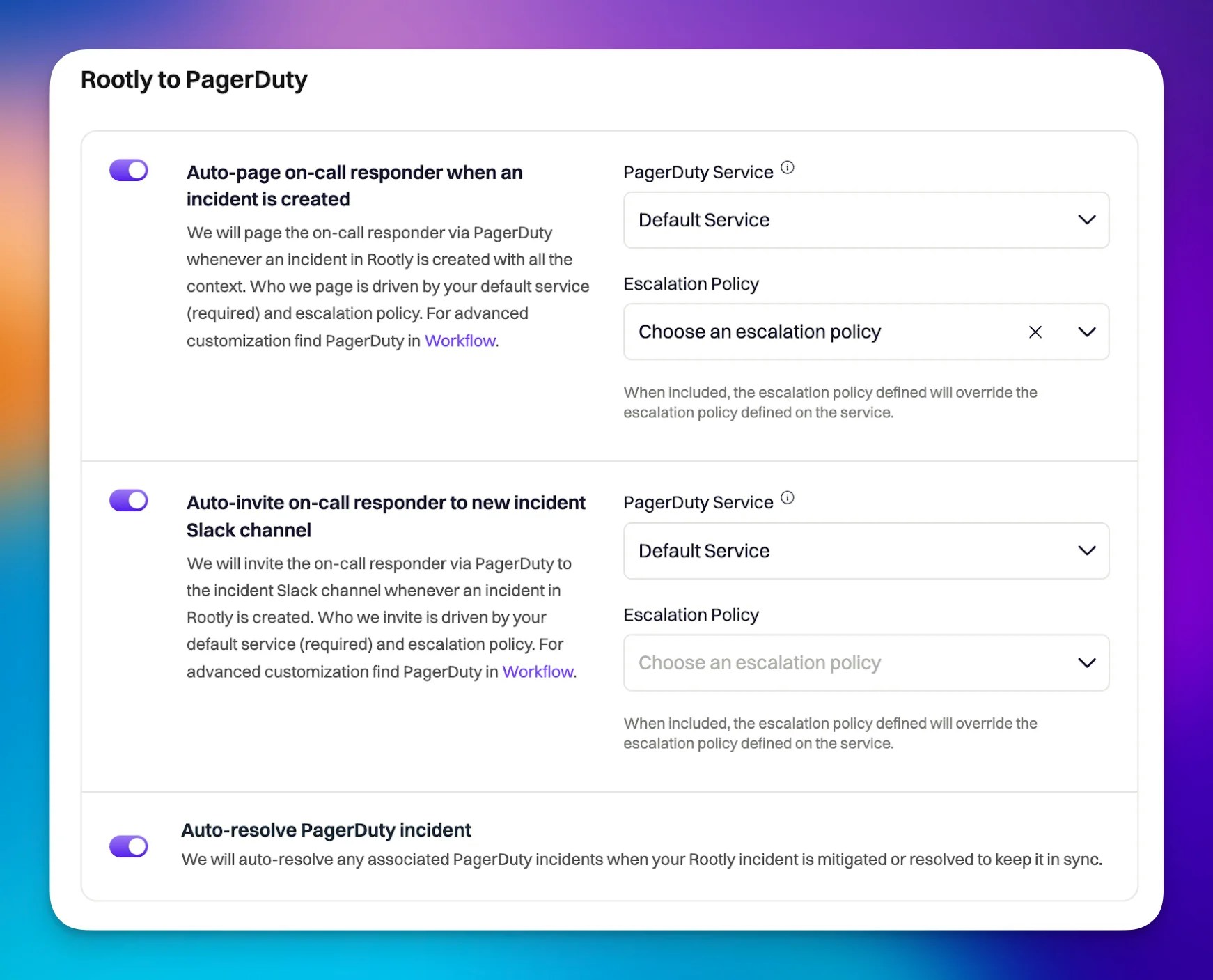 The **Auto-page on-call responder when an incident is created** setting allows Rootly to notify PagerDuty responders as soon as a Rootly incident is created.
Rootly determines who to page based on the selected PagerDuty service or escalation policy.
If both are configured, the selected escalation policy overrides the escalation policy linked to the selected service.
The services and escalation policies shown in these dropdowns are imported from your connected PagerDuty workspace.
The **Auto-invite on-call responder to new incident Slack channel** setting allows Rootly to invite PagerDuty on-call responders into the new incident Slack channel when the incident is created.
Rootly determines who to invite using the selected PagerDuty service or escalation policy. If both are configured, the escalation policy overrides the one linked to the selected service.
This setting requires Slack to be connected in Rootly.
The **Auto-resolve PagerDuty incident** setting allows Rootly to resolve the linked PagerDuty incident when the Rootly incident is resolved.
This is a one-way action from Rootly to PagerDuty. If you want PagerDuty activity to create or update alerts in Rootly, see the [Alerts page](/integrations/pagerduty/alerts).
## PagerDuty to Rootly
The second section of Smart Defaults controls actions that begin in PagerDuty and affect Rootly.
In the PagerDuty configuration screen, locate the **PagerDuty to Rootly** section.
The **Auto-page on-call responder when an incident is created** setting allows Rootly to notify PagerDuty responders as soon as a Rootly incident is created.
Rootly determines who to page based on the selected PagerDuty service or escalation policy.
If both are configured, the selected escalation policy overrides the escalation policy linked to the selected service.
The services and escalation policies shown in these dropdowns are imported from your connected PagerDuty workspace.
The **Auto-invite on-call responder to new incident Slack channel** setting allows Rootly to invite PagerDuty on-call responders into the new incident Slack channel when the incident is created.
Rootly determines who to invite using the selected PagerDuty service or escalation policy. If both are configured, the escalation policy overrides the one linked to the selected service.
This setting requires Slack to be connected in Rootly.
The **Auto-resolve PagerDuty incident** setting allows Rootly to resolve the linked PagerDuty incident when the Rootly incident is resolved.
This is a one-way action from Rootly to PagerDuty. If you want PagerDuty activity to create or update alerts in Rootly, see the [Alerts page](/integrations/pagerduty/alerts).
## PagerDuty to Rootly
The second section of Smart Defaults controls actions that begin in PagerDuty and affect Rootly.
In the PagerDuty configuration screen, locate the **PagerDuty to Rootly** section.
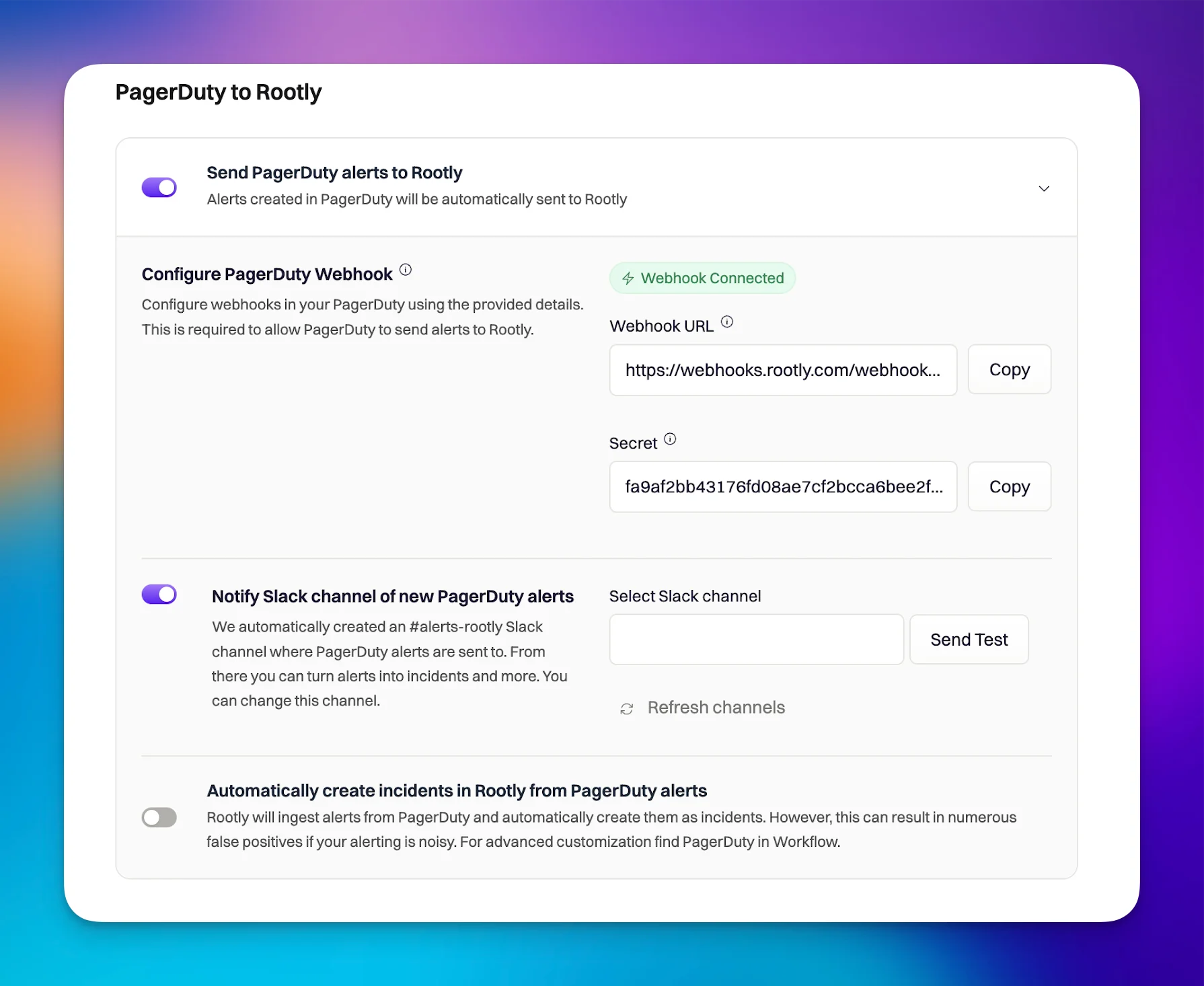 The **Send PagerDuty alerts to Rootly** setting allows Rootly to ingest supported PagerDuty webhook events as alerts.
This depends on the PagerDuty webhook being configured correctly. To complete setup, follow the instructions on the [Installation page](/integrations/pagerduty/installation).
This setting applies to supported PagerDuty webhook event types, not every possible PagerDuty event.
The **Notify Slack channel of new PagerDuty alerts** setting allows Rootly to send PagerDuty alert messages into a selected Slack channel.
Enable **Send PagerDuty alerts to Rootly** first, then choose the Slack channel you want Rootly to notify.
You can use **Send Test** to verify that the Slack channel is configured correctly.
Rootly refreshes Slack channels on a daily basis. If your channel does not appear in the dropdown, use **Refresh channels** to load the latest channels.
If the selected channel is private, make sure the Rootly Slack bot has been added to that channel first.
The **Automatically create incidents in Rootly from PagerDuty alerts** setting allows Rootly to create incidents automatically from incoming PagerDuty alerts.
This setting is useful for teams that want PagerDuty events to drive incident creation in Rootly, but it should be enabled intentionally since not every alert should necessarily become a Rootly incident.
## Additional PagerDuty Settings
Depending on your configuration, the PagerDuty integration can also include additional settings for:
* Default PagerDuty incident title and description values
* Service and team sync or import behavior
* Other PagerDuty-to-Rootly coordination options
Use these alongside Smart Defaults when you want a broader PagerDuty configuration beyond the most common automation patterns.
## Important Notes
* Smart Defaults simplify common PagerDuty use cases, but they do not replace every possible custom workflow
* Some Smart Default settings depend on Slack being connected in Rootly
* PagerDuty services and escalation policies used in these settings are imported from your PagerDuty workspace
* Automatically creating incidents from PagerDuty alerts should be reviewed carefully before enabling in production
## Related Pages
Connect PagerDuty to Rootly and configure the webhook setup required for alert ingestion.
Build more advanced PagerDuty automations when Smart Defaults are not enough.
Learn how Rootly ingests supported PagerDuty webhook events and uses them as alerts.
The **Send PagerDuty alerts to Rootly** setting allows Rootly to ingest supported PagerDuty webhook events as alerts.
This depends on the PagerDuty webhook being configured correctly. To complete setup, follow the instructions on the [Installation page](/integrations/pagerduty/installation).
This setting applies to supported PagerDuty webhook event types, not every possible PagerDuty event.
The **Notify Slack channel of new PagerDuty alerts** setting allows Rootly to send PagerDuty alert messages into a selected Slack channel.
Enable **Send PagerDuty alerts to Rootly** first, then choose the Slack channel you want Rootly to notify.
You can use **Send Test** to verify that the Slack channel is configured correctly.
Rootly refreshes Slack channels on a daily basis. If your channel does not appear in the dropdown, use **Refresh channels** to load the latest channels.
If the selected channel is private, make sure the Rootly Slack bot has been added to that channel first.
The **Automatically create incidents in Rootly from PagerDuty alerts** setting allows Rootly to create incidents automatically from incoming PagerDuty alerts.
This setting is useful for teams that want PagerDuty events to drive incident creation in Rootly, but it should be enabled intentionally since not every alert should necessarily become a Rootly incident.
## Additional PagerDuty Settings
Depending on your configuration, the PagerDuty integration can also include additional settings for:
* Default PagerDuty incident title and description values
* Service and team sync or import behavior
* Other PagerDuty-to-Rootly coordination options
Use these alongside Smart Defaults when you want a broader PagerDuty configuration beyond the most common automation patterns.
## Important Notes
* Smart Defaults simplify common PagerDuty use cases, but they do not replace every possible custom workflow
* Some Smart Default settings depend on Slack being connected in Rootly
* PagerDuty services and escalation policies used in these settings are imported from your PagerDuty workspace
* Automatically creating incidents from PagerDuty alerts should be reviewed carefully before enabling in production
## Related Pages
Connect PagerDuty to Rootly and configure the webhook setup required for alert ingestion.
Build more advanced PagerDuty automations when Smart Defaults are not enough.
Learn how Rootly ingests supported PagerDuty webhook events and uses them as alerts.