> ## Documentation Index
> Fetch the complete documentation index at: https://docs.rootly.com/llms.txt
> Use this file to discover all available pages before exploring further.
# Rollbar
> Connect Rollbar to Rootly to ingest error monitoring events as alerts and automate incident creation from application errors, regressions, and exceptions.
## Introduction
The Rollbar integration connects Rootly with your Rollbar error monitoring so teams can receive error events as alerts in Rootly and automate incident response from application exceptions and regressions.
With the Rollbar integration, you can:
* Ingest Rollbar error events as Rootly alerts
* Automatically resolve Rootly alerts when Rollbar sends a `resolved_item` event
* Use alert workflows to create incidents when error thresholds are exceeded
* Filter and route alerts by environment, error level, and project
## Before You Begin
Before setting up the integration, make sure you have:
* A Rootly account with permission to manage integrations
* Admin access to your Rollbar project settings
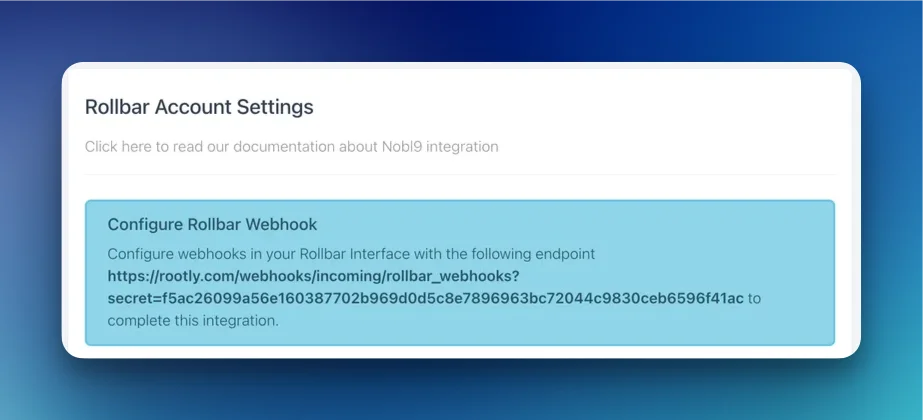
* The webhook URL and secret from your Rootly Rollbar integration page
You can find your webhook URL and secret by navigating to **Integrations > Rollbar > Configure** in Rootly.
## Installation
Navigate to the integrations page in Rootly and select **Rollbar**. Copy the webhook URL and secret shown in the configuration modal.
In Rollbar, navigate to your project notification settings:
```
https://rollbar.com///settings/notifications/
```
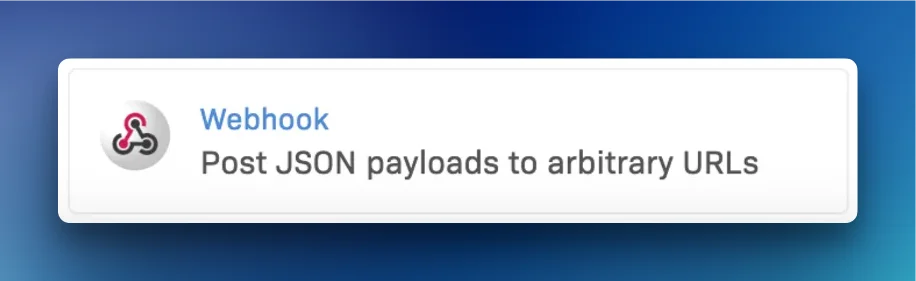
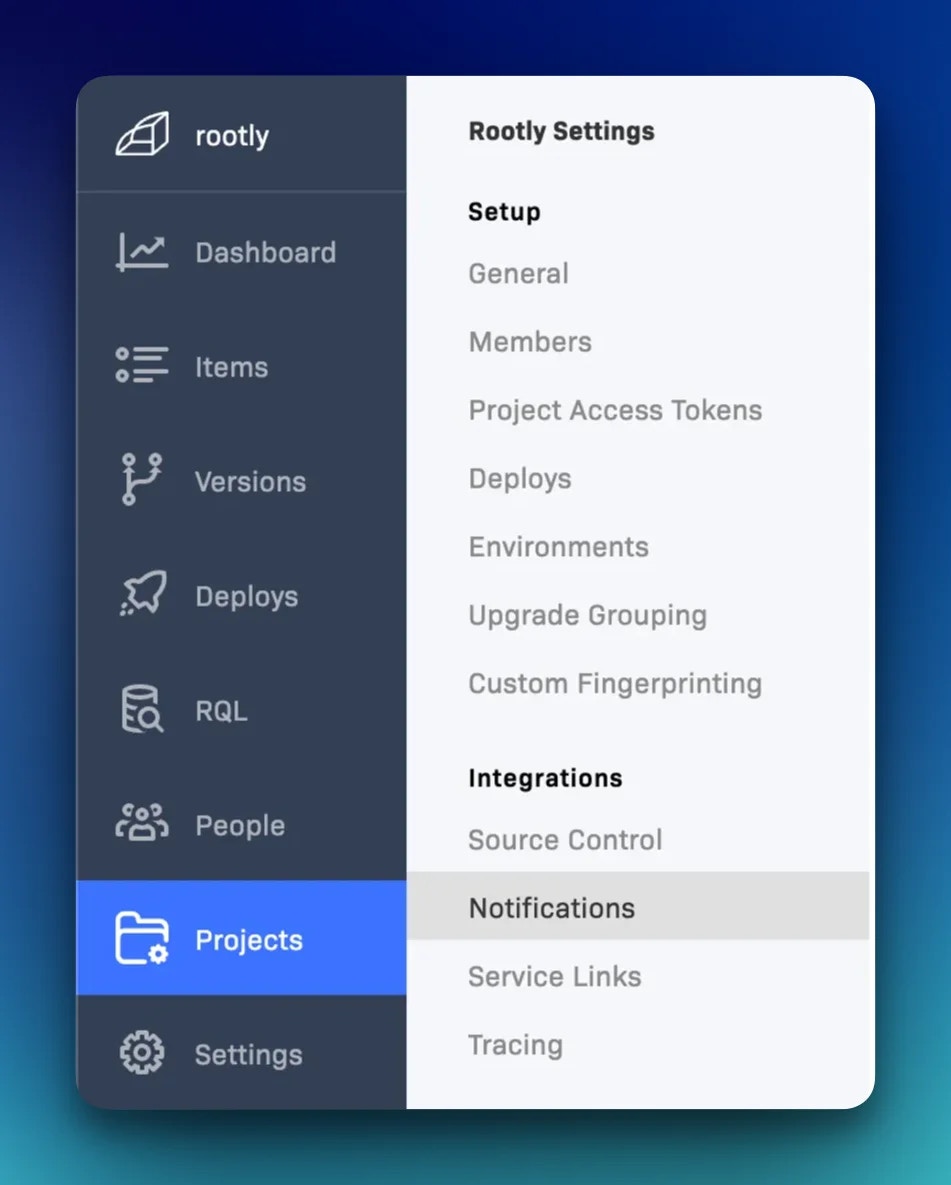 Select **Webhook** from the list of notification channels.
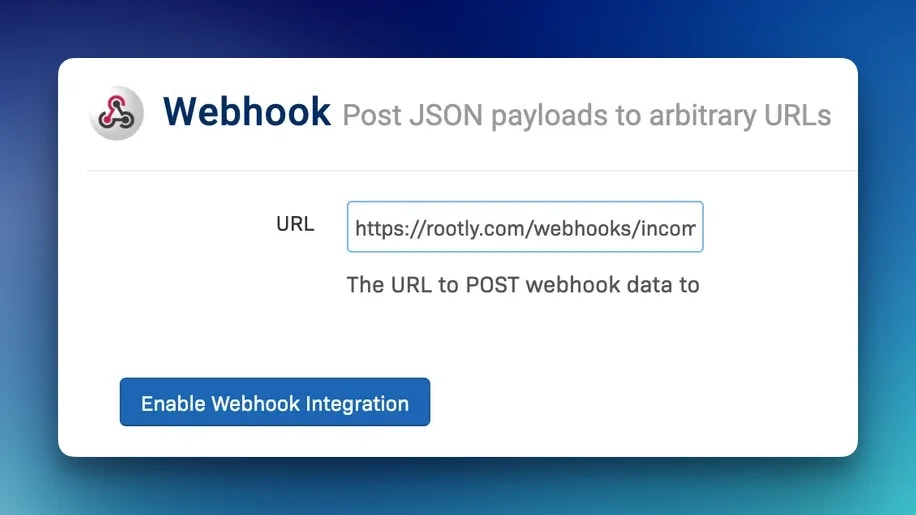
 Enter the webhook URL from your Rootly Rollbar integration settings.
 Select which Rollbar event types should be sent to Rootly. See the **Supported Events** section below for the full list of supported events.
Rootly does not support **deploy** events. Enabling deploy notifications will result in those events being ignored.
Select which Rollbar event types should be sent to Rootly. See the **Supported Events** section below for the full list of supported events.
Rootly does not support **deploy** events. Enabling deploy notifications will result in those events being ignored.
 ## Supported Events
Rootly accepts the following Rollbar event types:
| Event | Description |
| ------------------ | ---------------------------------------- |
| `new_item` | A new error or issue is first seen |
| `occurrence` | An error occurrence is recorded |
| `reactivated_item` | A previously resolved issue reactivates |
| `reopened_item` | A resolved issue is manually reopened |
| `resolved_item` | An issue is resolved in Rollbar |
| `item_velocity` | An issue exceeds an occurrence threshold |
| `exp_repeat_item` | An issue repeats at an exponential rate |
| `test` | A test notification from Rollbar |
When Rootly receives a `resolved_item` event, the corresponding Rootly alert is automatically resolved. All other supported events create or update an alert in the open state.
## How Alerts Are Mapped
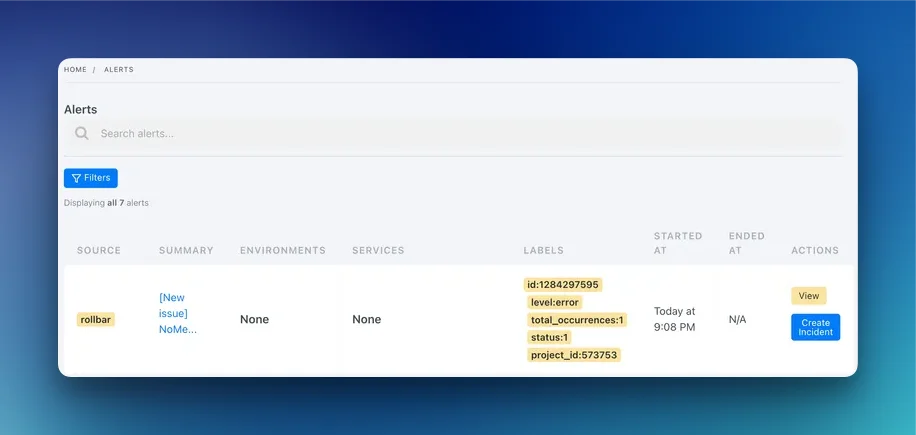
Rootly extracts the following fields from each Rollbar event:
* **Summary** — prefixed with `[New issue]` followed by the issue title
* **External ID** — the Rollbar item `id`, used to deduplicate and match resolve events
* **Labels** — `level`, `environment`, `type`, `status`, `total_occurrences`, and `project_id` are attached as Rootly alert labels
Rollbar `environment` and `level` values are available as alert labels in Rootly. Use them in workflow run conditions to route production critical errors differently from development warnings.
## Troubleshooting
Confirm the webhook URL in Rollbar matches the one shown in your Rootly integration settings. Verify that at least one notification rule is enabled and that the rule conditions are being met by your Rollbar events.
Ensure the `resolved_item` notification rule is enabled in Rollbar. Rootly only resolves alerts when it receives this specific event type. Manual resolutions in Rollbar that do not trigger the webhook will not resolve the corresponding Rootly alert.
Rootly does not process `deploy` events. If deploy notifications are enabled in Rollbar, those events will be received but ignored by Rootly. Disable the deploy notification rule in Rollbar to avoid unnecessary webhook traffic.
Rollbar `test` events are supported and should create a test alert in Rootly. If the test event is not appearing, verify the webhook URL and check that the integration is active in Rootly.
## Uninstall
To remove the Rollbar integration, open the integrations panel in Rootly and select **Configure > Delete**.
## Supported Events
Rootly accepts the following Rollbar event types:
| Event | Description |
| ------------------ | ---------------------------------------- |
| `new_item` | A new error or issue is first seen |
| `occurrence` | An error occurrence is recorded |
| `reactivated_item` | A previously resolved issue reactivates |
| `reopened_item` | A resolved issue is manually reopened |
| `resolved_item` | An issue is resolved in Rollbar |
| `item_velocity` | An issue exceeds an occurrence threshold |
| `exp_repeat_item` | An issue repeats at an exponential rate |
| `test` | A test notification from Rollbar |
When Rootly receives a `resolved_item` event, the corresponding Rootly alert is automatically resolved. All other supported events create or update an alert in the open state.
## How Alerts Are Mapped
Rootly extracts the following fields from each Rollbar event:
* **Summary** — prefixed with `[New issue]` followed by the issue title
* **External ID** — the Rollbar item `id`, used to deduplicate and match resolve events
* **Labels** — `level`, `environment`, `type`, `status`, `total_occurrences`, and `project_id` are attached as Rootly alert labels
Rollbar `environment` and `level` values are available as alert labels in Rootly. Use them in workflow run conditions to route production critical errors differently from development warnings.
## Troubleshooting
Confirm the webhook URL in Rollbar matches the one shown in your Rootly integration settings. Verify that at least one notification rule is enabled and that the rule conditions are being met by your Rollbar events.
Ensure the `resolved_item` notification rule is enabled in Rollbar. Rootly only resolves alerts when it receives this specific event type. Manual resolutions in Rollbar that do not trigger the webhook will not resolve the corresponding Rootly alert.
Rootly does not process `deploy` events. If deploy notifications are enabled in Rollbar, those events will be received but ignored by Rootly. Disable the deploy notification rule in Rollbar to avoid unnecessary webhook traffic.
Rollbar `test` events are supported and should create a test alert in Rootly. If the test event is not appearing, verify the webhook URL and check that the integration is active in Rootly.
## Uninstall
To remove the Rollbar integration, open the integrations panel in Rootly and select **Configure > Delete**.