> ## Documentation Index
> Fetch the complete documentation index at: https://docs.rootly.com/llms.txt
> Use this file to discover all available pages before exploring further.
# Setup Wizard
> Get your Rootly workspace from empty to incident-ready in minutes with the guided Rootly Setup Wizard: teams, on-call, escalation, alerting, a status page, and a real test alert and incident, all from your terminal.
The Rootly Setup Wizard is a guided command-line tool for getting a new Rootly workspace operational quickly. It walks you through creating a team, putting people on call, wiring up escalation and alerting, and creating a status page, then fires a real test alert (that pages whoever is on call) and opens a test incident, so you can see the whole flow end to end without clicking through every setup screen.
The Setup Wizard is for **initial onboarding and configuration**. For day-to-day incident and alert management from the terminal, see the [CLI](/integrations/cli) and [Terminal UI](/integrations/tui).
## Requirements
* **Node.js 18 or newer**
* A **Rootly account** (the wizard can hand you off to sign up if you don't have one)
* Sign-in via **browser (OAuth)** or a **Rootly API token**
## Quick Start
Run the wizard with `npx` (no install required):
```bash theme={null}
npx @rootly/wizard@latest
```
Sign in, then land on the main menu:
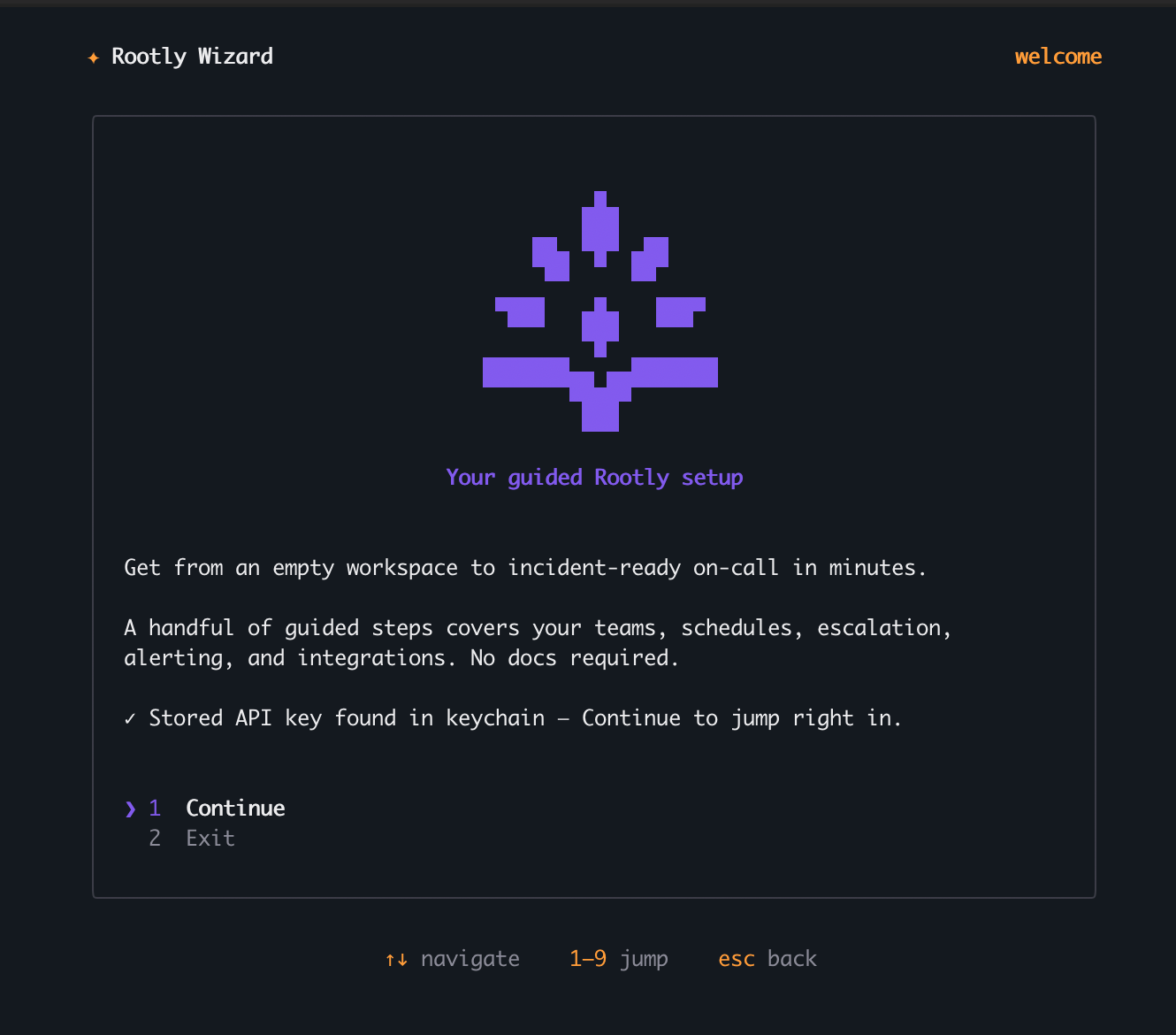 Authorize with your **browser (OAuth)** or paste a **Rootly API token**. Your session is stored securely in your operating system's keychain, so the next run takes you straight to the menu.
Pick **Recommended setup** to configure everything at once and see a live test alert and incident, or **General setup** to jump to any individual task.
The wizard reuses anything that already exists, so it's safe to re-run.
## Signing in
From the sign-in screen you can:
* **Browser sign-in**: authorize in your browser via OAuth.
* **API token**: paste a Rootly API token. Recommended for the full experience (an admin, organization-wide key can complete every step).
* **Create a Rootly account**: opens sign-up in your browser (account creation is web-only), then you return and sign in.
To create an API token:
1. Log in to Rootly.
2. Go to **Organization Settings → API Keys**.
3. Click **Generate New API Key**, name it, and copy the token.
Your token or session is stored in your operating system's keychain. You can also provide a token via the `ROOTLY_TOKEN` environment variable:
```bash theme={null}
ROOTLY_TOKEN=rootly_xxx npx @rootly/wizard@latest
```
On exit, the wizard asks whether to keep the saved sign-in or delete it from your keychain (it keeps it by default).
## Recommended setup (all-in-one)
The fastest path. In one flow it will:
1. Create a team (or reuse one you're already on)
2. Let you pick who joins the team and the on-call rotation
3. Create an on-call schedule
4. Create an escalation policy that pages the on-call schedule
5. Add an alert source
6. Create a public status page (and choose which components appear on it)
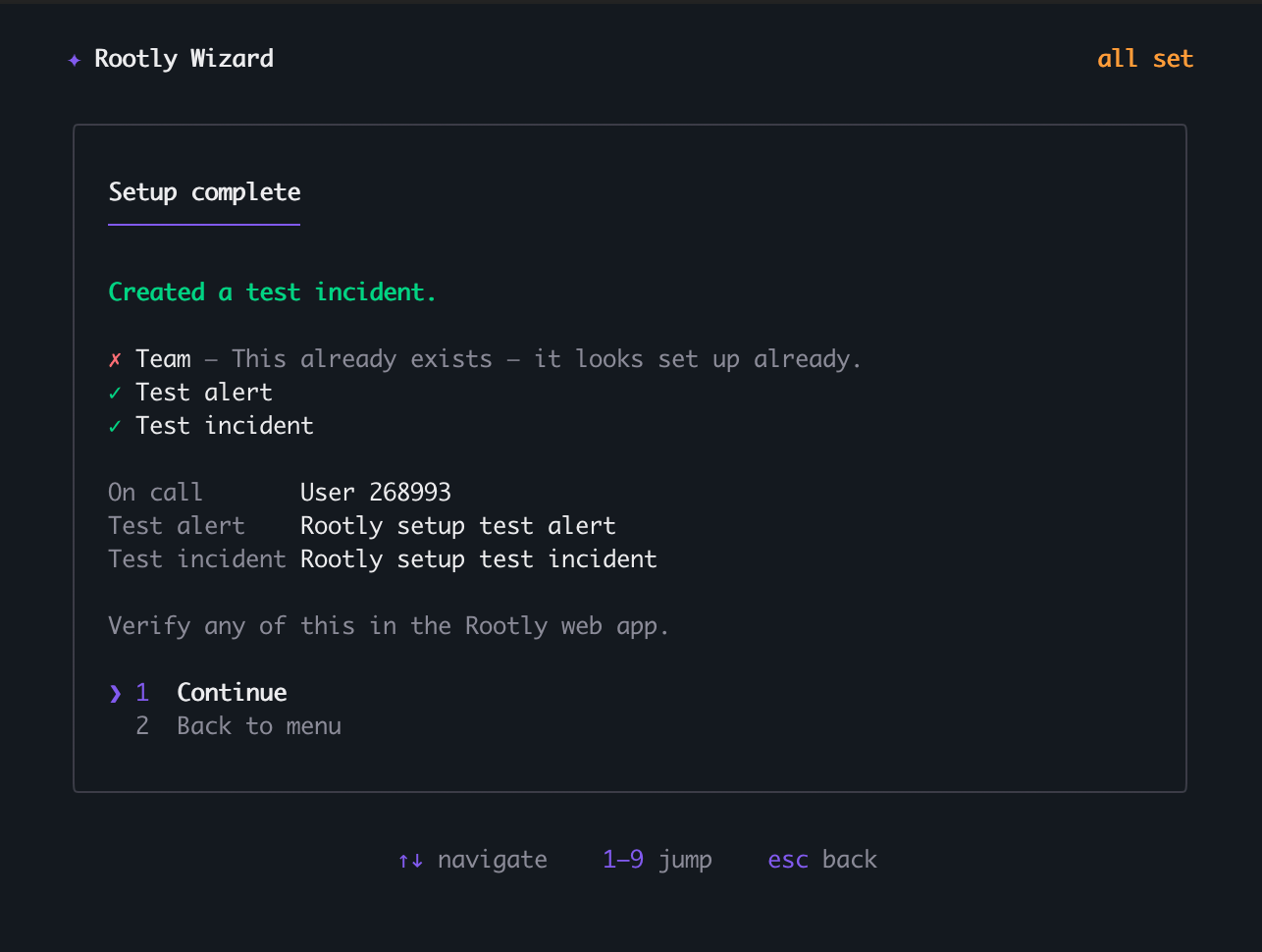
7. Fire a **test alert** that **pages the on-call person** (a real call or text)
8. Open a **test incident** (with a link to its Slack channel, if Slack is connected)
Before it runs, you can add and verify a **phone number** and connect **Slack** so the test alert actually reaches you. Anything that already exists is reused, so the flow is safe to re-run.
Authorize with your **browser (OAuth)** or paste a **Rootly API token**. Your session is stored securely in your operating system's keychain, so the next run takes you straight to the menu.
Pick **Recommended setup** to configure everything at once and see a live test alert and incident, or **General setup** to jump to any individual task.
The wizard reuses anything that already exists, so it's safe to re-run.
## Signing in
From the sign-in screen you can:
* **Browser sign-in**: authorize in your browser via OAuth.
* **API token**: paste a Rootly API token. Recommended for the full experience (an admin, organization-wide key can complete every step).
* **Create a Rootly account**: opens sign-up in your browser (account creation is web-only), then you return and sign in.
To create an API token:
1. Log in to Rootly.
2. Go to **Organization Settings → API Keys**.
3. Click **Generate New API Key**, name it, and copy the token.
Your token or session is stored in your operating system's keychain. You can also provide a token via the `ROOTLY_TOKEN` environment variable:
```bash theme={null}
ROOTLY_TOKEN=rootly_xxx npx @rootly/wizard@latest
```
On exit, the wizard asks whether to keep the saved sign-in or delete it from your keychain (it keeps it by default).
## Recommended setup (all-in-one)
The fastest path. In one flow it will:
1. Create a team (or reuse one you're already on)
2. Let you pick who joins the team and the on-call rotation
3. Create an on-call schedule
4. Create an escalation policy that pages the on-call schedule
5. Add an alert source
6. Create a public status page (and choose which components appear on it)
7. Fire a **test alert** that **pages the on-call person** (a real call or text)
8. Open a **test incident** (with a link to its Slack channel, if Slack is connected)
Before it runs, you can add and verify a **phone number** and connect **Slack** so the test alert actually reaches you. Anything that already exists is reused, so the flow is safe to re-run.
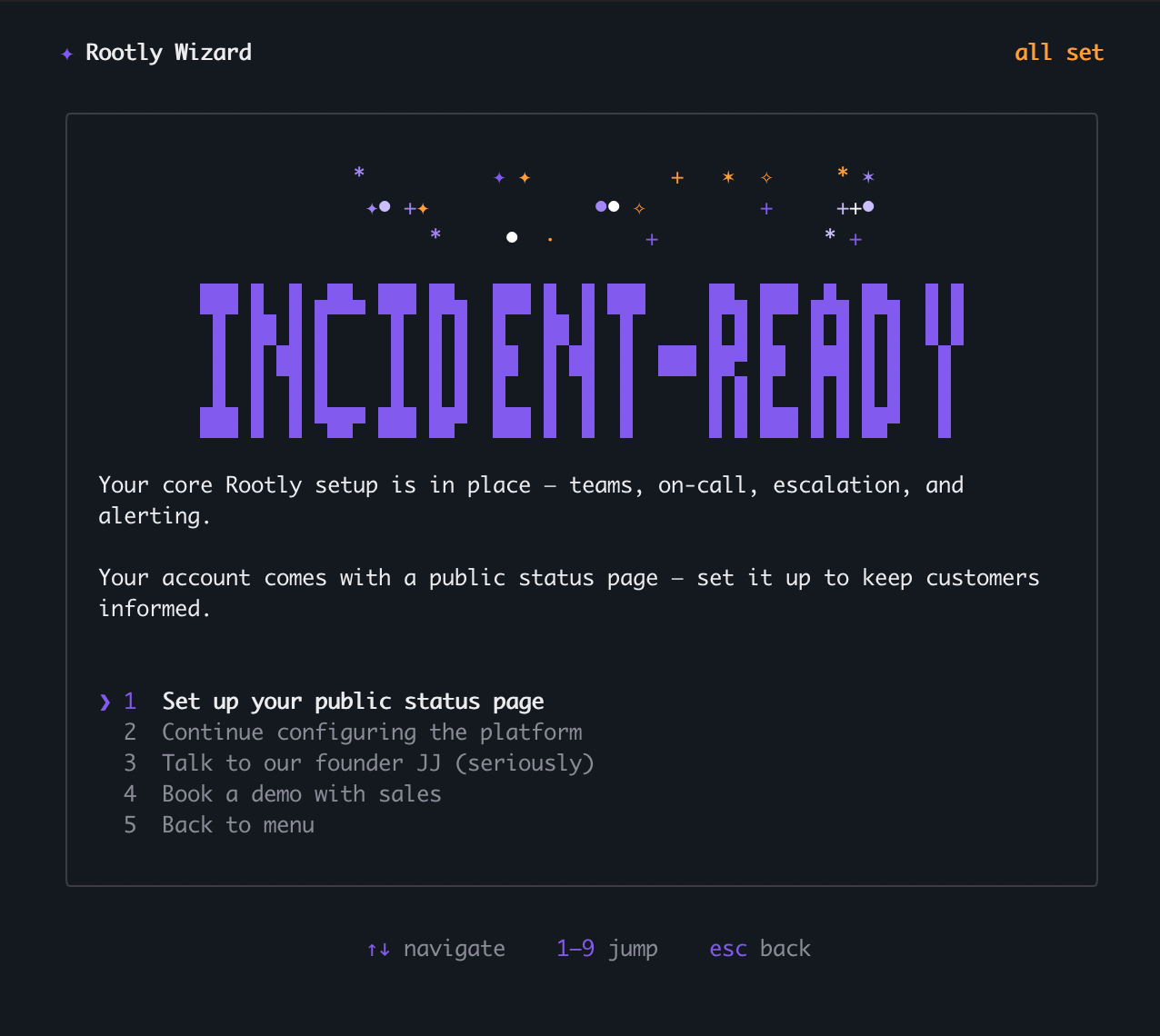 When the flow finishes, the wizard summarizes what it created, including your test alert and test incident, so you can verify everything in the Rootly web app.
 ## General setup
Jump to any individual task:
Create teams and add members from your directory.
Create on-call schedules and escalation policies.
Create a public status page and pick which components (services) appear on it.
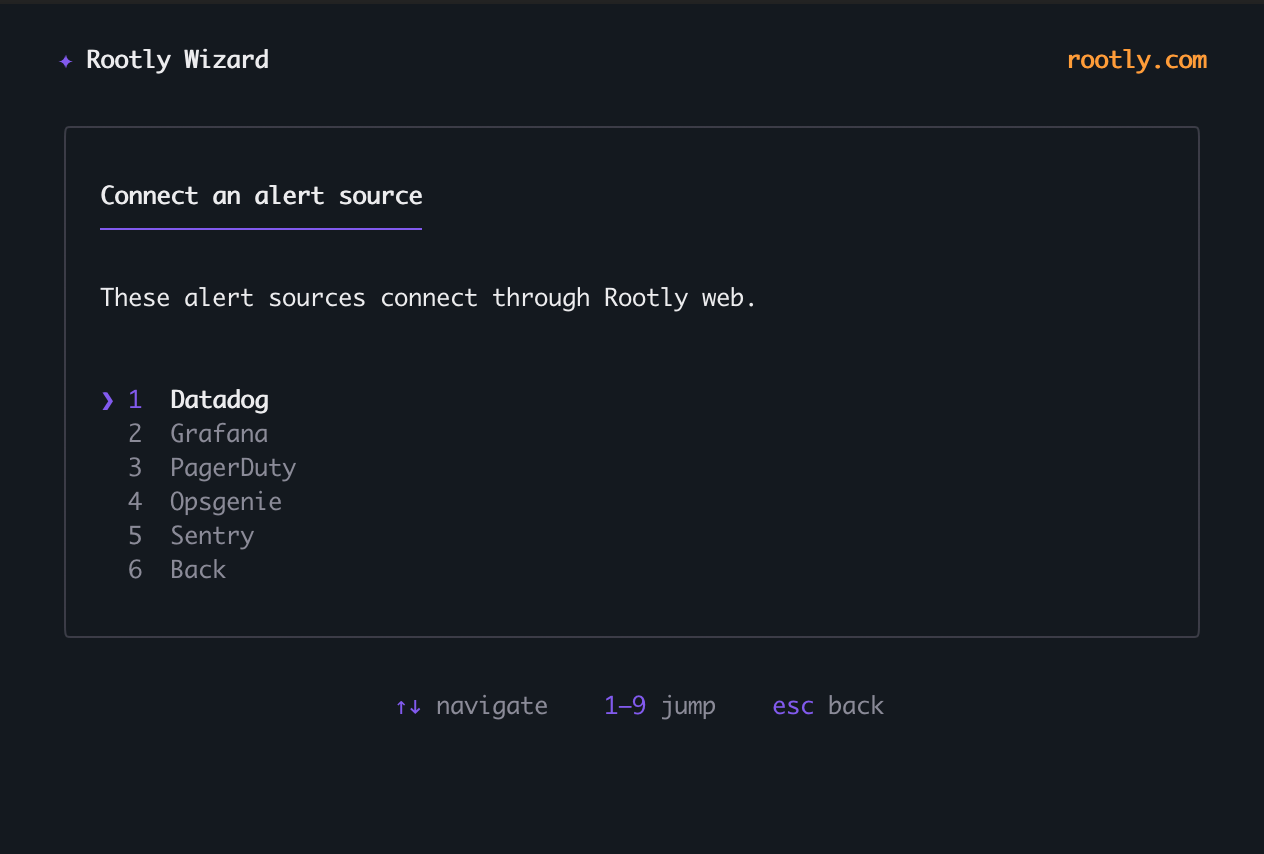
Connect Slack and alert sources (Datadog, Grafana, Sentry, PagerDuty, Opsgenie).
Send a test alert (pages on-call) or create a test incident.
Review your current teams, schedules, and coverage.
Configure the Rootly MCP server for your editor or AI agent.
Talk to the Rootly team or book a demo.
## General setup
Jump to any individual task:
Create teams and add members from your directory.
Create on-call schedules and escalation policies.
Create a public status page and pick which components (services) appear on it.
Connect Slack and alert sources (Datadog, Grafana, Sentry, PagerDuty, Opsgenie).
Send a test alert (pages on-call) or create a test incident.
Review your current teams, schedules, and coverage.
Configure the Rootly MCP server for your editor or AI agent.
Talk to the Rootly team or book a demo.
 ## MCP / IDE setup
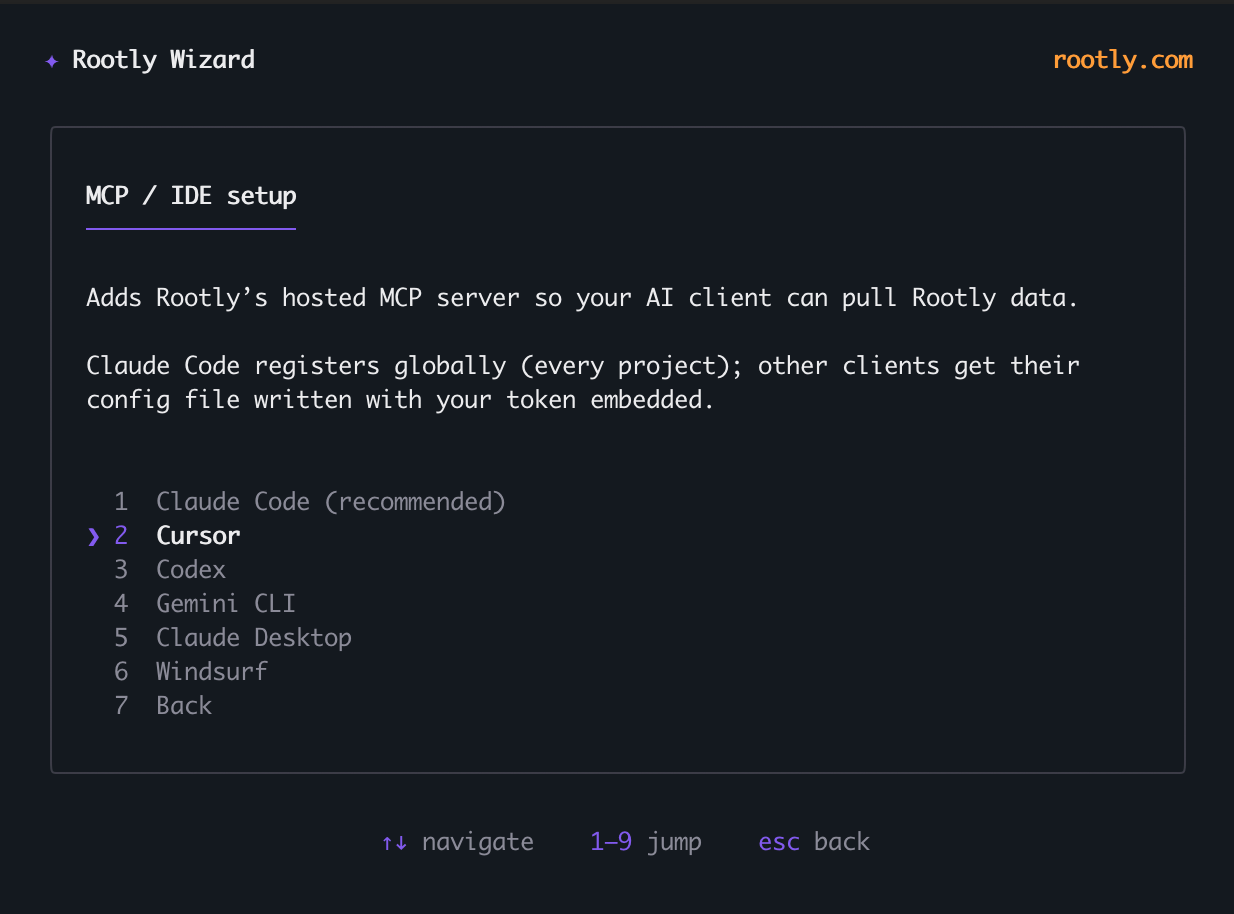
The wizard can write [Rootly MCP server](/integrations/agent-plugins) configuration for your editor or AI agent: preview the config or apply it directly. It points the client at the hosted Rootly MCP server (`https://mcp.rootly.com/mcp`) and reads your token from the `ROOTLY_TOKEN` environment variable rather than embedding it inline.
## MCP / IDE setup
The wizard can write [Rootly MCP server](/integrations/agent-plugins) configuration for your editor or AI agent: preview the config or apply it directly. It points the client at the hosted Rootly MCP server (`https://mcp.rootly.com/mcp`) and reads your token from the `ROOTLY_TOKEN` environment variable rather than embedding it inline.
 ## Scripting (advanced)
Every setup step is also available non-interactively as a JSON-in / JSON-out action, handy for automation or AI agents. The interactive wizard requires a TTY; scripts and agents should use the `action` subcommand instead.
```bash theme={null}
rootly-wizard action list # list available actions
rootly-wizard action describe # input schema for one action
rootly-wizard action tools # actions as function-calling tool defs
rootly-wizard action '' # run a single action
```
Each action returns exactly one JSON object on stdout:
```json theme={null}
{ "ok": true, "summary": "...", "data": { } }
```
Set `ROOTLY_TOKEN` to an organization admin API key for actions that read or write your workspace. Add `"dryRun": true` to any mutating action to validate and echo the call without executing it:
```bash theme={null}
rootly-wizard action create-team '{"name":"Payments","dryRun":true}'
```
Actions that fire a **test alert** with paging enabled place a real call or text to whoever is on call, and creating a test incident opens a real incident in your workspace. Use a non-production workspace when experimenting.
## Feedback & Support
* **Issues**: [GitHub Issues](https://github.com/rootlyhq/rootly-wizard/issues)
* **Source Code**: [GitHub Repository](https://github.com/rootlyhq/rootly-wizard)
## Scripting (advanced)
Every setup step is also available non-interactively as a JSON-in / JSON-out action, handy for automation or AI agents. The interactive wizard requires a TTY; scripts and agents should use the `action` subcommand instead.
```bash theme={null}
rootly-wizard action list # list available actions
rootly-wizard action describe # input schema for one action
rootly-wizard action tools # actions as function-calling tool defs
rootly-wizard action '' # run a single action
```
Each action returns exactly one JSON object on stdout:
```json theme={null}
{ "ok": true, "summary": "...", "data": { } }
```
Set `ROOTLY_TOKEN` to an organization admin API key for actions that read or write your workspace. Add `"dryRun": true` to any mutating action to validate and echo the call without executing it:
```bash theme={null}
rootly-wizard action create-team '{"name":"Payments","dryRun":true}'
```
Actions that fire a **test alert** with paging enabled place a real call or text to whoever is on call, and creating a test incident opens a real incident in your workspace. Use a non-production workspace when experimenting.
## Feedback & Support
* **Issues**: [GitHub Issues](https://github.com/rootlyhq/rootly-wizard/issues)
* **Source Code**: [GitHub Repository](https://github.com/rootlyhq/rootly-wizard)