> ## Documentation Index
> Fetch the complete documentation index at: https://docs.rootly.com/llms.txt
> Use this file to discover all available pages before exploring further.
# SendGrid
> Route Rootly workflow emails through your own SendGrid account to send from your company domain with full delivery visibility, tracking, and authentication.
## Overview
By default, Rootly sends workflow emails from `workflows@rootly.com`. Connecting SendGrid lets you route those emails through your own SendGrid account instead — so emails arrive from your company domain and you retain full delivery analytics in SendGrid.
Send workflow emails from your own domain instead of Rootly's default address.
Track opens, clicks, bounces, and delivery status directly in your SendGrid dashboard.
All **Send an Email** workflow actions automatically route through SendGrid once connected — no changes needed to existing workflows.
Rootly validates your API key against the SendGrid API on connect, so misconfigurations are caught immediately.
## Before You Begin
* You must be a Rootly admin to set up the integration
* You need a SendGrid account with permission to create API keys
## Installation
In SendGrid, go to **Settings → API Keys** and create a new key. Select **Restricted Access** and enable **Full Access** for **Mail Send** only — no other scopes are needed.
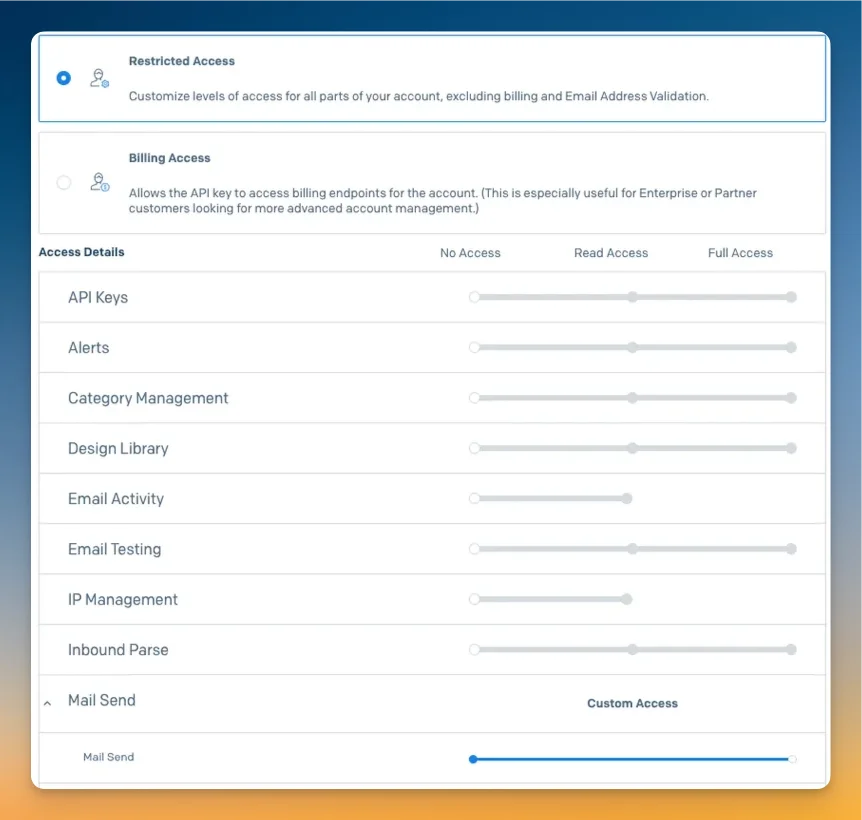 Copy the API key — you won't be able to view it again after leaving the page.
In Rootly, go to **Configuration → Integrations**, find **SendGrid**, and click **Setup**. Enter your API key and optionally set a **Default From** address.
Rootly validates the key against the SendGrid API before saving. If the `mail.send` scope is missing, the connection will be rejected.
## Configuration
Your SendGrid API key. Must have the `mail.send` scope. Stored encrypted at rest.
The sender email address used when no `From` is specified in a workflow action — for example, `incidents@yourcompany.com`. If left blank, the `From` field in each workflow action determines the sender.
Once SendGrid is connected, all **Send an Email** workflow actions are automatically routed through it. The **From** field in the workflow action still controls the sender address per-email — the **Default From** here serves as a fallback.
## Uninstall
To remove the SendGrid integration:
1. Go to **Configuration → Integrations** and find **SendGrid**
2. Click **Connected** to reveal the disconnect option
3. Click **Disconnect**
Copy the API key — you won't be able to view it again after leaving the page.
In Rootly, go to **Configuration → Integrations**, find **SendGrid**, and click **Setup**. Enter your API key and optionally set a **Default From** address.
Rootly validates the key against the SendGrid API before saving. If the `mail.send` scope is missing, the connection will be rejected.
## Configuration
Your SendGrid API key. Must have the `mail.send` scope. Stored encrypted at rest.
The sender email address used when no `From` is specified in a workflow action — for example, `incidents@yourcompany.com`. If left blank, the `From` field in each workflow action determines the sender.
Once SendGrid is connected, all **Send an Email** workflow actions are automatically routed through it. The **From** field in the workflow action still controls the sender address per-email — the **Default From** here serves as a fallback.
## Uninstall
To remove the SendGrid integration:
1. Go to **Configuration → Integrations** and find **SendGrid**
2. Click **Connected** to reveal the disconnect option
3. Click **Disconnect**
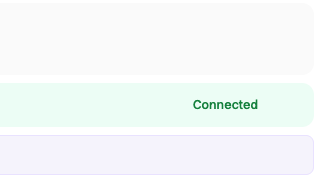 After disconnecting, workflow emails will revert to Rootly's default delivery.
## Frequently Asked Questions
No. All **Send an Email** workflow actions automatically route through SendGrid once the integration is connected. No changes to existing workflows are required.
Only `mail.send` (Full Access) is required. Rootly validates this on connect — if the scope is missing, the key will be rejected.
No. If both a SendGrid and an SMTP integration are connected, Rootly prefers SMTP. To use SendGrid, disconnect the SMTP integration first.
No. Emails already delivered are unaffected. After disconnecting, new workflow emails will revert to Rootly's default delivery method.
After disconnecting, workflow emails will revert to Rootly's default delivery.
## Frequently Asked Questions
No. All **Send an Email** workflow actions automatically route through SendGrid once the integration is connected. No changes to existing workflows are required.
Only `mail.send` (Full Access) is required. Rootly validates this on connect — if the scope is missing, the key will be rejected.
No. If both a SendGrid and an SMTP integration are connected, Rootly prefers SMTP. To use SendGrid, disconnect the SMTP integration first.
No. Emails already delivered are unaffected. After disconnecting, new workflow emails will revert to Rootly's default delivery method.