> ## Documentation Index
> Fetch the complete documentation index at: https://docs.rootly.com/llms.txt
> Use this file to discover all available pages before exploring further.
# Installation
> Install the Rootly app in your Sentry organization to enable alert forwarding, error event ingestion, and incident creation from Sentry issues and alerts.
To start receiving Sentry alerts in Rootly, you install the Rootly app inside your Sentry organization. Once installed, Sentry can forward enriched alert payloads into Rootly, giving your workflows the real-time context they need to act.
Once the integration is installed, you can configure **Sentry alert rules** to send alerts to Rootly as they occur. These alerts will then trigger the appropriate **incident response workflows** you've set up in Rootly — an incident is declared, context flows in, responders are notified, and you're ready to act.
## Before You Begin
This setup involves two systems — Sentry and Rootly — so make sure you have the right access in both before starting. The installation takes about 5 minutes and only needs to be done once per Sentry organization.
Before you start, make sure you have the following:
* **Sentry:** Admin or Owner role in your Sentry organization — required to install third-party integrations
* **Rootly:** Admin role — required to create and configure alert sources
* An existing Sentry organization with at least one project set up
## Install Rootly in Sentry
Install the **Rootly integration** inside your Sentry organization. This allows Sentry to forward enriched alert payloads into Rootly, giving your Rootly workflows the real-time context they need.
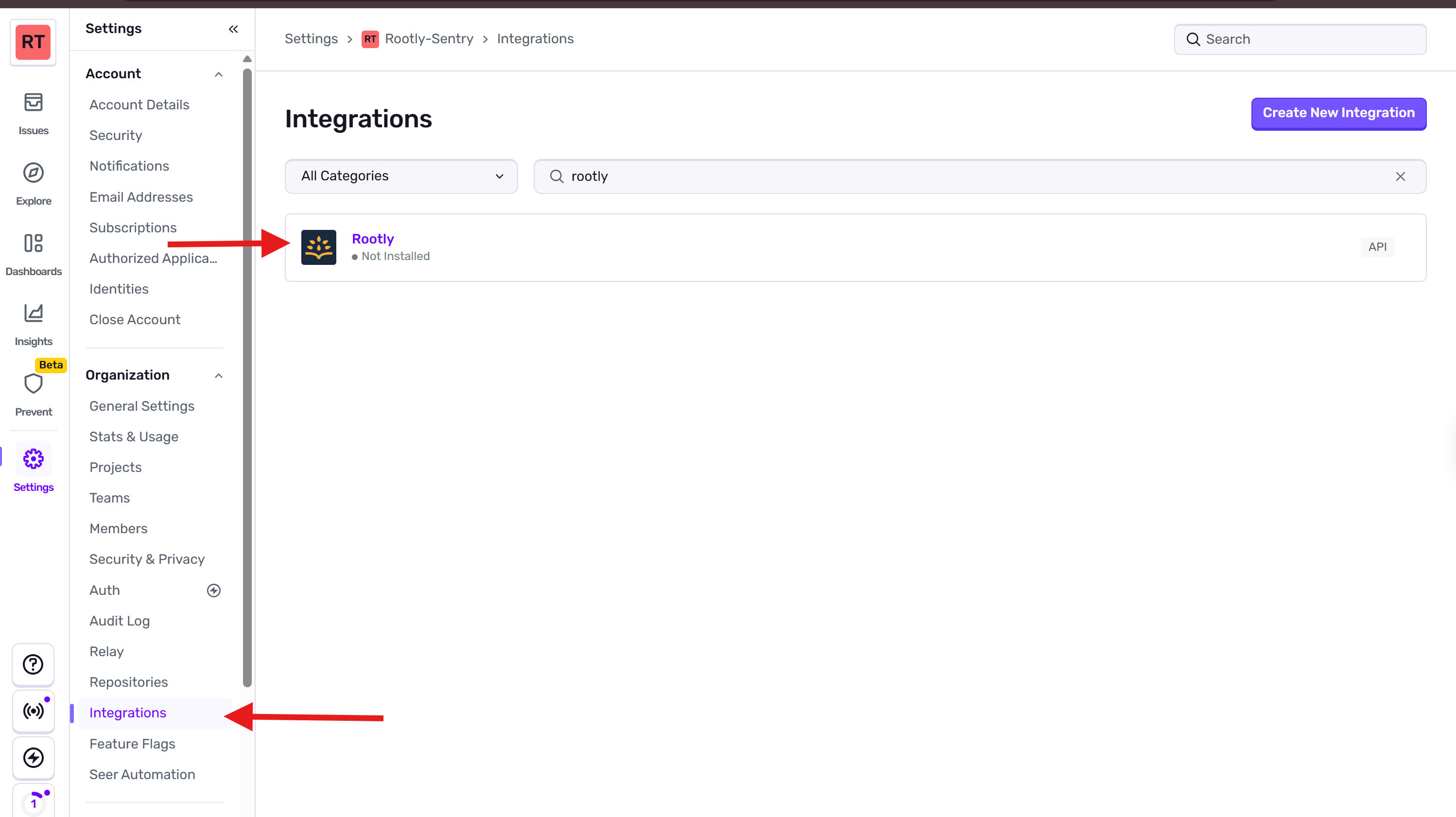
Inside your Sentry organization, navigate to **Settings → Integrations** and search for **Rootly**.
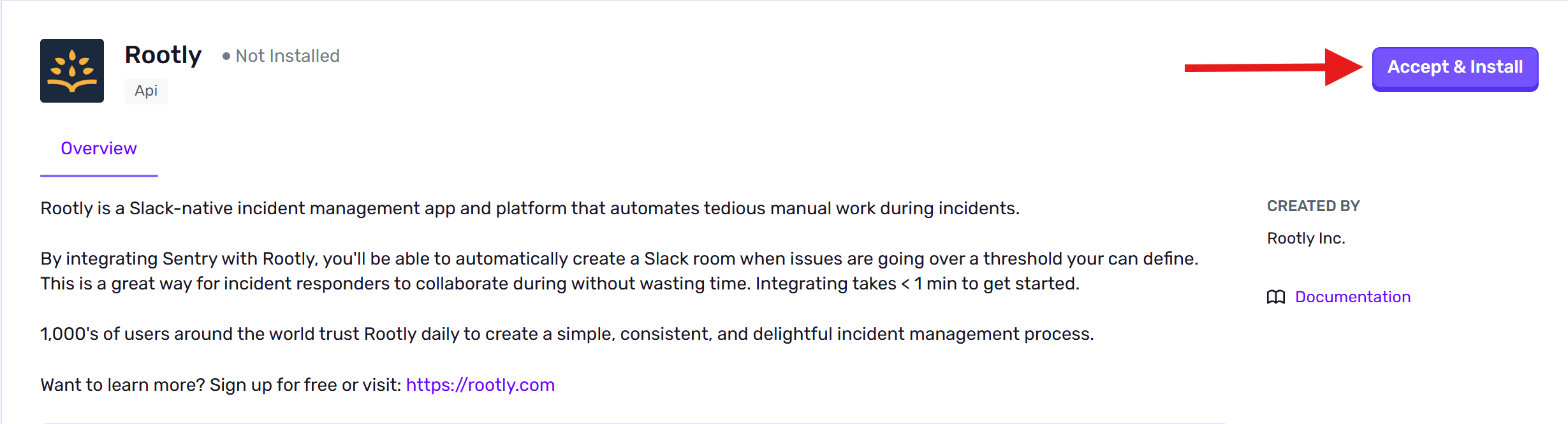
 Click **Accept & Install**. You'll be redirected to Rootly to complete the alert source setup.
Make sure you're logged into Rootly as an **Admin** before proceeding — the redirect will fail otherwise.
Click **Accept & Install**. You'll be redirected to Rootly to complete the alert source setup.
Make sure you're logged into Rootly as an **Admin** before proceeding — the redirect will fail otherwise.
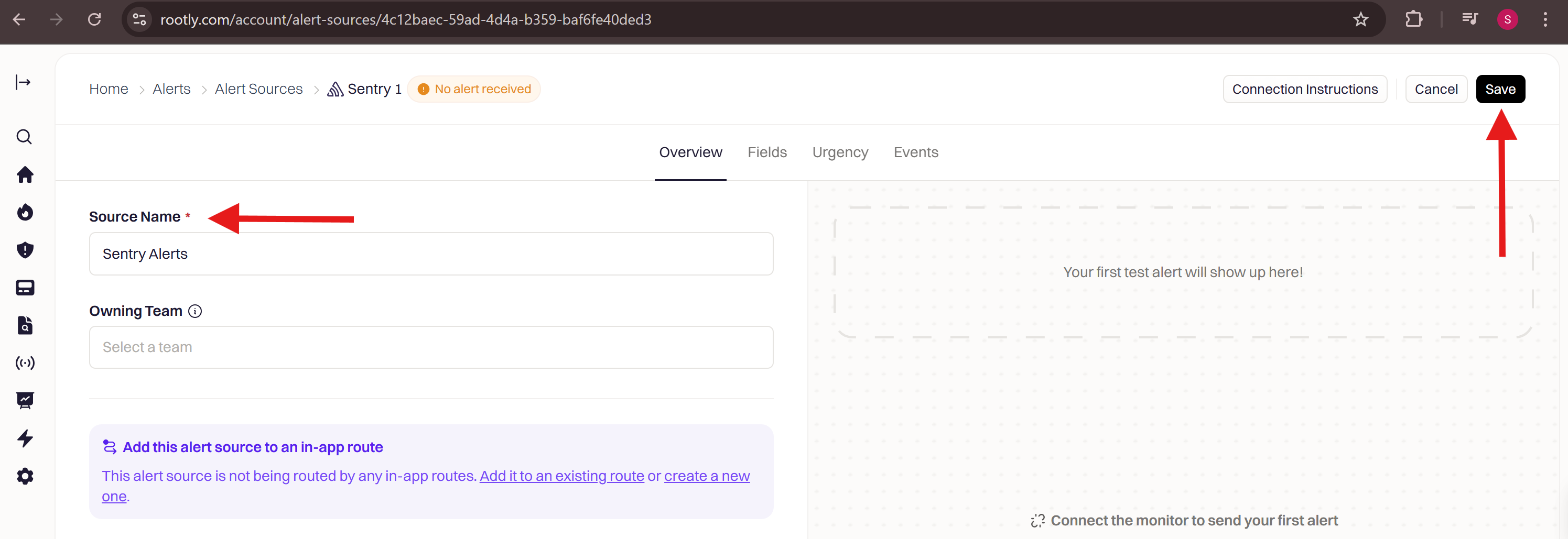
 On the Sentry alert source page, enter a descriptive **Source Name** (e.g., "Sentry Alerts") and click **Save**. You can leave optional settings like Owning Team at their defaults and adjust them later.
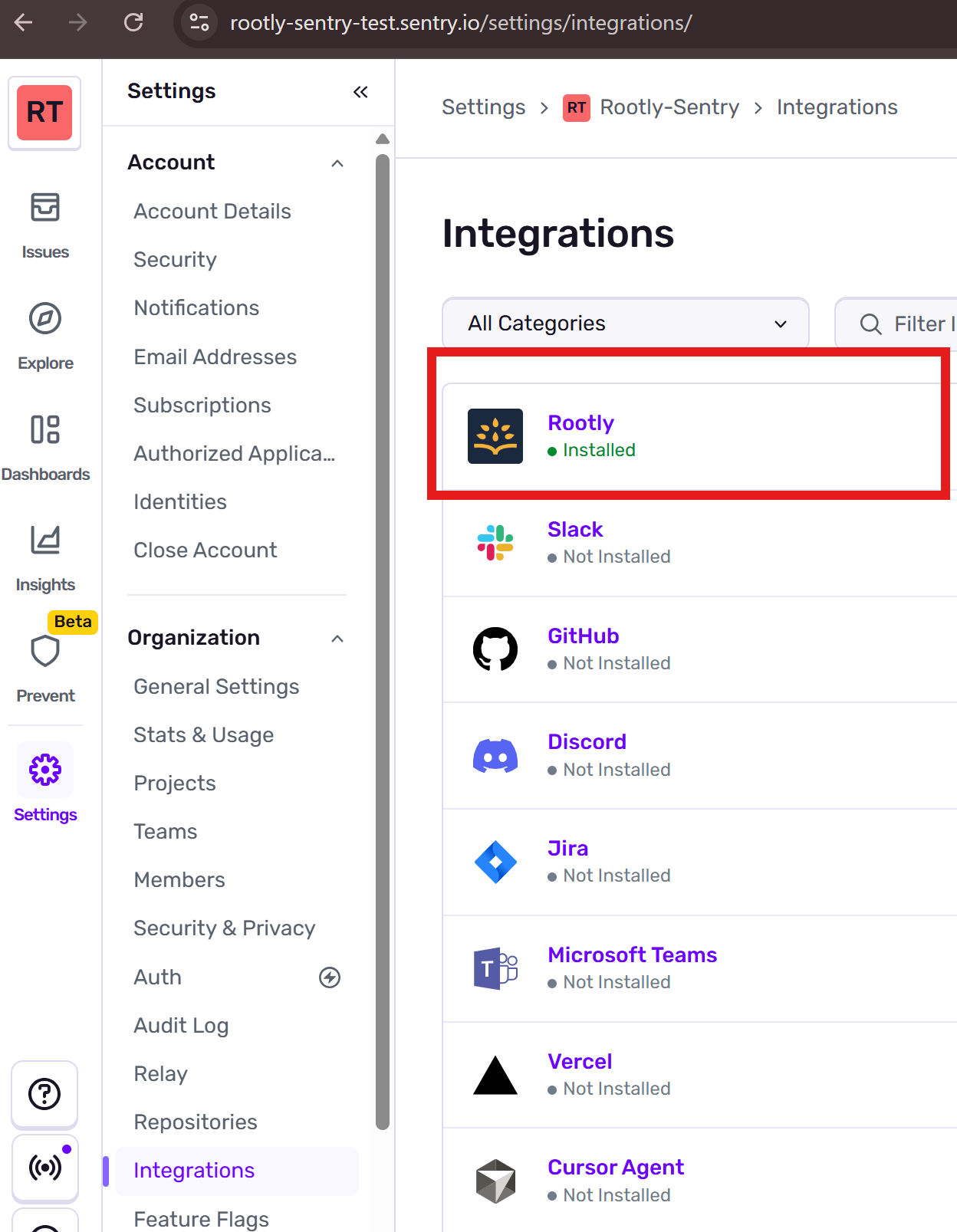
 Switch back to Sentry and go to **Settings → Integrations**. Rootly should appear in your installed integrations list.
 Rootly is now connected. Next, configure Sentry alert rules to forward alerts to Rootly and set up your incident response workflows.
## Alert Types
Rootly supports three Sentry alert types, each with different behavior.
### Issue Alerts
Issue alerts are tied to specific Sentry issues and support automatic resolution. When Sentry sends a resolved event, Rootly resolves the corresponding alert automatically.
You can configure the following directly in the Sentry alert rule action settings:
Routes the alert to a specific Rootly resource for on-call paging. Format: `type:id` — for example, `EscalationPolicy:abc-123`.
Supported types: `User`, `Group`, `EscalationPolicy`, `Service`. Set to `none` to disable paging entirely.
Sets the alert urgency in Rootly using the ID of a Rootly alert urgency. If not set or the ID is invalid, no urgency is assigned to the alert.
### Metric Alerts
Metric alerts are threshold-based and do not support automatic resolution. When a metric alert fires, Rootly creates an alert in the open state. You must resolve it manually or through a workflow.
Metric alerts do not auto-resolve. Rootly will not resolve a metric alert when the threshold returns to normal — you must resolve it manually or via a workflow action.
Metric alerts also support `rootly_notification_target` and `rootly_urgency` in the Sentry alert rule action settings.
### Issue (Legacy)
The `issue` resource type is a legacy format that's still supported but not recommended for new rules. New rules should use `event_alert` instead. Existing rules using the legacy type will continue to work without migration.
***
## Uninstall
To remove the Sentry integration from Rootly, go to **Configuration → Integrations**, find **Sentry**, click **Connected**, and select **Disconnect**.
Disconnecting from Rootly does not remove the Rootly app from Sentry. To fully revoke access, also go to **Sentry → Settings → Integrations** and uninstall the Rootly app there.
***
## Next Steps
Build workflows that automatically create incidents from incoming Sentry alerts
Rootly is now connected. Next, configure Sentry alert rules to forward alerts to Rootly and set up your incident response workflows.
## Alert Types
Rootly supports three Sentry alert types, each with different behavior.
### Issue Alerts
Issue alerts are tied to specific Sentry issues and support automatic resolution. When Sentry sends a resolved event, Rootly resolves the corresponding alert automatically.
You can configure the following directly in the Sentry alert rule action settings:
Routes the alert to a specific Rootly resource for on-call paging. Format: `type:id` — for example, `EscalationPolicy:abc-123`.
Supported types: `User`, `Group`, `EscalationPolicy`, `Service`. Set to `none` to disable paging entirely.
Sets the alert urgency in Rootly using the ID of a Rootly alert urgency. If not set or the ID is invalid, no urgency is assigned to the alert.
### Metric Alerts
Metric alerts are threshold-based and do not support automatic resolution. When a metric alert fires, Rootly creates an alert in the open state. You must resolve it manually or through a workflow.
Metric alerts do not auto-resolve. Rootly will not resolve a metric alert when the threshold returns to normal — you must resolve it manually or via a workflow action.
Metric alerts also support `rootly_notification_target` and `rootly_urgency` in the Sentry alert rule action settings.
### Issue (Legacy)
The `issue` resource type is a legacy format that's still supported but not recommended for new rules. New rules should use `event_alert` instead. Existing rules using the legacy type will continue to work without migration.
***
## Uninstall
To remove the Sentry integration from Rootly, go to **Configuration → Integrations**, find **Sentry**, click **Connected**, and select **Disconnect**.
Disconnecting from Rootly does not remove the Rootly app from Sentry. To fully revoke access, also go to **Sentry → Settings → Integrations** and uninstall the Rootly app there.
***
## Next Steps
Build workflows that automatically create incidents from incoming Sentry alerts