> ## Documentation Index
> Fetch the complete documentation index at: https://docs.rootly.com/llms.txt
> Use this file to discover all available pages before exploring further.
# ServiceNow
> Connect ServiceNow to Rootly for bidirectional incident sync — create and update ServiceNow incidents from workflows, and receive ServiceNow events as alerts.
The ServiceNow integration connects Rootly with your ServiceNow instance bidirectionally. Rootly can create and update ServiceNow incidents through workflow actions, and ServiceNow can send incident events to Rootly as alerts using Business Rules.
With the ServiceNow integration, you can:
* Automatically create ServiceNow incidents from Rootly incidents
* Update ServiceNow incident priority, state, and custom fields as incidents evolve
* Receive ServiceNow incident events as Rootly alerts to trigger on-call paging
* Sync ServiceNow CMDB business applications to Rootly services
## Before You Begin
Before setting up the integration, make sure you have:
* A Rootly account with admin permission to manage integrations
* A ServiceNow instance with admin access
* Permission to create OAuth Application Registry entries in ServiceNow
Rootly recommends installing with a dedicated ServiceNow service account so the integration does not break if an individual user leaves your organization.
## Installation
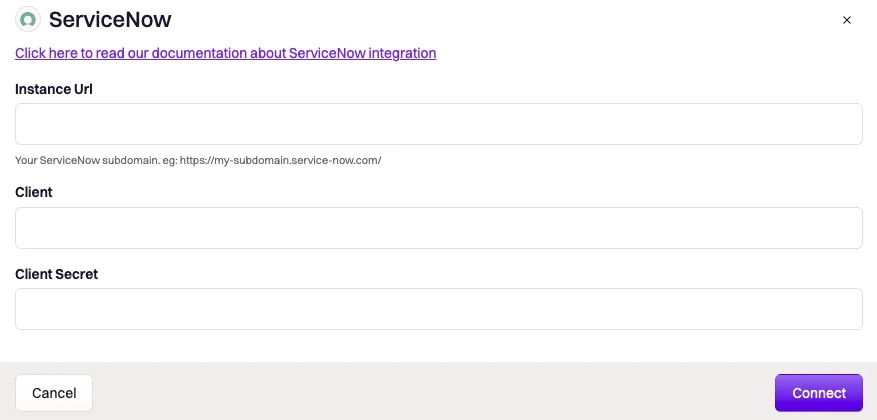
Log into Rootly as an Admin and navigate to **Configurations > Integrations > ServiceNow**. Click **Setup**.
 Log into your ServiceNow instance as an Admin and navigate to **System OAuth > Application Registry**.
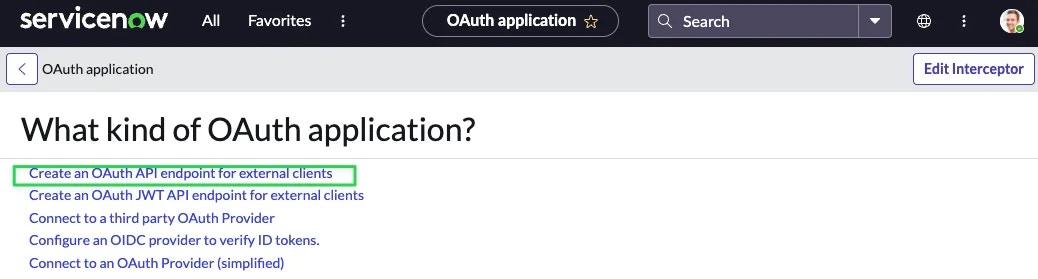
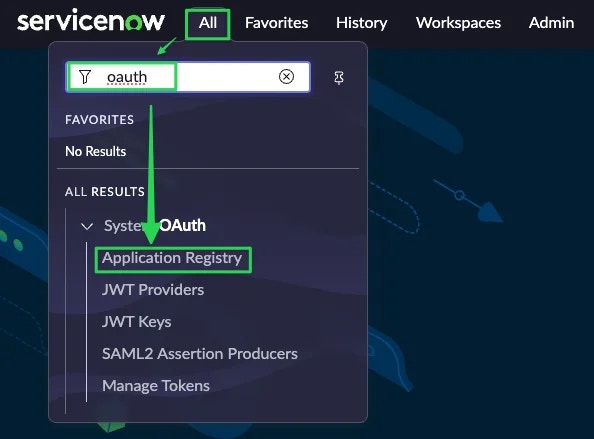 Click **New**, then select **Create an OAuth API endpoint for external clients**.
 Fill in the following fields and click **Submit**:
| ServiceNow Field | Value |
| ---------------- | ---------------------------------------------- |
| `Name` | `Rootly` |
| `Redirect URL` | `https://rootly.com/auth/service_now/callback` |
Fill in the following fields and click **Submit**:
| ServiceNow Field | Value |
| ---------------- | ---------------------------------------------- |
| `Name` | `Rootly` |
| `Redirect URL` | `https://rootly.com/auth/service_now/callback` |
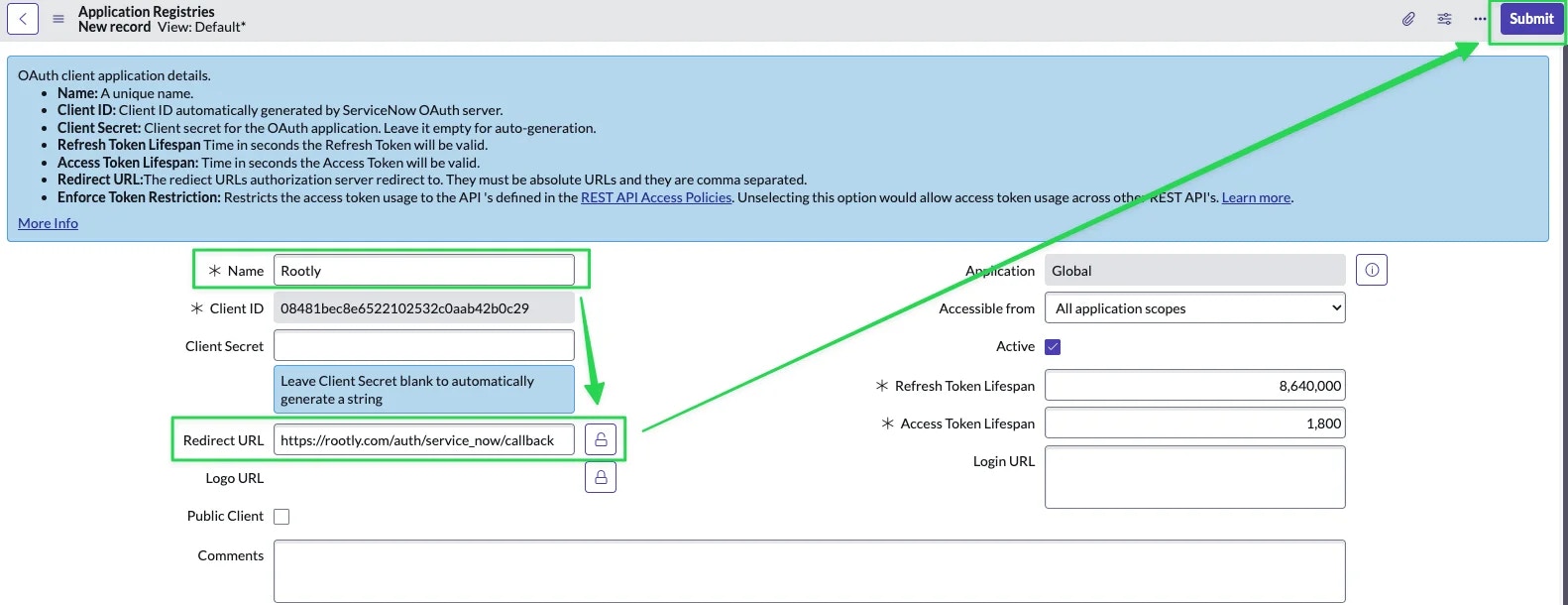 Open the application you just created in ServiceNow and copy the **Client ID** and **Client Secret**.
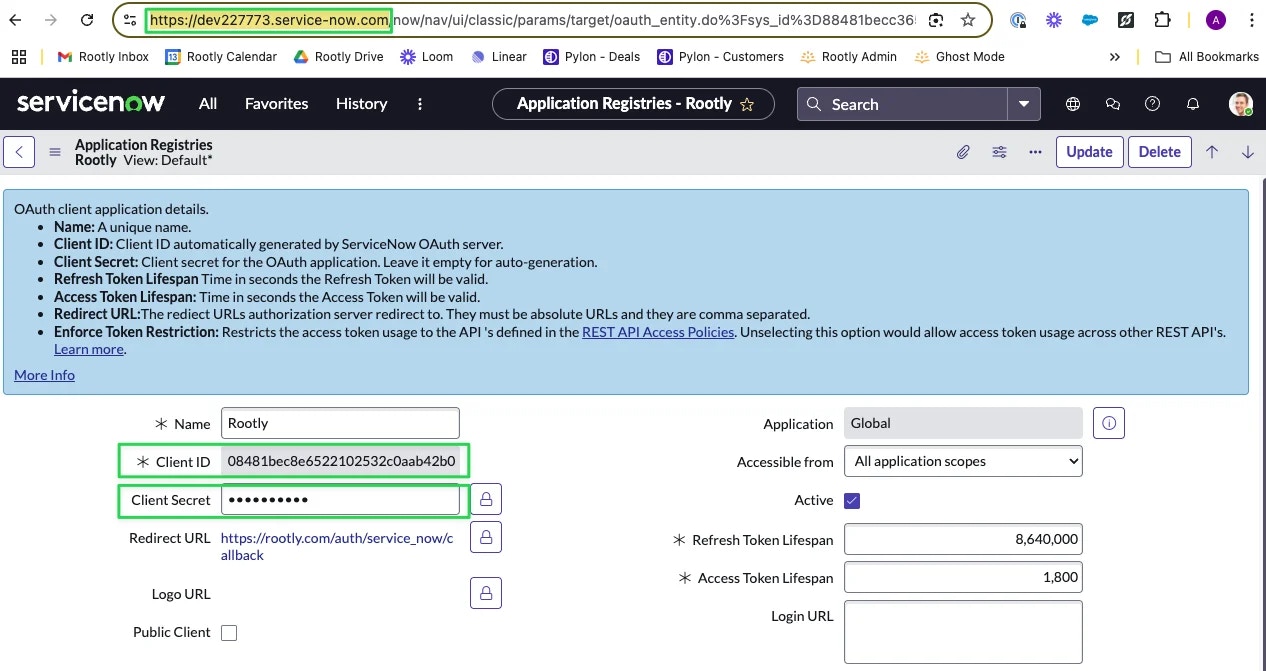 When copying the **Client Secret**, you may need to unmask it by clicking the lock icon. Masked values sometimes do not copy correctly in ServiceNow.
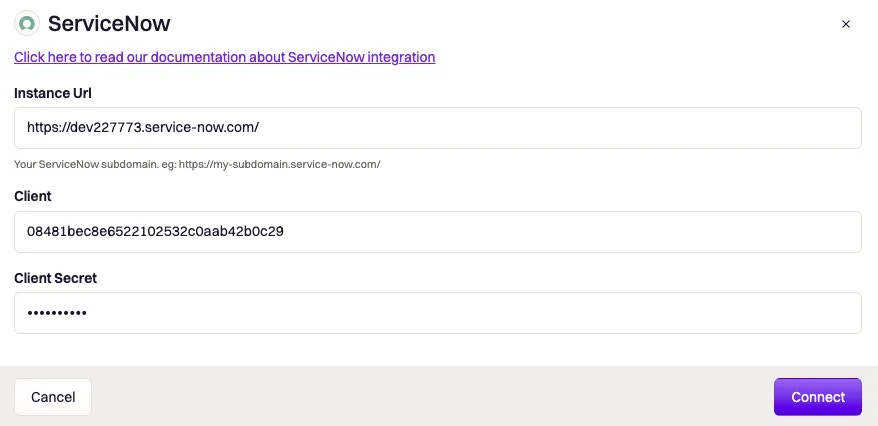
Paste the Client ID, Client Secret, and your ServiceNow instance URL into the Rootly setup modal and click **Connect**.
When copying the **Client Secret**, you may need to unmask it by clicking the lock icon. Masked values sometimes do not copy correctly in ServiceNow.
Paste the Client ID, Client Secret, and your ServiceNow instance URL into the Rootly setup modal and click **Connect**.
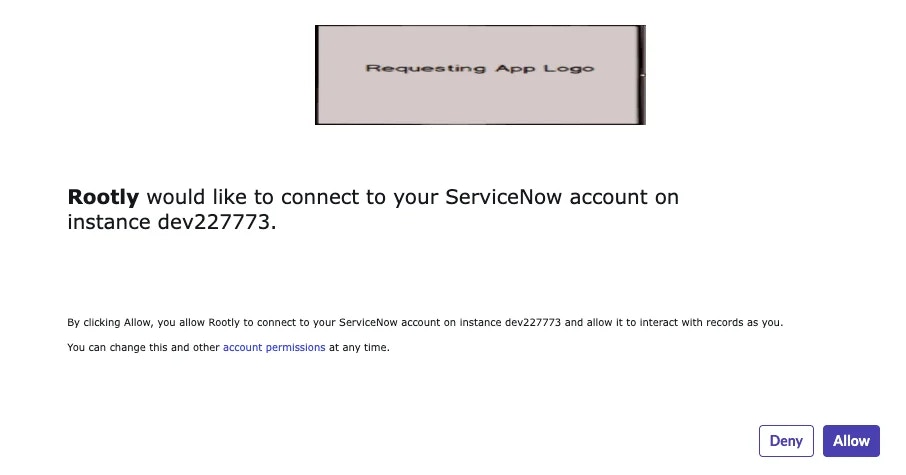
 You will be redirected to ServiceNow to authorize the connection. Click **Allow**.
 After authorization, the **Create a ServiceNow Incident** and **Update a ServiceNow Incident** workflow actions are available in your Genius workflows.
## Ingest ServiceNow Events
To receive ServiceNow incident events as Rootly alerts, configure a Business Rule in ServiceNow to send events to Rootly's webhook endpoint.
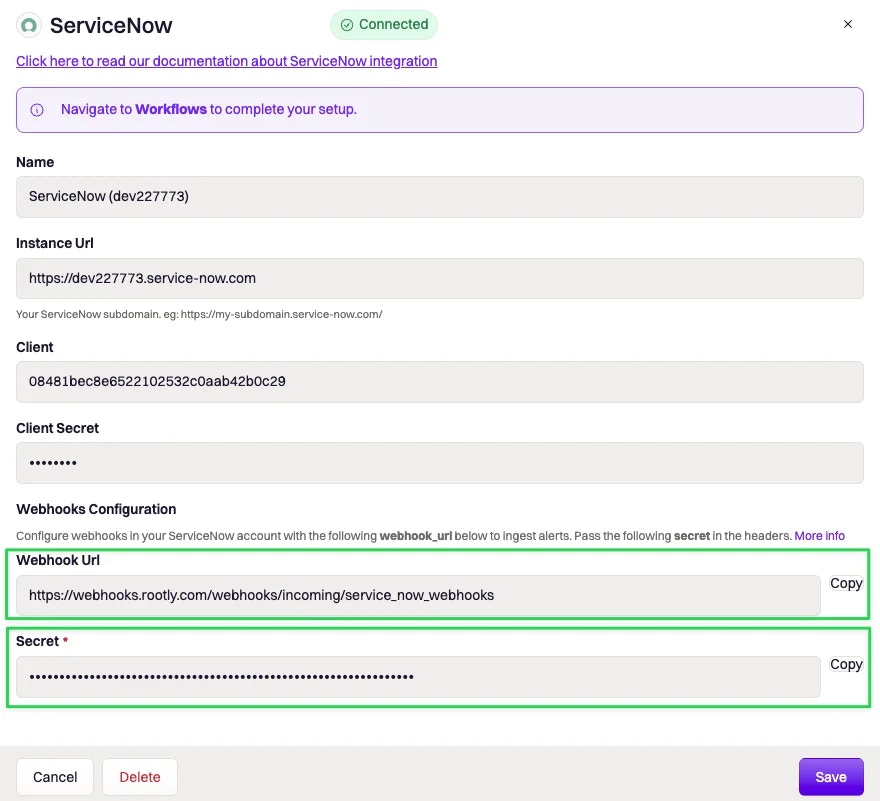
In Rootly, open the ServiceNow integration settings. Copy the **Webhook URL** and **Secret** values shown on the integration page.
In ServiceNow, navigate to **System Definition > Business Rules**.
There are multiple Business Rules pages in ServiceNow. Make sure you select the one under **System Definition**.
Click **New** and fill in:
| Field | Value |
| ---------- | ---------------------------------------------------- |
| `Name` | Any descriptive name (for example, `Send to Rootly`) |
| `Table` | `Incident [incident]` |
| `Advanced` | Check this |
| `When` | `After` |
| `Insert` | Check to receive events when incidents are created |
| `Update` | Check to receive events when incidents are updated |
| `Delete` | Check to receive events when incidents are deleted |
After authorization, the **Create a ServiceNow Incident** and **Update a ServiceNow Incident** workflow actions are available in your Genius workflows.
## Ingest ServiceNow Events
To receive ServiceNow incident events as Rootly alerts, configure a Business Rule in ServiceNow to send events to Rootly's webhook endpoint.
In Rootly, open the ServiceNow integration settings. Copy the **Webhook URL** and **Secret** values shown on the integration page.
In ServiceNow, navigate to **System Definition > Business Rules**.
There are multiple Business Rules pages in ServiceNow. Make sure you select the one under **System Definition**.
Click **New** and fill in:
| Field | Value |
| ---------- | ---------------------------------------------------- |
| `Name` | Any descriptive name (for example, `Send to Rootly`) |
| `Table` | `Incident [incident]` |
| `Advanced` | Check this |
| `When` | `After` |
| `Insert` | Check to receive events when incidents are created |
| `Update` | Check to receive events when incidents are updated |
| `Delete` | Check to receive events when incidents are deleted |
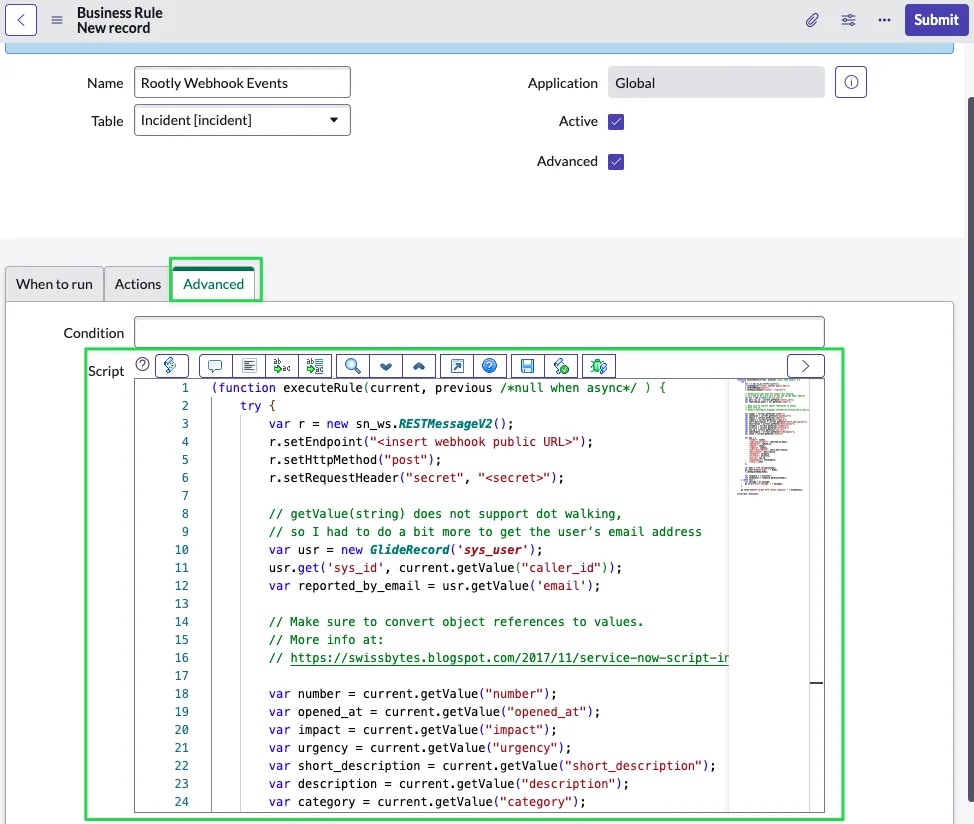 Navigate to the **Advanced** tab and replace the script with the following:
```js theme={null}
(function executeRule(current, previous /*null when async*/ ) {
try {
var r = new sn_ws.RESTMessageV2();
r.setEndpoint("");
r.setHttpMethod("post");
r.setRequestHeader("secret", "");
var usr = new GlideRecord('sys_user');
usr.get('sys_id', current.getValue("caller_id"));
var reported_by_email = usr.getValue('email');
var number = current.getValue("number");
var opened_at = current.getValue("opened_at");
var impact = current.getValue("impact");
var urgency = current.getValue("urgency");
var short_description = current.getValue("short_description");
var description = current.getValue("description");
var category = current.getValue("category");
var priority = current.getValue("priority");
var sys_id = current.getValue("sys_id");
var subcategory = current.getValue("subcategory");
var state = current.getValue("state");
var obj = {
"number": number,
"reported_by_email": reported_by_email,
"opened_at": opened_at,
"impact": impact,
"urgency": urgency,
"short_description": short_description,
"description": description,
"category": category,
"priority": priority,
"sys_id": sys_id,
"subcategory": subcategory,
"state": state
};
var body = JSON.stringify(obj);
r.setRequestBody(body);
var response = r.execute();
var httpStatus = response.getStatusCode();
} catch (ex) {
var message = ex.message;
gs.error("Error message: " + message);
}
gs.info("Webhook target HTTP status response: " + httpStatus);
})(current, previous);
```
Replace `` and `` with the values from the Rootly ServiceNow integration page.
Navigate to the **Advanced** tab and replace the script with the following:
```js theme={null}
(function executeRule(current, previous /*null when async*/ ) {
try {
var r = new sn_ws.RESTMessageV2();
r.setEndpoint("");
r.setHttpMethod("post");
r.setRequestHeader("secret", "");
var usr = new GlideRecord('sys_user');
usr.get('sys_id', current.getValue("caller_id"));
var reported_by_email = usr.getValue('email');
var number = current.getValue("number");
var opened_at = current.getValue("opened_at");
var impact = current.getValue("impact");
var urgency = current.getValue("urgency");
var short_description = current.getValue("short_description");
var description = current.getValue("description");
var category = current.getValue("category");
var priority = current.getValue("priority");
var sys_id = current.getValue("sys_id");
var subcategory = current.getValue("subcategory");
var state = current.getValue("state");
var obj = {
"number": number,
"reported_by_email": reported_by_email,
"opened_at": opened_at,
"impact": impact,
"urgency": urgency,
"short_description": short_description,
"description": description,
"category": category,
"priority": priority,
"sys_id": sys_id,
"subcategory": subcategory,
"state": state
};
var body = JSON.stringify(obj);
r.setRequestBody(body);
var response = r.execute();
var httpStatus = response.getStatusCode();
} catch (ex) {
var message = ex.message;
gs.error("Error message: " + message);
}
gs.info("Webhook target HTTP status response: " + httpStatus);
})(current, previous);
```
Replace `` and `` with the values from the Rootly ServiceNow integration page.
 Click **Submit**.
### How Alerts Are Mapped
Each ServiceNow event received creates a Rootly alert with the following fields:
| Rootly Alert Field | ServiceNow Source |
| ------------------ | ------------------------------------------------------ |
| Summary | `short_description`, then `description`, then `number` |
| External ID | `sys_id` |
| External URL | `url` (if provided in payload) |
Alert labels:
| Label | ServiceNow Field |
| ------------- | ---------------- |
| `id` | `sys_id` |
| `number` | `number` |
| `impact` | `impact` |
| `urgency` | `urgency` |
| `category` | `category` |
| `subcategory` | `subcategory` |
| `state` | `state` |
### Using ServiceNow as an Alert Source
If your org uses Rootly On-Call, ServiceNow alerts can be used to page on-call users. Once the Business Rule is configured, alerts from ServiceNow will appear in your Rootly alert feed and can trigger on-call notifications through alert workflows.
## Workflow Actions
The ServiceNow integration provides workflow actions for creating and updating ServiceNow incidents from Rootly. If you are unfamiliar with how Genius workflows work, visit the [Workflows](/workflows/workflows) documentation first.
### Create a ServiceNow Incident
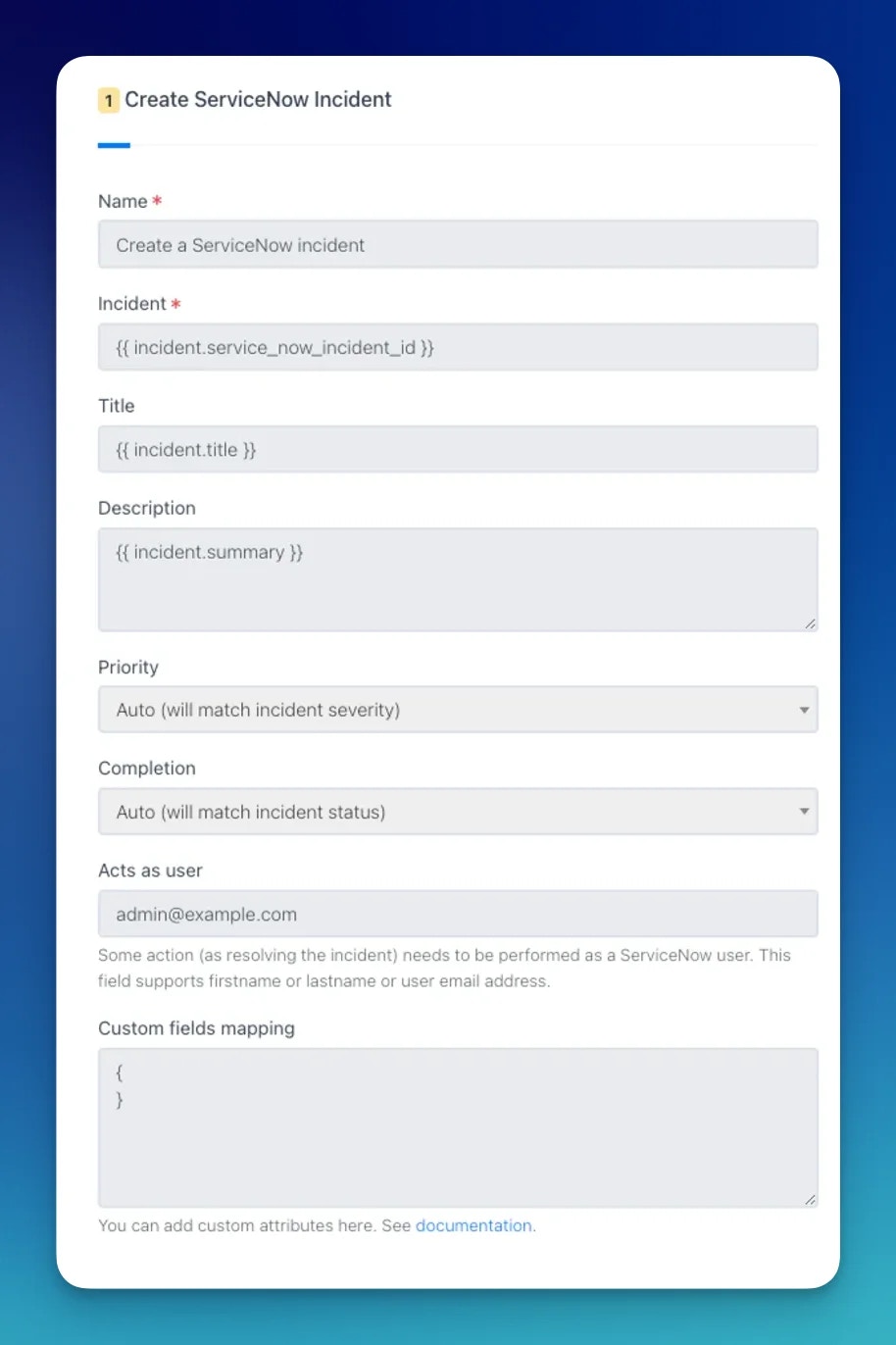
This action creates a new record in the ServiceNow `Incident` table (for example, `INC0010001`) and links it to the Rootly incident.
| Field | Description | Required |
| ------------------------- | ------------------------------------------------------------------------------------------------------------- | -------- |
| **Name** | Display name for this workflow action | |
| **Title** | Maps to `short_description` in ServiceNow. Supports Liquid | Yes |
| **Description** | Maps to `description` in ServiceNow. Supports Liquid | |
| **Priority** | Maps to `urgency`. **Auto** mirrors the incident severity | |
| **Status** | Maps to `state`. **Auto** mirrors the incident status | |
| **Acts As User** | Name or email of the ServiceNow user to set as caller when resolving. Only active when status is Resolved (6) | |
| **Custom Fields Mapping** | JSON of additional ServiceNow fields. Merged directly into the incident payload. Supports Liquid | |
**Priority mapping (Auto)**
| Rootly Severity | ServiceNow Urgency |
| --------------- | ------------------ |
| Critical | High (1) |
| High | High (1) |
| Medium | Medium (2) |
| Low | Low (3) |
**Status mapping (Auto)**
| Rootly Status | ServiceNow State |
| ------------- | ---------------- |
| Started | New (1) |
| Mitigated | In Progress (2) |
| Resolved | Resolved (6) |
Available states: New (1), In Progress (2), On Hold (3), Resolved (6), Closed (7), Canceled (8).
**Acts As User** triggers a ServiceNow user lookup by first name, last name, or email. When matched, Rootly sets `caller_id`, `close_code`, and `close_notes` automatically. It only applies when the state is set to Resolved (6).
Click **Submit**.
### How Alerts Are Mapped
Each ServiceNow event received creates a Rootly alert with the following fields:
| Rootly Alert Field | ServiceNow Source |
| ------------------ | ------------------------------------------------------ |
| Summary | `short_description`, then `description`, then `number` |
| External ID | `sys_id` |
| External URL | `url` (if provided in payload) |
Alert labels:
| Label | ServiceNow Field |
| ------------- | ---------------- |
| `id` | `sys_id` |
| `number` | `number` |
| `impact` | `impact` |
| `urgency` | `urgency` |
| `category` | `category` |
| `subcategory` | `subcategory` |
| `state` | `state` |
### Using ServiceNow as an Alert Source
If your org uses Rootly On-Call, ServiceNow alerts can be used to page on-call users. Once the Business Rule is configured, alerts from ServiceNow will appear in your Rootly alert feed and can trigger on-call notifications through alert workflows.
## Workflow Actions
The ServiceNow integration provides workflow actions for creating and updating ServiceNow incidents from Rootly. If you are unfamiliar with how Genius workflows work, visit the [Workflows](/workflows/workflows) documentation first.
### Create a ServiceNow Incident
This action creates a new record in the ServiceNow `Incident` table (for example, `INC0010001`) and links it to the Rootly incident.
| Field | Description | Required |
| ------------------------- | ------------------------------------------------------------------------------------------------------------- | -------- |
| **Name** | Display name for this workflow action | |
| **Title** | Maps to `short_description` in ServiceNow. Supports Liquid | Yes |
| **Description** | Maps to `description` in ServiceNow. Supports Liquid | |
| **Priority** | Maps to `urgency`. **Auto** mirrors the incident severity | |
| **Status** | Maps to `state`. **Auto** mirrors the incident status | |
| **Acts As User** | Name or email of the ServiceNow user to set as caller when resolving. Only active when status is Resolved (6) | |
| **Custom Fields Mapping** | JSON of additional ServiceNow fields. Merged directly into the incident payload. Supports Liquid | |
**Priority mapping (Auto)**
| Rootly Severity | ServiceNow Urgency |
| --------------- | ------------------ |
| Critical | High (1) |
| High | High (1) |
| Medium | Medium (2) |
| Low | Low (3) |
**Status mapping (Auto)**
| Rootly Status | ServiceNow State |
| ------------- | ---------------- |
| Started | New (1) |
| Mitigated | In Progress (2) |
| Resolved | Resolved (6) |
Available states: New (1), In Progress (2), On Hold (3), Resolved (6), Closed (7), Canceled (8).
**Acts As User** triggers a ServiceNow user lookup by first name, last name, or email. When matched, Rootly sets `caller_id`, `close_code`, and `close_notes` automatically. It only applies when the state is set to Resolved (6).
 ### Update a ServiceNow Incident
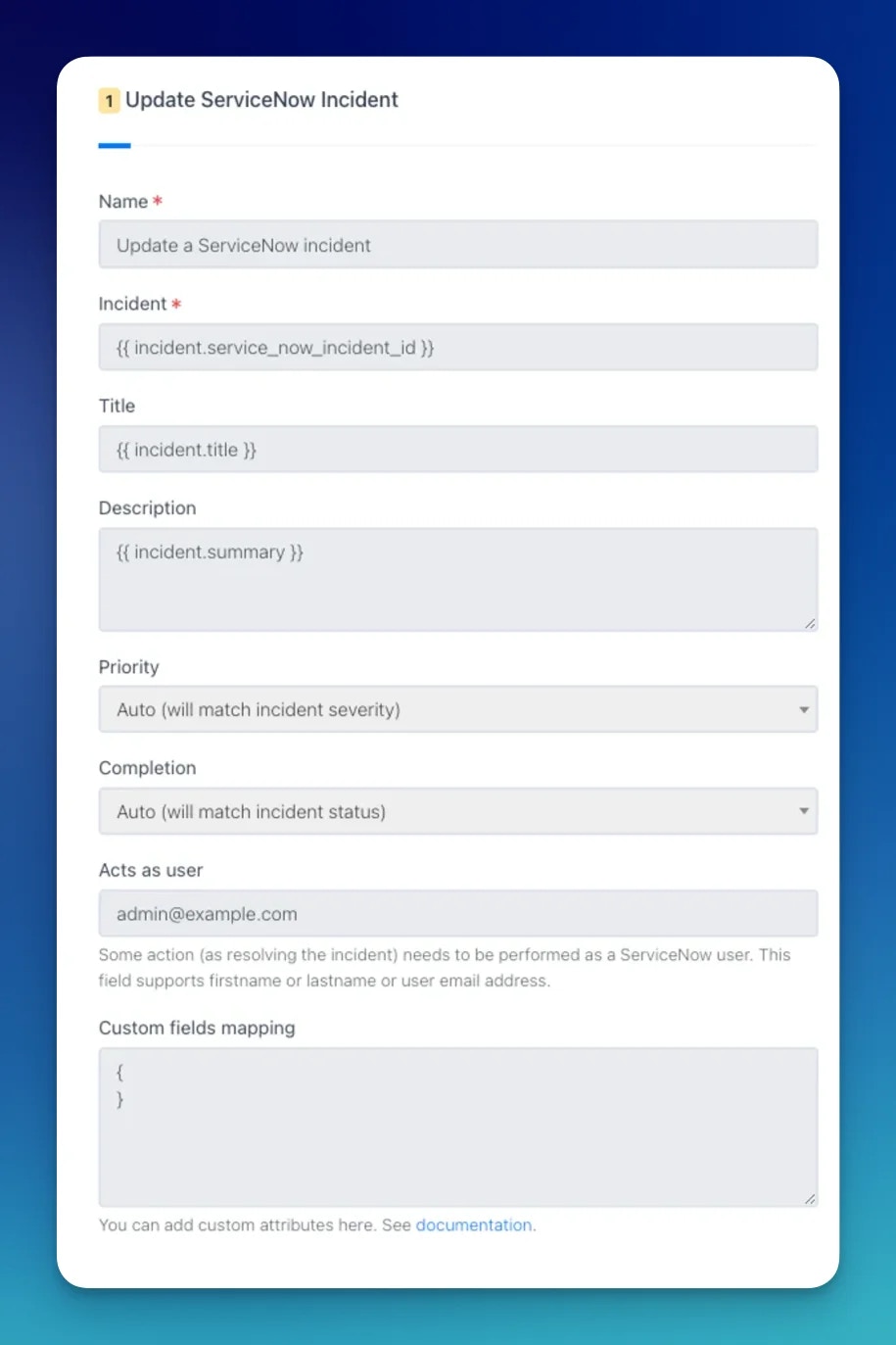
This action updates an existing record in the ServiceNow `Incident` table.
When a **Create a ServiceNow Incident** action runs, Rootly stores the resulting `sys_id` and incident number on the incident record. Reference them in subsequent update actions using Liquid variables.
| Field | Description | Required |
| ------------------------- | -------------------------------------------------------------- | -------- |
| **Name** | Display name for this workflow action | |
| **Incident ID** | ServiceNow `sys_id` of the incident to update. Supports Liquid | Yes |
| **Title** | Updated `short_description`. Supports Liquid | |
| **Description** | Updated `description`. Supports Liquid | |
| **Priority** | Updated urgency level | |
| **Status** | Updated incident state | |
| **Acts As User** | Name or email of the caller to set when resolving | |
| **Custom Fields Mapping** | Updated custom field values as JSON. Supports Liquid | |
### Update a ServiceNow Incident
This action updates an existing record in the ServiceNow `Incident` table.
When a **Create a ServiceNow Incident** action runs, Rootly stores the resulting `sys_id` and incident number on the incident record. Reference them in subsequent update actions using Liquid variables.
| Field | Description | Required |
| ------------------------- | -------------------------------------------------------------- | -------- |
| **Name** | Display name for this workflow action | |
| **Incident ID** | ServiceNow `sys_id` of the incident to update. Supports Liquid | Yes |
| **Title** | Updated `short_description`. Supports Liquid | |
| **Description** | Updated `description`. Supports Liquid | |
| **Priority** | Updated urgency level | |
| **Status** | Updated incident state | |
| **Acts As User** | Name or email of the caller to set when resolving | |
| **Custom Fields Mapping** | Updated custom field values as JSON. Supports Liquid | |
 ### Common Custom Field Examples
**Work notes (internal)** — visible only to ServiceNow agents, not customers.
```json theme={null}
{
"work_notes": "{{ incident.events[0].event_raw }}"
}
```
**Comments (customer-visible)**
```json theme={null}
{
"comments": "{{ incident.events[0].event_raw }}"
}
```
**Major incident**
```json theme={null}
{
"assignment_group": "3De45d9ebc3b333200fe02c9bb34efc434",
"major_incident_state": "proposed"
}
```
Major incident state changes may require specific ACL permissions in ServiceNow. See the [ServiceNow community](https://community.servicenow.com/community?id=community_question\&sys_id=fae73aeb1b7370900b8a9979b04bcb1a) for details.
### Add Configuration Items (CIs) to an Incident
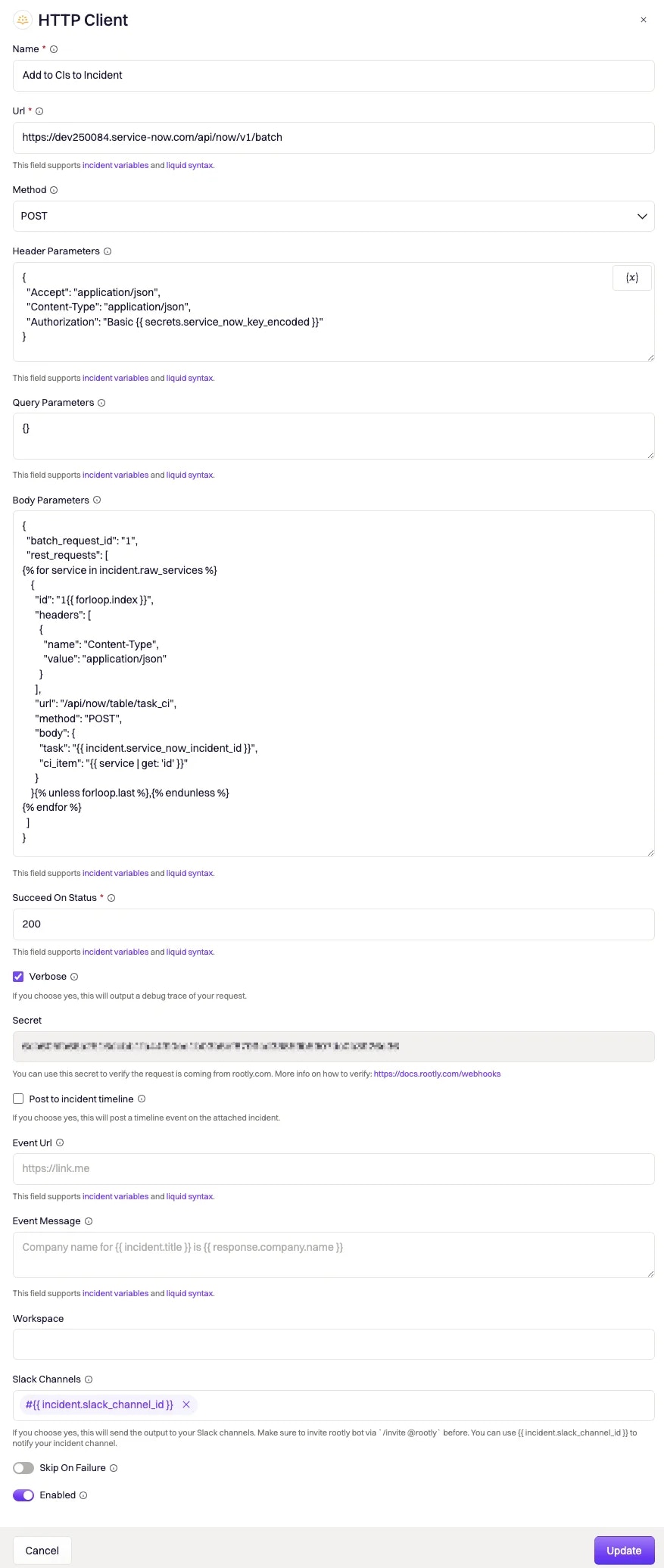
Adding configuration items to a ServiceNow incident requires multiple API calls (one per CI). Use Rootly's **HTTP Client** workflow action with the ServiceNow Batch API to consolidate them into a single request.
### Common Custom Field Examples
**Work notes (internal)** — visible only to ServiceNow agents, not customers.
```json theme={null}
{
"work_notes": "{{ incident.events[0].event_raw }}"
}
```
**Comments (customer-visible)**
```json theme={null}
{
"comments": "{{ incident.events[0].event_raw }}"
}
```
**Major incident**
```json theme={null}
{
"assignment_group": "3De45d9ebc3b333200fe02c9bb34efc434",
"major_incident_state": "proposed"
}
```
Major incident state changes may require specific ACL permissions in ServiceNow. See the [ServiceNow community](https://community.servicenow.com/community?id=community_question\&sys_id=fae73aeb1b7370900b8a9979b04bcb1a) for details.
### Add Configuration Items (CIs) to an Incident
Adding configuration items to a ServiceNow incident requires multiple API calls (one per CI). Use Rootly's **HTTP Client** workflow action with the ServiceNow Batch API to consolidate them into a single request.
 **Endpoint**
```http theme={null}
POST https://.com/api/now/v1/batch
```
**Headers**
```json theme={null}
{
"Accept": "application/json",
"Content-Type": "application/json",
"Authorization": "Basic {{ secrets.service_now_key_encoded }}"
}
```
Store your Base64-encoded `username:password` as a [Rootly Secret](https://rootly.com/account/secrets) to keep credentials out of plain-text workflow configurations.
**Body**
Each individual Table API call must have its `body` Base64-encoded. The following Liquid template dynamically generates one batch entry per service associated with the incident:
```json theme={null}
{
"batch_request_id": "1",
"rest_requests": [
{% for service in genius_workflow_run.newly_added_services %}
{% assign task_value = incident.service_now_incident_id %}
{% assign ci_item_value = service | get: 'service_now_ci_sys_id' %}
{% assign body_string = '{ "task": "' | append: task_value | append: '", "ci_item": "' | append: ci_item_value | append: '" }' %}
{
"id": "1{{ forloop.index }}",
"headers": [{ "name": "Content-Type", "value": "application/json" }],
"url": "/api/now/table/task_ci",
"method": "POST",
"body": "{{ body_string | base64_encode }}"
}{% unless forloop.last %},{% endunless %}
{% endfor %}
]
}
```
To use this template, each ServiceNow CI's `sys_id` must be linked to the equivalent Rootly service using the `service_now_ci_sys_id` field.
**Succeed On Status** — set to `200`. The ServiceNow Batch API returns `200` (not `201`) on success.
## Uninstall
To remove the ServiceNow integration, navigate to **Configuration > Integrations > ServiceNow > Delete**.
## Related Resources
* [Workflows](/workflows/workflows)
* [Alert workflows](/workflows/alert-workflows)
* [Integrations overview](/integrations/overview)
**Endpoint**
```http theme={null}
POST https://.com/api/now/v1/batch
```
**Headers**
```json theme={null}
{
"Accept": "application/json",
"Content-Type": "application/json",
"Authorization": "Basic {{ secrets.service_now_key_encoded }}"
}
```
Store your Base64-encoded `username:password` as a [Rootly Secret](https://rootly.com/account/secrets) to keep credentials out of plain-text workflow configurations.
**Body**
Each individual Table API call must have its `body` Base64-encoded. The following Liquid template dynamically generates one batch entry per service associated with the incident:
```json theme={null}
{
"batch_request_id": "1",
"rest_requests": [
{% for service in genius_workflow_run.newly_added_services %}
{% assign task_value = incident.service_now_incident_id %}
{% assign ci_item_value = service | get: 'service_now_ci_sys_id' %}
{% assign body_string = '{ "task": "' | append: task_value | append: '", "ci_item": "' | append: ci_item_value | append: '" }' %}
{
"id": "1{{ forloop.index }}",
"headers": [{ "name": "Content-Type", "value": "application/json" }],
"url": "/api/now/table/task_ci",
"method": "POST",
"body": "{{ body_string | base64_encode }}"
}{% unless forloop.last %},{% endunless %}
{% endfor %}
]
}
```
To use this template, each ServiceNow CI's `sys_id` must be linked to the equivalent Rootly service using the `service_now_ci_sys_id` field.
**Succeed On Status** — set to `200`. The ServiceNow Batch API returns `200` (not `201`) on success.
## Uninstall
To remove the ServiceNow integration, navigate to **Configuration > Integrations > ServiceNow > Delete**.
## Related Resources
* [Workflows](/workflows/workflows)
* [Alert workflows](/workflows/alert-workflows)
* [Integrations overview](/integrations/overview)