> ## Documentation Index
> Fetch the complete documentation index at: https://docs.rootly.com/llms.txt
> Use this file to discover all available pages before exploring further.
# Installation
> Connect your Slack workspace to Rootly for automated incident channels, notifications, slash commands, message actions, and bookmark management.
Connect Rootly to your Slack workspace to automatically create incident channels, send notifications, and manage collaboration during incidents.
***
## Prerequisites
**You'll need:**
* Rootly account with admin permissions
* Slack workspace admin or owner access
* For Enterprise Grid: Org Owner or Org Admin role
***
## Required Permissions
Rootly requests the following Slack permissions during installation.
| Scope | Purpose |
| -------------------------------------- | ---------------------------------------- |
| `bookmarks:write` | Add bookmarks to incident channels |
| `channels:manage` | Create public incident channels |
| `channels:read` | View public channel information |
| `chat:write` | Send messages to incident channels |
| `chat:write.public` | Post to channels without joining |
| `commands` | Add `/rootly` and `/incident` commands |
| `files:read` | Save pinned/reacted files to timeline |
| `files:write` | Upload files via workflows |
| `groups:read` | View private channels Rootly is added to |
| `groups:write` | Create private incident channels |
| `pins:read` / `pins:write` | Pin messages to incident channels |
| `reactions:read` / `reactions:write` | Add timeline events via emoji reactions |
| `usergroups:read` / `usergroups:write` | Manage on-call user groups |
| `users:read` / `users:read.email` | View user info for invitations |
| `users.profile:read` | Display full names instead of usernames |
| Scope | Purpose |
| ------------------- | -------------------------------------------- |
| `app_mentions:read` | Respond to @rootly mentions |
| `channels:history` | Read public channel history for AI features |
| `groups:history` | Read private channel history for AI features |
| `assistant:write` | Enable Rootly AI Assistant |
| `im:history` | Read DMs for AI Assistant interactions |
| Scope | Purpose |
| ------------------ | ----------------------------- |
| `usergroups:write` | On-call user group management |
**When bot cannot create channels** (some workspaces restrict this):
| Scope | Purpose |
| ---------------- | ------------------------------------------- |
| `channels:write` | Create public channels on behalf of admins |
| `groups:write` | Create private channels on behalf of admins |
| Scope | Purpose |
| ----------------------------- | ---------------------------------- |
| `conversations.connect:write` | Connect channels across workspaces |
| `admin.conversations:write` | Manage conversations at org level |
For details on Slack scopes, see [Slack's permission documentation](https://docs.slack.dev/reference/scopes).
***
## Choose Your Plan
Single workspace installation. Most common setup for teams on standard Slack plans.
Organization-level installation with multi-workspace support. Requires Org Owner/Admin.
***
## Slack Free, Pro, and Business+
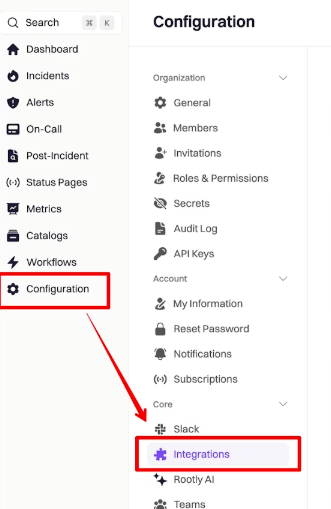
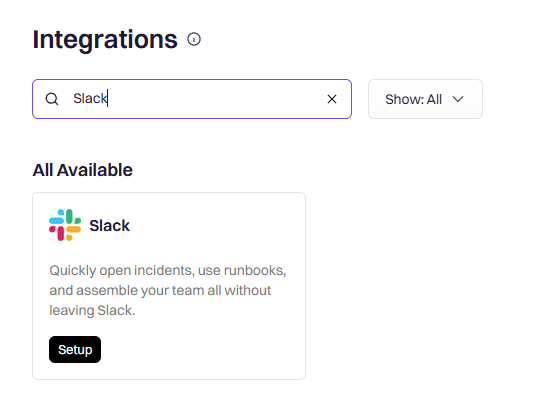
In Rootly, go to **Configuration → Integrations** and search for **Slack**. Click **Setup**.
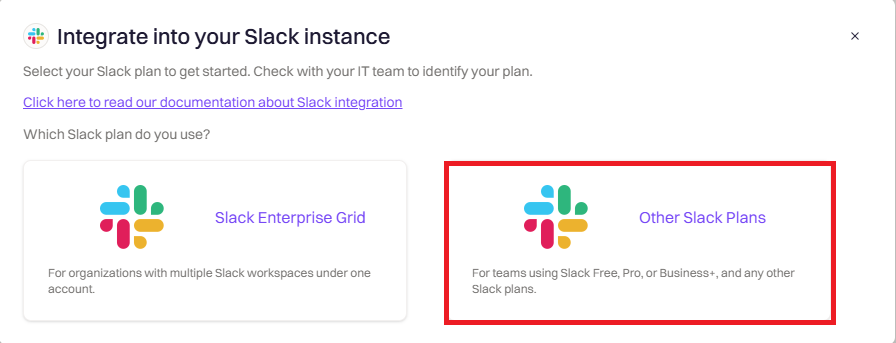
 Choose **Other Slack Plans** (this covers Free, Pro, and Business+).
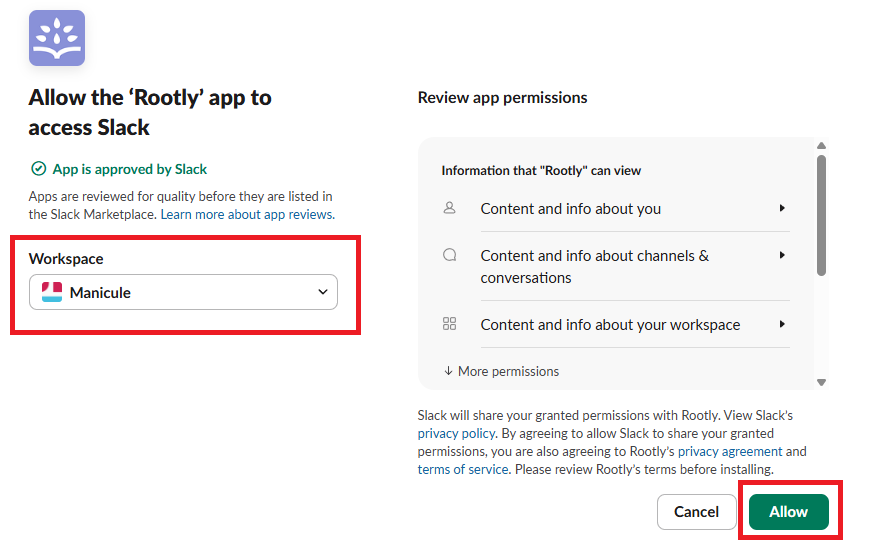
 You'll be redirected to Slack. Verify you're installing to the correct workspace (check the dropdown in the top right), then click **Allow**.
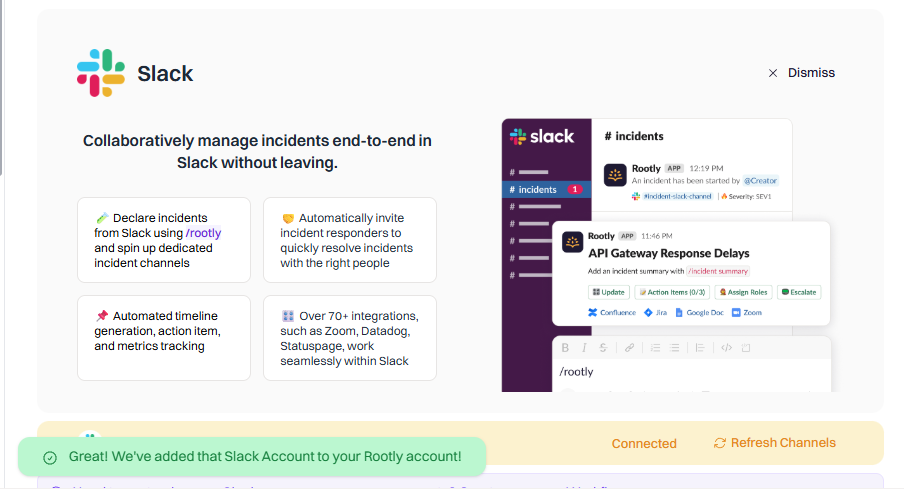
 You'll be redirected back to Rootly. The integration should show as **Connected**.
 ***
## Slack Enterprise Grid
You must be a **Workspace Owner** (not just Admin) to complete Enterprise Grid setup.
With Enterprise Grid, you install Rootly at the organization level, then add it to specific workspaces. This lets you manage incidents across multiple workspaces from a single Rootly account.
In Rootly, go to **Configuration → Integrations** and search for **Slack**. Click **Setup**.
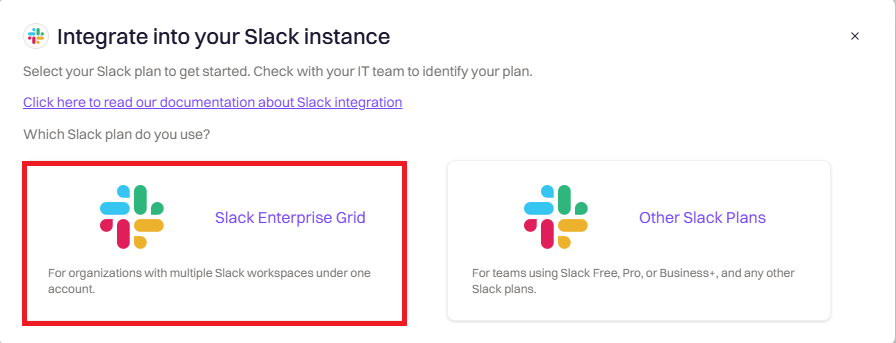
Choose **Slack Enterprise Grid**.
***
## Slack Enterprise Grid
You must be a **Workspace Owner** (not just Admin) to complete Enterprise Grid setup.
With Enterprise Grid, you install Rootly at the organization level, then add it to specific workspaces. This lets you manage incidents across multiple workspaces from a single Rootly account.
In Rootly, go to **Configuration → Integrations** and search for **Slack**. Click **Setup**.
Choose **Slack Enterprise Grid**.
 You'll be redirected to Slack. **Before clicking Allow**, verify you're installing at the **organization level** (not a single workspace).
Click **Allow** to approve Rootly as an organization-wide app.
After authorization, switch to your Slack Enterprise Grid admin portal:
1. Go to **Organization Settings → Integrations → Installed Apps**
2. Find **Rootly** in the list
3. Click the menu and select **Add to more workspaces**
4. Select which workspaces should have access to Rootly
5. Click **Next** and **Allow**
Rootly will now be available in those workspaces.
Return to Rootly and go to **Integrations → Slack → Configure**:
1. **Select incident workspace** — Choose which workspace will host your dedicated incident channels
2. **Set announcement channel** — Choose where new incidents are announced
3. **Set alerts channel** — Choose where alerts are posted
4. Click **Save Settings**
For cross-workspace visibility, create a shared incident channel:
1. In Slack, create or select a channel (e.g., `#incidents`)
2. Click the channel name → **Settings** → **Workspaces with access**
3. Add all workspaces that should see incident announcements
This way, users in any workspace can see incidents declared from any other workspace.
***
## Re-Claiming the /incident Command
During the transition to Rootly, you may experience issues where Rootly's bot claims the `/incident` Slack command from your existing bot. When multiple bots use the same command, [Slack will always invoke the one that was installed most recently](https://docs.slack.dev/interactivity/implementing-slash-commands/#naming_your_command). If this interrupts your transition, follow the steps below to reclaim the `/incident` command from Rootly.
### Option 1 (Recommended)
This is the safest method — it does not result in a blackout period where your old bot is unusable.
1. Ensure Rootly is already installed on your Slack workspace.
2. Update your old bot's Slack command from `/incident` to a placeholder (e.g., `/incident-1`).
3. Save the change.
4. Change the command of your old bot back to `/incident`.
Slack recognizes an update to the command as a new installation. This should make your old bot the "most recently installed bot" that uses the `/incident` command.
### Option 2
If Option 1 does not work, try this option. There will be a brief blackout period where your old bot is unusable.
1. Ensure Rootly is already installed on your Slack workspace.
2. Uninstall your old bot.
3. Reinstall your old bot.
This is effectively the same as Option 1 — the reinstallation reclaims the `/incident` command from Rootly.
### Enterprise Grid Consideration
If the issue persists after trying the above, check your installation scope. If **Rootly is installed at the Slack organization level** (Slack Enterprise Grid), you must also reinstall your old bot at the **Slack organization level**, not just at the workspace level.
***
## Uninstall
To remove the Slack integration:
1. Go to **Configuration → Integrations** and find **Slack**
2. Click **Connected** to reveal the disconnect option
3. Click **Disconnect**
You'll be redirected to Slack. **Before clicking Allow**, verify you're installing at the **organization level** (not a single workspace).
Click **Allow** to approve Rootly as an organization-wide app.
After authorization, switch to your Slack Enterprise Grid admin portal:
1. Go to **Organization Settings → Integrations → Installed Apps**
2. Find **Rootly** in the list
3. Click the menu and select **Add to more workspaces**
4. Select which workspaces should have access to Rootly
5. Click **Next** and **Allow**
Rootly will now be available in those workspaces.
Return to Rootly and go to **Integrations → Slack → Configure**:
1. **Select incident workspace** — Choose which workspace will host your dedicated incident channels
2. **Set announcement channel** — Choose where new incidents are announced
3. **Set alerts channel** — Choose where alerts are posted
4. Click **Save Settings**
For cross-workspace visibility, create a shared incident channel:
1. In Slack, create or select a channel (e.g., `#incidents`)
2. Click the channel name → **Settings** → **Workspaces with access**
3. Add all workspaces that should see incident announcements
This way, users in any workspace can see incidents declared from any other workspace.
***
## Re-Claiming the /incident Command
During the transition to Rootly, you may experience issues where Rootly's bot claims the `/incident` Slack command from your existing bot. When multiple bots use the same command, [Slack will always invoke the one that was installed most recently](https://docs.slack.dev/interactivity/implementing-slash-commands/#naming_your_command). If this interrupts your transition, follow the steps below to reclaim the `/incident` command from Rootly.
### Option 1 (Recommended)
This is the safest method — it does not result in a blackout period where your old bot is unusable.
1. Ensure Rootly is already installed on your Slack workspace.
2. Update your old bot's Slack command from `/incident` to a placeholder (e.g., `/incident-1`).
3. Save the change.
4. Change the command of your old bot back to `/incident`.
Slack recognizes an update to the command as a new installation. This should make your old bot the "most recently installed bot" that uses the `/incident` command.
### Option 2
If Option 1 does not work, try this option. There will be a brief blackout period where your old bot is unusable.
1. Ensure Rootly is already installed on your Slack workspace.
2. Uninstall your old bot.
3. Reinstall your old bot.
This is effectively the same as Option 1 — the reinstallation reclaims the `/incident` command from Rootly.
### Enterprise Grid Consideration
If the issue persists after trying the above, check your installation scope. If **Rootly is installed at the Slack organization level** (Slack Enterprise Grid), you must also reinstall your old bot at the **Slack organization level**, not just at the workspace level.
***
## Uninstall
To remove the Slack integration:
1. Go to **Configuration → Integrations** and find **Slack**
2. Click **Connected** to reveal the disconnect option
3. Click **Disconnect**
 Disconnecting from Rootly does not remove Rootly from Slack. To fully revoke access:
1. In Slack, go to **Settings & Administration → Manage Apps**
2. Find **Rootly** and click **Remove**
***
## Troubleshooting
**Causes:**
* You're not an Admin or Owner of the workspace
* Workspace doesn't allow members to install apps
* Logged into wrong Slack account
**Solutions:**
* Ask a Slack Admin/Owner to install Rootly
* Check **Slack → Settings & Permissions → App Management**
* Try in a private browser window with the correct Slack account
**Causes:**
* Your org isn't on Enterprise Grid
* You're not an Org Owner/Admin
* Logged into a non-Grid workspace
**Solutions:**
* Verify your plan at [Slack's pricing page](https://slack.com/pricing)
* Ask an Org Owner/Admin to complete installation
* Log into your Enterprise org, not a standalone workspace
**Causes:**
* Rootly bot lacks channel creation permissions
* Workspace restricts channel creation to admins
**Solutions:**
* Enable **Bypass Slack permissions** in Smart Defaults
* Verify Rootly has `channels:manage` and `groups:write` scopes
* Check workflow logs for specific errors
**Causes:**
* Announcement channel isn't shared across workspaces
* Rootly not added to all required workspaces
**Solutions:**
* Create a shared channel for incident announcements
* Add Rootly to all workspaces via **Organization Settings → Installed Apps**
If you're on Slack Enterprise Grid and pinning messages to the incident timeline isn't working, this is a sign that your Slack integration was installed as a **non-Grid** (single-workspace) installation rather than at the organization level. \
\
**Solutions:**
* Disconnect the Slack integration from Rootly
* Reconnect it, making sure to select **Slack Enterprise Grid** during installation and authorize at the **organization level** (not a single workspace)
Disconnecting from Rootly does not remove Rootly from Slack. To fully revoke access:
1. In Slack, go to **Settings & Administration → Manage Apps**
2. Find **Rootly** and click **Remove**
***
## Troubleshooting
**Causes:**
* You're not an Admin or Owner of the workspace
* Workspace doesn't allow members to install apps
* Logged into wrong Slack account
**Solutions:**
* Ask a Slack Admin/Owner to install Rootly
* Check **Slack → Settings & Permissions → App Management**
* Try in a private browser window with the correct Slack account
**Causes:**
* Your org isn't on Enterprise Grid
* You're not an Org Owner/Admin
* Logged into a non-Grid workspace
**Solutions:**
* Verify your plan at [Slack's pricing page](https://slack.com/pricing)
* Ask an Org Owner/Admin to complete installation
* Log into your Enterprise org, not a standalone workspace
**Causes:**
* Rootly bot lacks channel creation permissions
* Workspace restricts channel creation to admins
**Solutions:**
* Enable **Bypass Slack permissions** in Smart Defaults
* Verify Rootly has `channels:manage` and `groups:write` scopes
* Check workflow logs for specific errors
**Causes:**
* Announcement channel isn't shared across workspaces
* Rootly not added to all required workspaces
**Solutions:**
* Create a shared channel for incident announcements
* Add Rootly to all workspaces via **Organization Settings → Installed Apps**
If you're on Slack Enterprise Grid and pinning messages to the incident timeline isn't working, this is a sign that your Slack integration was installed as a **non-Grid** (single-workspace) installation rather than at the organization level. \
\
**Solutions:**
* Disconnect the Slack integration from Rootly
* Reconnect it, making sure to select **Slack Enterprise Grid** during installation and authorize at the **organization level** (not a single workspace)