> ## Documentation Index
> Fetch the complete documentation index at: https://docs.rootly.com/llms.txt
> Use this file to discover all available pages before exploring further.
# SMTP
> Route Rootly workflow emails through your own SMTP server to send from your company domain with full control over delivery, authentication, and headers.
## Overview
By default, Rootly sends workflow emails from `workflows@rootly.com`. Connecting an SMTP server lets you route those emails through your own mail infrastructure — so emails arrive from your company domain and you retain full control over delivery, authentication, and TLS configuration.
Send workflow emails from your own domain instead of Rootly's default address.
Configure TLS, authentication type, port, and SSL verification to match your mail server's requirements.
All **Send an Email** workflow actions automatically route through SMTP once connected — no changes to existing workflows needed.
SMTP takes precedence over SendGrid. If both are connected, SMTP is always used.
## Before You Begin
* You must be a Rootly admin to set up the integration
* You need SMTP credentials for your mail server (address, port, username, password)
## Installation
Go to **Configuration → Integrations**, find **SMTP**, and click **Setup**.
 Fill in your server configuration and click **Connect**.
 ## Configuration
The hostname of your SMTP server — for example, `smtp.gmail.com` or `smtp.sendgrid.net`. Must be a valid domain name. Stored encrypted at rest.
The port your SMTP server listens on. Defaults to `587` (STARTTLS). Common values: `25`, `465` (SMTPS), `587`.
The HELO/EHLO domain sent to the mail server during the SMTP handshake — for example, `yourcompany.com`. Optional; leave blank to use the default.
The username for SMTP authentication. Required if your server requires authentication. Stored encrypted at rest.
The password for SMTP authentication. Required if your server requires authentication. Stored encrypted at rest.
The authentication mechanism your server requires:
* `plain` — Sends credentials in plain text (use with TLS)
* `login` — Base64-encoded credentials (use with TLS)
* `cram_md5` — Challenge-response authentication (does not require TLS)
Defaults to `plain`.
Force STARTTLS when connecting. If enabled and the server does not support STARTTLS, the connection will fail. Defaults to `false`.
Automatically detect and use STARTTLS if the server supports it, but do not fail if it doesn't. Defaults to `true`. Disable if you are using direct TLS via SSL mode.
Use SMTPS — SMTP over a direct TLS connection on port 465. Defaults to `true`. Disable if your server uses STARTTLS instead.
How OpenSSL validates the server certificate:
* `None` — No certificate verification (useful for self-signed certs)
* `Peer` — Verify the server's certificate against trusted CAs
Defaults to `None`.
Once SMTP is connected, all **Send an Email** workflow actions are automatically routed through it. The **From** field in each workflow action controls the sender address — just ensure the address is authorized on your SMTP server.
## Uninstall
To remove the SMTP integration:
1. Go to **Configuration → Integrations** and find **SMTP**
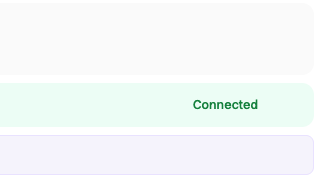
2. Click **Connected** to reveal the disconnect option
3. Click **Disconnect**
## Configuration
The hostname of your SMTP server — for example, `smtp.gmail.com` or `smtp.sendgrid.net`. Must be a valid domain name. Stored encrypted at rest.
The port your SMTP server listens on. Defaults to `587` (STARTTLS). Common values: `25`, `465` (SMTPS), `587`.
The HELO/EHLO domain sent to the mail server during the SMTP handshake — for example, `yourcompany.com`. Optional; leave blank to use the default.
The username for SMTP authentication. Required if your server requires authentication. Stored encrypted at rest.
The password for SMTP authentication. Required if your server requires authentication. Stored encrypted at rest.
The authentication mechanism your server requires:
* `plain` — Sends credentials in plain text (use with TLS)
* `login` — Base64-encoded credentials (use with TLS)
* `cram_md5` — Challenge-response authentication (does not require TLS)
Defaults to `plain`.
Force STARTTLS when connecting. If enabled and the server does not support STARTTLS, the connection will fail. Defaults to `false`.
Automatically detect and use STARTTLS if the server supports it, but do not fail if it doesn't. Defaults to `true`. Disable if you are using direct TLS via SSL mode.
Use SMTPS — SMTP over a direct TLS connection on port 465. Defaults to `true`. Disable if your server uses STARTTLS instead.
How OpenSSL validates the server certificate:
* `None` — No certificate verification (useful for self-signed certs)
* `Peer` — Verify the server's certificate against trusted CAs
Defaults to `None`.
Once SMTP is connected, all **Send an Email** workflow actions are automatically routed through it. The **From** field in each workflow action controls the sender address — just ensure the address is authorized on your SMTP server.
## Uninstall
To remove the SMTP integration:
1. Go to **Configuration → Integrations** and find **SMTP**
2. Click **Connected** to reveal the disconnect option
3. Click **Disconnect**
 After disconnecting, workflow emails will fall back to SendGrid (if connected) or Rootly's default delivery.
## Frequently Asked Questions
No. All **Send an Email** workflow actions automatically route through SMTP once connected. No changes to existing workflows are required.
**SSL** (SMTPS) opens a TLS connection immediately on port 465. **StartTLS** begins as a plain connection on port 587, then upgrades to TLS. Most modern mail servers use port 587 with StartTLS — enable **StartTLS Auto** and disable **SSL** for this setup.
SMTP always takes priority. If both are connected, Rootly uses SMTP. To switch to SendGrid, disconnect the SMTP integration first.
Yes. Set **SSL Verify Mode** to `None` to skip certificate validation. This is useful for internal mail servers with self-signed certificates.
The **From** address must be authorized on your SMTP server. Rootly will not allow workflow emails to spoof Rootly-owned domains regardless of the From field value.
After disconnecting, workflow emails will fall back to SendGrid (if connected) or Rootly's default delivery.
## Frequently Asked Questions
No. All **Send an Email** workflow actions automatically route through SMTP once connected. No changes to existing workflows are required.
**SSL** (SMTPS) opens a TLS connection immediately on port 465. **StartTLS** begins as a plain connection on port 587, then upgrades to TLS. Most modern mail servers use port 587 with StartTLS — enable **StartTLS Auto** and disable **SSL** for this setup.
SMTP always takes priority. If both are connected, Rootly uses SMTP. To switch to SendGrid, disconnect the SMTP integration first.
Yes. Set **SSL Verify Mode** to `None` to skip certificate validation. This is useful for internal mail servers with self-signed certificates.
The **From** address must be authorized on your SMTP server. Rootly will not allow workflow emails to spoof Rootly-owned domains regardless of the From field value.