> ## Documentation Index
> Fetch the complete documentation index at: https://docs.rootly.com/llms.txt
> Use this file to discover all available pages before exploring further.
# Statuspage.io
> Connect Atlassian Statuspage.io to Rootly to import status pages and templates, and publish incident updates to your customer-facing status page.
The Statuspage.io integration connects Rootly with Atlassian Statuspage so incident communication happens in one place. Import your existing status pages and update templates into Rootly, then publish customer-facing updates directly from an incident's Status Page Timeline.
With the Statuspage.io integration, you can:
* Import existing Statuspage.io pages into Rootly
* Import Statuspage.io update templates to standardize customer messaging
* Create a Statuspage incident from a Rootly incident
* Auto-populate status page updates from a template, including status and affected components
## Before You Begin
Before importing anything, make sure you have:
* A Rootly account with admin permission to manage integrations
* An Atlassian Statuspage account with at least one page
## Installation
Connect the integration before importing pages or templates.
Go to **Configuration → Integrations**, find **Statuspage.io**, and click **Setup**.
Follow the prompts to connect Rootly to your Atlassian Statuspage account.
Once connected, the integration shows as **Connected** on the integrations page and the import options below become available.
## Import Status Pages
Importing a page links it to Rootly so incidents can publish to it.
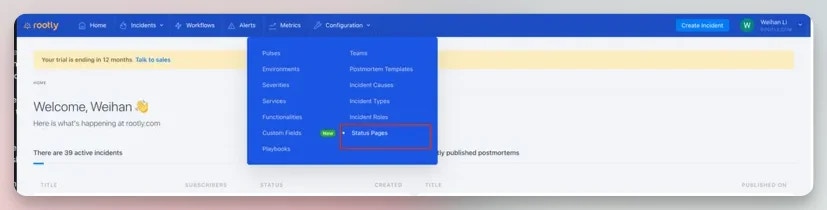
In the Rootly web app, navigate to **Configuration > Status pages**.
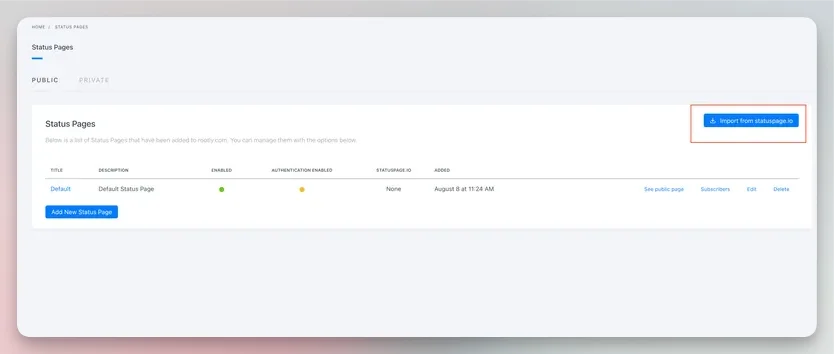
 On the status pages configuration page, click **Import from statuspage.io**.
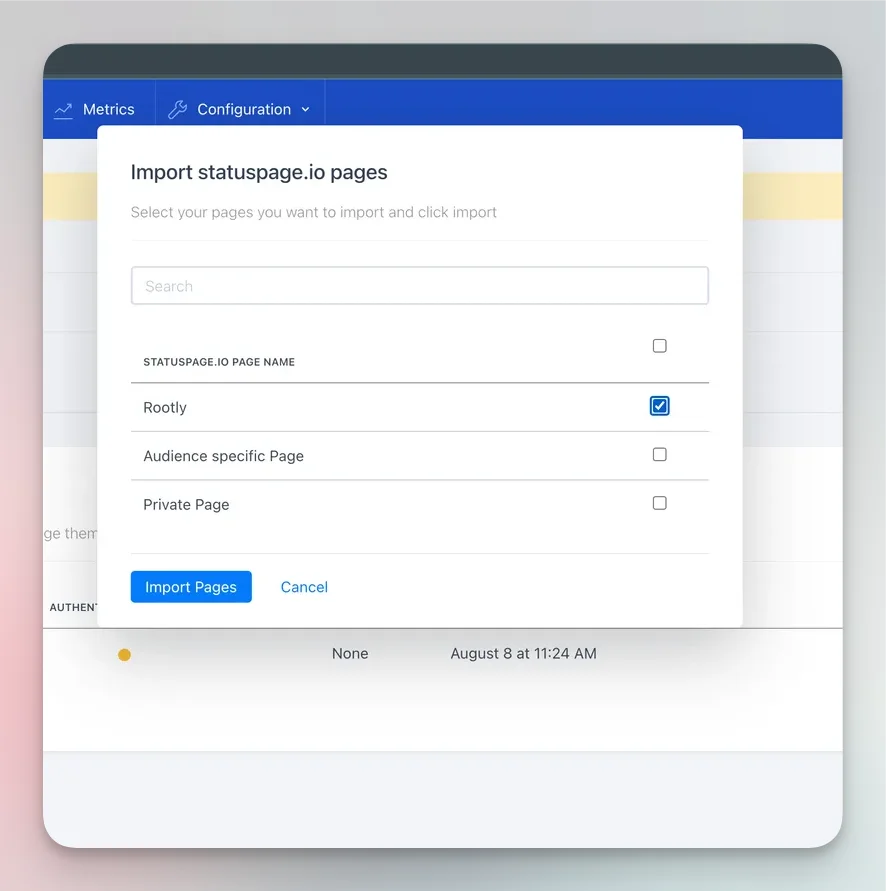
 In the popup modal, select the Statuspage.io page you want to import into Rootly, then click **Import pages**.
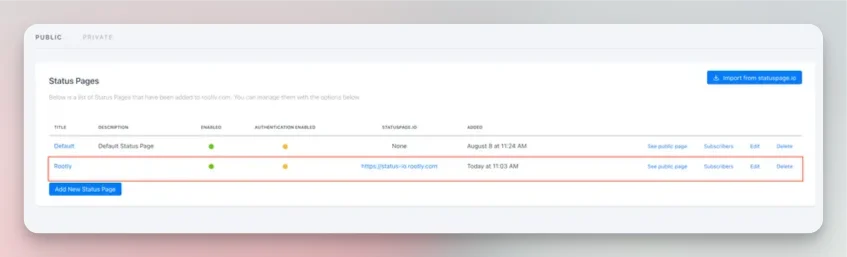
 The newly imported page appears in the list.
 ## Import Templates
Rootly supports Statuspage.io templates. Once imported, they auto-populate fields when you make a status page update.
Templates can only be imported for status pages that are already linked to Statuspage.io. Import the page first.
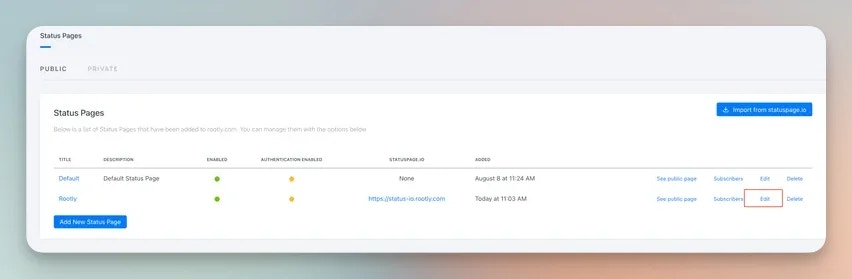
On the status page configuration page, select **Edit** on a page that has a Statuspage.io page linked. A linked page has the **STATUSPAGE.IO** column populated.
## Import Templates
Rootly supports Statuspage.io templates. Once imported, they auto-populate fields when you make a status page update.
Templates can only be imported for status pages that are already linked to Statuspage.io. Import the page first.
On the status page configuration page, select **Edit** on a page that has a Statuspage.io page linked. A linked page has the **STATUSPAGE.IO** column populated.
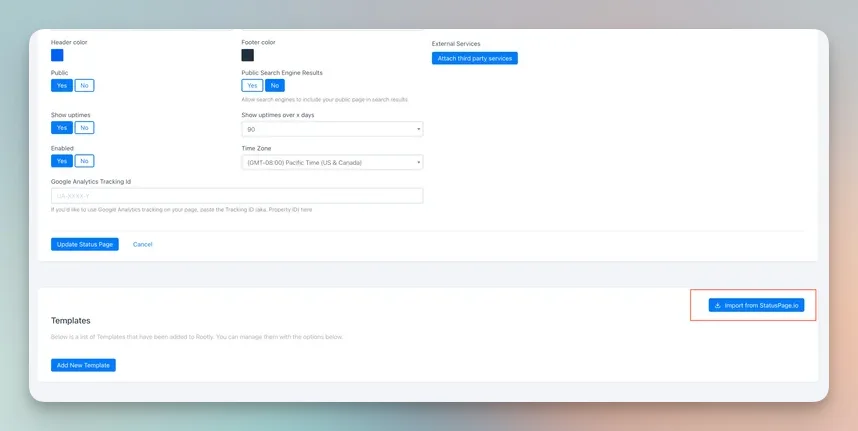
 Scroll down to **Import from Statuspage.io** for templates.
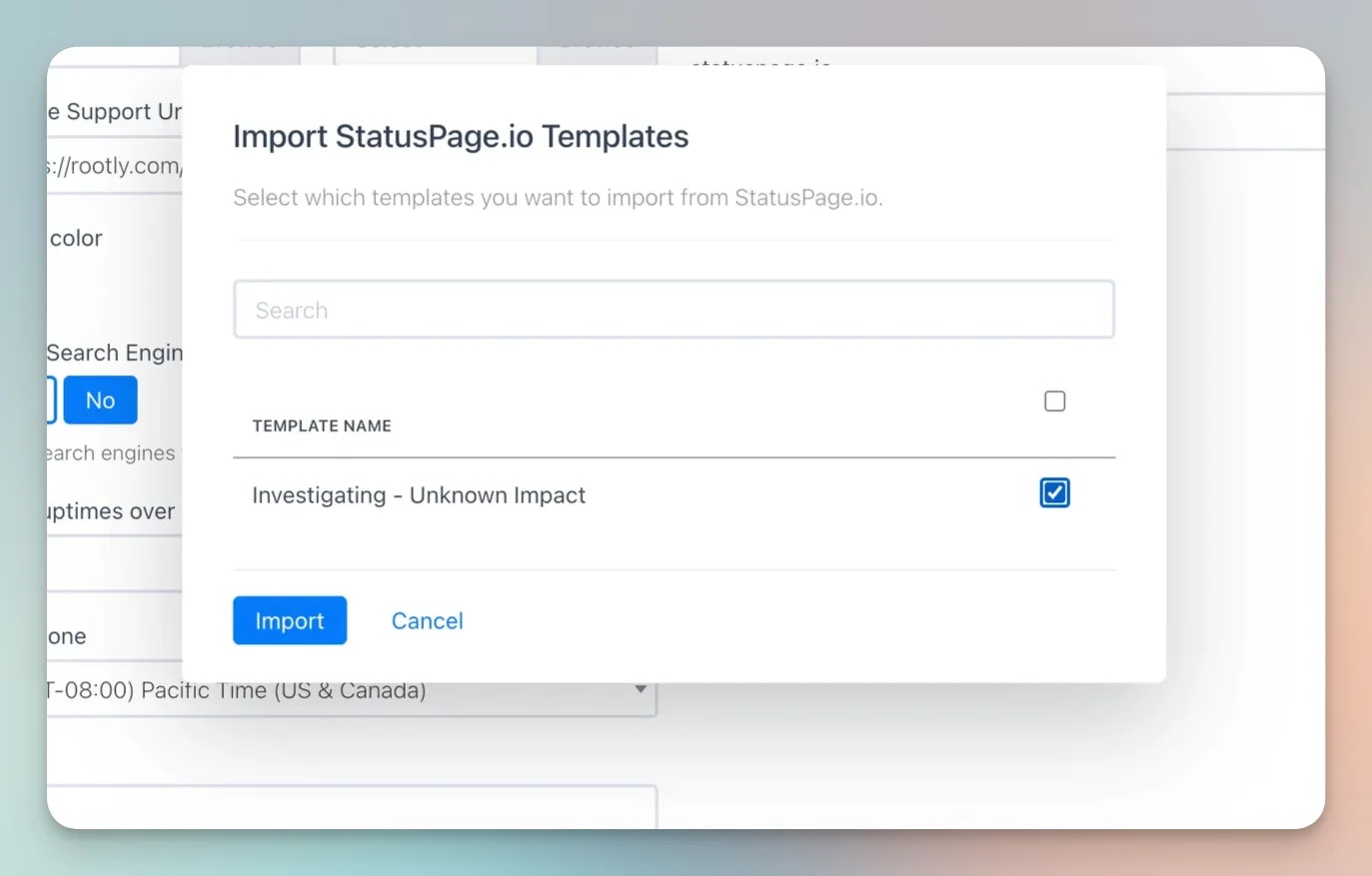
 In the popup modal, select which templates to import from Statuspage.io.
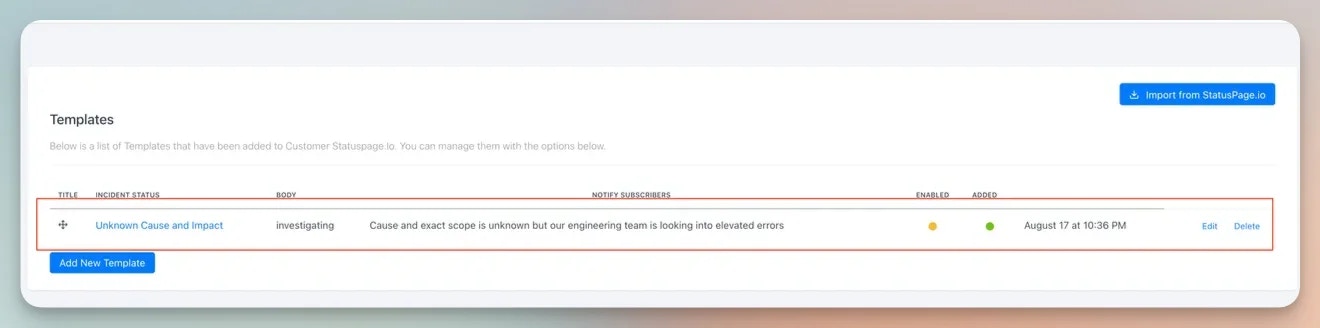
 The imported template now appears in Rootly under your Statuspage.io integrated status page.
 ## Create a Statuspage Incident
Publish a Rootly incident to a linked Statuspage.io page.
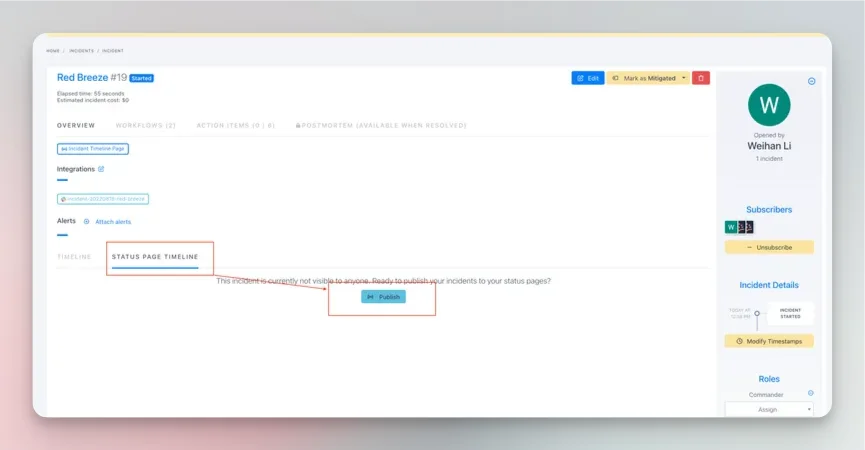
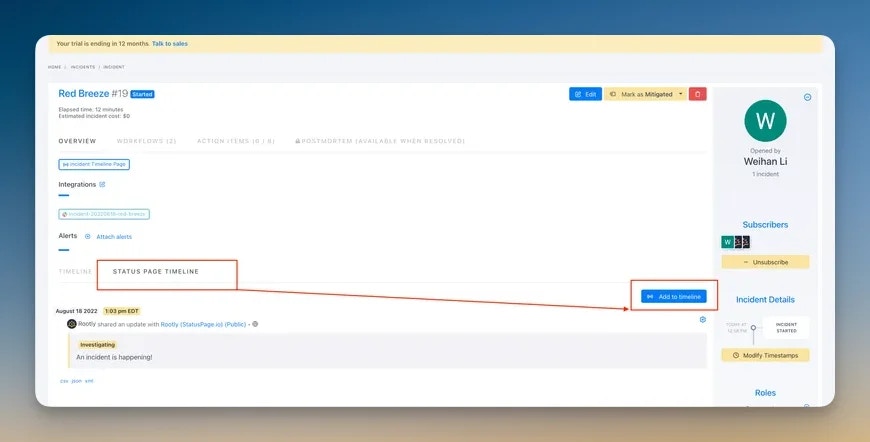
Within any unpublished incident, click the **Status Page Timeline** tab, then click **Publish**.
## Create a Statuspage Incident
Publish a Rootly incident to a linked Statuspage.io page.
Within any unpublished incident, click the **Status Page Timeline** tab, then click **Publish**.
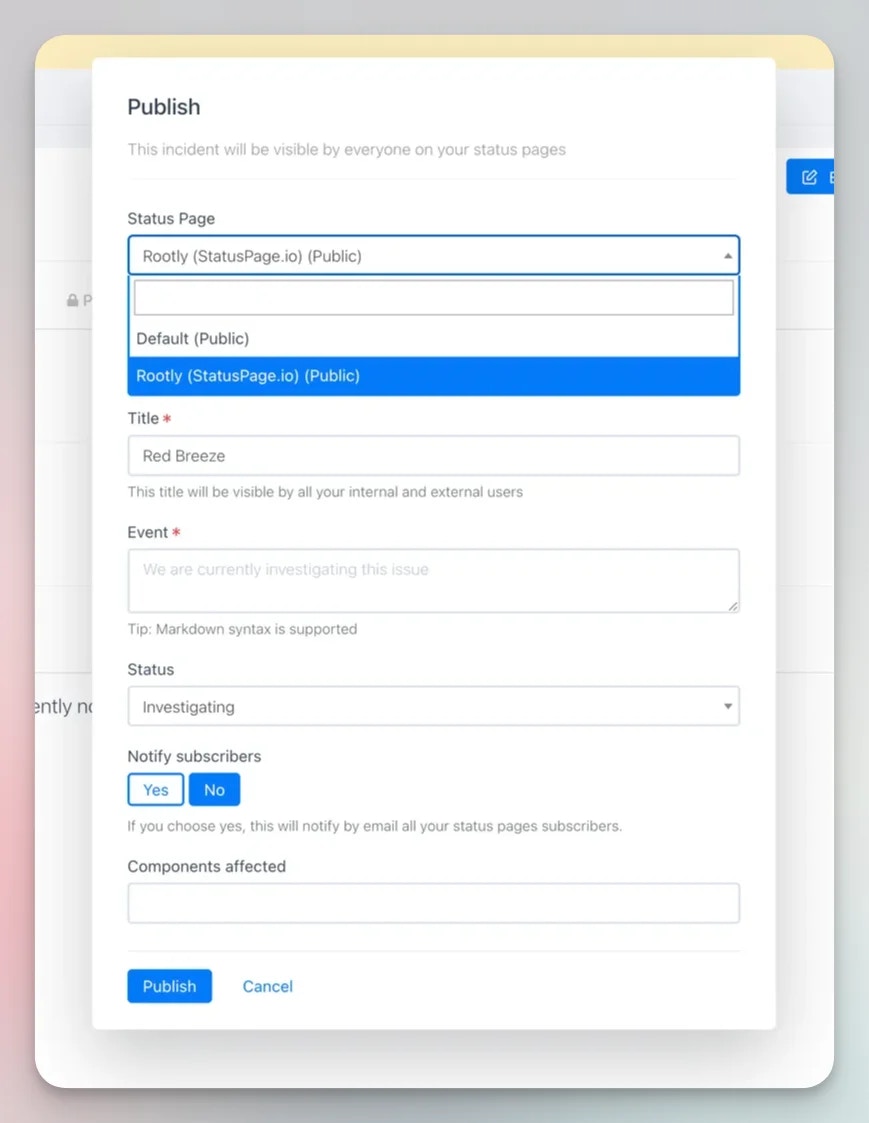
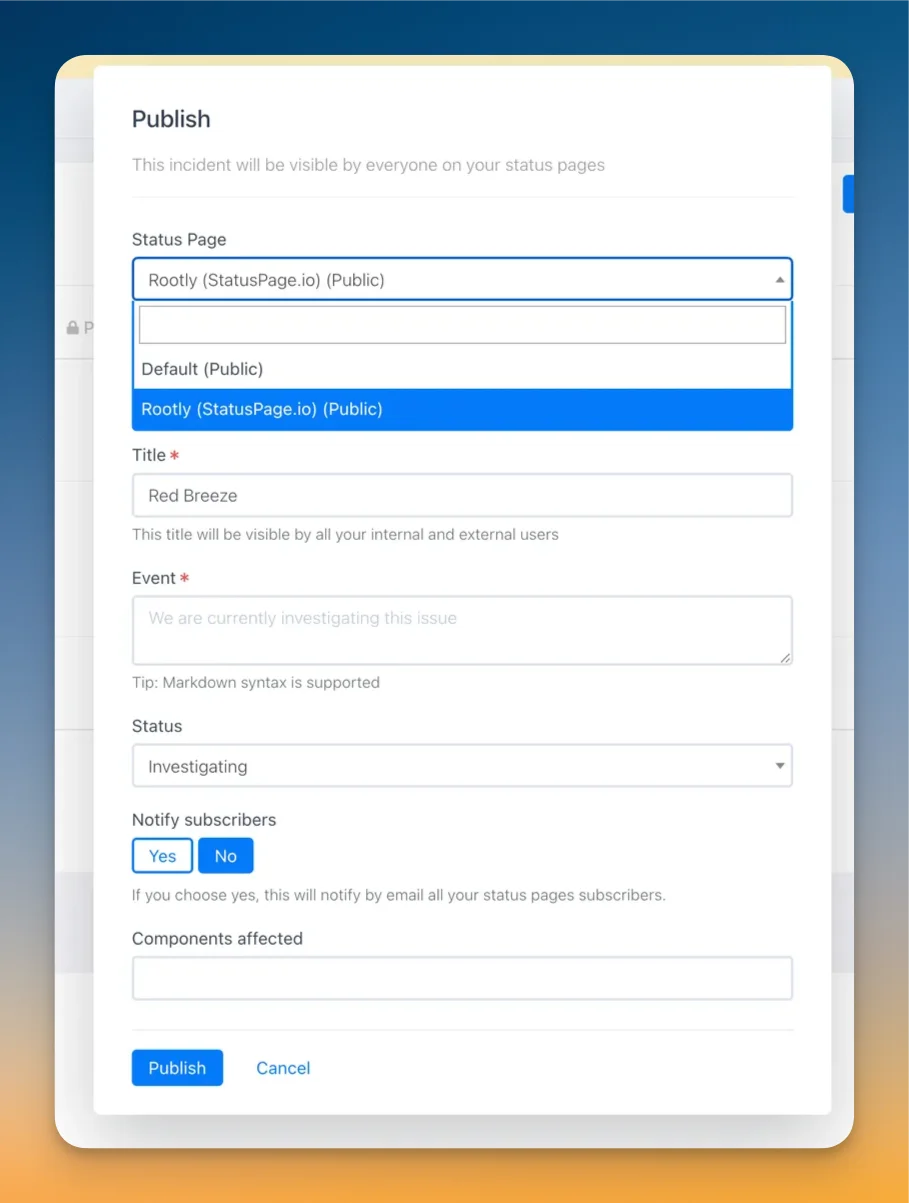
 In the publish dialog, select a status page integrated with Statuspage.io — these have "(Statuspage.io)" in the title. Fill out the publish form with your desired settings.
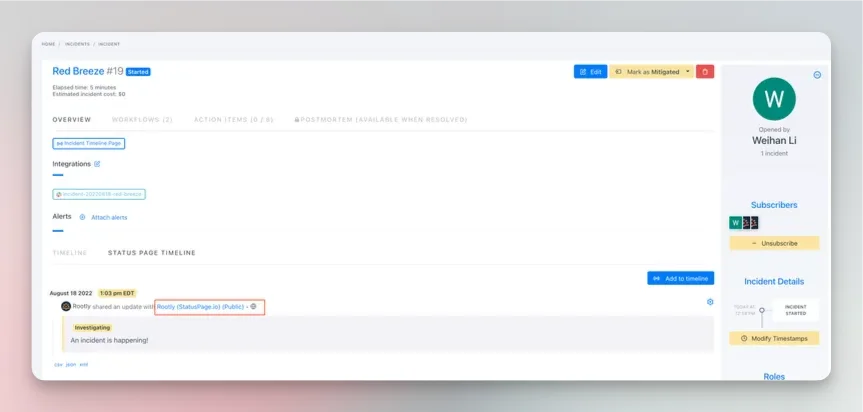
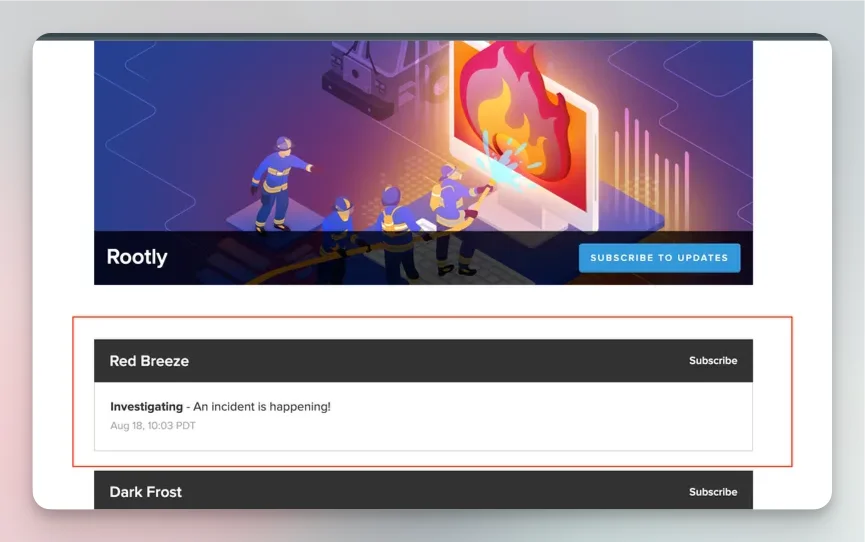
 After publishing, the incident is added to the Rootly timeline. Click the hyperlink next to the incident event to open the newly created Statuspage.io incident.
 ## Use Status Page Templates
Templates are preset values that auto-populate an event update, so customer messaging stays consistent across incidents.
Within any incident in Rootly, click the **Status Page Timeline** tab, then **Add to Timeline**.
## Use Status Page Templates
Templates are preset values that auto-populate an event update, so customer messaging stays consistent across incidents.
Within any incident in Rootly, click the **Status Page Timeline** tab, then **Add to Timeline**.
 In the publish modal, select a status page with Statuspage.io integrated — these have "(Statuspage.io)" in the title.
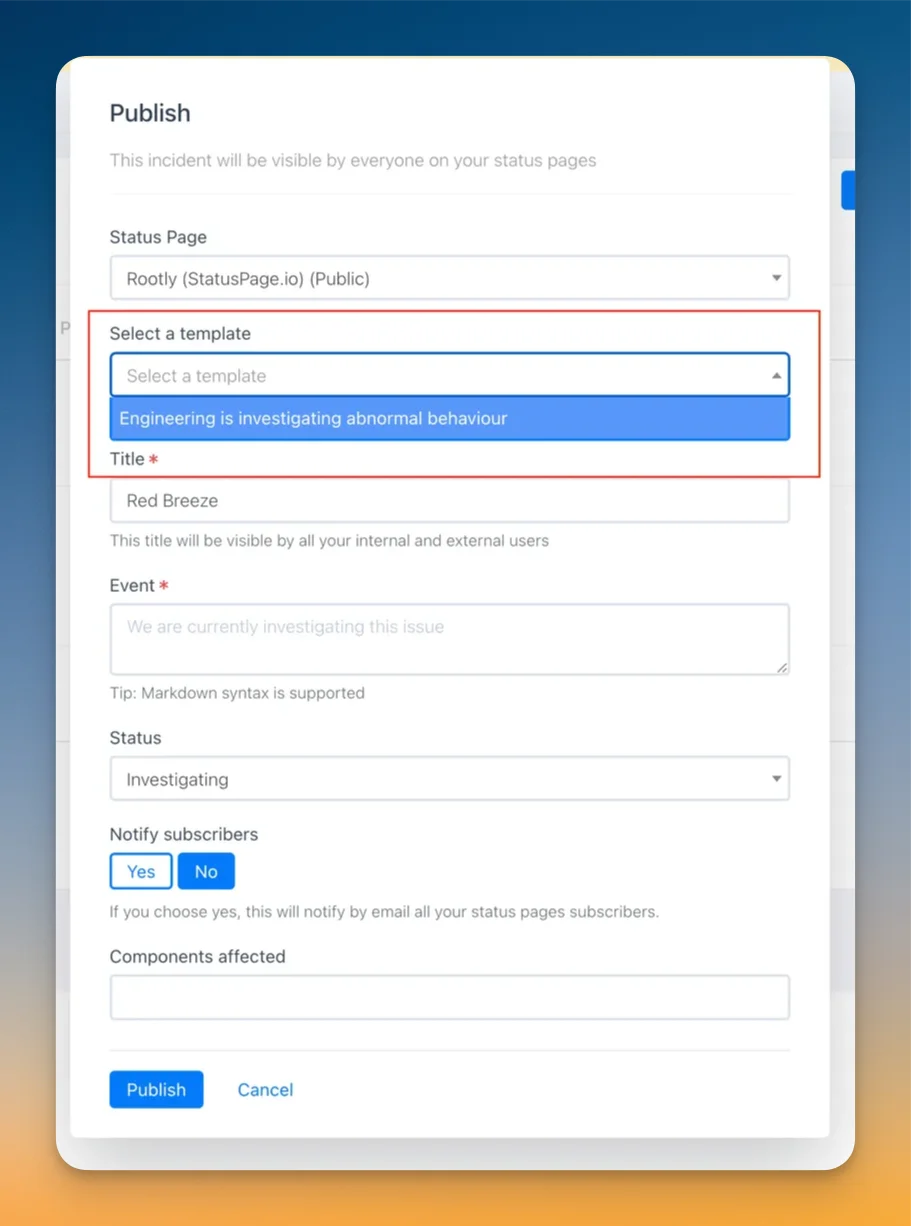
 In the same modal, select the template to use for this incident event update.
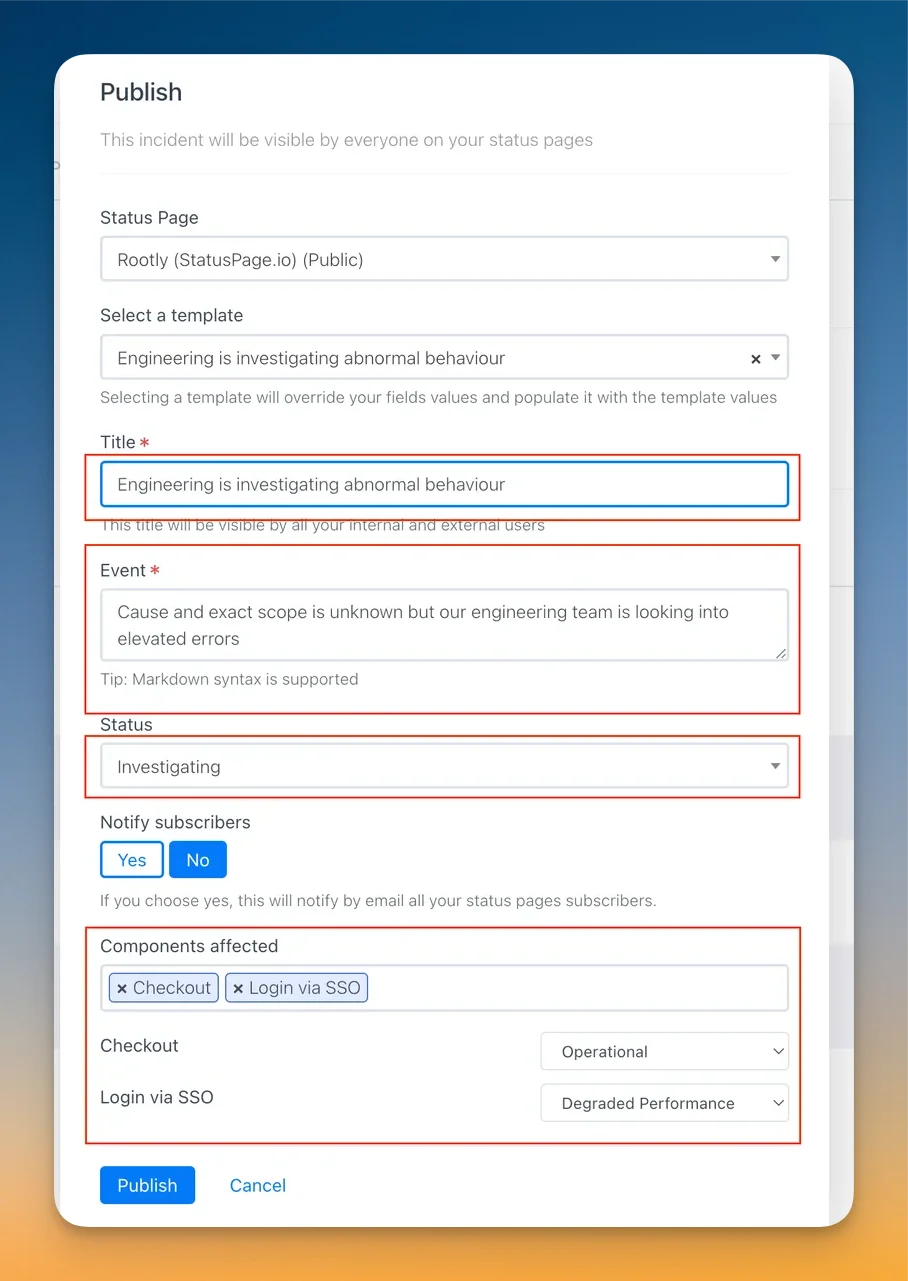
 The template populates presets such as the event message, status, and any affected components.
 ## Related Resources
* [Status pages](/configuration/status-pages)
* [Integrations overview](/integrations/overview)
## Related Resources
* [Status pages](/configuration/status-pages)
* [Integrations overview](/integrations/overview)