> ## Documentation Index
> Fetch the complete documentation index at: https://docs.rootly.com/llms.txt
> Use this file to discover all available pages before exploring further.
# Trello
> Connect Trello to Rootly to automatically create and update cards from incidents, action items, and follow-up workflows.
The Trello integration connects Rootly with your Trello account so teams can automatically create and update cards through Genius workflows. Cards can be placed on any board and list, assigned labels, and given due dates — all driven by incident data.
With the Trello integration, you can:
* Automatically create Trello cards when incidents are declared or reach a certain state
* Update card title, description, labels, due date, and position as incidents evolve
* Move cards between lists and boards as incident status changes
* Archive cards automatically when incidents are resolved
## Before You Begin
Before setting up the integration, make sure you have:
* A Rootly account with admin permission to manage integrations
* A Trello account with access to the boards you want to use
Rootly recommends installing with a dedicated Trello service account so the integration does not break if an individual user leaves your organization.
## Installation
Navigate to the integrations page in Rootly and select **Trello**.
You will be redirected to Trello to sign in and grant Rootly permission to access your account.
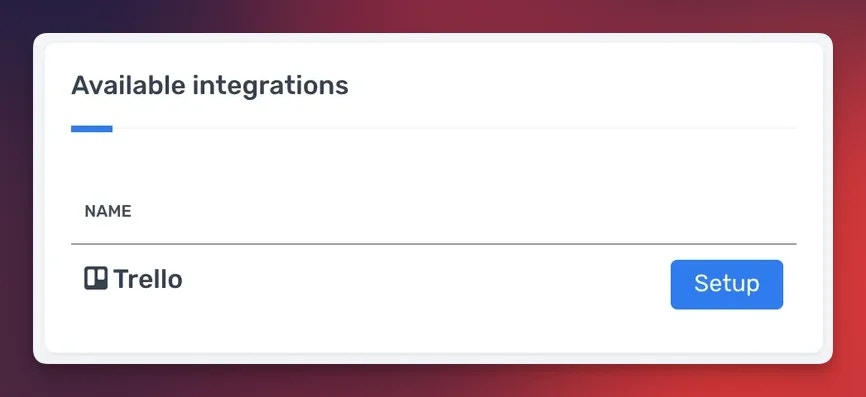 Once authorized, the installation is complete.
After authorization, the **Create a Trello Card** and **Update a Trello Card** workflow actions are available in your Genius workflows.
## Workflow Actions
The Trello integration provides two workflow actions for managing cards from Rootly incidents. If you are unfamiliar with how Genius workflows work, visit the [Workflows](/workflows/workflows) documentation first.
Trello organizes content in a hierarchy: **Boards → Lists → Cards**. When configuring workflow actions, select the board first, then the list within that board.
### Create a Trello Card
This action creates a new card in a specified Trello list.
| Field | Description | Required |
| --------------- | ----------------------------------------------------------------------------- | -------- |
| **Name** | Display name for this workflow action | |
| **Board** | Trello board where the card will be created | Yes |
| **List** | List within the selected board | Yes |
| **Title** | Card title. Defaults to `{{ incident.title }}`. Supports Liquid | Yes |
| **Description** | Card description. Supports Liquid | |
| **Labels** | One or more Trello labels to apply. Labels are loaded from the selected board | |
| **Due Date** | Card due date. Supports Liquid | |
Once authorized, the installation is complete.
After authorization, the **Create a Trello Card** and **Update a Trello Card** workflow actions are available in your Genius workflows.
## Workflow Actions
The Trello integration provides two workflow actions for managing cards from Rootly incidents. If you are unfamiliar with how Genius workflows work, visit the [Workflows](/workflows/workflows) documentation first.
Trello organizes content in a hierarchy: **Boards → Lists → Cards**. When configuring workflow actions, select the board first, then the list within that board.
### Create a Trello Card
This action creates a new card in a specified Trello list.
| Field | Description | Required |
| --------------- | ----------------------------------------------------------------------------- | -------- |
| **Name** | Display name for this workflow action | |
| **Board** | Trello board where the card will be created | Yes |
| **List** | List within the selected board | Yes |
| **Title** | Card title. Defaults to `{{ incident.title }}`. Supports Liquid | Yes |
| **Description** | Card description. Supports Liquid | |
| **Labels** | One or more Trello labels to apply. Labels are loaded from the selected board | |
| **Due Date** | Card due date. Supports Liquid | |
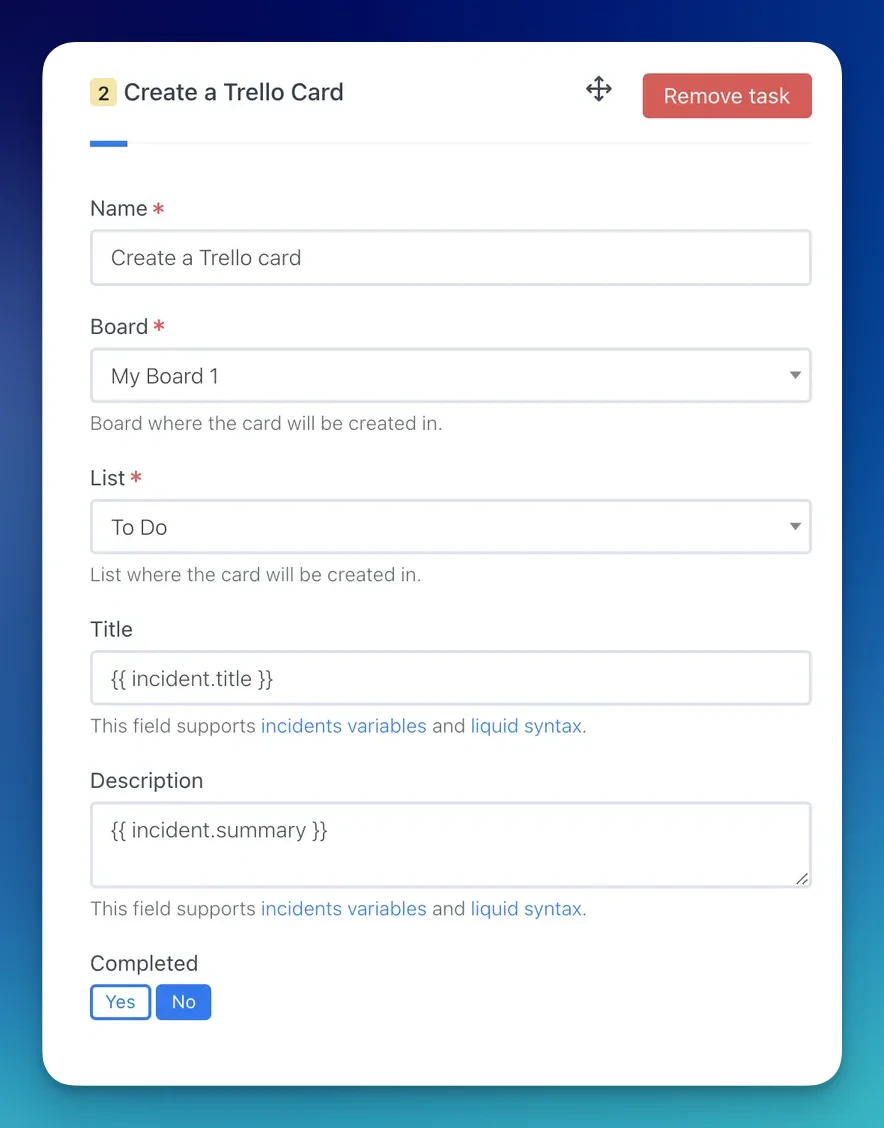 Use the [Incident Variable Explorer](https://rootly.com/account/help/liquid-explorer) to preview what Liquid variables return for your incidents.
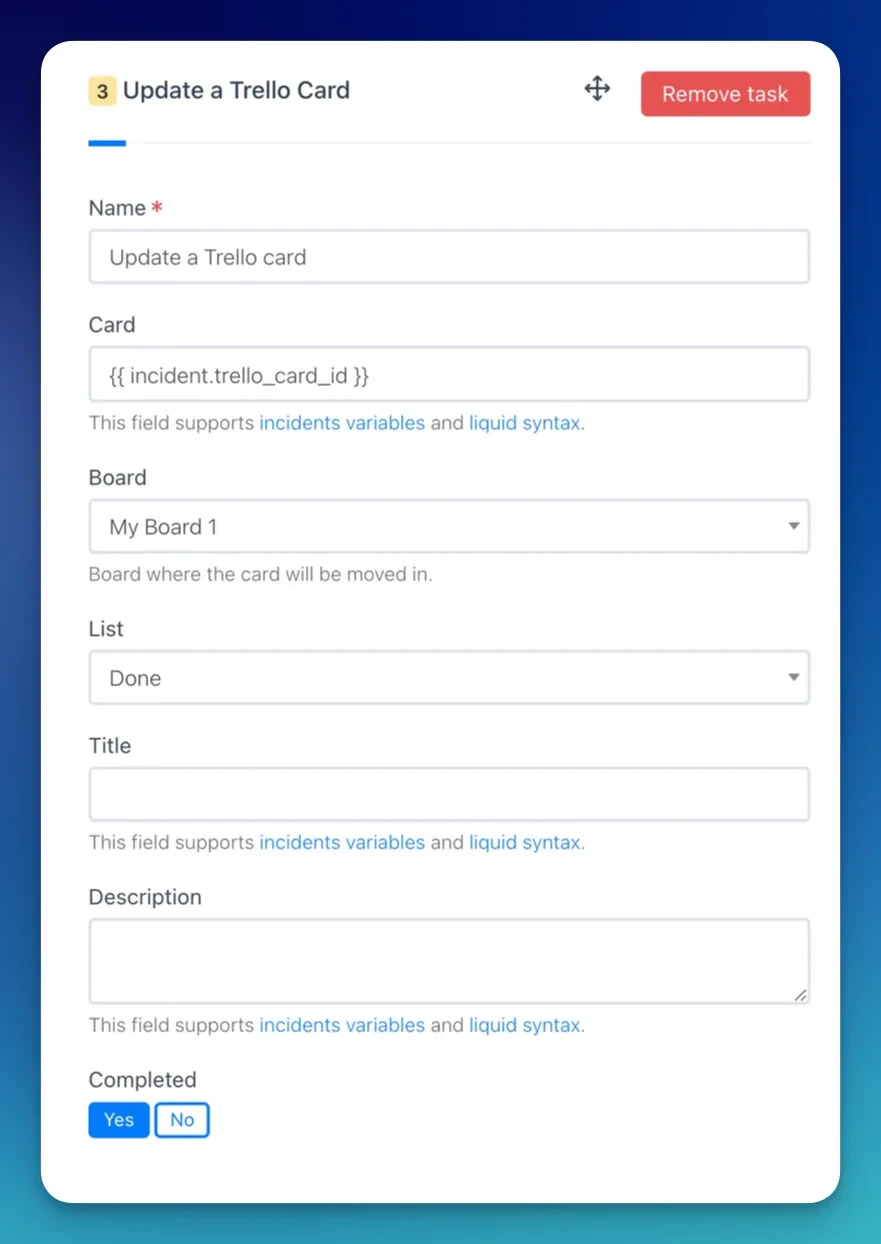
### Update a Trello Card
This action updates an existing Trello card.
When a **Create a Trello Card** action runs, Rootly stores the resulting card ID on the incident record. Reference it in subsequent update actions using Liquid variables.
| Field | Description | Required |
| --------------- | -------------------------------------------------------------------------------- | -------- |
| **Name** | Display name for this workflow action | |
| **Card ID** | Trello card ID to update. Supports Liquid | Yes |
| **Board** | Board to move the card to. Leave blank to keep on current board | |
| **List** | List to move the card to. Leave blank to keep in current list | |
| **Title** | Updated card title. Supports Liquid. Leave blank to keep existing | |
| **Description** | Updated card description. Supports Liquid | |
| **Labels** | Updated labels. Filtered by the selected board | |
| **Due Date** | Updated due date. Supports Liquid | |
| **Archivation** | Whether to archive the card. **Auto** mirrors the incident or action item status | Yes |
Use the [Incident Variable Explorer](https://rootly.com/account/help/liquid-explorer) to preview what Liquid variables return for your incidents.
### Update a Trello Card
This action updates an existing Trello card.
When a **Create a Trello Card** action runs, Rootly stores the resulting card ID on the incident record. Reference it in subsequent update actions using Liquid variables.
| Field | Description | Required |
| --------------- | -------------------------------------------------------------------------------- | -------- |
| **Name** | Display name for this workflow action | |
| **Card ID** | Trello card ID to update. Supports Liquid | Yes |
| **Board** | Board to move the card to. Leave blank to keep on current board | |
| **List** | List to move the card to. Leave blank to keep in current list | |
| **Title** | Updated card title. Supports Liquid. Leave blank to keep existing | |
| **Description** | Updated card description. Supports Liquid | |
| **Labels** | Updated labels. Filtered by the selected board | |
| **Due Date** | Updated due date. Supports Liquid | |
| **Archivation** | Whether to archive the card. **Auto** mirrors the incident or action item status | Yes |
 ## Troubleshooting
Rootly loads boards and lists from your authorized Trello account. If boards you expect to see are missing, confirm the authorizing user has access to those boards. Re-authenticating the integration may refresh the available list.
Labels in Trello are scoped to a specific board. Select a board first — labels will load automatically based on the selected board.
## Uninstall
To remove the Trello integration, open the integrations panel in Rootly and select **Configure > Delete**.
## Related Resources
* [Workflows](/workflows/workflows)
* [Liquid templating](/liquid/liquid)
* [Integrations overview](/integrations/overview)
## Troubleshooting
Rootly loads boards and lists from your authorized Trello account. If boards you expect to see are missing, confirm the authorizing user has access to those boards. Re-authenticating the integration may refresh the available list.
Labels in Trello are scoped to a specific board. Select a board first — labels will load automatically based on the selected board.
## Uninstall
To remove the Trello integration, open the integrations panel in Rootly and select **Configure > Delete**.
## Related Resources
* [Workflows](/workflows/workflows)
* [Liquid templating](/liquid/liquid)
* [Integrations overview](/integrations/overview)