> ## Documentation Index
> Fetch the complete documentation index at: https://docs.rootly.com/llms.txt
> Use this file to discover all available pages before exploring further.
# Workflows
> Configure Trello workflow actions in Rootly to create and update cards from incidents with board, list, and label assignment for follow-up tracking.
## Overview
The Trello integration provides two workflow actions for managing cards from Rootly incidents. If you are unfamiliar with how Genius workflows work, visit the [Workflows](/workflows) documentation first.
Trello organizes content in a hierarchy: **Boards → Lists → Cards**. When configuring workflow actions, select the board first, then the list within that board.
## Available Workflow Actions
### Create a Trello Card
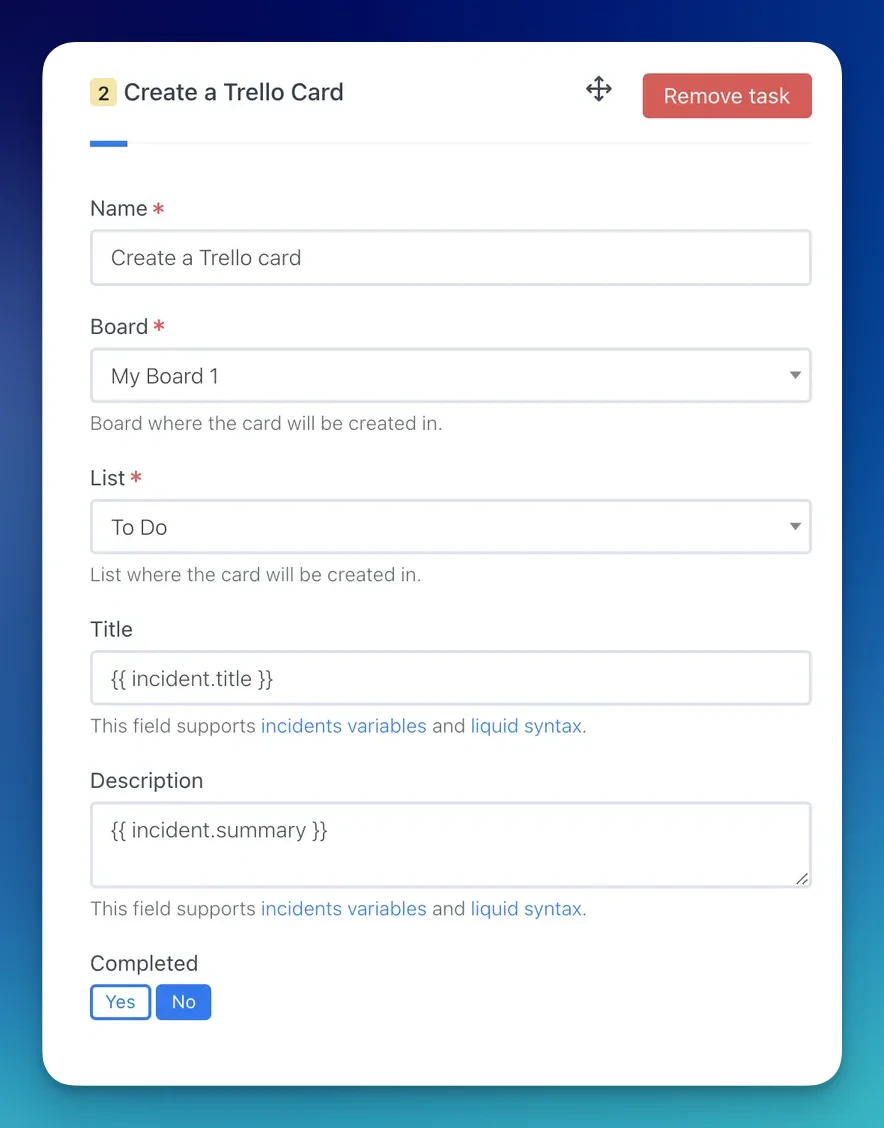
This action creates a new card in a specified Trello list.
| Field | Description | Required |
| --------------- | ----------------------------------------------------------------------------- | -------- |
| **Name** | Display name for this workflow action | |
| **Board** | Trello board where the card will be created | Yes |
| **List** | List within the selected board | Yes |
| **Title** | Card title. Defaults to `{{ incident.title }}`. Supports Liquid | Yes |
| **Description** | Card description. Supports Liquid | |
| **Labels** | One or more Trello labels to apply. Labels are loaded from the selected board | |
| **Due Date** | Card due date. Supports Liquid | |
 Use the [Incident Variable Explorer](https://rootly.com/account/help/liquid-explorer) to preview what Liquid variables return for your incidents.
***
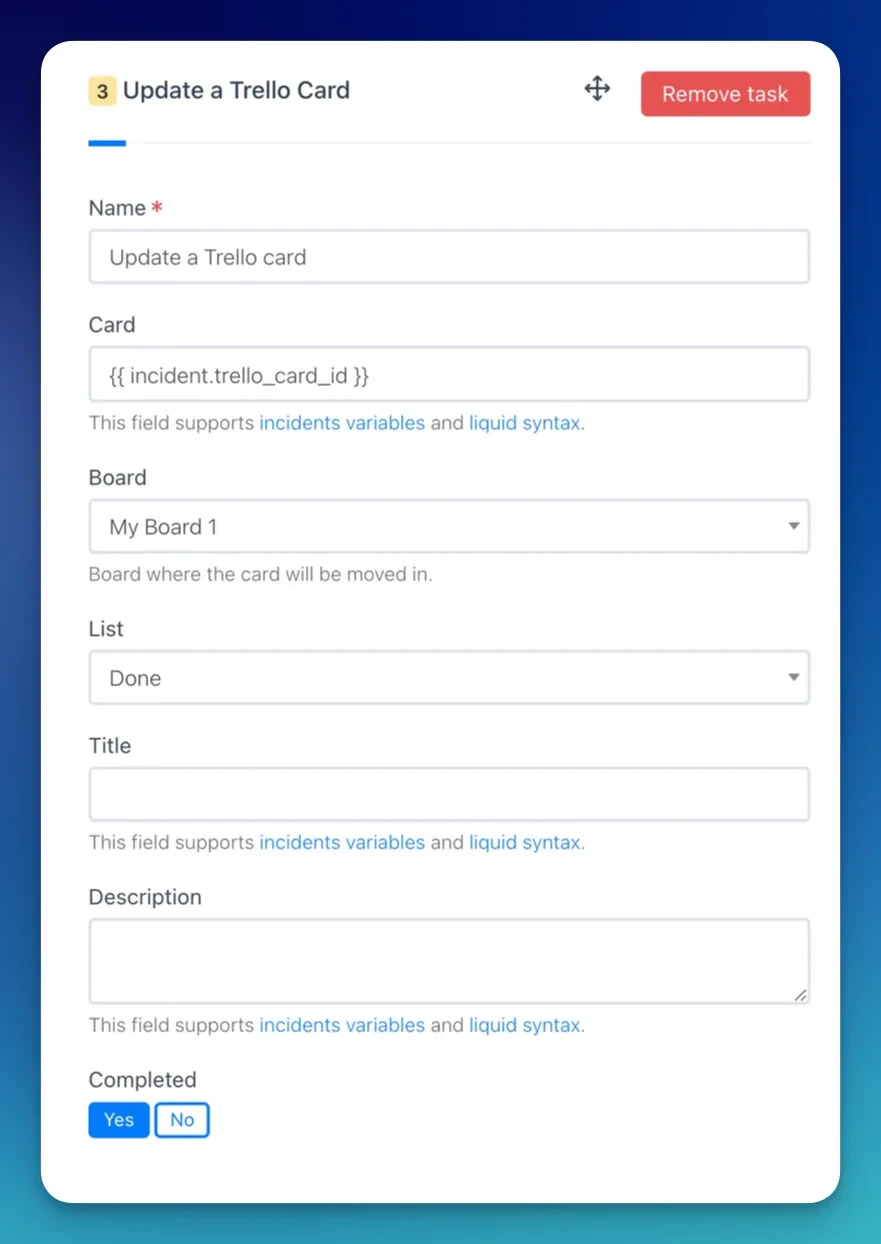
### Update a Trello Card
This action updates an existing Trello card.
When a **Create a Trello Card** action runs, Rootly stores the resulting card ID on the incident record. Reference it in subsequent update actions using Liquid variables.
| Field | Description | Required |
| --------------- | -------------------------------------------------------------------------------- | -------- |
| **Name** | Display name for this workflow action | |
| **Card ID** | Trello card ID to update. Supports Liquid | Yes |
| **Board** | Board to move the card to. Leave blank to keep on current board | |
| **List** | List to move the card to. Leave blank to keep in current list | |
| **Title** | Updated card title. Supports Liquid. Leave blank to keep existing | |
| **Description** | Updated card description. Supports Liquid | |
| **Labels** | Updated labels. Filtered by the selected board | |
| **Due Date** | Updated due date. Supports Liquid | |
| **Archivation** | Whether to archive the card. **Auto** mirrors the incident or action item status | Yes |
Use the [Incident Variable Explorer](https://rootly.com/account/help/liquid-explorer) to preview what Liquid variables return for your incidents.
***
### Update a Trello Card
This action updates an existing Trello card.
When a **Create a Trello Card** action runs, Rootly stores the resulting card ID on the incident record. Reference it in subsequent update actions using Liquid variables.
| Field | Description | Required |
| --------------- | -------------------------------------------------------------------------------- | -------- |
| **Name** | Display name for this workflow action | |
| **Card ID** | Trello card ID to update. Supports Liquid | Yes |
| **Board** | Board to move the card to. Leave blank to keep on current board | |
| **List** | List to move the card to. Leave blank to keep in current list | |
| **Title** | Updated card title. Supports Liquid. Leave blank to keep existing | |
| **Description** | Updated card description. Supports Liquid | |
| **Labels** | Updated labels. Filtered by the selected board | |
| **Due Date** | Updated due date. Supports Liquid | |
| **Archivation** | Whether to archive the card. **Auto** mirrors the incident or action item status | Yes |
 ***
## Troubleshooting
Rootly loads boards and lists from your authorized Trello account. If boards you expect to see are missing, confirm the authorizing user has access to those boards. Re-authenticating the integration may refresh the available list.
Labels in Trello are scoped to a specific board. Select a board first — labels will load automatically based on the selected board.
***
## Troubleshooting
Rootly loads boards and lists from your authorized Trello account. If boards you expect to see are missing, confirm the authorizing user has access to those boards. Re-authenticating the integration may refresh the available list.
Labels in Trello are scoped to a specific board. Select a board first — labels will load automatically based on the selected board.