> ## Documentation Index
> Fetch the complete documentation index at: https://docs.rootly.com/llms.txt
> Use this file to discover all available pages before exploring further.
# Twitter / X
> Post incident updates to Twitter directly from Rootly workflows or the incident timeline to keep customers and stakeholders informed in real time.
## Overview
Rootly's Twitter integration lets your team publish incident updates to your organization's Twitter/X account without leaving the incident response flow. You can tweet via a workflow action or directly from the incident timeline.
Automatically post status updates to Twitter at any point in an incident workflow — on creation, escalation, or resolution.
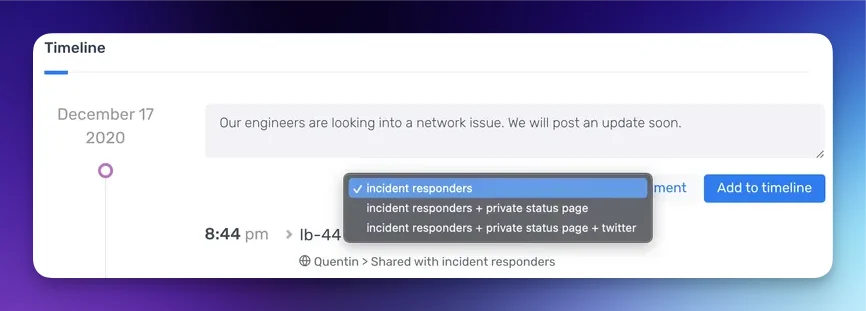
Share a timeline entry directly to Twitter by setting its visibility to **incident responders + private status page + twitter**.
## Before You Begin
* You must be a Rootly admin to set up the integration
* You need access to the Twitter/X account you want to post from
Use a **dedicated service account** rather than a personal Twitter account. If the user who connected the integration leaves or loses access, the integration will stop working.
## Installation
Connecting Twitter to Rootly is a single OAuth step — no API keys to copy.
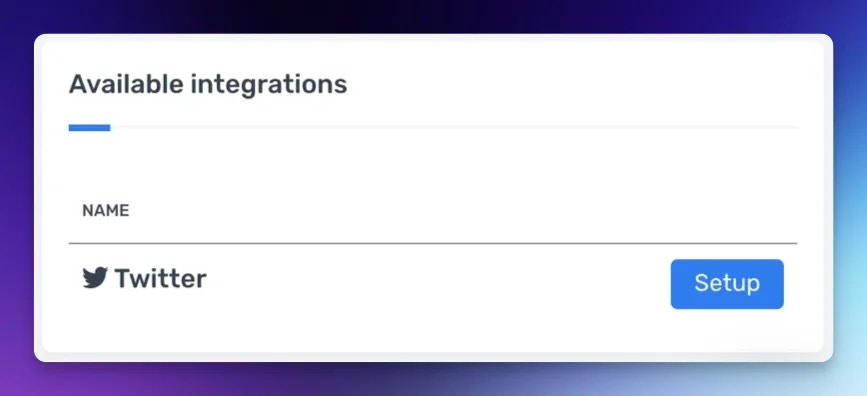
Go to **Configuration → Integrations**, find **Twitter**, and click **Setup**.
 You'll be redirected to Twitter to sign in and grant Rootly permission to post on your behalf. After authorizing, you'll be returned to Rootly and the integration will show as connected under your account's `@handle`.
## Posting from the Incident Timeline
You can tweet a timeline entry directly from the incident by changing the visibility of the update.
When adding a comment to the incident timeline, open the visibility dropdown and select **incident responders + private status page + twitter**. Rootly will post the entry as a tweet on your connected account.
You'll be redirected to Twitter to sign in and grant Rootly permission to post on your behalf. After authorizing, you'll be returned to Rootly and the integration will show as connected under your account's `@handle`.
## Posting from the Incident Timeline
You can tweet a timeline entry directly from the incident by changing the visibility of the update.
When adding a comment to the incident timeline, open the visibility dropdown and select **incident responders + private status page + twitter**. Rootly will post the entry as a tweet on your connected account.
 ## Workflow Action
### Tweet a Message
Posts a tweet to your connected Twitter account from a workflow.
The text content of the tweet. Supports [Liquid variables](/liquid/incident-variables) — for example, `{{ incident.title }}` or `{{ incident.status }}`. Twitter's character limit applies.
Use Liquid to make tweets dynamic — for example: `"Incident resolved: {{ incident.title }}. Thanks for your patience."` will automatically fill in the incident title at runtime.
## Uninstall
To remove the Twitter integration:
1. Go to **Configuration → Integrations** and find **Twitter**
2. Click **Connected** to reveal the disconnect option
3. Click **Disconnect**
## Workflow Action
### Tweet a Message
Posts a tweet to your connected Twitter account from a workflow.
The text content of the tweet. Supports [Liquid variables](/liquid/incident-variables) — for example, `{{ incident.title }}` or `{{ incident.status }}`. Twitter's character limit applies.
Use Liquid to make tweets dynamic — for example: `"Incident resolved: {{ incident.title }}. Thanks for your patience."` will automatically fill in the incident title at runtime.
## Uninstall
To remove the Twitter integration:
1. Go to **Configuration → Integrations** and find **Twitter**
2. Click **Connected** to reveal the disconnect option
3. Click **Disconnect**
 ## Frequently Asked Questions
No. Rootly supports one connected Twitter account per organization. To switch accounts, disconnect the current integration and reconnect with the new account.
Rootly automatically refreshes the OAuth token in the background. If refresh fails — for example, if the connected account's permissions were revoked — tweets will fail until you reconnect. This is why a dedicated service account is recommended.
Yes — Twitter's standard 280-character limit applies. Rootly does not truncate the message automatically, so keep your Liquid templates short enough to stay within the limit.
Not currently. The workflow action supports text-only tweets.
## Frequently Asked Questions
No. Rootly supports one connected Twitter account per organization. To switch accounts, disconnect the current integration and reconnect with the new account.
Rootly automatically refreshes the OAuth token in the background. If refresh fails — for example, if the connected account's permissions were revoked — tweets will fail until you reconnect. This is why a dedicated service account is recommended.
Yes — Twitter's standard 280-character limit applies. Rootly does not truncate the message automatically, so keep your Liquid templates short enough to stay within the limit.
Not currently. The workflow action supports text-only tweets.