> ## Documentation Index
> Fetch the complete documentation index at: https://docs.rootly.com/llms.txt
> Use this file to discover all available pages before exploring further.
# Installation
> Connect Webex to Rootly via OAuth to enable automatic meeting creation for incidents, with meeting links shared in Slack channels and notifications.
## Overview
Connecting Webex to Rootly takes just a few minutes. You'll authorize Rootly to access your Webex account via OAuth, after which the **Create Webex Meeting** workflow action becomes available.
## Before You Begin
We recommend installing with a **service account** (e.g., `incidents@yourcompany.com`) rather than a personal account. This ensures the integration stays active if the installing user leaves the company.
You must be logged into Rootly as an **Admin** to complete setup.
## Connect Webex to Rootly
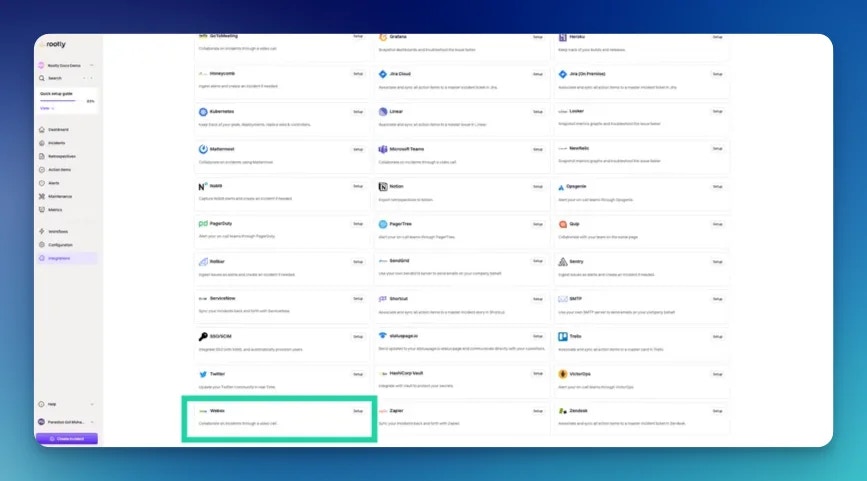
In Rootly, go to **Configuration → Integrations** and find **Webex**. Click **Setup**.
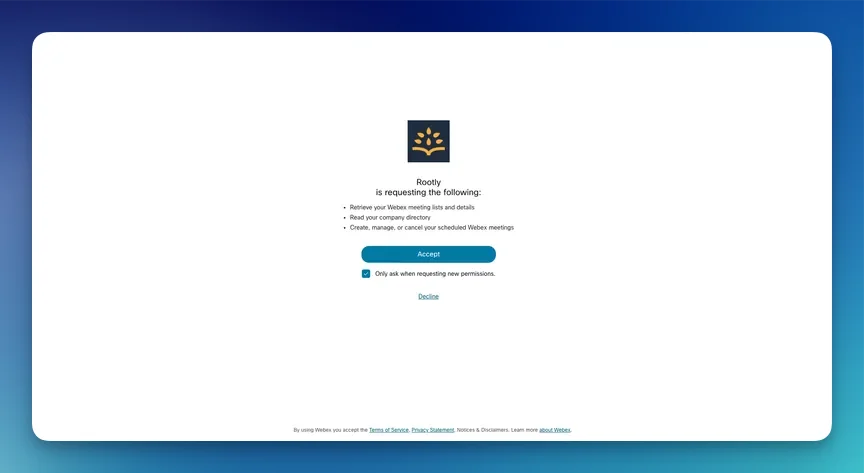
 You'll be redirected to Webex. Sign in with your Webex account (or create one), then click **Allow** to grant Rootly access.
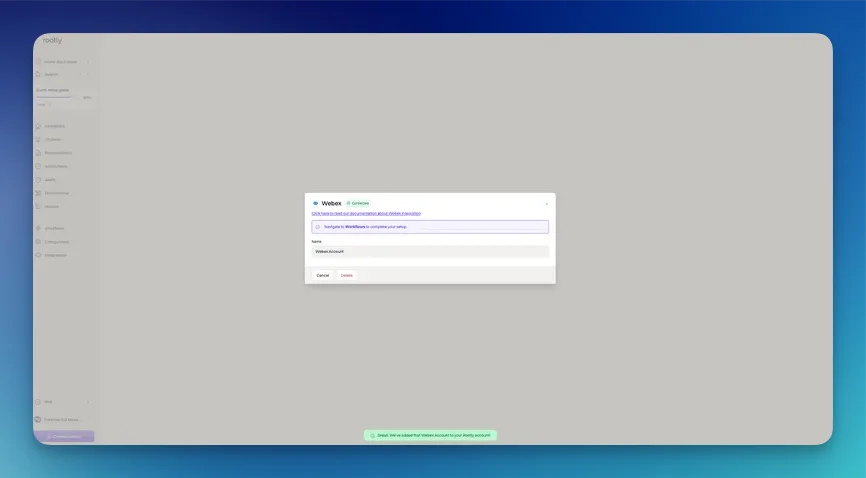
 You'll be redirected back to Rootly. The integration will show as **Connected**.
 ## Uninstall
To remove the Webex integration:
1. Go to **Configuration → Integrations** and find **Webex**
2. Click **Connected** to reveal the disconnect option
3. Click **Disconnect**
## Uninstall
To remove the Webex integration:
1. Go to **Configuration → Integrations** and find **Webex**
2. Click **Connected** to reveal the disconnect option
3. Click **Disconnect**
 ## Frequently Asked Questions
Yes, but it's not recommended. If the personal account is deactivated or the user leaves the company, the integration will stop working. A shared service account avoids this risk.
Rootly requests OAuth permissions to create meetings on behalf of the connected account. Rootly does not read your existing meetings or contacts.
Only one Webex account can be connected at a time per Rootly organization.
## Frequently Asked Questions
Yes, but it's not recommended. If the personal account is deactivated or the user leaves the company, the integration will stop working. A shared service account avoids this risk.
Rootly requests OAuth permissions to create meetings on behalf of the connected account. Rootly does not read your existing meetings or contacts.
Only one Webex account can be connected at a time per Rootly organization.