> ## Documentation Index
> Fetch the complete documentation index at: https://docs.rootly.com/llms.txt
> Use this file to discover all available pages before exploring further.
# Webex
> Connect Webex to Rootly to automatically create a meeting bridge for each incident and post the link into the incident's Slack channel.
Rootly's Webex integration automatically creates a dedicated meeting bridge for each incident so responders can jump into a call without manual setup. When an incident is declared, a workflow action spins up a Webex meeting and posts the link directly into the incident's Slack channel.
One Webex meeting per incident, created the moment the workflow triggers.
Set titles using Liquid variables like `{{ incident.title }}` or `{{ incident.severity }}`.
The meeting link is automatically posted to the incident's Slack channel.
Rootly generates a secure password for each meeting automatically.
## Before You Begin
* You must have a Webex account (a service account is recommended)
* You must be a Rootly admin to install the integration
* The Slack integration should already be configured if you want meeting links posted to incident channels
Rootly recommends installing with a **service account** (for example, `incidents@yourcompany.com`) rather than a personal account. This ensures the integration stays active if the installing user leaves the company.
## Installation
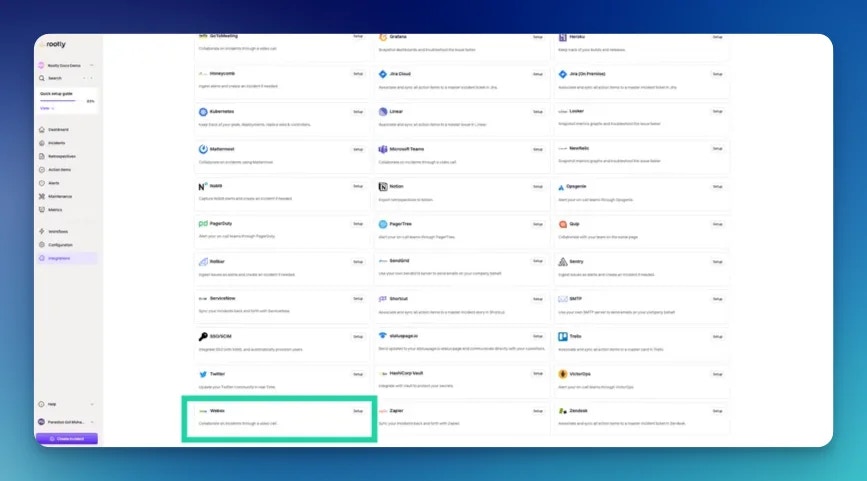
In Rootly, go to **Configuration → Integrations** and find **Webex**. Click **Setup**.
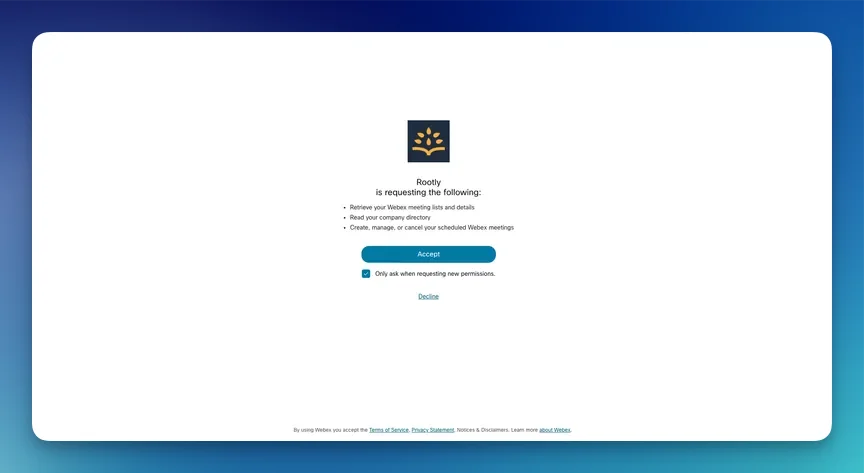
 You'll be redirected to Webex. Sign in with your Webex account (or create one), then click **Allow** to grant Rootly access.
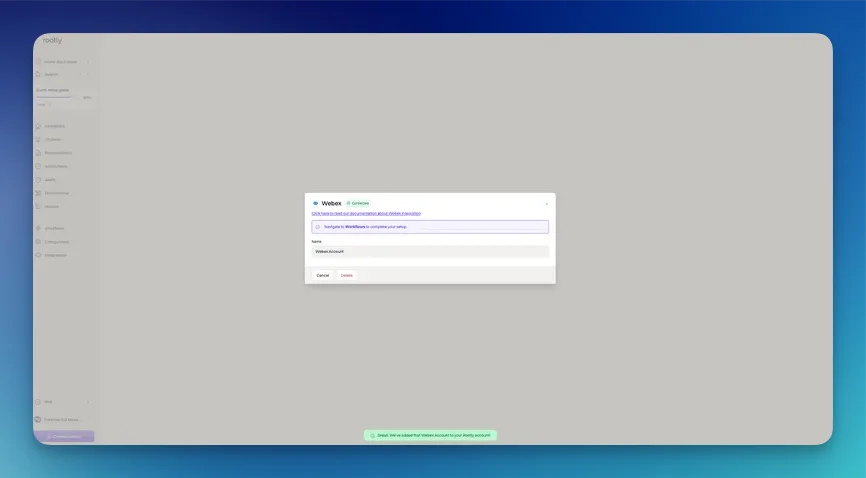
 You'll be redirected back to Rootly. The integration will show as **Connected**.
 ## Workflow Actions
The Webex integration unlocks a workflow action that automatically creates a Webex meeting for each incident. If you're unfamiliar with how workflows function, see the [Workflows](/workflows/workflows) documentation first.
## Workflow Actions
The Webex integration unlocks a workflow action that automatically creates a Webex meeting for each incident. If you're unfamiliar with how workflows function, see the [Workflows](/workflows/workflows) documentation first.
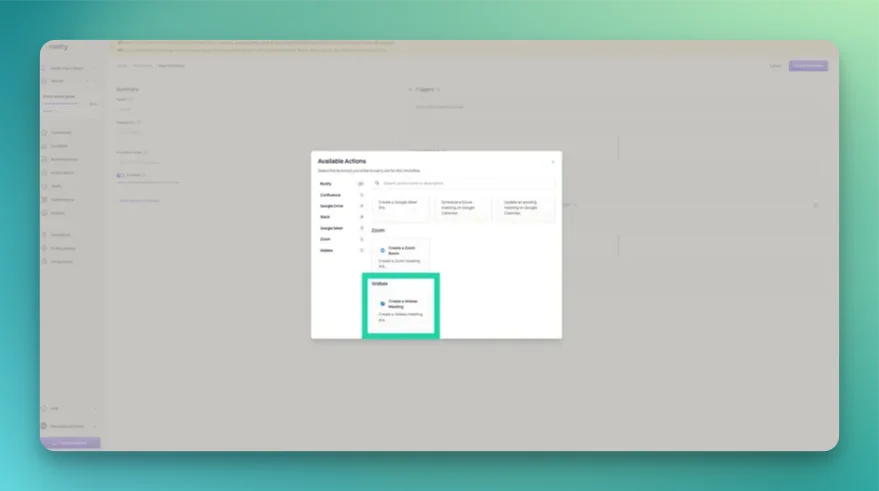 ### Create Webex Meeting
This action creates a Webex meeting link for a specific incident.
Rootly enforces one Webex meeting per incident. If this action runs again for the same incident, it will be skipped.
### Create Webex Meeting
This action creates a Webex meeting link for a specific incident.
Rootly enforces one Webex meeting per incident. If this action runs again for the same incident, it will be skipped.
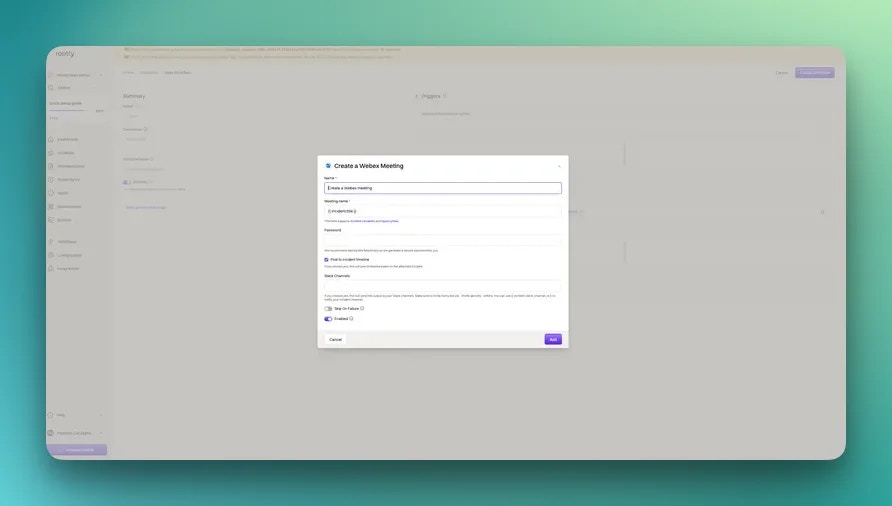 The title of the Webex meeting. Defaults to `{{ incident.title }}`. Supports [Liquid variables](/liquid/incident-variables).
The meeting password. Leave blank to have Rootly generate a secure password automatically.
One or more Slack channels to post the meeting link to. Use `{{ incident.slack_channel_id }}` to post to the incident channel, or `{{ parent_incident.slack_channel_id }}` for the parent incident's channel.
Use the [Liquid Variable Explorer](https://rootly.com/account/help/liquid-explorer) to preview what values Liquid variables return before saving your workflow.
## Uninstall
To remove the Webex integration:
1. Go to **Configuration → Integrations** and find **Webex**
2. Click **Connected** to reveal the disconnect option
3. Click **Disconnect**
The title of the Webex meeting. Defaults to `{{ incident.title }}`. Supports [Liquid variables](/liquid/incident-variables).
The meeting password. Leave blank to have Rootly generate a secure password automatically.
One or more Slack channels to post the meeting link to. Use `{{ incident.slack_channel_id }}` to post to the incident channel, or `{{ parent_incident.slack_channel_id }}` for the parent incident's channel.
Use the [Liquid Variable Explorer](https://rootly.com/account/help/liquid-explorer) to preview what values Liquid variables return before saving your workflow.
## Uninstall
To remove the Webex integration:
1. Go to **Configuration → Integrations** and find **Webex**
2. Click **Connected** to reveal the disconnect option
3. Click **Disconnect**
 ## Frequently Asked Questions
No. Rootly enforces one Webex meeting per incident. If the **Create Webex Meeting** action runs again for the same incident, it will be skipped.
A free Webex account works for basic meeting creation. However, some meeting features (longer durations, larger participant limits) require a paid Webex plan.
Yes. Use Liquid variables in the **Meeting Name** field. For example: `{{ incident.severity }} - {{ incident.title }}` will produce names like `SEV1 - Database Outage`.
The most common trigger is **Incident Created**. This creates the meeting immediately when an incident is declared. You can also use **Incident Updated** if you want to create a meeting only when certain conditions are met (for example, severity escalates to SEV1).
Set the **Slack Channels** field to `{{ incident.slack_channel_id }}`. This requires the Slack integration to be installed and a channel to already exist for the incident (typically created by a separate workflow action earlier in the same workflow).
Only one Webex account can be connected at a time per Rootly organization.
Rootly requests OAuth permissions to create meetings on behalf of the connected account. Rootly does not read your existing meetings or contacts.
If the Webex account used during OAuth setup is deactivated, the integration will stop working. Use a shared service account (for example, `incidents@yourcompany.com`) to avoid this.
## Related Resources
* [Workflows](/workflows/workflows)
* [Incident variables](/liquid/incident-variables)
* [Integrations overview](/integrations/overview)
## Frequently Asked Questions
No. Rootly enforces one Webex meeting per incident. If the **Create Webex Meeting** action runs again for the same incident, it will be skipped.
A free Webex account works for basic meeting creation. However, some meeting features (longer durations, larger participant limits) require a paid Webex plan.
Yes. Use Liquid variables in the **Meeting Name** field. For example: `{{ incident.severity }} - {{ incident.title }}` will produce names like `SEV1 - Database Outage`.
The most common trigger is **Incident Created**. This creates the meeting immediately when an incident is declared. You can also use **Incident Updated** if you want to create a meeting only when certain conditions are met (for example, severity escalates to SEV1).
Set the **Slack Channels** field to `{{ incident.slack_channel_id }}`. This requires the Slack integration to be installed and a channel to already exist for the incident (typically created by a separate workflow action earlier in the same workflow).
Only one Webex account can be connected at a time per Rootly organization.
Rootly requests OAuth permissions to create meetings on behalf of the connected account. Rootly does not read your existing meetings or contacts.
If the Webex account used during OAuth setup is deactivated, the integration will stop working. Use a shared service account (for example, `incidents@yourcompany.com`) to avoid this.
## Related Resources
* [Workflows](/workflows/workflows)
* [Incident variables](/liquid/incident-variables)
* [Integrations overview](/integrations/overview)