> ## Documentation Index
> Fetch the complete documentation index at: https://docs.rootly.com/llms.txt
> Use this file to discover all available pages before exploring further.
# Workflows
> Automatically create Webex meeting links for incidents using Rootly workflow actions, with attendee invitations and links shared in Slack channels.
## Overview
The Webex integration unlocks a workflow action that automatically creates a Webex meeting for each incident. If you're unfamiliar with how workflows function, see the [Workflows](/workflows/workflows) documentation first.
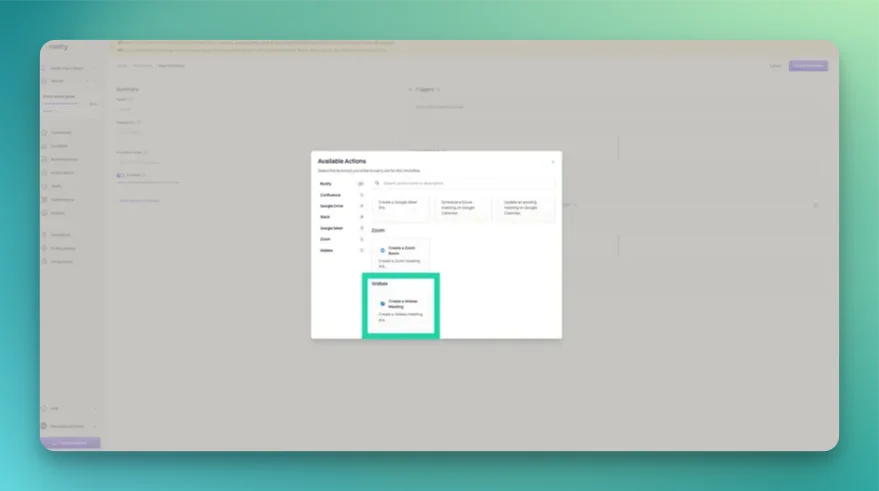 ## Available Actions
### Create Webex Meeting
This action creates a Webex meeting link for a specific incident.
Rootly enforces one Webex meeting per incident. If this action runs again for the same incident, it will be skipped.
## Available Actions
### Create Webex Meeting
This action creates a Webex meeting link for a specific incident.
Rootly enforces one Webex meeting per incident. If this action runs again for the same incident, it will be skipped.
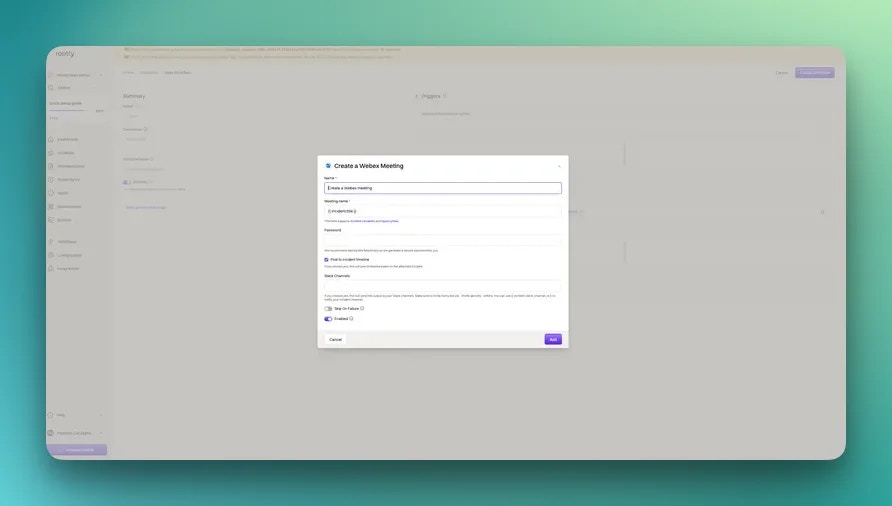 The title of the Webex meeting. Defaults to `{{ incident.title }}`. Supports [Liquid variables](/liquid/incident-variables).
The meeting password. Leave blank to have Rootly generate a secure password automatically.
One or more Slack channels to post the meeting link to. Use `{{ incident.slack_channel_id }}` to post to the incident channel, or `{{ parent_incident.slack_channel_id }}` for the parent incident's channel.
Use the [Liquid Variable Explorer](https://rootly.com/account/help/liquid-explorer) to preview what values Liquid variables return before saving your workflow.
## Frequently Asked Questions
Yes. Use Liquid variables in the **Meeting Name** field. For example: `{{ incident.severity }} - {{ incident.title }}` will produce names like `SEV1 - Database Outage`.
The most common trigger is **Incident Created**. This creates the meeting immediately when an incident is declared. You can also use **Incident Updated** if you want to create a meeting only when certain conditions are met (e.g., severity escalates to SEV1).
Set the **Slack Channels** field to `{{ incident.slack_channel_id }}`. This requires the Slack integration to be installed and a channel to already exist for the incident (typically created by a separate workflow action earlier in the same workflow).
The title of the Webex meeting. Defaults to `{{ incident.title }}`. Supports [Liquid variables](/liquid/incident-variables).
The meeting password. Leave blank to have Rootly generate a secure password automatically.
One or more Slack channels to post the meeting link to. Use `{{ incident.slack_channel_id }}` to post to the incident channel, or `{{ parent_incident.slack_channel_id }}` for the parent incident's channel.
Use the [Liquid Variable Explorer](https://rootly.com/account/help/liquid-explorer) to preview what values Liquid variables return before saving your workflow.
## Frequently Asked Questions
Yes. Use Liquid variables in the **Meeting Name** field. For example: `{{ incident.severity }} - {{ incident.title }}` will produce names like `SEV1 - Database Outage`.
The most common trigger is **Incident Created**. This creates the meeting immediately when an incident is declared. You can also use **Incident Updated** if you want to create a meeting only when certain conditions are met (e.g., severity escalates to SEV1).
Set the **Slack Channels** field to `{{ incident.slack_channel_id }}`. This requires the Slack integration to be installed and a channel to already exist for the incident (typically created by a separate workflow action earlier in the same workflow).