> ## Documentation Index
> Fetch the complete documentation index at: https://docs.rootly.com/llms.txt
> Use this file to discover all available pages before exploring further.
# Zendesk
> Connect Rootly with Zendesk to automatically create and update tickets from incidents, and receive Zendesk ticket events as Rootly alerts.
## Introduction
The Zendesk integration connects Rootly with your Zendesk Support account bidirectionally. Rootly can create and update tickets through workflow actions, and Zendesk can send ticket events to Rootly as alerts. You can also install the [Rootly app from the Zendesk Marketplace](https://www.zendesk.com/marketplace/apps/support/995423/rootly/) to manage incidents directly from the Zendesk agent interface.
With the Zendesk integration, you can:
* Automatically create Zendesk tickets when incidents are declared or reach a certain state
* Update ticket subject, priority, status, and custom fields as incidents evolve
* Link Zendesk tickets to Jira issues via a dedicated workflow action
* Receive Zendesk ticket events as Rootly alerts to trigger on-call workflows
* Create Rootly incidents and view active incidents directly from within Zendesk (Marketplace app)
## Before You Begin
Before setting up the integration, make sure you have:
* A Rootly account with admin permission to manage integrations
* A Zendesk Support account with admin access
* Your Zendesk subdomain (the part before `.zendesk.com`)
We recommend installing with a dedicated Zendesk service account so the integration does not break if an individual user leaves your organization.
## Installation
Navigate to the integrations page in Rootly and select **Zendesk**.
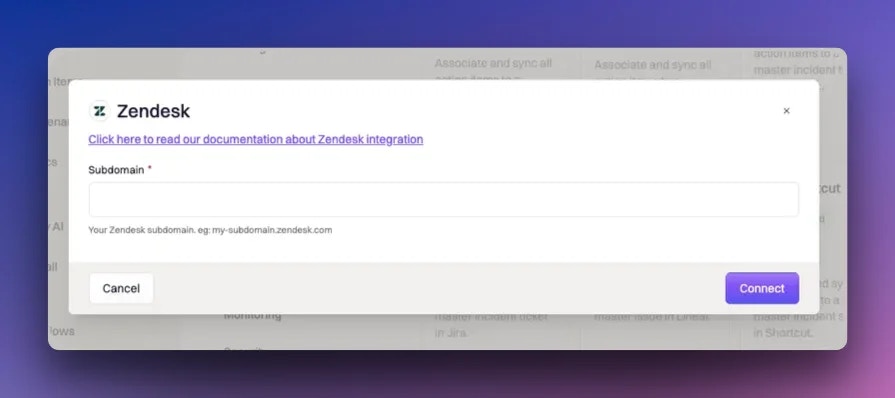
Enter your Zendesk **Subdomain** (e.g. `yourcompany` for `yourcompany.zendesk.com`) and click **Connect**. You will be redirected to Zendesk to authorize the integration.
 Rootly requests the following OAuth scopes:
| Scope | Purpose |
| ---------------- | ------------------------------------------- |
| `users:read` | Read user profile information |
| `tickets:write` | Create and update tickets |
| `webhooks:write` | Register a webhook to receive ticket events |
| `triggers:write` | Create triggers to send events to Rootly |
Rootly requests the following OAuth scopes:
| Scope | Purpose |
| ---------------- | ------------------------------------------- |
| `users:read` | Read user profile information |
| `tickets:write` | Create and update tickets |
| `webhooks:write` | Register a webhook to receive ticket events |
| `triggers:write` | Create triggers to send events to Rootly |
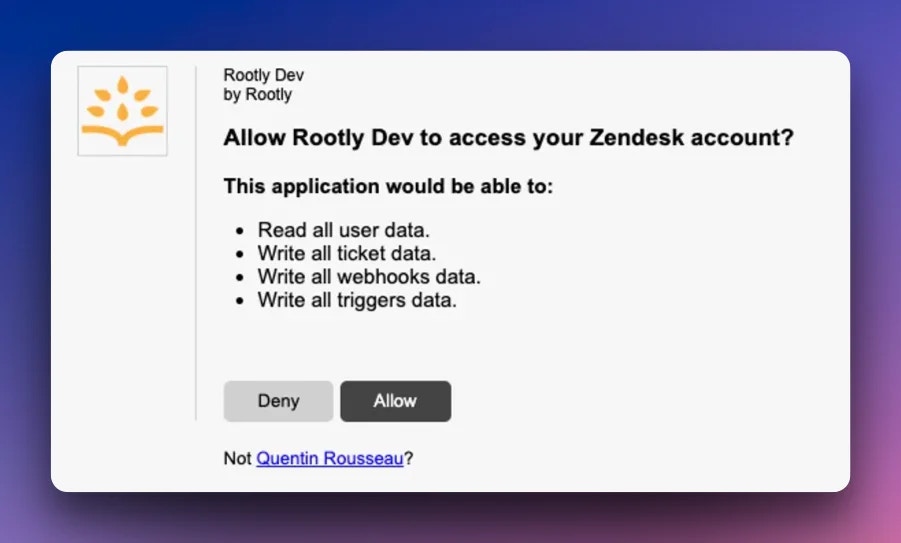 Once authorized, Rootly automatically registers a webhook and trigger in your Zendesk account to deliver ticket events.
After installation, the **Create a Zendesk Ticket**, **Update a Zendesk Ticket**, and **Create a Zendesk-Jira Link** workflow actions are available in your Genius workflows. Zendesk ticket events will also appear as alerts in Rootly.
## Workflow Actions
### Create a Zendesk Ticket
This action creates a new ticket in Zendesk.
| Field | Description | Required |
| ------------------------- | ------------------------------------------------------------------------------ | -------- |
| **Name** | Display name for this workflow action | |
| **Type** | Ticket type: `problem`, `incident`, `question`, or `task` | Yes |
| **Subject** | Ticket subject line. Defaults to `{{ incident.title }}`. Supports Liquid | Yes |
| **Comment** | Ticket body. Supports Liquid. Defaults to `"Updated from rootly.com"` if blank | |
| **Priority** | Ticket priority. **Auto** mirrors the incident severity | |
| **Status** | Ticket status. **Auto** mirrors the incident status | |
| **Tags** | Comma-separated tags. Only applied on creation, not updates. Supports Liquid | |
| **Custom Fields Mapping** | JSON array of custom field objects. Supports Liquid | |
| **Ticket Payload** | Advanced JSON merged into the Zendesk ticket payload. Supports Liquid | |
Tags are only applied on ticket **creation**. They are not updated when using the Update a Zendesk Ticket action.
**Priority mapping (Auto)**
| Rootly Severity | Zendesk Priority |
| --------------- | ---------------- |
| Critical | Urgent |
| High | High |
| Medium | Normal |
| Low | Low |
**Status mapping (Auto)**
| Rootly Status | Zendesk Status |
| ------------- | -------------- |
| Started | Open |
| Mitigated | Solved |
| Resolved | Solved |
Available statuses: New, Open, Pending, Hold, Solved, Closed.
***
### Update a Zendesk Ticket
This action updates an existing Zendesk ticket.
When a **Create a Zendesk Ticket** action runs, Rootly stores the resulting ticket ID on the incident record. Reference it in subsequent update actions using Liquid variables.
| Field | Description | Required |
| ------------------------- | ----------------------------------------------------------- | -------- |
| **Name** | Display name for this workflow action | |
| **Ticket ID** | Zendesk ticket ID to update. Supports Liquid | Yes |
| **Subject** | Updated ticket subject. Supports Liquid | |
| **Priority** | Updated priority | |
| **Status** | Updated ticket status | |
| **Custom Fields Mapping** | Updated custom field values as JSON | |
| **Ticket Payload** | Advanced JSON merged into the Zendesk ticket update payload | |
***
### Create a Zendesk-Jira Link
This action links a Zendesk ticket to a Jira issue using the Zendesk-Jira integration.
| Field | Description | Required |
| --------------------- | ------------------------------------------------------- | -------- |
| **Name** | Display name for this workflow action | |
| **Jira Issue ID** | Numeric ID of the Jira issue. Supports Liquid | Yes |
| **Jira Issue Key** | Key of the Jira issue (e.g. `ENG-123`). Supports Liquid | Yes |
| **Zendesk Ticket ID** | Zendesk ticket ID to link. Supports Liquid | Yes |
***
## Inbound Events (Zendesk → Rootly)
When the integration is installed, Rootly registers a webhook and trigger in Zendesk to receive ticket events. Each event creates a Rootly alert with the following fields:
| Rootly Alert Field | Zendesk Source |
| ------------------ | ----------------------------- |
| Summary | `[New ticket] {ticket.title}` |
| External ID | `ticket.id` |
Alert labels:
| Label | Zendesk Field |
| ---------- | --------------------- |
| `id` | `ticket.id` |
| `type` | `ticket.type` |
| `priority` | `ticket.priority` |
| `account` | `ticket.account.name` |
***
## Zendesk Marketplace App
The [Rootly app for Zendesk](https://www.zendesk.com/marketplace/apps/support/995423/rootly/) brings Rootly directly into the Zendesk agent interface. With the Marketplace app, agents can:
* Create Rootly incidents directly from a Zendesk ticket
Once authorized, Rootly automatically registers a webhook and trigger in your Zendesk account to deliver ticket events.
After installation, the **Create a Zendesk Ticket**, **Update a Zendesk Ticket**, and **Create a Zendesk-Jira Link** workflow actions are available in your Genius workflows. Zendesk ticket events will also appear as alerts in Rootly.
## Workflow Actions
### Create a Zendesk Ticket
This action creates a new ticket in Zendesk.
| Field | Description | Required |
| ------------------------- | ------------------------------------------------------------------------------ | -------- |
| **Name** | Display name for this workflow action | |
| **Type** | Ticket type: `problem`, `incident`, `question`, or `task` | Yes |
| **Subject** | Ticket subject line. Defaults to `{{ incident.title }}`. Supports Liquid | Yes |
| **Comment** | Ticket body. Supports Liquid. Defaults to `"Updated from rootly.com"` if blank | |
| **Priority** | Ticket priority. **Auto** mirrors the incident severity | |
| **Status** | Ticket status. **Auto** mirrors the incident status | |
| **Tags** | Comma-separated tags. Only applied on creation, not updates. Supports Liquid | |
| **Custom Fields Mapping** | JSON array of custom field objects. Supports Liquid | |
| **Ticket Payload** | Advanced JSON merged into the Zendesk ticket payload. Supports Liquid | |
Tags are only applied on ticket **creation**. They are not updated when using the Update a Zendesk Ticket action.
**Priority mapping (Auto)**
| Rootly Severity | Zendesk Priority |
| --------------- | ---------------- |
| Critical | Urgent |
| High | High |
| Medium | Normal |
| Low | Low |
**Status mapping (Auto)**
| Rootly Status | Zendesk Status |
| ------------- | -------------- |
| Started | Open |
| Mitigated | Solved |
| Resolved | Solved |
Available statuses: New, Open, Pending, Hold, Solved, Closed.
***
### Update a Zendesk Ticket
This action updates an existing Zendesk ticket.
When a **Create a Zendesk Ticket** action runs, Rootly stores the resulting ticket ID on the incident record. Reference it in subsequent update actions using Liquid variables.
| Field | Description | Required |
| ------------------------- | ----------------------------------------------------------- | -------- |
| **Name** | Display name for this workflow action | |
| **Ticket ID** | Zendesk ticket ID to update. Supports Liquid | Yes |
| **Subject** | Updated ticket subject. Supports Liquid | |
| **Priority** | Updated priority | |
| **Status** | Updated ticket status | |
| **Custom Fields Mapping** | Updated custom field values as JSON | |
| **Ticket Payload** | Advanced JSON merged into the Zendesk ticket update payload | |
***
### Create a Zendesk-Jira Link
This action links a Zendesk ticket to a Jira issue using the Zendesk-Jira integration.
| Field | Description | Required |
| --------------------- | ------------------------------------------------------- | -------- |
| **Name** | Display name for this workflow action | |
| **Jira Issue ID** | Numeric ID of the Jira issue. Supports Liquid | Yes |
| **Jira Issue Key** | Key of the Jira issue (e.g. `ENG-123`). Supports Liquid | Yes |
| **Zendesk Ticket ID** | Zendesk ticket ID to link. Supports Liquid | Yes |
***
## Inbound Events (Zendesk → Rootly)
When the integration is installed, Rootly registers a webhook and trigger in Zendesk to receive ticket events. Each event creates a Rootly alert with the following fields:
| Rootly Alert Field | Zendesk Source |
| ------------------ | ----------------------------- |
| Summary | `[New ticket] {ticket.title}` |
| External ID | `ticket.id` |
Alert labels:
| Label | Zendesk Field |
| ---------- | --------------------- |
| `id` | `ticket.id` |
| `type` | `ticket.type` |
| `priority` | `ticket.priority` |
| `account` | `ticket.account.name` |
***
## Zendesk Marketplace App
The [Rootly app for Zendesk](https://www.zendesk.com/marketplace/apps/support/995423/rootly/) brings Rootly directly into the Zendesk agent interface. With the Marketplace app, agents can:
* Create Rootly incidents directly from a Zendesk ticket
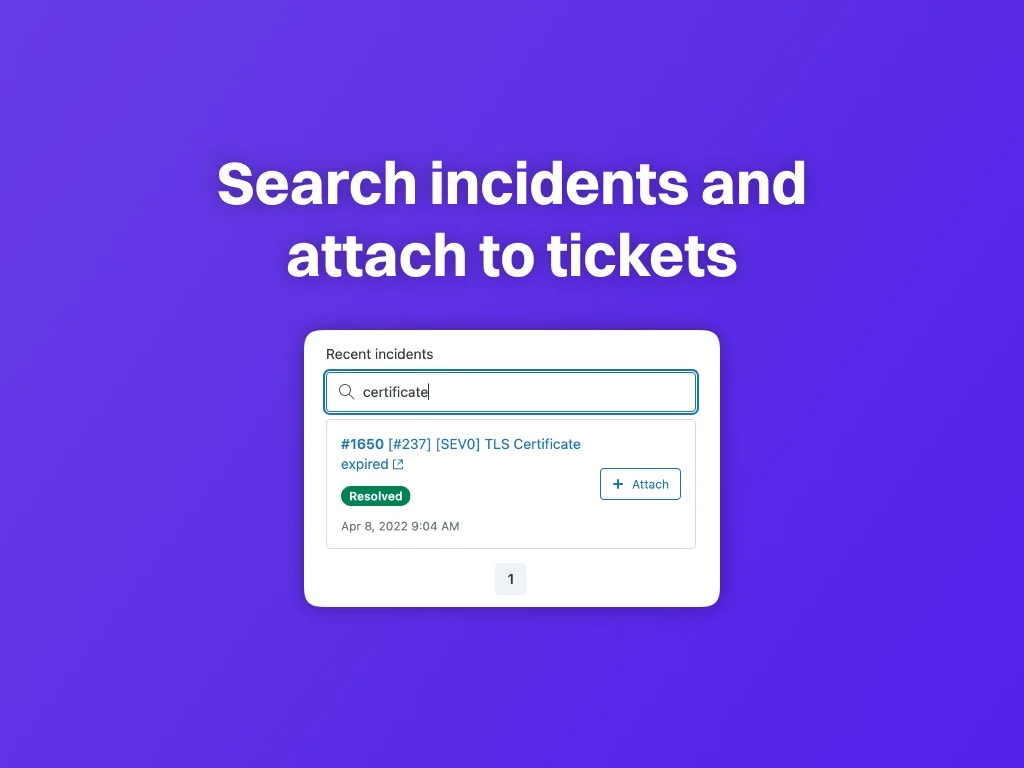
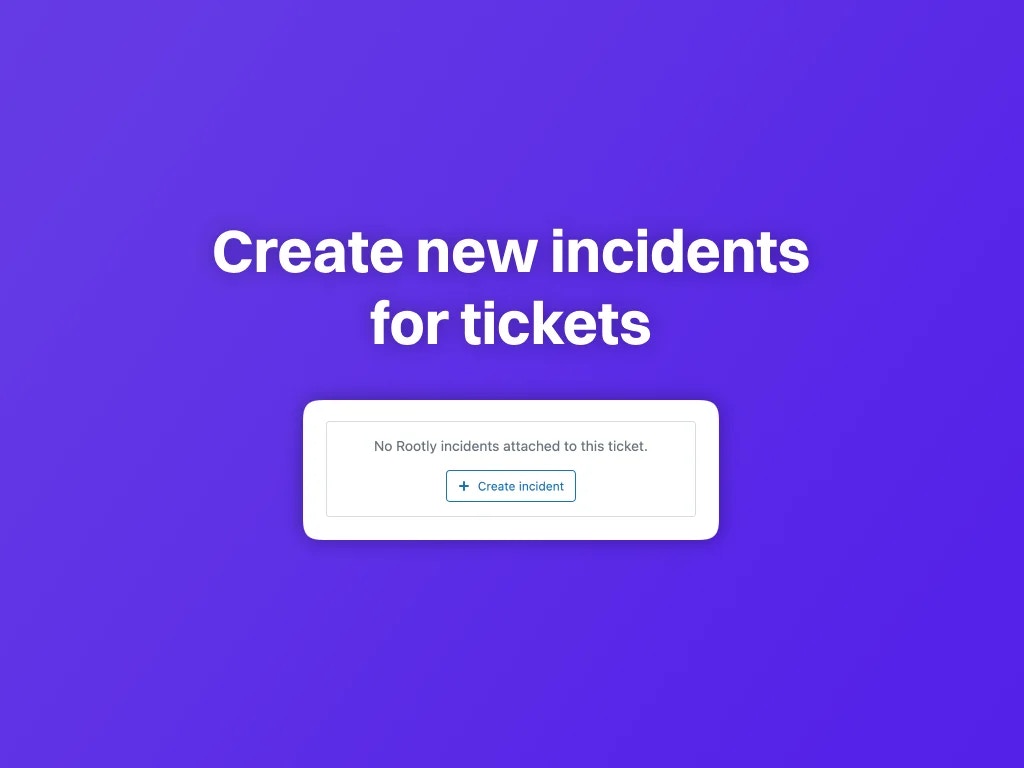 * View, search, and attach recent Rootly incidents in Zendesk
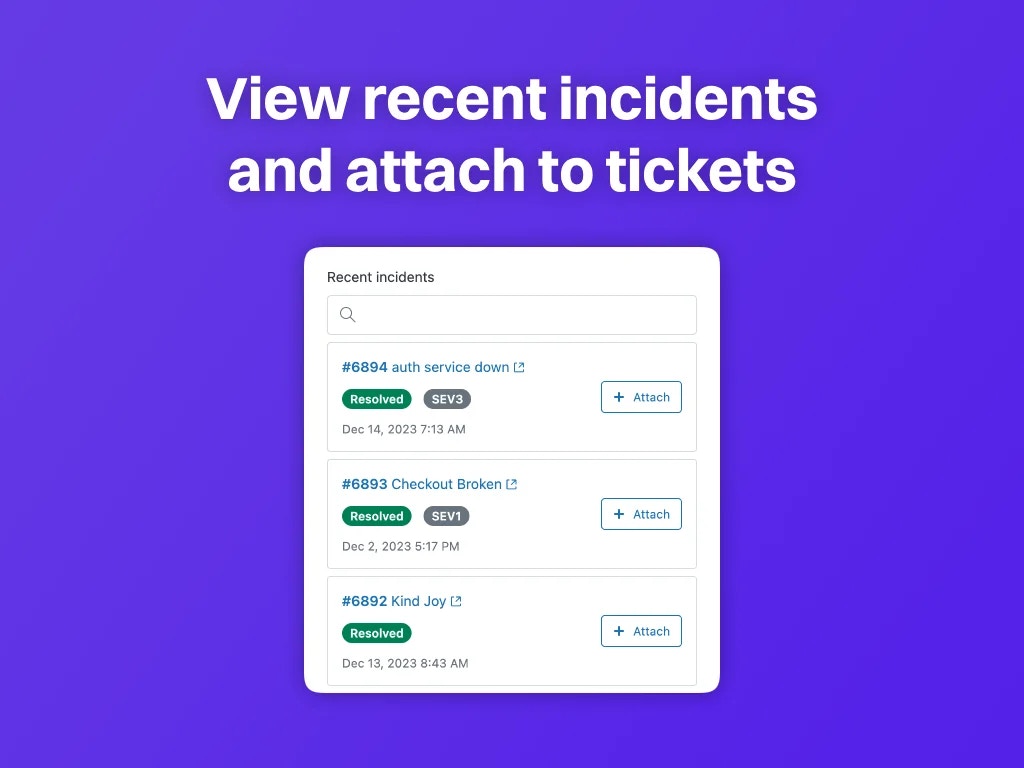 * View active or related Rootly incidents and attach them to the Zendesk ticket
 ## Troubleshooting
Verify that the authorized Zendesk account has permission to create tickets. If the type is `incident`, check that your Zendesk plan supports incident-type tickets. Confirm the subject field is not empty.
Tags are only set during ticket creation. To manage tags on existing tickets, use the **Ticket Payload** field to send a tags update directly in the Zendesk API format.
Confirm the webhook and trigger were registered successfully during installation. In Zendesk, check **Settings > Webhooks** and **Business Rules > Triggers** to verify Rootly entries exist and are active.
## Uninstall
To remove the Zendesk integration, open the integrations panel in Rootly and select **Configure > Delete**. Rootly will remove the registered webhook and trigger from your Zendesk account on deletion.
## Troubleshooting
Verify that the authorized Zendesk account has permission to create tickets. If the type is `incident`, check that your Zendesk plan supports incident-type tickets. Confirm the subject field is not empty.
Tags are only set during ticket creation. To manage tags on existing tickets, use the **Ticket Payload** field to send a tags update directly in the Zendesk API format.
Confirm the webhook and trigger were registered successfully during installation. In Zendesk, check **Settings > Webhooks** and **Business Rules > Triggers** to verify Rootly entries exist and are active.
## Uninstall
To remove the Zendesk integration, open the integrations panel in Rootly and select **Configure > Delete**. Rootly will remove the registered webhook and trigger from your Zendesk account on deletion.