> ## Documentation Index
> Fetch the complete documentation index at: https://docs.rootly.com/llms.txt
> Use this file to discover all available pages before exploring further.
# Installation
> Connect your Zoom account to Rootly via OAuth to enable automatic meeting creation during incidents, with links shared in Slack and Teams channels.
## Before You Begin
We recommend performing the installation with a **shared service account** (e.g., `incidents@yourcompany.com`) rather than a personal account. This ensures the integration continues working if someone leaves the company. Ensure you are logged in as an **Admin** in Rootly.
## Connect Your Zoom Account
To connect Zoom to Rootly, you will authorize Rootly via OAuth. This grants Rootly the permissions it needs to create and manage meetings on your behalf.
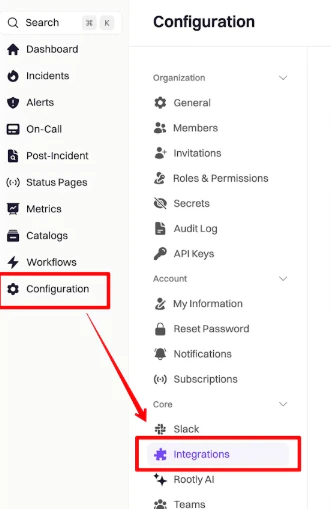
Navigate to **Configuration → Integrations** in Rootly.
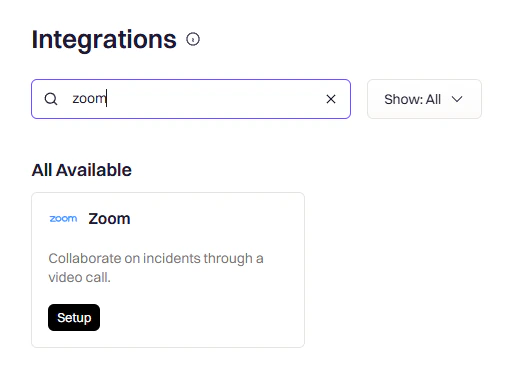
 Search for **Zoom** and click **Setup**.
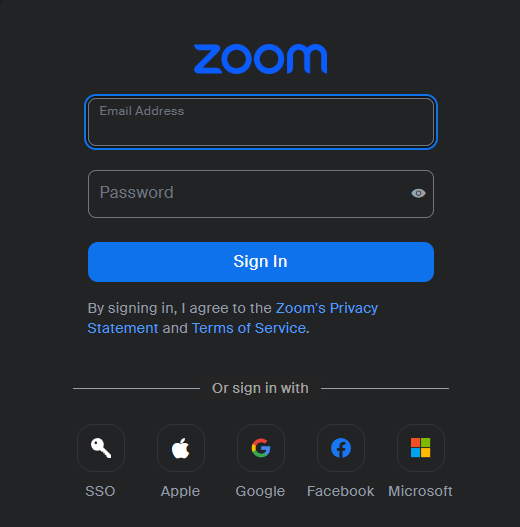
 Select your sign-in method — Google, SSO, or email and password.
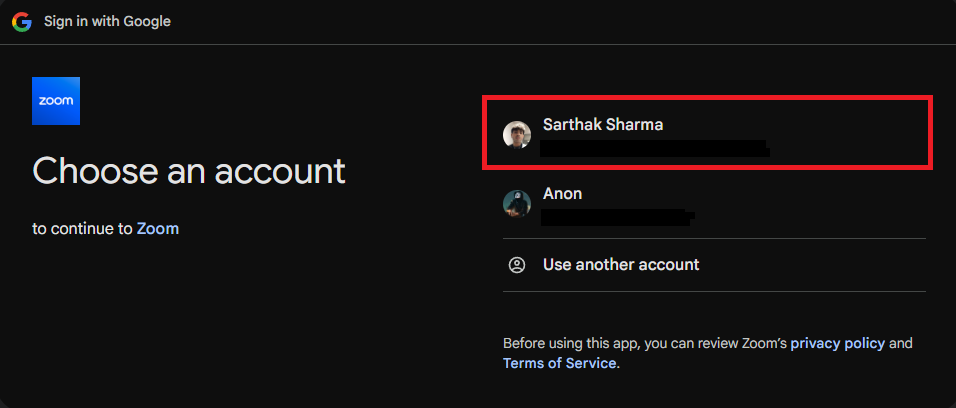
 Choose the Zoom account you want to connect to Rootly.
 If no Zoom account exists for this email, you will be prompted to create one.
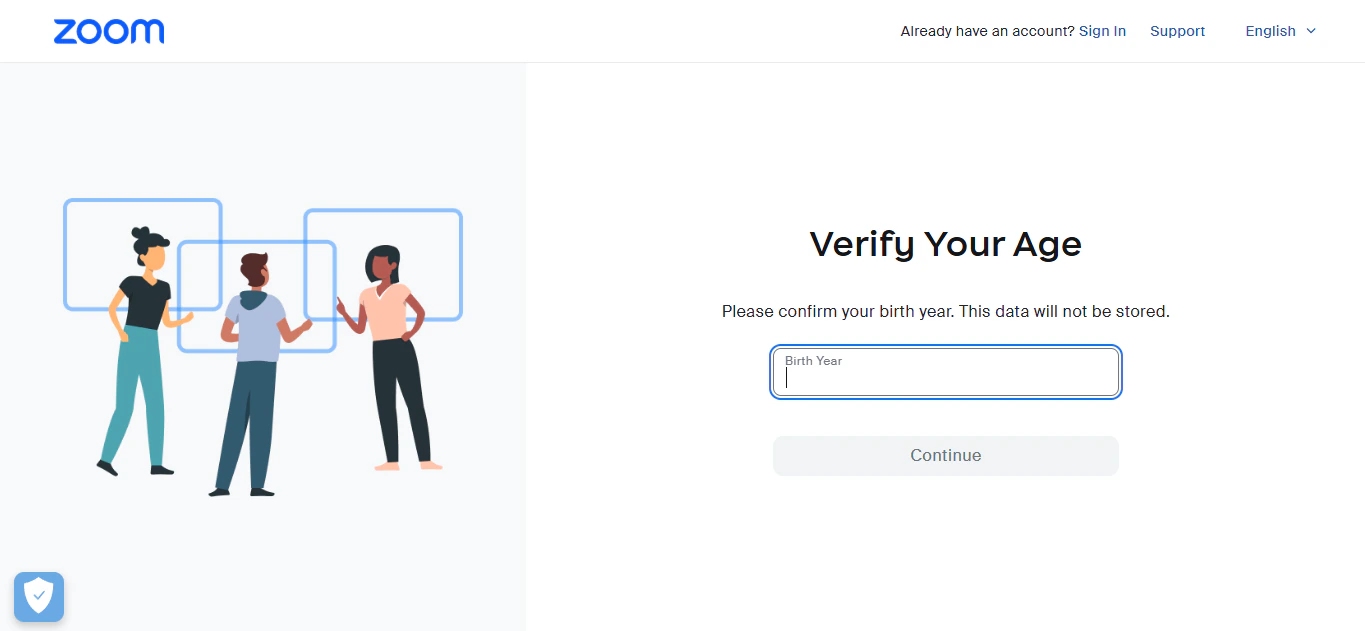
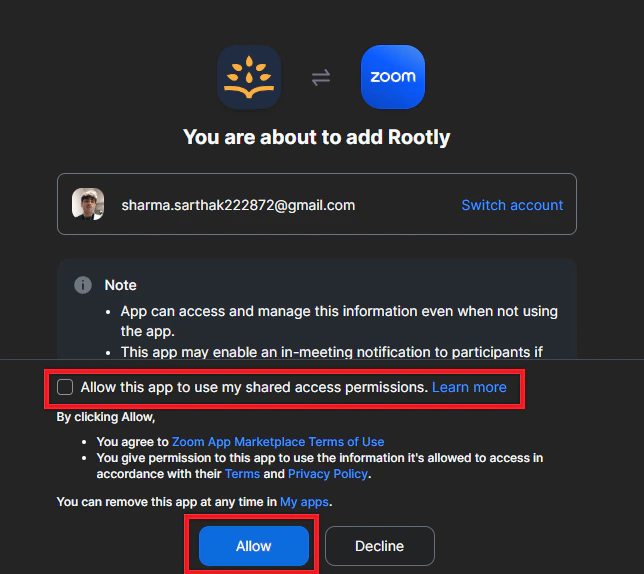
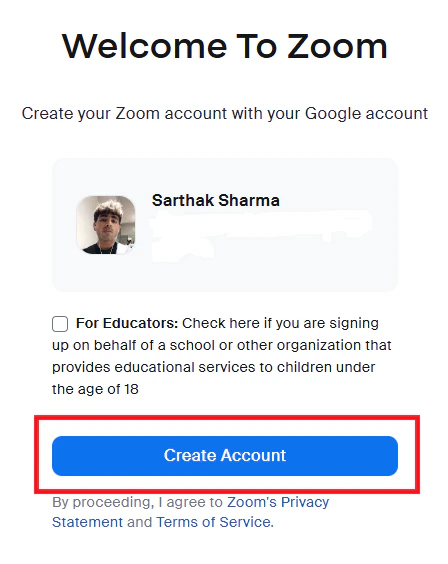 Review and accept the OAuth permissions to grant Rootly access to your Zoom account.
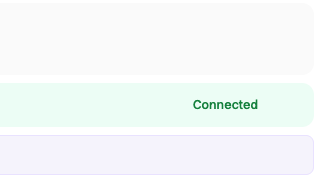
 You will be redirected back to Rootly with a success message. The integration status will show **Connected** with your Zoom account email.
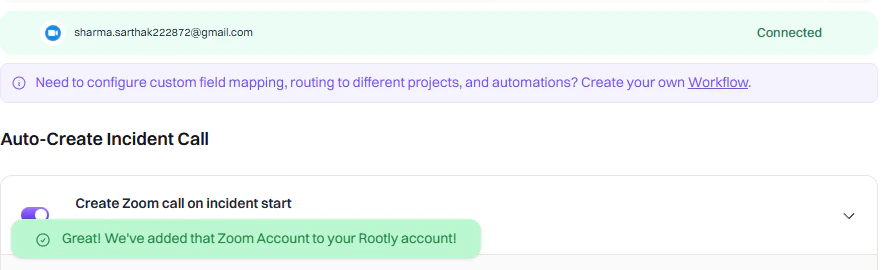 Your Zoom account is now connected to Rootly. You can configure meeting name defaults and recording preferences from the integration settings page.
## OAuth Scopes
Rootly requests the following Zoom permissions during authorization:
| Scope | Purpose |
| --------------- | -------------------------------------------------- |
| `meeting:write` | Create meetings on behalf of the connected account |
| `meeting:read` | Read meeting details to generate join links |
| `user:read` | Read user information to assign hosts |
| `user_zak:read` | Required by Zoom SDK — not actively used by Rootly |
## Uninstall
**In Rootly:**
1. Go to **Configuration → Integrations** and find **Zoom**
2. Click the **Connected** button to reveal the disconnect option
3. Click **Delete**
Your Zoom account is now connected to Rootly. You can configure meeting name defaults and recording preferences from the integration settings page.
## OAuth Scopes
Rootly requests the following Zoom permissions during authorization:
| Scope | Purpose |
| --------------- | -------------------------------------------------- |
| `meeting:write` | Create meetings on behalf of the connected account |
| `meeting:read` | Read meeting details to generate join links |
| `user:read` | Read user information to assign hosts |
| `user_zak:read` | Required by Zoom SDK — not actively used by Rootly |
## Uninstall
**In Rootly:**
1. Go to **Configuration → Integrations** and find **Zoom**
2. Click the **Connected** button to reveal the disconnect option
3. Click **Delete**
 **In Zoom** (to fully revoke access):
1. Log in to your Zoom account and navigate to the **Zoom App Marketplace**
2. Click **Manage → Apps on Account** or search for the Rootly app
3. Click the Rootly app and select **Remove** or **Disable**
**In Zoom** (to fully revoke access):
1. Log in to your Zoom account and navigate to the **Zoom App Marketplace**
2. Click **Manage → Apps on Account** or search for the Rootly app
3. Click the Rootly app and select **Remove** or **Disable**