> ## Documentation Index
> Fetch the complete documentation index at: https://docs.rootly.com/llms.txt
> Use this file to discover all available pages before exploring further.
# Workflows
> Automate Zoom meeting creation during incidents in Rootly with Smart Defaults or custom workflows, including waiting rooms, recordings, and attendee links.
## Overview
Rootly workflows automatically create Zoom meeting rooms when incidents occur. You can use the built-in **Auto-Create Incident Call** setting for quick setup, or build a **custom workflow** when you need conditional logic, specific triggers, or advanced routing.
Rootly enforces one Zoom meeting per incident. Running the same automation multiple times updates the existing link rather than creating a new one. For additional meetings, create a sub-incident.
## Option 1: Auto-Create Incident Call
The Auto-Create Incident Call setting lets you automatically generate a Zoom meeting when an incident begins — no workflow required.
 Configure the following options directly in the integration settings:
| Setting | Description |
| -------------------------------------- | ---------------------------------------------------------- |
| **Create Zoom Call on Incident Start** | Automatically spin up a meeting when an incident opens |
| **Meeting Name** | Default or custom name using Liquid variables |
| **Bookmark in Slack** | Add the meeting link as a bookmark in the incident channel |
| **Notify Slack Channels** | Announce new calls in specific Slack channels |
| **Record Call** | Enable automatic recording — None, Local, or Cloud |
| **Specify Host** | Assign a specific host by email |
| **AI Meeting Capture** | Enable transcription and AI-generated meeting summaries |
| **Bot Recording** | Start recording automatically without host approval |
Use Auto-Create for quick setup. Build a custom workflow when you need conditions, specific triggers, or advanced routing.
## Option 2: Custom Workflow
For more control — such as only creating meetings for SEV-1 incidents or routing to specific hosts — build a custom Incident workflow.
Navigate to **Workflows** in Rootly and click **Create Workflow**.
Configure the following options directly in the integration settings:
| Setting | Description |
| -------------------------------------- | ---------------------------------------------------------- |
| **Create Zoom Call on Incident Start** | Automatically spin up a meeting when an incident opens |
| **Meeting Name** | Default or custom name using Liquid variables |
| **Bookmark in Slack** | Add the meeting link as a bookmark in the incident channel |
| **Notify Slack Channels** | Announce new calls in specific Slack channels |
| **Record Call** | Enable automatic recording — None, Local, or Cloud |
| **Specify Host** | Assign a specific host by email |
| **AI Meeting Capture** | Enable transcription and AI-generated meeting summaries |
| **Bot Recording** | Start recording automatically without host approval |
Use Auto-Create for quick setup. Build a custom workflow when you need conditions, specific triggers, or advanced routing.
## Option 2: Custom Workflow
For more control — such as only creating meetings for SEV-1 incidents or routing to specific hosts — build a custom Incident workflow.
Navigate to **Workflows** in Rootly and click **Create Workflow**.
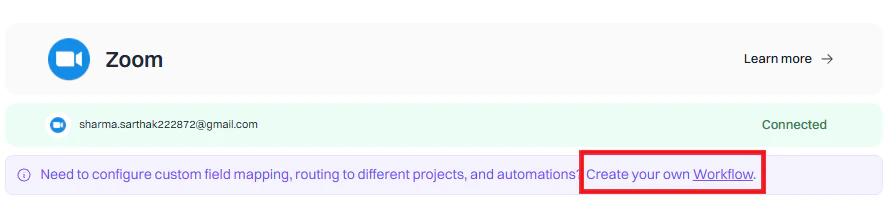 Select **Incident** as the workflow type.
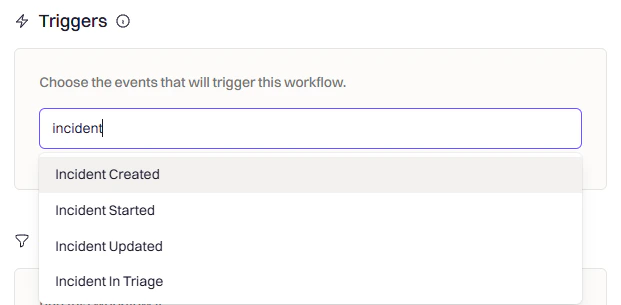
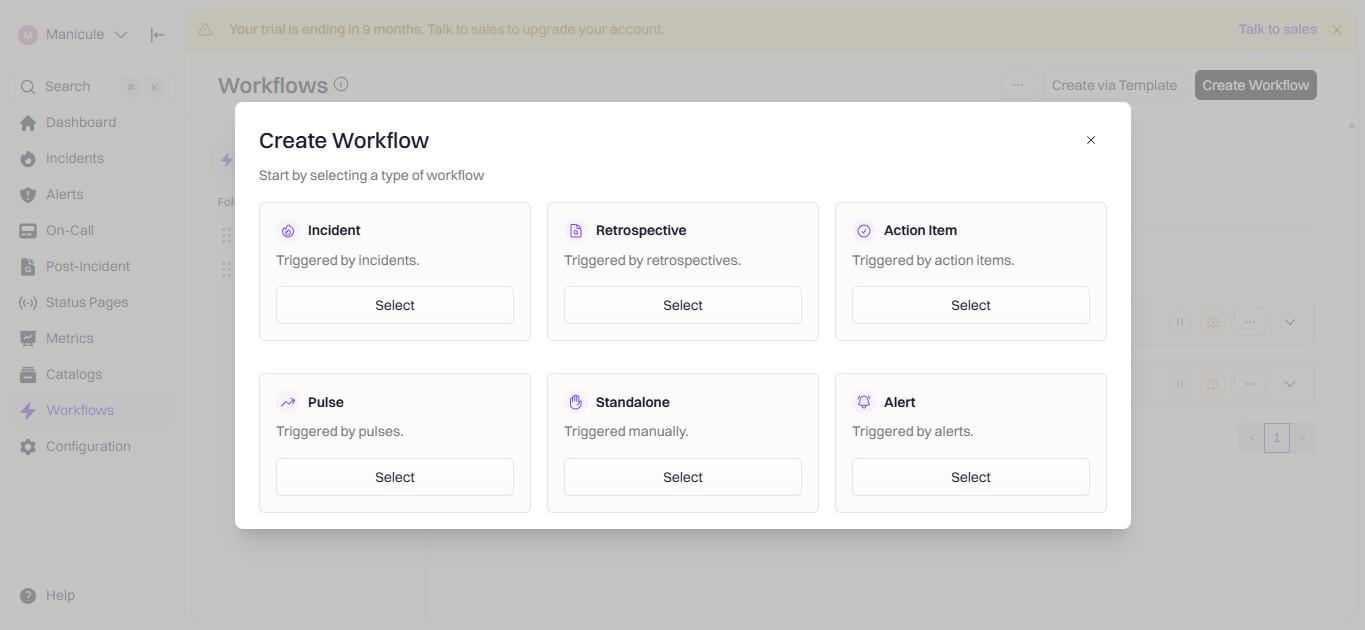 Choose when the workflow fires. Common triggers for Zoom meeting creation:
 | Trigger | When it fires |
| --------------------------- | ----------------------------------------------------------- |
| **Incident Created** | Creates a Zoom call as soon as a new incident opens |
| **Incident Status Changed** | Creates a call when the incident moves to a specific status |
| **Commander Assigned** | Creates a call once someone takes ownership of the incident |
| **Manual Trigger** | Run the workflow on demand from the UI |
Use conditions to control when the workflow should run after triggering.
| Trigger | When it fires |
| --------------------------- | ----------------------------------------------------------- |
| **Incident Created** | Creates a Zoom call as soon as a new incident opens |
| **Incident Status Changed** | Creates a call when the incident moves to a specific status |
| **Commander Assigned** | Creates a call once someone takes ownership of the incident |
| **Manual Trigger** | Run the workflow on demand from the UI |
Use conditions to control when the workflow should run after triggering.
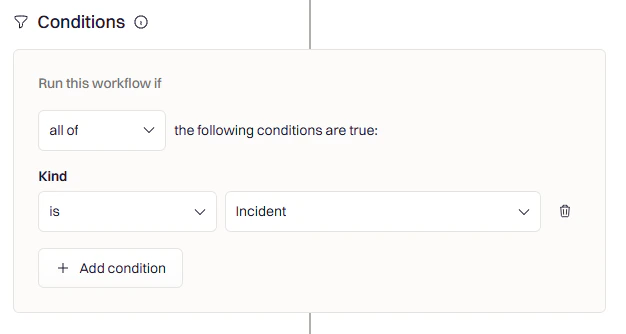 Common patterns:
* **Severity filter** — Only create calls for SEV-1 or SEV-2 incidents
* **Team filter** — Only for incidents affecting specific teams
* **Incident type** — Only when Kind is set to **Incident**
Click **Add Action**, search for **Zoom**, and select **Create Room**.
Common patterns:
* **Severity filter** — Only create calls for SEV-1 or SEV-2 incidents
* **Team filter** — Only for incidents affecting specific teams
* **Incident type** — Only when Kind is set to **Incident**
Click **Add Action**, search for **Zoom**, and select **Create Room**.
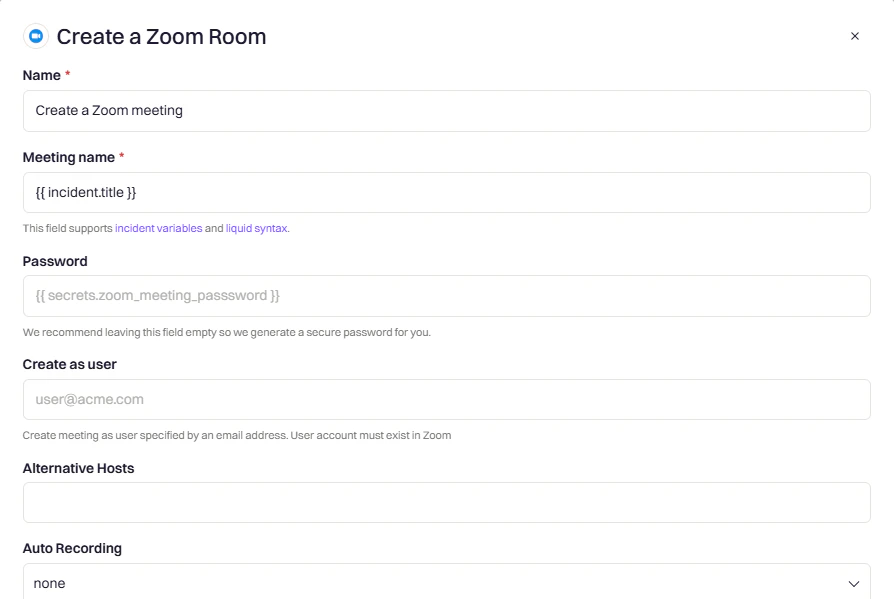 Configure the action fields:
| Field | Description |
| ---------------------- | ------------------------------------------------------------------------------- |
| **Meeting Name** | The Zoom meeting title. Supports Liquid syntax. Defaults to the incident title. |
| **Password** | Optional meeting password. Leave blank to let Rootly generate a secure one. |
| **Create as User** | Email of the Zoom account to create the meeting as. Supports Liquid syntax. |
| **Alternative Hosts** | Additional host email addresses. Must be existing Zoom accounts. |
| **Auto Recording** | `None`, `Local`, or `Cloud`. Can also be started manually during the meeting. |
| **AI Meeting Capture** | Enable transcription and AI-generated meeting summaries. |
| **Slack Channels** | Slack channels to post the meeting link to. |
For **Create as User**, use the incident creator's email via Liquid syntax, or set a dedicated service account like `zoom@yourcompany.com` to ensure meetings are always owned by a known account.
Name the workflow clearly (e.g., `Create Zoom Call for SEV-1 Incidents`) and click **Create Workflow**.
## Variable Reference
Use the [Liquid Variable Explorer](https://rootly.com/account/help/liquid-explorer) to test variables with real incident data.
### Zoom Variables
| Variable | Description |
| --------------------------- | ----------------------------- |
| `incident.zoom_meeting_url` | Link to join the Zoom meeting |
| `incident.zoom_meeting_id` | Unique Zoom meeting ID |
### Incident Variables
| Variable | Description |
| ----------------------------- | ------------------------------ |
| `incident.title` | Incident title |
| `incident.summary` | Incident description |
| `incident.severity` | Severity level |
| `incident.status` | Current status |
| `incident.started_at` | When the incident started |
| `incident.creator.name` | Incident creator's name |
| `incident.creator.email` | Incident creator's email |
| `incident.commander.email` | Incident commander's email |
| `incident.slack_channel_name` | Incident Slack channel name |
| `incident.url` | Link to the incident in Rootly |
## Frequently Asked Questions
Rootly enforces one Zoom meeting per incident. If you need additional meetings, declare a sub-incident from the main incident and create a separate Zoom link for it.
Ensure the **Slack Channels** field in the workflow action is configured with the correct channel. You can use Liquid syntax to reference the incident channel dynamically. Also confirm the Slack integration is connected under **Configuration → Integrations**.
The Meeting Name field supports Liquid syntax. Use the [Liquid Variable Explorer](https://rootly.com/account/help/liquid-explorer) to preview available variables. Common examples include the incident title, severity, and ID.
The meeting creation will fail if the email is not associated with a valid Zoom account. Use a dedicated service account email or verify the Liquid variable resolves to a known Zoom user.
Configure the action fields:
| Field | Description |
| ---------------------- | ------------------------------------------------------------------------------- |
| **Meeting Name** | The Zoom meeting title. Supports Liquid syntax. Defaults to the incident title. |
| **Password** | Optional meeting password. Leave blank to let Rootly generate a secure one. |
| **Create as User** | Email of the Zoom account to create the meeting as. Supports Liquid syntax. |
| **Alternative Hosts** | Additional host email addresses. Must be existing Zoom accounts. |
| **Auto Recording** | `None`, `Local`, or `Cloud`. Can also be started manually during the meeting. |
| **AI Meeting Capture** | Enable transcription and AI-generated meeting summaries. |
| **Slack Channels** | Slack channels to post the meeting link to. |
For **Create as User**, use the incident creator's email via Liquid syntax, or set a dedicated service account like `zoom@yourcompany.com` to ensure meetings are always owned by a known account.
Name the workflow clearly (e.g., `Create Zoom Call for SEV-1 Incidents`) and click **Create Workflow**.
## Variable Reference
Use the [Liquid Variable Explorer](https://rootly.com/account/help/liquid-explorer) to test variables with real incident data.
### Zoom Variables
| Variable | Description |
| --------------------------- | ----------------------------- |
| `incident.zoom_meeting_url` | Link to join the Zoom meeting |
| `incident.zoom_meeting_id` | Unique Zoom meeting ID |
### Incident Variables
| Variable | Description |
| ----------------------------- | ------------------------------ |
| `incident.title` | Incident title |
| `incident.summary` | Incident description |
| `incident.severity` | Severity level |
| `incident.status` | Current status |
| `incident.started_at` | When the incident started |
| `incident.creator.name` | Incident creator's name |
| `incident.creator.email` | Incident creator's email |
| `incident.commander.email` | Incident commander's email |
| `incident.slack_channel_name` | Incident Slack channel name |
| `incident.url` | Link to the incident in Rootly |
## Frequently Asked Questions
Rootly enforces one Zoom meeting per incident. If you need additional meetings, declare a sub-incident from the main incident and create a separate Zoom link for it.
Ensure the **Slack Channels** field in the workflow action is configured with the correct channel. You can use Liquid syntax to reference the incident channel dynamically. Also confirm the Slack integration is connected under **Configuration → Integrations**.
The Meeting Name field supports Liquid syntax. Use the [Liquid Variable Explorer](https://rootly.com/account/help/liquid-explorer) to preview available variables. Common examples include the incident title, severity, and ID.
The meeting creation will fail if the email is not associated with a valid Zoom account. Use a dedicated service account email or verify the Liquid variable resolves to a known Zoom user.