> ## Documentation Index
> Fetch the complete documentation index at: https://docs.rootly.com/llms.txt
> Use this file to discover all available pages before exploring further.
# Attaching Teams To Incidents
> Associate teams with incidents to coordinate response, and configure workflows that automatically invite team members to the incident Slack channel.
Teams can be attached to incidents in Rootly to record which groups own the response and to drive automation around that ownership.
When a team is attached to an incident, Rootly can record team ownership on the timeline and fire workflows that target the team — for example, broadcasting the incident to the team's channel, paging on-call, or inviting team members into the incident Slack channel. The exact behavior depends on which workflows you have configured.
If the **Slack integration** is enabled, teams can be attached directly from Slack using Rootly's slash commands. Teams can also be attached from the web UI when creating or editing an incident.
***
## Attaching Teams via Slack
If your organization has configured the Slack integration, you can attach teams directly from the Slack incident channel.
To attach a team using Slack:
1. Open the **Slack channel associated with the incident**
2. Type the following command:
```
/rootly add team
```
3. Press **Enter**
Rootly will open a Slack modal where you can select one or more teams to attach to the incident.
You must run this command from the **incident-specific Slack channel**. The command will not work in other Slack channels.
***
## Attaching Teams from the Web UI
Teams can also be attached when creating an incident or by editing an existing incident in the Rootly web UI. Open the incident, edit the **Teams** field, and select one or more teams from the searchable picker.
Workflows triggered by team attachment fire in both paths — Slack and the web UI — provided the workflow's trigger and conditions match.
***
## Selecting Teams
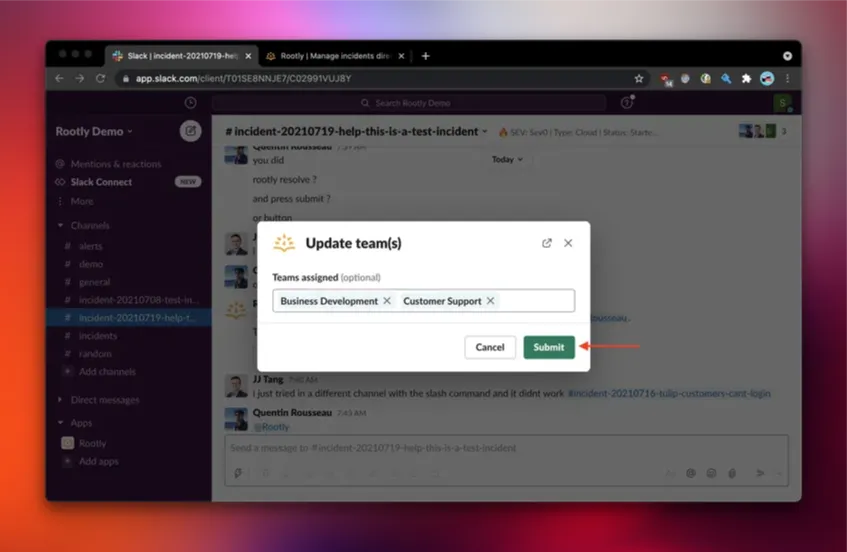
After running the command, a dialog appears in Slack with a searchable list of available teams.
From this dialog you can:
* Search for teams by name
* Select one or multiple teams
* Review currently attached teams
* Submit the changes
Once you click **Submit**, the selected teams are attached to the incident.
 ***
## What Happens When a Team Is Attached
Attaching a team records the team on the incident and fires workflow triggers. Which trigger fires depends on when the team is attached:
* Teams chosen **at incident creation time** — fire as part of the `incident_created` trigger.
* Teams attached **after creation** (via `/rootly add team` or by editing the incident in the web UI) — fire the `teams_added` and `teams_updated` triggers.
The actual side effects of attachment depend on which workflows you have configured.
Workflows commonly built around team attachment include:
* **Inviting team members** into the incident Slack channel
* **Broadcasting** to the team's configured Slack channel
* **Paging** the team's on-call (via Rootly On-Call, PagerDuty, Opsgenie, etc.)
* **Creating tickets** in the team's project (Jira, Linear, etc.)
If you expect a behavior on team attachment and it isn't happening, the first thing to check is whether a matching workflow exists and whether its trigger fired. The Workflow Runs view on each incident shows every workflow Rootly evaluated, whether it matched, and any task errors.
***
## Automatically Inviting Team Members
Inviting team members to the incident Slack channel is configured once as an Incident Workflow and reused across every incident that matches your chosen trigger.
### Setting Up the Workflow
Build an [Incident Workflow](/workflows/incident-workflows) with these settings:
Pick the moment you want invites to fire. The two most useful triggers for this use case are:
* `incident_created` — fires when teams are selected at creation time
* `teams_added` — fires when a team is attached *after* creation (e.g., via `/rootly add team`)
If you want invites for both paths, configure one workflow per trigger or use a workflow with multiple triggers.
Add the **Invite Rootly On-Call to Slack Channel** task. Despite the name, this task can target a Team in addition to an on-call schedule, escalation policy, service, or individual user. Set the **Target** to the team(s) whose members should be invited.
Add workflow conditions (severity, environment, service, etc.) only if you want to limit when invites fire. Leaving conditions empty means it fires on every incident matching the trigger.
This workflow is **not installed by default**. The smart-default "Invite Slack users and groups to incident channel" workflow that ships with Rootly invites a configured list of Slack user groups (e.g., `@oncall-infra`), not Rootly team members.
### Who Gets Invited
When the **Invite Rootly On-Call to Slack Channel** task is targeted at a Team, it:
* Includes every member of each targeted Rootly team
* Checks whether each member has connected their Slack account in Rootly
* Invites the matching users to the incident channel
* Skips members who haven't connected Slack, then fails at the end of the task with an error listing the skipped members by name
Members who haven't connected Slack to Rootly never receive an invite. The fix is for those users to connect their Slack account from their Rootly user profile.
Because this task fails when any team member hasn't connected Slack, [a single task failure halts the workflow by default](/workflows/incident-workflows). If you want downstream tasks (e.g., posting a status message) to run regardless, enable **Skip on Failure** on the invite task or place it last in the workflow.
### Other Targets
The same task can also target an escalation policy, a service, a schedule, or an individual user — useful when you want "invite whoever is on-call for this team" instead of "invite everyone on this team."
***
## Permissions
Attaching teams to incidents requires permission to update incidents.
If you attempt to run the Slack command without the required permissions, Rootly will return an authorization error.
In most organizations, these permissions are granted to:
* Incident responders
* Incident commanders
* Team administrators
* Organization administrators
If the command does not work for you, contact your Rootly administrator to confirm your access level.
***
## Troubleshooting
The command must be used inside an **incident Slack channel**. If the command is run in a regular Slack channel or a channel that is not linked to an incident, Rootly will not be able to identify the incident.
You may not have permission to update incidents. Attaching teams requires update access to the incident. Contact your administrator if you need this permission.
If no teams appear in the selection dialog, it may mean that no teams have been created in your Rootly organization yet. Teams can be created from the **Configuration → Teams** page.
Inviting team members is driven by a workflow, not by a setting on the team. Walk through this checklist:
1. **Does an invite workflow exist?** Open **Workflows** and confirm there's an Incident Workflow that uses the **Invite Rootly On-Call to Slack Channel** task with the team as Target.
2. **Did the workflow's trigger match this incident?** A workflow with trigger `incident_created` won't fire when a team is attached *after* creation; for that path you also need a workflow with trigger `teams_added`.
3. **Did the workflow run?** Open the incident's **Workflow Runs** view to see whether Rootly evaluated the workflow and what happened. If conditions (severity, environment, etc.) didn't match, the workflow won't have run.
4. **Have the team members connected their Slack accounts?** Members who haven't connected Slack to Rootly are skipped, and the task fails at the end with an error listing them by name. Have them connect Slack from their user profile.
5. **Is the Rootly Slack bot in the channel?** A private channel that the bot hasn't been added to will reject invites.
***
## Frequently Asked Questions
Attaching a team records team ownership on the incident and fires the `teams_added` and `teams_updated` workflow triggers. Any side effect — inviting members, broadcasting, paging on-call — is driven by workflows you configure.
Yes. Multiple teams can be attached to the same incident. This is common when incidents involve several areas of responsibility, such as infrastructure, security, and application teams.
Only if you've configured a workflow that does it. There is no team-level toggle that auto-invites members on attach. Build an Incident Workflow with the **Invite to Slack channel (Rootly)** task targeting the team — see [Automatically Inviting Team Members](#automatically-inviting-team-members) above.
The `/rootly add team` command must be run inside the Slack channel associated with the incident. If the command is used in another channel, Rootly cannot determine which incident the command should apply to. Additionally, you must have permission to update the incident in order to attach or modify teams.
Yes. Teams can be removed from an incident if they were attached by mistake or if their involvement is no longer required. This can be done through Slack using the appropriate Rootly command or from the incident interface in the Rootly dashboard. Removal fires the `teams_removed` and `teams_updated` workflow triggers.
Yes, when a workflow is configured to send them. The most common pattern is a workflow that broadcasts to the team's configured Slack channel on `teams_added`. The behavior is fully driven by your workflow configuration.
Only users with permission to update incidents can attach or remove teams. These permissions are typically granted to incident responders, incident commanders, team administrators, or organization administrators depending on your Rootly permission model.
***
## What Happens When a Team Is Attached
Attaching a team records the team on the incident and fires workflow triggers. Which trigger fires depends on when the team is attached:
* Teams chosen **at incident creation time** — fire as part of the `incident_created` trigger.
* Teams attached **after creation** (via `/rootly add team` or by editing the incident in the web UI) — fire the `teams_added` and `teams_updated` triggers.
The actual side effects of attachment depend on which workflows you have configured.
Workflows commonly built around team attachment include:
* **Inviting team members** into the incident Slack channel
* **Broadcasting** to the team's configured Slack channel
* **Paging** the team's on-call (via Rootly On-Call, PagerDuty, Opsgenie, etc.)
* **Creating tickets** in the team's project (Jira, Linear, etc.)
If you expect a behavior on team attachment and it isn't happening, the first thing to check is whether a matching workflow exists and whether its trigger fired. The Workflow Runs view on each incident shows every workflow Rootly evaluated, whether it matched, and any task errors.
***
## Automatically Inviting Team Members
Inviting team members to the incident Slack channel is configured once as an Incident Workflow and reused across every incident that matches your chosen trigger.
### Setting Up the Workflow
Build an [Incident Workflow](/workflows/incident-workflows) with these settings:
Pick the moment you want invites to fire. The two most useful triggers for this use case are:
* `incident_created` — fires when teams are selected at creation time
* `teams_added` — fires when a team is attached *after* creation (e.g., via `/rootly add team`)
If you want invites for both paths, configure one workflow per trigger or use a workflow with multiple triggers.
Add the **Invite Rootly On-Call to Slack Channel** task. Despite the name, this task can target a Team in addition to an on-call schedule, escalation policy, service, or individual user. Set the **Target** to the team(s) whose members should be invited.
Add workflow conditions (severity, environment, service, etc.) only if you want to limit when invites fire. Leaving conditions empty means it fires on every incident matching the trigger.
This workflow is **not installed by default**. The smart-default "Invite Slack users and groups to incident channel" workflow that ships with Rootly invites a configured list of Slack user groups (e.g., `@oncall-infra`), not Rootly team members.
### Who Gets Invited
When the **Invite Rootly On-Call to Slack Channel** task is targeted at a Team, it:
* Includes every member of each targeted Rootly team
* Checks whether each member has connected their Slack account in Rootly
* Invites the matching users to the incident channel
* Skips members who haven't connected Slack, then fails at the end of the task with an error listing the skipped members by name
Members who haven't connected Slack to Rootly never receive an invite. The fix is for those users to connect their Slack account from their Rootly user profile.
Because this task fails when any team member hasn't connected Slack, [a single task failure halts the workflow by default](/workflows/incident-workflows). If you want downstream tasks (e.g., posting a status message) to run regardless, enable **Skip on Failure** on the invite task or place it last in the workflow.
### Other Targets
The same task can also target an escalation policy, a service, a schedule, or an individual user — useful when you want "invite whoever is on-call for this team" instead of "invite everyone on this team."
***
## Permissions
Attaching teams to incidents requires permission to update incidents.
If you attempt to run the Slack command without the required permissions, Rootly will return an authorization error.
In most organizations, these permissions are granted to:
* Incident responders
* Incident commanders
* Team administrators
* Organization administrators
If the command does not work for you, contact your Rootly administrator to confirm your access level.
***
## Troubleshooting
The command must be used inside an **incident Slack channel**. If the command is run in a regular Slack channel or a channel that is not linked to an incident, Rootly will not be able to identify the incident.
You may not have permission to update incidents. Attaching teams requires update access to the incident. Contact your administrator if you need this permission.
If no teams appear in the selection dialog, it may mean that no teams have been created in your Rootly organization yet. Teams can be created from the **Configuration → Teams** page.
Inviting team members is driven by a workflow, not by a setting on the team. Walk through this checklist:
1. **Does an invite workflow exist?** Open **Workflows** and confirm there's an Incident Workflow that uses the **Invite Rootly On-Call to Slack Channel** task with the team as Target.
2. **Did the workflow's trigger match this incident?** A workflow with trigger `incident_created` won't fire when a team is attached *after* creation; for that path you also need a workflow with trigger `teams_added`.
3. **Did the workflow run?** Open the incident's **Workflow Runs** view to see whether Rootly evaluated the workflow and what happened. If conditions (severity, environment, etc.) didn't match, the workflow won't have run.
4. **Have the team members connected their Slack accounts?** Members who haven't connected Slack to Rootly are skipped, and the task fails at the end with an error listing them by name. Have them connect Slack from their user profile.
5. **Is the Rootly Slack bot in the channel?** A private channel that the bot hasn't been added to will reject invites.
***
## Frequently Asked Questions
Attaching a team records team ownership on the incident and fires the `teams_added` and `teams_updated` workflow triggers. Any side effect — inviting members, broadcasting, paging on-call — is driven by workflows you configure.
Yes. Multiple teams can be attached to the same incident. This is common when incidents involve several areas of responsibility, such as infrastructure, security, and application teams.
Only if you've configured a workflow that does it. There is no team-level toggle that auto-invites members on attach. Build an Incident Workflow with the **Invite to Slack channel (Rootly)** task targeting the team — see [Automatically Inviting Team Members](#automatically-inviting-team-members) above.
The `/rootly add team` command must be run inside the Slack channel associated with the incident. If the command is used in another channel, Rootly cannot determine which incident the command should apply to. Additionally, you must have permission to update the incident in order to attach or modify teams.
Yes. Teams can be removed from an incident if they were attached by mistake or if their involvement is no longer required. This can be done through Slack using the appropriate Rootly command or from the incident interface in the Rootly dashboard. Removal fires the `teams_removed` and `teams_updated` workflow triggers.
Yes, when a workflow is configured to send them. The most common pattern is a workflow that broadcasts to the team's configured Slack channel on `teams_added`. The behavior is fully driven by your workflow configuration.
Only users with permission to update incidents can attach or remove teams. These permissions are typically granted to incident responders, incident commanders, team administrators, or organization administrators depending on your Rootly permission model.