> ## Documentation Index
> Fetch the complete documentation index at: https://docs.rootly.com/llms.txt
> Use this file to discover all available pages before exploring further.
# Managing teams in Rootly
> Create and manage teams in Rootly for on-call schedules, alert routing, Slack automation, escalation policies, and third-party imports.
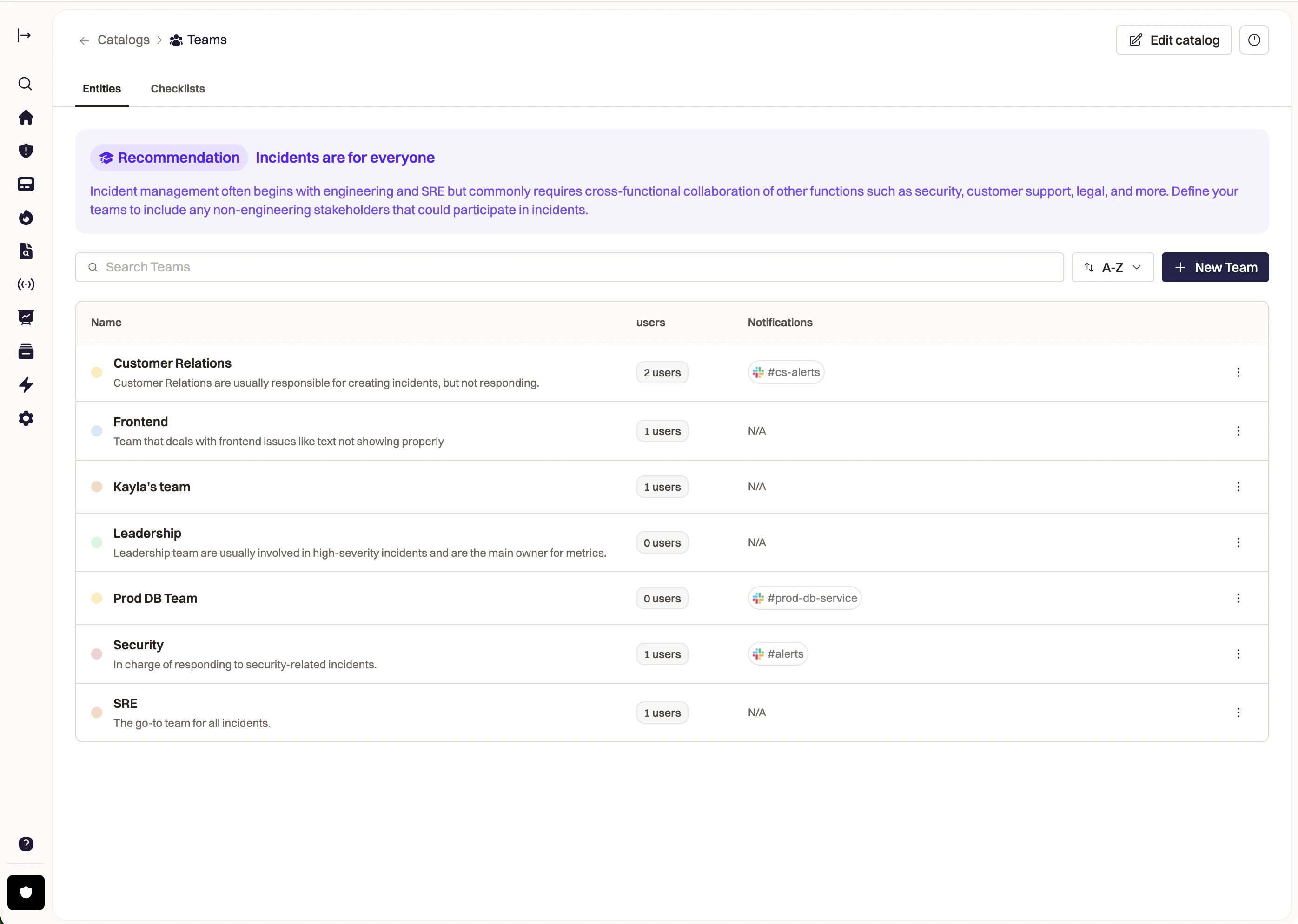
In Rootly, **Teams** represent groups of users responsible for a specific department, service, or product within your organization. Teams provide the organizational structure used to manage on-call coverage, route alerts, and configure team-specific workflows across the platform.
 ## What Teams Can Do
Teams in Rootly enable you to:
* **Own On-Call Schedules and Escalation Policies**\
Teams manage their own on-call rotations and escalation policies through Rootly On-Call.
* **Route Alerts to the Right Responders**\
Alerts from integrated monitoring tools or email sources can be routed directly to teams to ensure the correct responders are notified immediately.
* **Configure Slack Automation**\
Teams can be mapped to specific Slack channels and user groups, enabling automated notifications, incident collaboration, and response workflows.
## Managing Teams
Teams can be created and managed directly in the Rootly web interface, where you can assign members, configure team settings, and manage access.
Rootly also supports importing teams from third-party platforms to simplify migrations and maintain existing team structures.
### Supported Imports
* **PagerDuty**
* **Opsgenie**
Additional integrations and migration options will continue to be added.
## Frequently Asked Questions
### Team Membership
Yes. Users can belong to multiple teams in Rootly.
Each team membership has its own:
* **Role** (Owner, Admin, Member, etc.)
* **On-Call Role**
* **Permissions**
Users can switch teams using the **team selector** in the navigation bar.
**Team Switching:** When users switch teams, they only see the data, incidents, and configurations for that team.
Permissions in Rootly are **team-scoped**.
This means:
* Roles apply only within a specific team
* Permissions in one team do not affect another
* Users can have different roles across teams
Example: A user could be an **Owner** in Engineering but a **Member** in Operations.
Team members can be managed through:
* **Web UI:** Settings → Teams → Members
* **Email Invitations**
* **SCIM provisioning** when SSO is enabled
* **API** for programmatic management
Yes. Teams can restrict membership to specific **email domains**.
To configure this:
1. Navigate to **Settings → Team Settings**
2. Configure the **Email Domains** restriction
3. Only users with matching domains can be added
***
### Teams & Organizational Structure
**Teams** are top-level organizational units that contain users, schedules, alerts, and configurations.
**Groups** are sub-units within a team used for:
* On-call rotations
* Alert routing
* Incident assignment
* Slack channel mapping
Think of it as:
**Teams = organizations**\
**Groups = sub-teams within that organization**
No. Teams are **fully isolated**.
Each team has its own:
* Incident data
* Alerts and action items
* Configuration settings
* On-call schedules
* Alert routing rules
Users must be explicitly added to each team to access it.
Yes. Each team can configure its own settings including:
* AI features
* Alert routing
* Incident workflows
* Sub-statuses
* Retrospective templates
* Integrations
* Time zones
This allows teams to operate independently.
A **Team** is the organizational container that includes users, schedules, and configuration.
An **Escalation Policy** defines **how alerts notify responders within that team**, including:
* Who gets notified
* Escalation order
* Notification timing
* Notification methods
***
### Team Management
Yes. Team settings can be updated at any time.
You can modify:
* Team name
* Time zone
* Email domain restrictions
* Feature configurations
* Team logo and branding
All settings are available under **Settings → Team Settings**.
Teams are **soft deleted** rather than permanently removed.
When a team is deleted:
* Historical incident data is preserved
* Users immediately lose access
* Integrations are disconnected
**Important:** Team deletion is irreversible. Ensure you export any required data beforehand.
Yes. Teams can be duplicated to quickly create similar team structures.
Duplication can include:
* Team settings
* Schedules and escalation policies
* Groups and configurations
* Optional user memberships
The number of teams available depends on your **Rootly plan**.
You can review limits in **Settings → Billing** or contact your account manager.
***
### Migrations & Integrations
Rootly provides migration tools to import your existing team structure.
Supported imports include:
**PagerDuty**
* Teams
* Users
* Schedules
* Escalation policies
* On-call rotations
**Opsgenie**
* Teams
* Schedules
* Routing rules
* Escalation policies
Learn more about migrating from PagerDuty or Opsgenie
Slack channels can be configured in two ways:
1. **Team-level mapping** for default notifications
2. **Group-level mapping** for more granular routing
To configure:
1. Navigate to **Settings → Integrations → Slack**
2. Configure team-level settings
3. Map groups to Slack channels
Learn more about configuring Slack for teams
Yes. Teams can manage their own **public or private status pages**.
Status pages support:
* Custom domains
* Service components
* Incident communication templates
* Automated updates
Learn more about creating and managing status pages
## What Teams Can Do
Teams in Rootly enable you to:
* **Own On-Call Schedules and Escalation Policies**\
Teams manage their own on-call rotations and escalation policies through Rootly On-Call.
* **Route Alerts to the Right Responders**\
Alerts from integrated monitoring tools or email sources can be routed directly to teams to ensure the correct responders are notified immediately.
* **Configure Slack Automation**\
Teams can be mapped to specific Slack channels and user groups, enabling automated notifications, incident collaboration, and response workflows.
## Managing Teams
Teams can be created and managed directly in the Rootly web interface, where you can assign members, configure team settings, and manage access.
Rootly also supports importing teams from third-party platforms to simplify migrations and maintain existing team structures.
### Supported Imports
* **PagerDuty**
* **Opsgenie**
Additional integrations and migration options will continue to be added.
## Frequently Asked Questions
### Team Membership
Yes. Users can belong to multiple teams in Rootly.
Each team membership has its own:
* **Role** (Owner, Admin, Member, etc.)
* **On-Call Role**
* **Permissions**
Users can switch teams using the **team selector** in the navigation bar.
**Team Switching:** When users switch teams, they only see the data, incidents, and configurations for that team.
Permissions in Rootly are **team-scoped**.
This means:
* Roles apply only within a specific team
* Permissions in one team do not affect another
* Users can have different roles across teams
Example: A user could be an **Owner** in Engineering but a **Member** in Operations.
Team members can be managed through:
* **Web UI:** Settings → Teams → Members
* **Email Invitations**
* **SCIM provisioning** when SSO is enabled
* **API** for programmatic management
Yes. Teams can restrict membership to specific **email domains**.
To configure this:
1. Navigate to **Settings → Team Settings**
2. Configure the **Email Domains** restriction
3. Only users with matching domains can be added
***
### Teams & Organizational Structure
**Teams** are top-level organizational units that contain users, schedules, alerts, and configurations.
**Groups** are sub-units within a team used for:
* On-call rotations
* Alert routing
* Incident assignment
* Slack channel mapping
Think of it as:
**Teams = organizations**\
**Groups = sub-teams within that organization**
No. Teams are **fully isolated**.
Each team has its own:
* Incident data
* Alerts and action items
* Configuration settings
* On-call schedules
* Alert routing rules
Users must be explicitly added to each team to access it.
Yes. Each team can configure its own settings including:
* AI features
* Alert routing
* Incident workflows
* Sub-statuses
* Retrospective templates
* Integrations
* Time zones
This allows teams to operate independently.
A **Team** is the organizational container that includes users, schedules, and configuration.
An **Escalation Policy** defines **how alerts notify responders within that team**, including:
* Who gets notified
* Escalation order
* Notification timing
* Notification methods
***
### Team Management
Yes. Team settings can be updated at any time.
You can modify:
* Team name
* Time zone
* Email domain restrictions
* Feature configurations
* Team logo and branding
All settings are available under **Settings → Team Settings**.
Teams are **soft deleted** rather than permanently removed.
When a team is deleted:
* Historical incident data is preserved
* Users immediately lose access
* Integrations are disconnected
**Important:** Team deletion is irreversible. Ensure you export any required data beforehand.
Yes. Teams can be duplicated to quickly create similar team structures.
Duplication can include:
* Team settings
* Schedules and escalation policies
* Groups and configurations
* Optional user memberships
The number of teams available depends on your **Rootly plan**.
You can review limits in **Settings → Billing** or contact your account manager.
***
### Migrations & Integrations
Rootly provides migration tools to import your existing team structure.
Supported imports include:
**PagerDuty**
* Teams
* Users
* Schedules
* Escalation policies
* On-call rotations
**Opsgenie**
* Teams
* Schedules
* Routing rules
* Escalation policies
Learn more about migrating from PagerDuty or Opsgenie
Slack channels can be configured in two ways:
1. **Team-level mapping** for default notifications
2. **Group-level mapping** for more granular routing
To configure:
1. Navigate to **Settings → Integrations → Slack**
2. Configure team-level settings
3. Map groups to Slack channels
Learn more about configuring Slack for teams
Yes. Teams can manage their own **public or private status pages**.
Status pages support:
* Custom domains
* Service components
* Incident communication templates
* Automated updates
Learn more about creating and managing status pages