> ## Documentation Index
> Fetch the complete documentation index at: https://docs.rootly.com/llms.txt
> Use this file to discover all available pages before exploring further.
# Live Call Routing
> Set up live call routing in Rootly with voicemail, live connect, IVR calling trees, and phone-based on-call escalation for support phone numbers.
### Overview
Live Call Routing offers two options for handling urgent incidents: calls can either be routed instantly to the on-call team member for immediate response, or directed to a voicemail where the message is logged and the team is alerted. This flexibility ensures that critical issues are managed effectively, whether they require immediate attention or can be addressed shortly after.
### Configuring Live Call Routing
To create a new routing number in the web app:
1. Navigate to On-Call tab --> Live Call Routing Tab and click + New Routing Number.
2. Choose between Route to Voicemail or Connect Live
### Route to Voicemail
Selecting route to voicemail will route calls directly to voicemail for message logging and reviewing
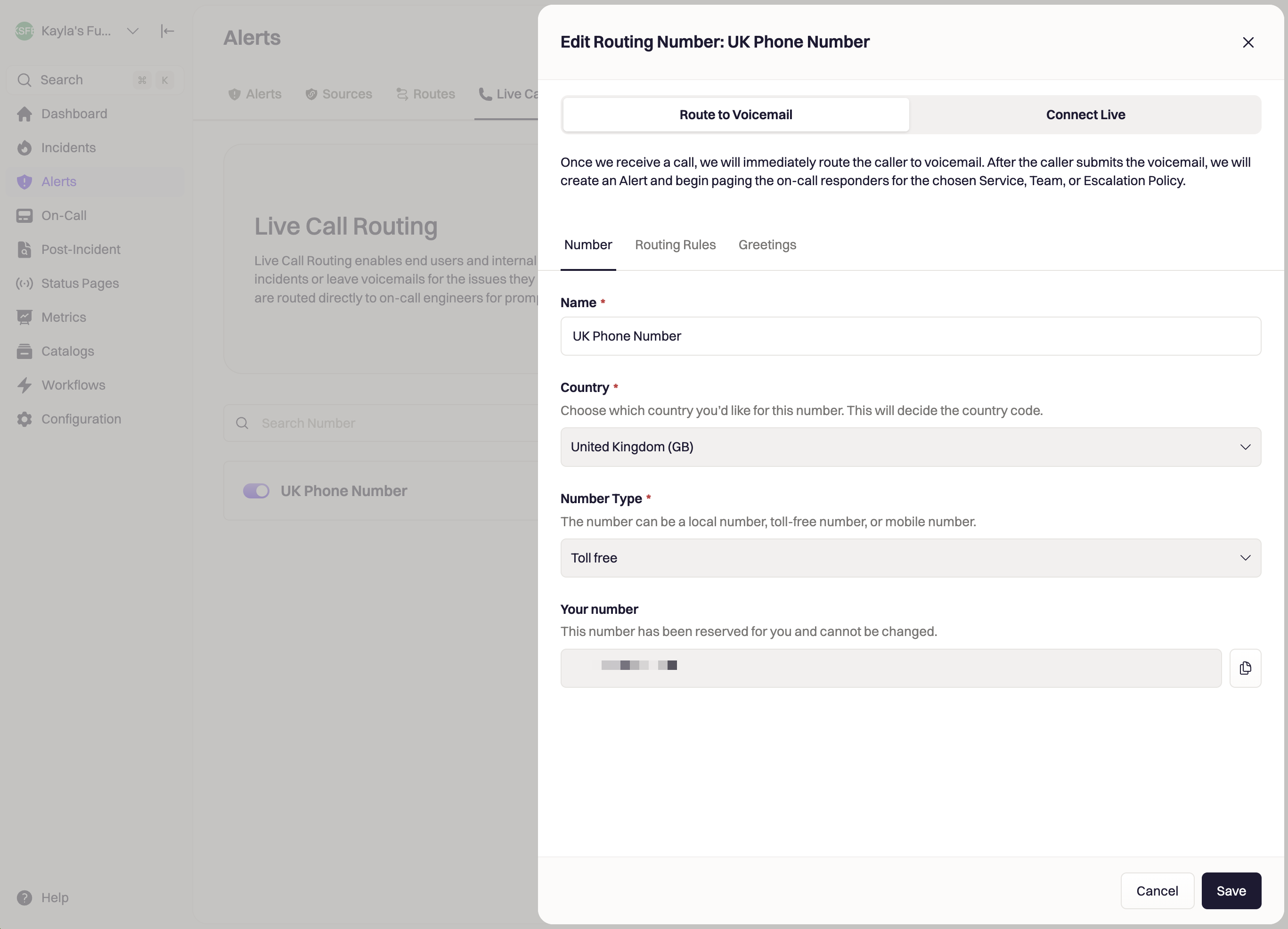
#### Number
* Give your new routing number a Name (required)
* Select a Country (required)
* Select a Number Type (required)
* Once saved you will see Your Number appear
 #### Routing Rules
* Define Who do you want to page? (required)
* Sent an Alert Urgency (required)
#### Routing Rules
* Define Who do you want to page? (required)
* Sent an Alert Urgency (required)
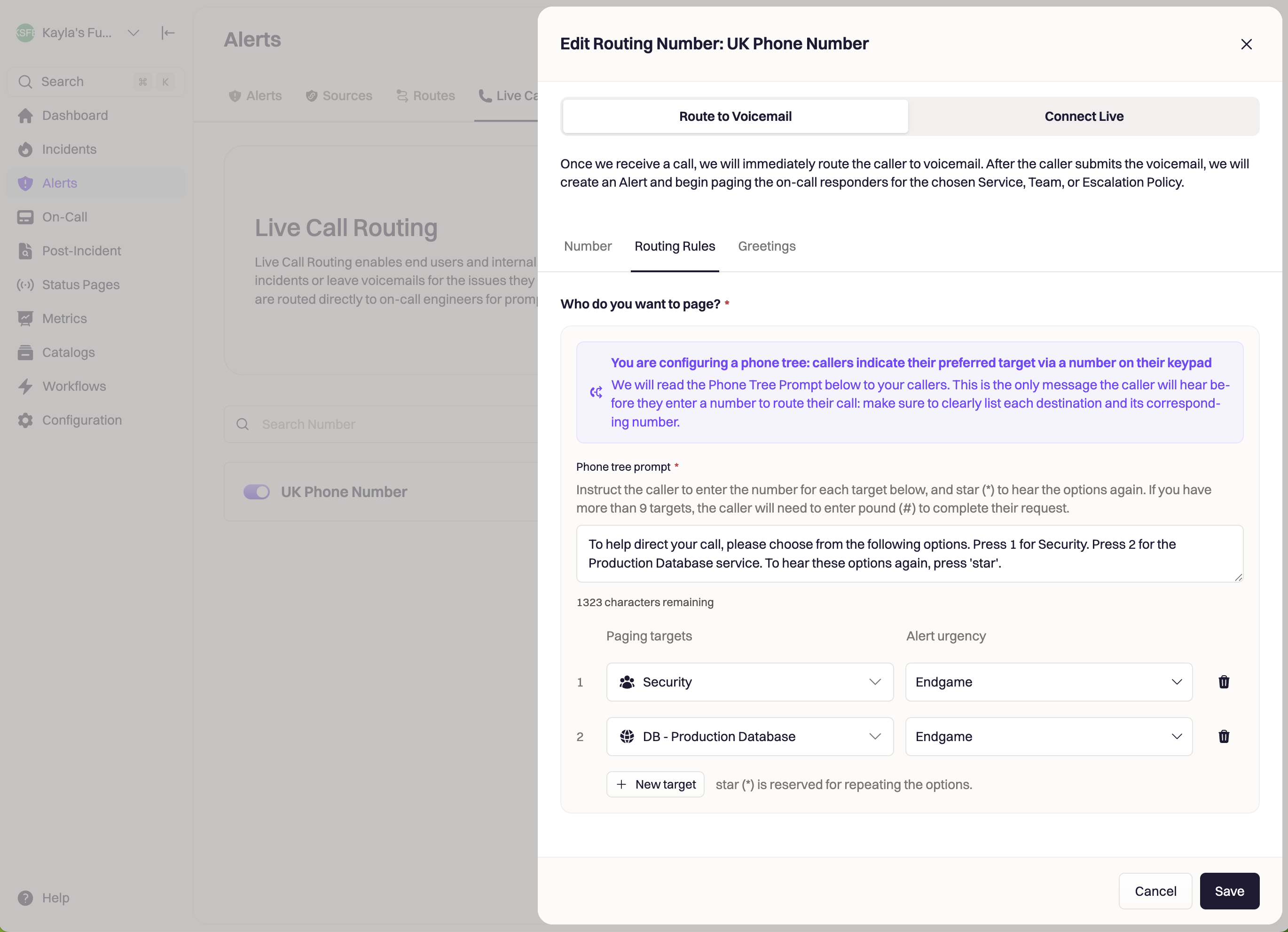 You can use a single phone number to route callers to many different destinations: this is a great option if you only want your callers to use a single phone number to page any of your teams and services.
When you add more than one Paging target to your Live Call Routing number, Rootly will create an IVR calling tree automatically. This allows your callers to input their preferred paging destination with their dial pad.
Each paging target can be routed to based on the corresponding number in the left hand column: for example, `Security` will be paged when your caller selects 1, and `DB - Production Database` will be paged when your caller selects 2.
Make sure to add instructions to let your caller know which number to select to route to their preferred destination. Rootly reserves `*` if the caller wants to listen to the options again.
#### Greetings
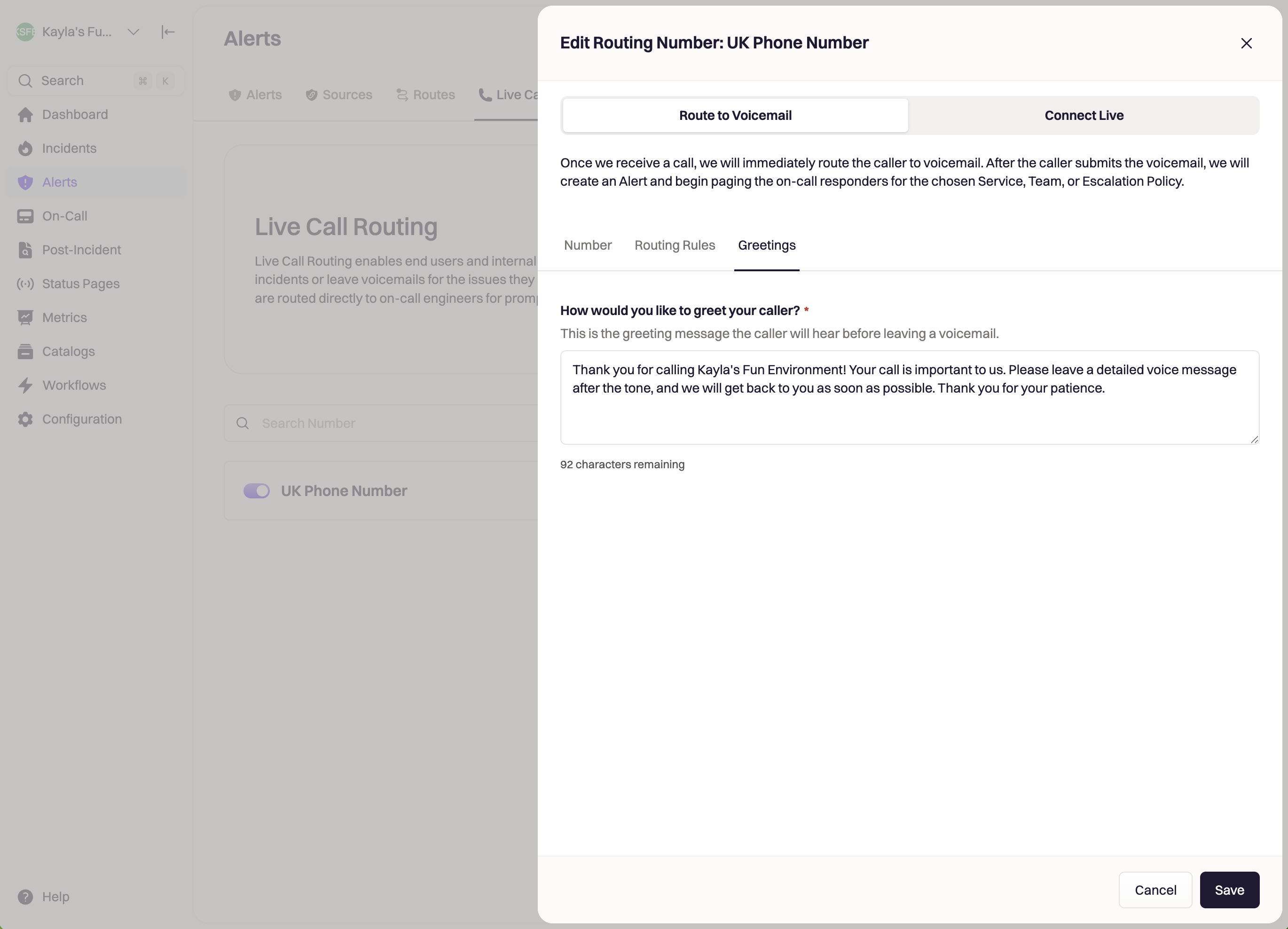
Add a greeting message for how would you like to greet your caller. This will be the initial message Rootly will read to your callers.
You can use a single phone number to route callers to many different destinations: this is a great option if you only want your callers to use a single phone number to page any of your teams and services.
When you add more than one Paging target to your Live Call Routing number, Rootly will create an IVR calling tree automatically. This allows your callers to input their preferred paging destination with their dial pad.
Each paging target can be routed to based on the corresponding number in the left hand column: for example, `Security` will be paged when your caller selects 1, and `DB - Production Database` will be paged when your caller selects 2.
Make sure to add instructions to let your caller know which number to select to route to their preferred destination. Rootly reserves `*` if the caller wants to listen to the options again.
#### Greetings
Add a greeting message for how would you like to greet your caller. This will be the initial message Rootly will read to your callers.
 ### Connect Live
Selecting Connect Live will connect the caller live to an on-call team member for immediate response.
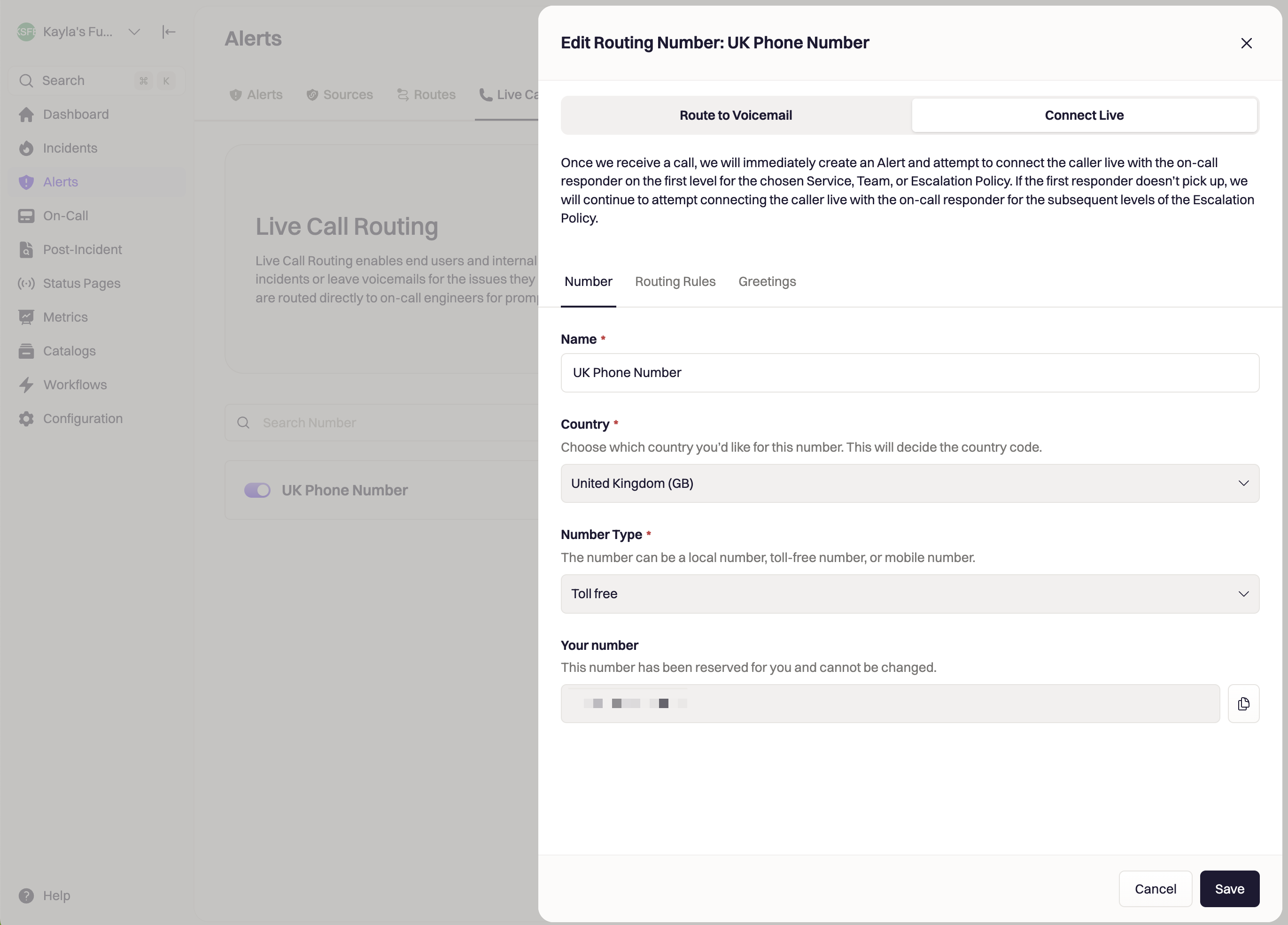
#### Number
* Give your new routing number a Name (required)
* Select a Country (required)
* Select a Number Type (required)
* Once saved you will see Your Number appear
### Connect Live
Selecting Connect Live will connect the caller live to an on-call team member for immediate response.
#### Number
* Give your new routing number a Name (required)
* Select a Country (required)
* Select a Number Type (required)
* Once saved you will see Your Number appear
 #### Routing Rules
* Define Who do you want to page? (required)
* Sent an Alert Urgency (required)
#### Routing Rules
* Define Who do you want to page? (required)
* Sent an Alert Urgency (required)
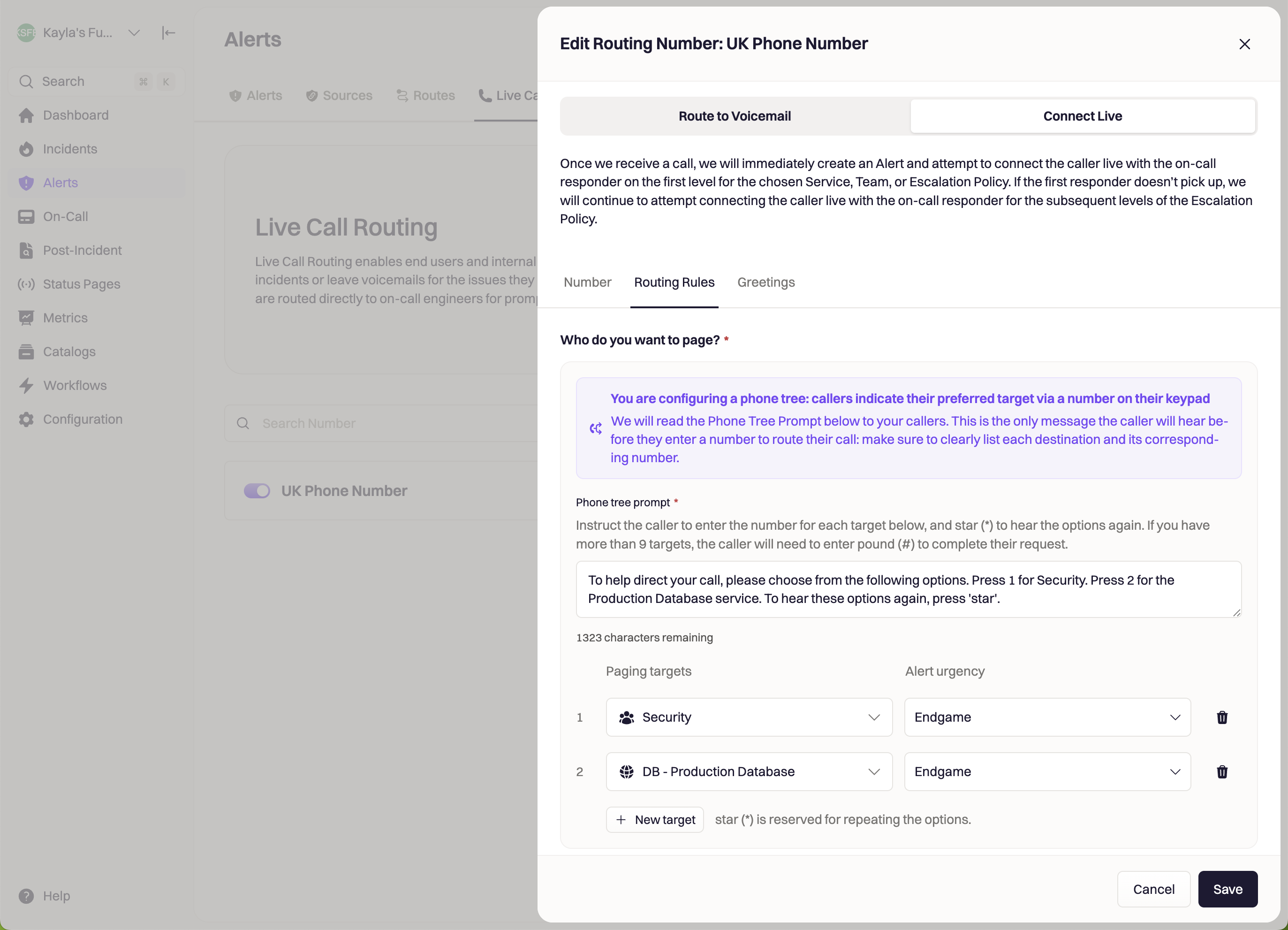 You can use a single phone number to route callers to many different destinations: this is a great option if you only want your callers to use a single phone number to page any of your teams and services.
When you add more than one Paging target to your Live Call Routing number, Rootly will create an IVR calling tree automatically. This allows your callers to input their preferred paging destination with their dial pad.
Each paging target can be routed to based on the corresponding number in the left hand column: for example, `Security` will be paged when your caller selects 1, and `DB - Production Database` will be paged when your caller selects 2.
Make sure to add instructions to let your caller know which number to select to route to their preferred destination. Rootly reserves `*` if the caller wants to listen to the options again.
Under Advanced Settings in your Routing Rules tab:
* You can choose to Redirect the caller to voicemail if there has been no answer after X amount of time
* Choose how quickly you want to Escalate to the next Escalation Policy after X amount of time
* This will override the length of time between levels on your escalation policy since most users want a faster escalation since it is a live environment.
* Choose to Auto-resolve the alert when the call ends
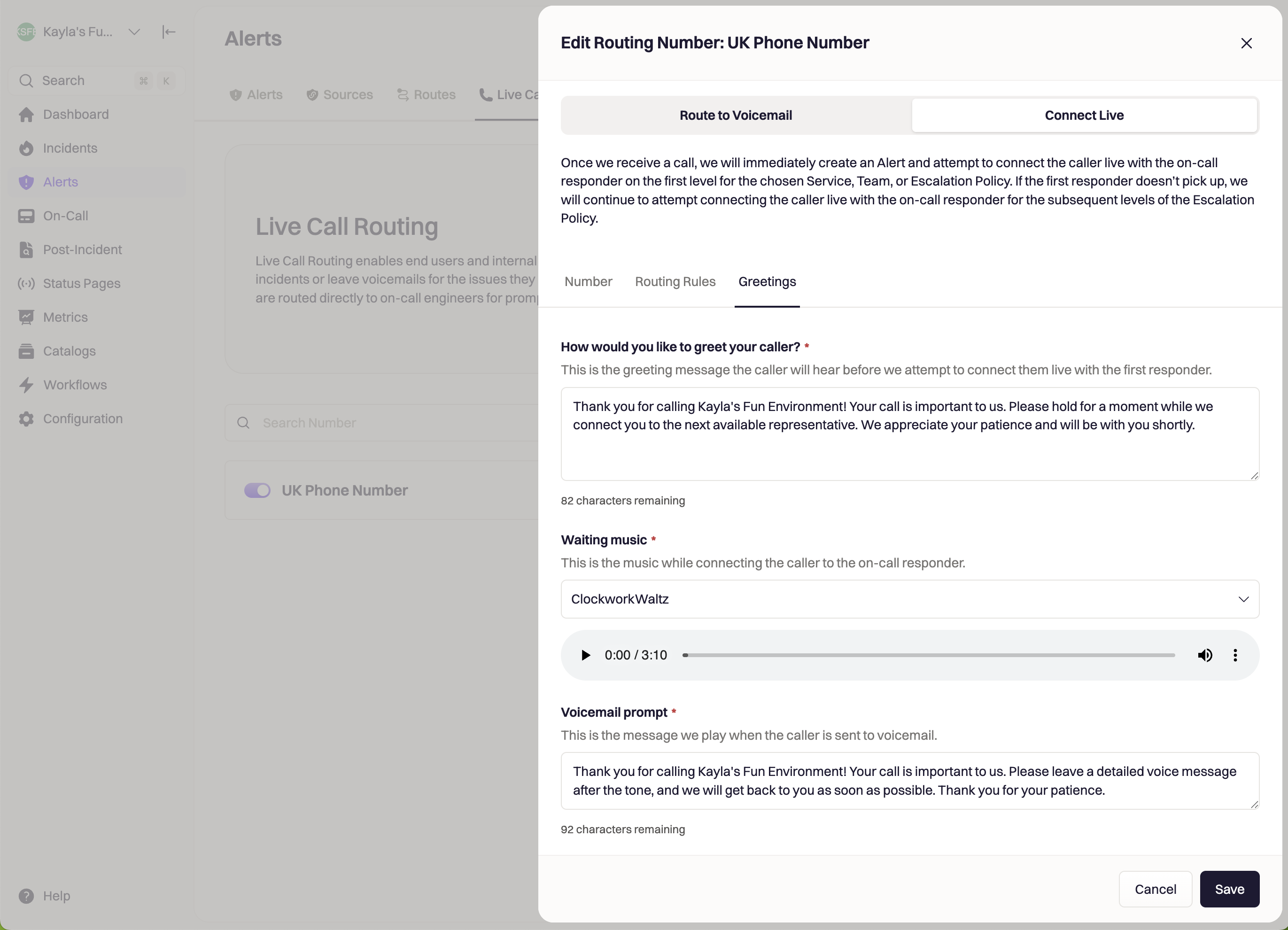
#### Greetings
* Add a greeting message for How would you like to greet your caller?
* Set Waiting music
* Add a Voicemail prompt
* This will be the message that is played when the caller is sent to voicemail
* Click Create Routing Number
You can use a single phone number to route callers to many different destinations: this is a great option if you only want your callers to use a single phone number to page any of your teams and services.
When you add more than one Paging target to your Live Call Routing number, Rootly will create an IVR calling tree automatically. This allows your callers to input their preferred paging destination with their dial pad.
Each paging target can be routed to based on the corresponding number in the left hand column: for example, `Security` will be paged when your caller selects 1, and `DB - Production Database` will be paged when your caller selects 2.
Make sure to add instructions to let your caller know which number to select to route to their preferred destination. Rootly reserves `*` if the caller wants to listen to the options again.
Under Advanced Settings in your Routing Rules tab:
* You can choose to Redirect the caller to voicemail if there has been no answer after X amount of time
* Choose how quickly you want to Escalate to the next Escalation Policy after X amount of time
* This will override the length of time between levels on your escalation policy since most users want a faster escalation since it is a live environment.
* Choose to Auto-resolve the alert when the call ends
#### Greetings
* Add a greeting message for How would you like to greet your caller?
* Set Waiting music
* Add a Voicemail prompt
* This will be the message that is played when the caller is sent to voicemail
* Click Create Routing Number
 ### Supported Countries
Live Call Routing is available in the following countries:
| Country | Code |
| -------------- | ---- |
| Australia | AU |
| Canada | CA |
| Germany | DE |
| Netherlands | NL |
| New Zealand | NZ |
| United Kingdom | GB |
| United States | US |
If your country is not listed above, please contact your Rootly representative to discuss availability in your region.
***
### Best Practices
* Use **Connect Live** for critical, urgent systems
* Use **Route to Voicemail** for low-severity or non-production services
* Create a **single company-wide routing number** using a calling tree to direct to all teams
* Keep prompts short and clear (⅔ callers hang up when IVR menus are confusing)
* Assign meaningful digits (e.g., 1 = Security, 2 = On-Call, 3 = Database)
* Prefer shorter **escalation delays** for live calls
***
### Troubleshooting
* The selected number type may not be available
* Try a different number type (local, mobile, toll-free)
* Try another country
* Calling tree prompt may be missing
* Multiple targets require a prompt
* IVR mappings must include unique digits
* Alert urgency missing at router or mapping level
* Notification target removed or invalid
* Calling tree mappings missing escalation trigger records
* Music must be selected from the approved Rootly list
***
### Supported Countries
Live Call Routing is available in the following countries:
| Country | Code |
| -------------- | ---- |
| Australia | AU |
| Canada | CA |
| Germany | DE |
| Netherlands | NL |
| New Zealand | NZ |
| United Kingdom | GB |
| United States | US |
If your country is not listed above, please contact your Rootly representative to discuss availability in your region.
***
### Best Practices
* Use **Connect Live** for critical, urgent systems
* Use **Route to Voicemail** for low-severity or non-production services
* Create a **single company-wide routing number** using a calling tree to direct to all teams
* Keep prompts short and clear (⅔ callers hang up when IVR menus are confusing)
* Assign meaningful digits (e.g., 1 = Security, 2 = On-Call, 3 = Database)
* Prefer shorter **escalation delays** for live calls
***
### Troubleshooting
* The selected number type may not be available
* Try a different number type (local, mobile, toll-free)
* Try another country
* Calling tree prompt may be missing
* Multiple targets require a prompt
* IVR mappings must include unique digits
* Alert urgency missing at router or mapping level
* Notification target removed or invalid
* Calling tree mappings missing escalation trigger records
* Music must be selected from the approved Rootly list
***