> ## Documentation Index
> Fetch the complete documentation index at: https://docs.rootly.com/llms.txt
> Use this file to discover all available pages before exploring further.
# Rootly mobile app for iOS and Android on-call
> Download and use the Rootly mobile app for iOS and Android to receive, acknowledge, and escalate alerts while on-call, with critical alert and override support.
 Required User Seats and User Permissions
Users will need an on-call seat to log in and access the app.
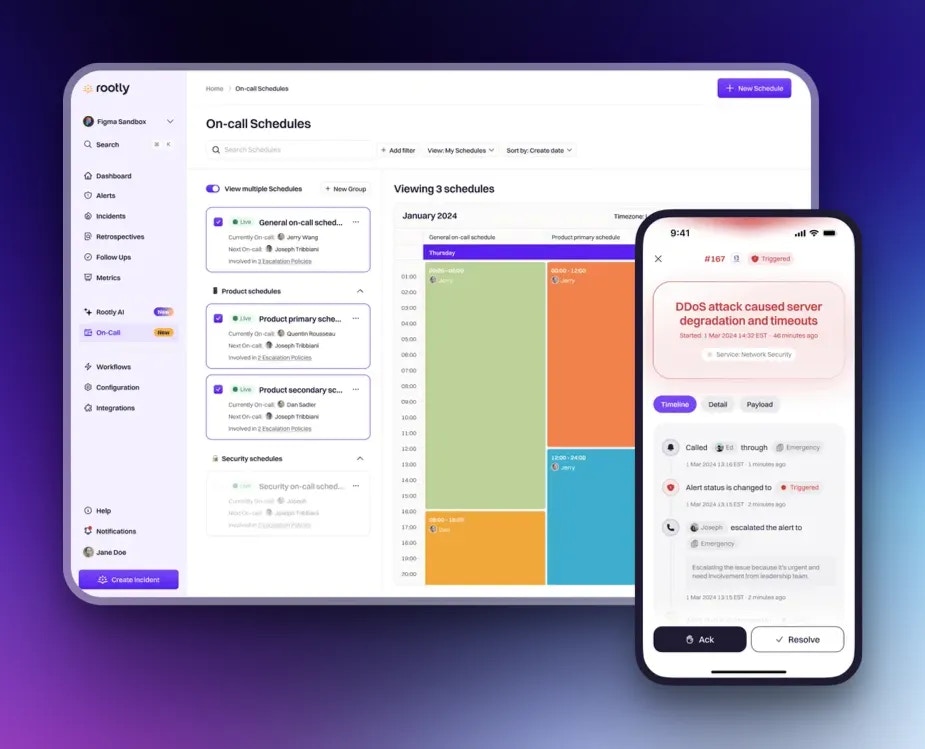
The Rootly mobile app lets you receive and acknowledge alerts, escalate alerts to incidents, and see all the information you need while you are on-call.
## Download the mobile app
Rootly's mobile app supports both iOS and Android devices.
Download from the App Store
Download from Google Play
After downloading:
1. Open the Rootly app on your device
2. Enter your Rootly credentials to log in
## Log in to Rootly
Log in to your Rootly account using any of the following methods:
* Email address and password
* Google SSO
* Slack SSO
* Third-party identity provider (SAML SSO)
Compatibility
For security purposes minimum software versions supported are:
* Android 11+ (SDK 30+)
* iOS 16+
## Rootly AI
Rootly AI is built into the mobile app so on-call responders can get up to speed on an incident and ask questions without leaving their phone. On any incident you have access to, you get an **Incident AI Summary** and the conversational **Ask Rootly AI** assistant.
Mobile AI uses the same Rootly AI capabilities, team-level settings, and privacy controls as the web and Slack experiences. These features are available once an Admin enables Rootly AI for your team and the incident permits it. See [Rootly AI](/ai/ai) and [Data Privacy for AI](/ai/data-privacy-for-ai) for details.
### Incident AI Summary
On an incident's **Details** tab, Rootly AI shows a **Summary** card with a short, plain-language overview of what happened, the impact, and the current status. The card shows when the summary was generated, and you can regenerate it at any time with the refresh icon to reflect the latest state of the incident.
Required User Seats and User Permissions
Users will need an on-call seat to log in and access the app.
The Rootly mobile app lets you receive and acknowledge alerts, escalate alerts to incidents, and see all the information you need while you are on-call.
## Download the mobile app
Rootly's mobile app supports both iOS and Android devices.
Download from the App Store
Download from Google Play
After downloading:
1. Open the Rootly app on your device
2. Enter your Rootly credentials to log in
## Log in to Rootly
Log in to your Rootly account using any of the following methods:
* Email address and password
* Google SSO
* Slack SSO
* Third-party identity provider (SAML SSO)
Compatibility
For security purposes minimum software versions supported are:
* Android 11+ (SDK 30+)
* iOS 16+
## Rootly AI
Rootly AI is built into the mobile app so on-call responders can get up to speed on an incident and ask questions without leaving their phone. On any incident you have access to, you get an **Incident AI Summary** and the conversational **Ask Rootly AI** assistant.
Mobile AI uses the same Rootly AI capabilities, team-level settings, and privacy controls as the web and Slack experiences. These features are available once an Admin enables Rootly AI for your team and the incident permits it. See [Rootly AI](/ai/ai) and [Data Privacy for AI](/ai/data-privacy-for-ai) for details.
### Incident AI Summary
On an incident's **Details** tab, Rootly AI shows a **Summary** card with a short, plain-language overview of what happened, the impact, and the current status. The card shows when the summary was generated, and you can regenerate it at any time with the refresh icon to reflect the latest state of the incident.
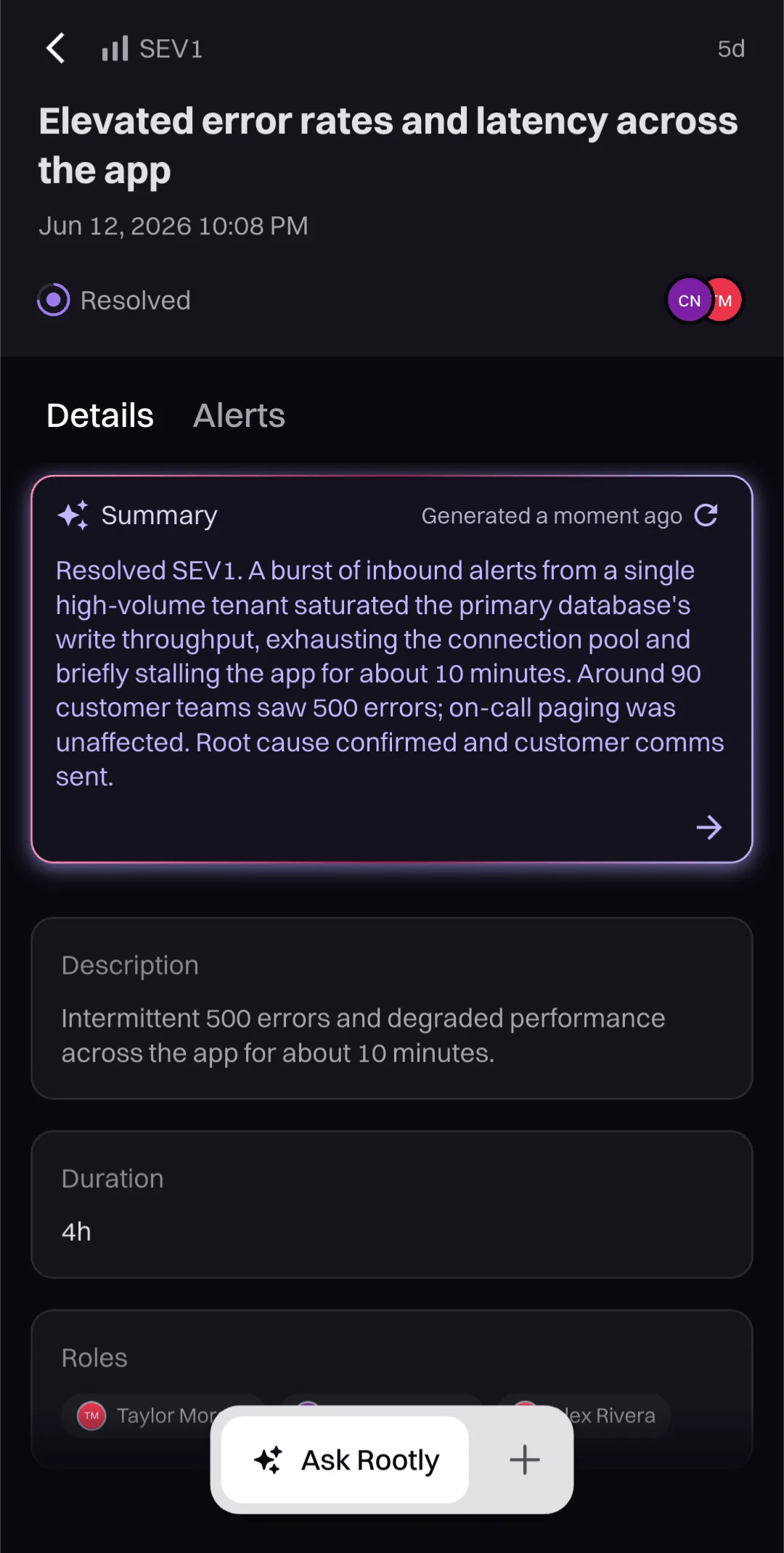 Tap the card—or the **Ask Rootly** launcher—to open the full summary in the Ask Rootly AI panel. It breaks the incident down into key points such as scope and impact, root cause, and what's left to do, with suggested questions to dig deeper.
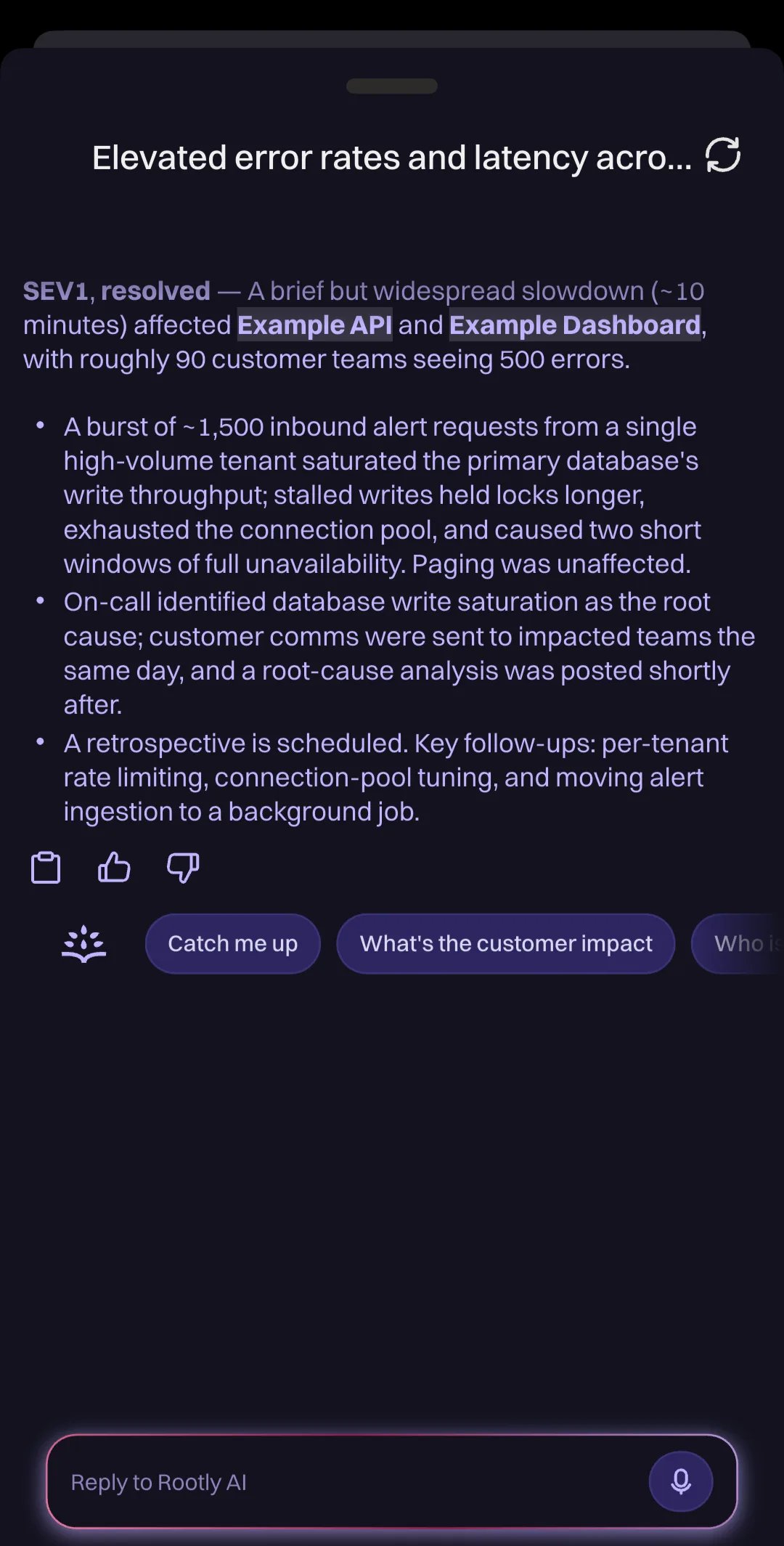 Incident AI Summary uses the same technology as [Incident Summarization](/ai/incident-summarization) on the web and in Slack, so summaries improve as more incident context becomes available.
### Rootly AI Chat
The **Ask Rootly AI** panel is a conversational assistant for the incident you're viewing. It answers questions in natural language, grounded in that incident's live context: its timeline, severity, status, roles, alerts, and related Slack discussion. Beyond answering, it can take actions for you, so you can get oriented, communicate, and drive the incident forward without leaving the app.
Tap **Ask Rootly** to open the chat. Four suggested prompts get you started:
* **Catch me up**
* **What's the customer impact**
* **Who is working on what?**
* **Show open action items**
Select one, or type (or dictate) your own question. Ask Rootly AI keeps the conversation's context, so follow-up questions work naturally.
Incident AI Summary uses the same technology as [Incident Summarization](/ai/incident-summarization) on the web and in Slack, so summaries improve as more incident context becomes available.
### Rootly AI Chat
The **Ask Rootly AI** panel is a conversational assistant for the incident you're viewing. It answers questions in natural language, grounded in that incident's live context: its timeline, severity, status, roles, alerts, and related Slack discussion. Beyond answering, it can take actions for you, so you can get oriented, communicate, and drive the incident forward without leaving the app.
Tap **Ask Rootly** to open the chat. Four suggested prompts get you started:
* **Catch me up**
* **What's the customer impact**
* **Who is working on what?**
* **Show open action items**
Select one, or type (or dictate) your own question. Ask Rootly AI keeps the conversation's context, so follow-up questions work naturally.
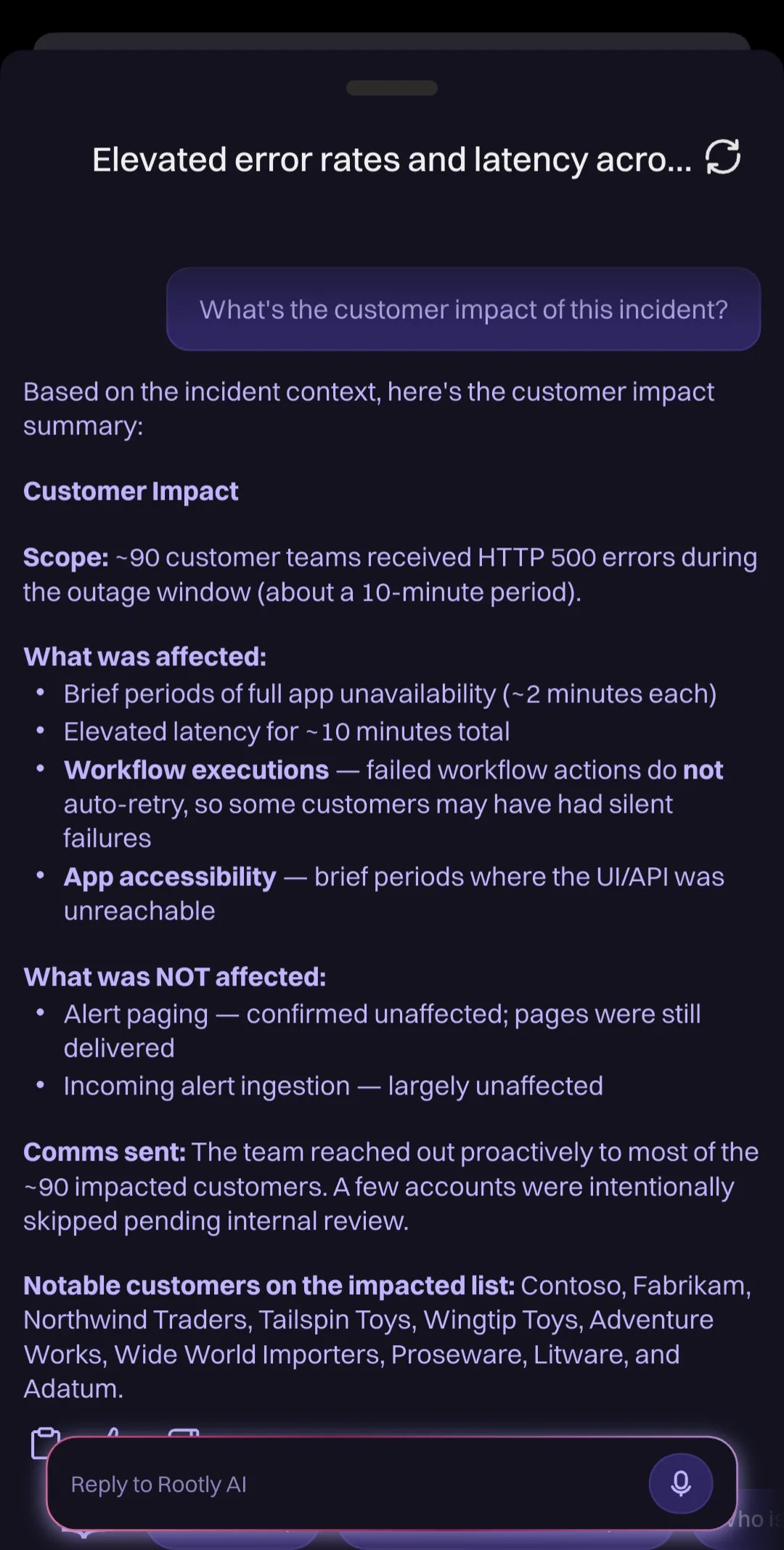 Replies stream in as markdown—headers, lists, and tables—and links to incidents or alerts open right inside the app. You can copy a reply with the copy icon, rate it with the thumbs up / thumbs down controls, and dictate questions with the microphone. Your conversation is saved per incident and picks up where you left off; to start over, tap the refresh icon in the panel header and confirm—this clears the current conversation.
Beyond answering questions, Ask Rootly AI on mobile can **take actions** on your behalf—such as paging responders, updating status or severity, and managing action items—just like [@Rootly in Slack](/ai/rootly-in-slack/overview). It always acts as your user, with your existing Rootly permissions.
## Push Notification
Pages not coming through, or arriving silently? See [**Notification Troubleshooting**](/troubleshooting) for symptom-by-symptom fixes across [iOS](/troubleshooting/ios) and [Android](/troubleshooting/android): Do Not Disturb, battery optimization, calls that don't ring, and device-specific (Samsung, Pixel, OnePlus) issues.
### iOS
* iOS uses critical alerts for high urgency alerts.
Apple Watch Compatibility
If you have an Apple Watch connected to your iPhone, critical alerts may not play sound on your iPhone. To fix this:
1. Open the Watch app on your iPhone
2. Go to Notifications
3. Scroll down to "Mirror iPhone Alerts from"
4. Unselect Rootly
This allows the full Rootly sound to play on your iPhone while on-call.
### Android
#### Battery-Saving Mode
Users may experience delayed notifications when using battery-saving mode. To resolve this for Rootly, navigate to Settings > Battery > Battery usage > Rootly, and choose Unrestricted.
On some devices, this setting might appear as Don't wake for notifications. Disabling this option can help ensure notifications are received promptly.
#### Samsung
Battery Optimization and App Restrictions: Samsung devices are known to aggressively manage background processes to optimize battery life. When an app is in the background or killed, Samsung’s battery optimization settings can block notifications entirely, or modify their behavior (such as muting sound or vibration). You can check if battery optimization is affecting your app:
`Go to Settings > Apps > Your App > Battery > Optimize Battery Usage and turn off optimization for your app.`
Device-Specific Notification Handling: Some Samsung devices (especially recent ones with One UI) impose additional restrictions on background notifications. You might need to guide users to allow the app to run in the background or turn off restrictions. For this:
`Go to Settings > Device Care > Battery > App power management and disable "Put unused apps to sleep" for your app.`
Android Work Profiles
Due to a Work Profile limitation from Android, overriding System Volume and Do Not Disturb will not work when the Rootly app is under a Work Profile.
For better behavior, it is recommended to also add **Google Chrome** to your Work Profile alongside the Rootly app. This ensures optimal functionality and performance.
## China Support
Rootly is available in China in the following stores.
| Store | Status | Version | Link |
| :----- | :-------: | :-----: | :----------------------------------------------------------: |
| HONOR | Published | 2.7.0 | N/A |
| OPPO | Published | 2.7.0 | N/A |
| VIVO | Published | 2.7.0 | N/A |
| XIAOMI | Published | 2.7.0 | [Open Link](https://app.mi.com/details?id=cn.net.rootly.app) |
Alternatively you can download the Chinese version [here](https://rootly-heroku.s3.us-east-1.amazonaws.com/android/app-cnProduction-release-2.7.0.apk)
## Intune Support
Rootly's mobile app supports **Microsoft Intune Mobile Application Management (MAM)**, allowing your organization to enforce App Protection Policies on the Rootly app without requiring full device enrollment (MDM).
This means you can protect corporate data on both company-owned and personal (BYOD) devices by controlling actions like copy/paste, screenshots, and selective wipe — all scoped to the Rootly app.
### How it works
When Intune MAM is enabled for your organization in Rootly:
1. Users log into Rootly normally (SSO, email, etc.)
2. Rootly detects that the organization requires Intune and prompts the user to sign in with their Microsoft work account
3. The Intune MAM SDK enrolls the app with your organization's App Protection Policy
4. The app restarts to apply the protection policies
After enrollment, Intune policies are enforced within the Rootly app (e.g., screenshot blocking, data transfer restrictions) without managing the entire device.
### Prerequisites
**Before you start, ensure you have:**
* A **Microsoft Entra ID (Azure AD)** tenant with Intune licenses
* **Admin access** to the Microsoft Intune admin center and Entra ID
* An **App Protection Policy** for iOS/iPadOS created in Intune
* The **Microsoft Authenticator** app installed on end-user devices
Microsoft Authenticator is required on user devices because it acts as the authentication broker for Intune MAM enrollment. Without it, the MAM token acquisition will fail.
### Step 1: Enable Intune in Rootly
Contact Rootly support or your account manager to enable Intune MAM for your organization. Once enabled, Rootly will set the `mdm_provider` configuration to `intune` for your team, which activates the Intune enrollment gate in the mobile app.
### Step 2: Grant admin consent for the Rootly app registration
Rootly's mobile app uses a Microsoft Entra ID (Azure AD) app registration to authenticate with MSAL and enroll with the Intune MAM service. Your tenant admin must grant consent for this app.
**Rootly App Registration:**
* **Client ID:** `8a50cf17-45cf-41d2-8e32-2fe6fa0c5baf`
* **App Name:** Rootly (may appear as "Rootly \[Dev]" in sign-in logs)
In the [Microsoft Entra admin center](https://entra.microsoft.com), go to **Identity > Applications > Enterprise applications**.
Search for the Rootly client ID: `8a50cf17-45cf-41d2-8e32-2fe6fa0c5baf`.
If the app does not appear, you will need to grant admin consent first (see next step).
Open the following URL in your browser, replacing `{TENANT_ID}` with your Entra tenant ID:
```text theme={null}
https://login.microsoftonline.com/{TENANT_ID}/adminconsent?client_id=8a50cf17-45cf-41d2-8e32-2fe6fa0c5baf
```
Sign in as a Global Administrator or Application Administrator and accept the requested permissions.
After granting consent, go back to **Enterprise applications > Rootly > Permissions**. Confirm that the following permissions are granted:
* **Microsoft Graph:** `User.Read` (delegated)
* **Microsoft Mobile Application Management:** device management permissions (delegated)
Both permissions must show **Granted for \[your tenant]** status.
**This step is critical.** Without admin consent for the Microsoft Mobile Application Management resource, the Intune MAM SDK cannot acquire the token it needs to enroll the app. Users will see an `MSALErrorDomain error -50002` on iOS or a similar error on Android.
### Step 3: Add Rootly to your App Protection Policy
In the [Microsoft Intune admin center](https://intune.microsoft.com), go to **Apps > App protection policies**.
Select the iOS/iPadOS policy you want to apply to Rootly (or create a new one).
In the policy, go to **Properties > Apps > Edit**. Under **Custom apps**, click **Select custom apps** and add:
* **Bundle ID:** `com.rootly.app`
* **Platform:** iOS/iPadOS
For Android, use the same bundle ID: `com.rootly.app`.
Under **Assignments > Included groups**, ensure the users who need Rootly are included in this policy's target groups.
The policy must target both the app (bundle ID) **and** the user/group. Adding the app without assigning users will not activate the policy.
Policy changes can take up to 8 hours to propagate to devices. Typically this takes 30 minutes to 2 hours.
Users can force a sync from **Company Portal > Settings > Sync** on their device.
### Step 4: User login flow
Once everything is configured, the end-user experience is:
Open the Rootly app and sign in using your organization's SSO (or email/password).
After Rootly authentication, the app detects that your organization requires Intune and displays the **"Organization Sign-In Required"** screen. Tap **Sign in with Microsoft**.
The Microsoft Authenticator app opens. Select your work account and complete MFA if prompted.
After successful enrollment, the app restarts to apply the App Protection Policies. This restart is required by the Intune MAM SDK and only happens on first enrollment.
On subsequent app launches, the enrollment is remembered and the user goes directly to the Rootly home screen.
### Supported platforms
| Platform | MAM Support | Bundle ID |
| ------------ | ----------- | ---------------- |
| iOS / iPadOS | Supported | `com.rootly.app` |
| Android | Supported | `com.rootly.app` |
Intune MAM works on both managed (MDM-enrolled) and unmanaged (BYOD) devices. Full device enrollment via Company Portal is **not** required for app-level protection.
### Managed app configuration (Android)
Rootly's Android app reads managed app configuration (AppConfig) pushed from Intune. AppConfig is how your tenant signals to Rootly that the app is operating in a managed context, and how you enable behaviors that require tenant intent — such as routing SSO through your APP policy's managed browser.
#### When to push AppConfig
* **You are on a BYOD / MAM-only deployment** (no Work Profile) and want Rootly's SSO launch to honor your APP policy's managed-browser redirect (e.g. to Microsoft Edge). Without AppConfig, Rootly cannot tell that Intune is governing the app and falls back to the system default browser, which the MAM policy cannot intercept.
* **You use per-app VPN scoped to Rootly** and need authentication traffic to stay inside the app process. See `use_in_app_browser` below.
Pushing any AppConfig (even an empty key/value) is enough to flip Rootly's managed-device detection on. You can use the keys below to opt into specific behaviors.
#### Supported keys
| Key | Type | Default | Description |
| -------------------- | ------- | ------- | ------------------------------------------------------------------------------------------------------------------------------------------------------------------------------------------------------------------------------------------------------------------------------------------------------------------------------------------------------------------------------------------------------- |
| `use_in_app_browser` | Boolean | `false` | When `true`, Rootly's Android SSO launch uses an embedded in-app web view instead of the system browser. Set this when the Rootly app is behind a per-app VPN scoped to Rootly only — the system browser runs outside that VPN tunnel and cannot reach corporate auth endpoints. Leave `false` (or omit) for normal MAM deployments so the Microsoft broker can attach device context to the auth flow. |
#### How to push AppConfig
In the [Microsoft Intune admin center](https://intune.microsoft.com):
Go to **Apps > App configuration policies > Add > Managed apps**. Choose Android, then add `com.rootly.app` as the targeted app.
Under **Configuration settings**, add the keys you need from the table above. For example, to opt into the in-app browser:
* **Configuration key:** `use_in_app_browser`
* **Value type:** `Boolean`
* **Configuration value:** `true`
Under **Assignments**, target the same users or groups that have your APP policy assigned.
Policy changes can take up to 8 hours to reach devices; users can force a sync from **Company Portal > Settings > Sync**.
### Intune troubleshooting
#### MSALErrorDomain error -50002 (iOS)
This error means the Intune MAM SDK could not acquire a token for the Microsoft Mobile Application Management service. Common causes:
| Cause | Solution |
| -------------------------------------------------------------------------------- | ---------------------------------------------------------------------------------------------------------- |
| **Admin consent not granted** for the Rootly app registration in your tenant | Grant admin consent using the URL in [Step 2](#step-2-grant-admin-consent-for-the-rootly-app-registration) |
| **Microsoft Authenticator not installed** or not signed in with the work account | Install Authenticator and sign in with the same work account used for Rootly |
| **User not assigned** to the App Protection Policy | Verify the user is in the policy's Included groups under Assignments |
| **Bundle ID mismatch** in the policy | Confirm the custom app entry is exactly `com.rootly.app` with platform iOS/iPadOS |
| **Policy sync delay** | Wait up to 8 hours or force sync via Company Portal |
To diagnose, ask your Entra ID admin to check **Sign-in logs** for the user and look for entries where the **Resource** is "Microsoft Mobile Application Management" with status "Interrupted". The error code (e.g., `AADSTS65001`) will identify the exact cause.
#### App Protection Policy not applying
If the Rootly app is enrolled but policies don't seem active (e.g., screenshots still work):
1. Verify the policy's **Data protection** settings are configured as expected
2. Check that the user appears in the Intune admin center under **Apps > Monitor > App protection status** with `com.rootly.app` showing "Checked in"
3. If `com.rootly.app` does not appear in the check-in list, enrollment did not complete. Re-trigger by signing out of Rootly and signing back in
#### Enrollment works but app keeps asking to sign in
This can happen if the MSAL token cache was cleared (e.g., after an app update or device restart). The Rootly app automatically attempts to re-enroll silently on launch. If silent re-enrollment fails:
1. Ensure Microsoft Authenticator is still installed and signed in
2. Tap **Sign in with Microsoft** to re-authenticate
3. If the issue persists, sign out of Rootly completely and sign back in
## Rootly vCard
Incoming pages from Rootly can come from various numbers depending on the country you're located in. To ensure that each page appears as Rootly calling, you can download the Rootly vCard through this link: [https://rootly.com/rootly-outgoing-numbers.vcf](https://rootly.com/rootly-outgoing-numbers.vcf).
Replies stream in as markdown—headers, lists, and tables—and links to incidents or alerts open right inside the app. You can copy a reply with the copy icon, rate it with the thumbs up / thumbs down controls, and dictate questions with the microphone. Your conversation is saved per incident and picks up where you left off; to start over, tap the refresh icon in the panel header and confirm—this clears the current conversation.
Beyond answering questions, Ask Rootly AI on mobile can **take actions** on your behalf—such as paging responders, updating status or severity, and managing action items—just like [@Rootly in Slack](/ai/rootly-in-slack/overview). It always acts as your user, with your existing Rootly permissions.
## Push Notification
Pages not coming through, or arriving silently? See [**Notification Troubleshooting**](/troubleshooting) for symptom-by-symptom fixes across [iOS](/troubleshooting/ios) and [Android](/troubleshooting/android): Do Not Disturb, battery optimization, calls that don't ring, and device-specific (Samsung, Pixel, OnePlus) issues.
### iOS
* iOS uses critical alerts for high urgency alerts.
Apple Watch Compatibility
If you have an Apple Watch connected to your iPhone, critical alerts may not play sound on your iPhone. To fix this:
1. Open the Watch app on your iPhone
2. Go to Notifications
3. Scroll down to "Mirror iPhone Alerts from"
4. Unselect Rootly
This allows the full Rootly sound to play on your iPhone while on-call.
### Android
#### Battery-Saving Mode
Users may experience delayed notifications when using battery-saving mode. To resolve this for Rootly, navigate to Settings > Battery > Battery usage > Rootly, and choose Unrestricted.
On some devices, this setting might appear as Don't wake for notifications. Disabling this option can help ensure notifications are received promptly.
#### Samsung
Battery Optimization and App Restrictions: Samsung devices are known to aggressively manage background processes to optimize battery life. When an app is in the background or killed, Samsung’s battery optimization settings can block notifications entirely, or modify their behavior (such as muting sound or vibration). You can check if battery optimization is affecting your app:
`Go to Settings > Apps > Your App > Battery > Optimize Battery Usage and turn off optimization for your app.`
Device-Specific Notification Handling: Some Samsung devices (especially recent ones with One UI) impose additional restrictions on background notifications. You might need to guide users to allow the app to run in the background or turn off restrictions. For this:
`Go to Settings > Device Care > Battery > App power management and disable "Put unused apps to sleep" for your app.`
Android Work Profiles
Due to a Work Profile limitation from Android, overriding System Volume and Do Not Disturb will not work when the Rootly app is under a Work Profile.
For better behavior, it is recommended to also add **Google Chrome** to your Work Profile alongside the Rootly app. This ensures optimal functionality and performance.
## China Support
Rootly is available in China in the following stores.
| Store | Status | Version | Link |
| :----- | :-------: | :-----: | :----------------------------------------------------------: |
| HONOR | Published | 2.7.0 | N/A |
| OPPO | Published | 2.7.0 | N/A |
| VIVO | Published | 2.7.0 | N/A |
| XIAOMI | Published | 2.7.0 | [Open Link](https://app.mi.com/details?id=cn.net.rootly.app) |
Alternatively you can download the Chinese version [here](https://rootly-heroku.s3.us-east-1.amazonaws.com/android/app-cnProduction-release-2.7.0.apk)
## Intune Support
Rootly's mobile app supports **Microsoft Intune Mobile Application Management (MAM)**, allowing your organization to enforce App Protection Policies on the Rootly app without requiring full device enrollment (MDM).
This means you can protect corporate data on both company-owned and personal (BYOD) devices by controlling actions like copy/paste, screenshots, and selective wipe — all scoped to the Rootly app.
### How it works
When Intune MAM is enabled for your organization in Rootly:
1. Users log into Rootly normally (SSO, email, etc.)
2. Rootly detects that the organization requires Intune and prompts the user to sign in with their Microsoft work account
3. The Intune MAM SDK enrolls the app with your organization's App Protection Policy
4. The app restarts to apply the protection policies
After enrollment, Intune policies are enforced within the Rootly app (e.g., screenshot blocking, data transfer restrictions) without managing the entire device.
### Prerequisites
**Before you start, ensure you have:**
* A **Microsoft Entra ID (Azure AD)** tenant with Intune licenses
* **Admin access** to the Microsoft Intune admin center and Entra ID
* An **App Protection Policy** for iOS/iPadOS created in Intune
* The **Microsoft Authenticator** app installed on end-user devices
Microsoft Authenticator is required on user devices because it acts as the authentication broker for Intune MAM enrollment. Without it, the MAM token acquisition will fail.
### Step 1: Enable Intune in Rootly
Contact Rootly support or your account manager to enable Intune MAM for your organization. Once enabled, Rootly will set the `mdm_provider` configuration to `intune` for your team, which activates the Intune enrollment gate in the mobile app.
### Step 2: Grant admin consent for the Rootly app registration
Rootly's mobile app uses a Microsoft Entra ID (Azure AD) app registration to authenticate with MSAL and enroll with the Intune MAM service. Your tenant admin must grant consent for this app.
**Rootly App Registration:**
* **Client ID:** `8a50cf17-45cf-41d2-8e32-2fe6fa0c5baf`
* **App Name:** Rootly (may appear as "Rootly \[Dev]" in sign-in logs)
In the [Microsoft Entra admin center](https://entra.microsoft.com), go to **Identity > Applications > Enterprise applications**.
Search for the Rootly client ID: `8a50cf17-45cf-41d2-8e32-2fe6fa0c5baf`.
If the app does not appear, you will need to grant admin consent first (see next step).
Open the following URL in your browser, replacing `{TENANT_ID}` with your Entra tenant ID:
```text theme={null}
https://login.microsoftonline.com/{TENANT_ID}/adminconsent?client_id=8a50cf17-45cf-41d2-8e32-2fe6fa0c5baf
```
Sign in as a Global Administrator or Application Administrator and accept the requested permissions.
After granting consent, go back to **Enterprise applications > Rootly > Permissions**. Confirm that the following permissions are granted:
* **Microsoft Graph:** `User.Read` (delegated)
* **Microsoft Mobile Application Management:** device management permissions (delegated)
Both permissions must show **Granted for \[your tenant]** status.
**This step is critical.** Without admin consent for the Microsoft Mobile Application Management resource, the Intune MAM SDK cannot acquire the token it needs to enroll the app. Users will see an `MSALErrorDomain error -50002` on iOS or a similar error on Android.
### Step 3: Add Rootly to your App Protection Policy
In the [Microsoft Intune admin center](https://intune.microsoft.com), go to **Apps > App protection policies**.
Select the iOS/iPadOS policy you want to apply to Rootly (or create a new one).
In the policy, go to **Properties > Apps > Edit**. Under **Custom apps**, click **Select custom apps** and add:
* **Bundle ID:** `com.rootly.app`
* **Platform:** iOS/iPadOS
For Android, use the same bundle ID: `com.rootly.app`.
Under **Assignments > Included groups**, ensure the users who need Rootly are included in this policy's target groups.
The policy must target both the app (bundle ID) **and** the user/group. Adding the app without assigning users will not activate the policy.
Policy changes can take up to 8 hours to propagate to devices. Typically this takes 30 minutes to 2 hours.
Users can force a sync from **Company Portal > Settings > Sync** on their device.
### Step 4: User login flow
Once everything is configured, the end-user experience is:
Open the Rootly app and sign in using your organization's SSO (or email/password).
After Rootly authentication, the app detects that your organization requires Intune and displays the **"Organization Sign-In Required"** screen. Tap **Sign in with Microsoft**.
The Microsoft Authenticator app opens. Select your work account and complete MFA if prompted.
After successful enrollment, the app restarts to apply the App Protection Policies. This restart is required by the Intune MAM SDK and only happens on first enrollment.
On subsequent app launches, the enrollment is remembered and the user goes directly to the Rootly home screen.
### Supported platforms
| Platform | MAM Support | Bundle ID |
| ------------ | ----------- | ---------------- |
| iOS / iPadOS | Supported | `com.rootly.app` |
| Android | Supported | `com.rootly.app` |
Intune MAM works on both managed (MDM-enrolled) and unmanaged (BYOD) devices. Full device enrollment via Company Portal is **not** required for app-level protection.
### Managed app configuration (Android)
Rootly's Android app reads managed app configuration (AppConfig) pushed from Intune. AppConfig is how your tenant signals to Rootly that the app is operating in a managed context, and how you enable behaviors that require tenant intent — such as routing SSO through your APP policy's managed browser.
#### When to push AppConfig
* **You are on a BYOD / MAM-only deployment** (no Work Profile) and want Rootly's SSO launch to honor your APP policy's managed-browser redirect (e.g. to Microsoft Edge). Without AppConfig, Rootly cannot tell that Intune is governing the app and falls back to the system default browser, which the MAM policy cannot intercept.
* **You use per-app VPN scoped to Rootly** and need authentication traffic to stay inside the app process. See `use_in_app_browser` below.
Pushing any AppConfig (even an empty key/value) is enough to flip Rootly's managed-device detection on. You can use the keys below to opt into specific behaviors.
#### Supported keys
| Key | Type | Default | Description |
| -------------------- | ------- | ------- | ------------------------------------------------------------------------------------------------------------------------------------------------------------------------------------------------------------------------------------------------------------------------------------------------------------------------------------------------------------------------------------------------------- |
| `use_in_app_browser` | Boolean | `false` | When `true`, Rootly's Android SSO launch uses an embedded in-app web view instead of the system browser. Set this when the Rootly app is behind a per-app VPN scoped to Rootly only — the system browser runs outside that VPN tunnel and cannot reach corporate auth endpoints. Leave `false` (or omit) for normal MAM deployments so the Microsoft broker can attach device context to the auth flow. |
#### How to push AppConfig
In the [Microsoft Intune admin center](https://intune.microsoft.com):
Go to **Apps > App configuration policies > Add > Managed apps**. Choose Android, then add `com.rootly.app` as the targeted app.
Under **Configuration settings**, add the keys you need from the table above. For example, to opt into the in-app browser:
* **Configuration key:** `use_in_app_browser`
* **Value type:** `Boolean`
* **Configuration value:** `true`
Under **Assignments**, target the same users or groups that have your APP policy assigned.
Policy changes can take up to 8 hours to reach devices; users can force a sync from **Company Portal > Settings > Sync**.
### Intune troubleshooting
#### MSALErrorDomain error -50002 (iOS)
This error means the Intune MAM SDK could not acquire a token for the Microsoft Mobile Application Management service. Common causes:
| Cause | Solution |
| -------------------------------------------------------------------------------- | ---------------------------------------------------------------------------------------------------------- |
| **Admin consent not granted** for the Rootly app registration in your tenant | Grant admin consent using the URL in [Step 2](#step-2-grant-admin-consent-for-the-rootly-app-registration) |
| **Microsoft Authenticator not installed** or not signed in with the work account | Install Authenticator and sign in with the same work account used for Rootly |
| **User not assigned** to the App Protection Policy | Verify the user is in the policy's Included groups under Assignments |
| **Bundle ID mismatch** in the policy | Confirm the custom app entry is exactly `com.rootly.app` with platform iOS/iPadOS |
| **Policy sync delay** | Wait up to 8 hours or force sync via Company Portal |
To diagnose, ask your Entra ID admin to check **Sign-in logs** for the user and look for entries where the **Resource** is "Microsoft Mobile Application Management" with status "Interrupted". The error code (e.g., `AADSTS65001`) will identify the exact cause.
#### App Protection Policy not applying
If the Rootly app is enrolled but policies don't seem active (e.g., screenshots still work):
1. Verify the policy's **Data protection** settings are configured as expected
2. Check that the user appears in the Intune admin center under **Apps > Monitor > App protection status** with `com.rootly.app` showing "Checked in"
3. If `com.rootly.app` does not appear in the check-in list, enrollment did not complete. Re-trigger by signing out of Rootly and signing back in
#### Enrollment works but app keeps asking to sign in
This can happen if the MSAL token cache was cleared (e.g., after an app update or device restart). The Rootly app automatically attempts to re-enroll silently on launch. If silent re-enrollment fails:
1. Ensure Microsoft Authenticator is still installed and signed in
2. Tap **Sign in with Microsoft** to re-authenticate
3. If the issue persists, sign out of Rootly completely and sign back in
## Rootly vCard
Incoming pages from Rootly can come from various numbers depending on the country you're located in. To ensure that each page appears as Rootly calling, you can download the Rootly vCard through this link: [https://rootly.com/rootly-outgoing-numbers.vcf](https://rootly.com/rootly-outgoing-numbers.vcf).