> ## Documentation Index
> Fetch the complete documentation index at: https://docs.rootly.com/llms.txt
> Use this file to discover all available pages before exploring further.
# Mobile Home Screen Widgets
> Add the Rootly on-call widget to your iPhone or Android home screen to see your on-call status, shift times, and schedules at a glance.
## Overview
The Rootly mobile app includes a home screen widget that shows your on-call status without opening the app. At a glance you can see whether you're on call right now, when your current shift ends or your next one starts, and which schedules you're covering.
The widget is available on **both iOS and Android**, in several sizes.
This page covers the widget you add to your phone's home screen. For the on-call status card in the Rootly web app's sidebar, see [On-Call Widget](/on-call/on-call-widget).
 ***
## What the widget shows
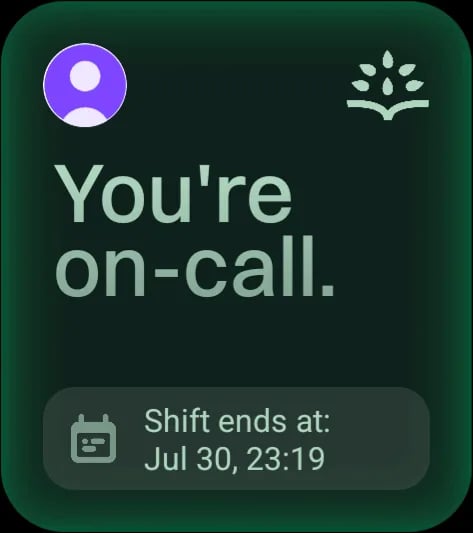
The widget always reflects **your own** on-call status — not your team's. It has three states:
| State | Appearance | When you see it |
| -------------------------- | ---------- | ----------------------------------------------- |
| **You're on-call.** | Green | You're currently on a shift |
| **You're always on-call.** | Green | You're on an escalation policy with no rotation |
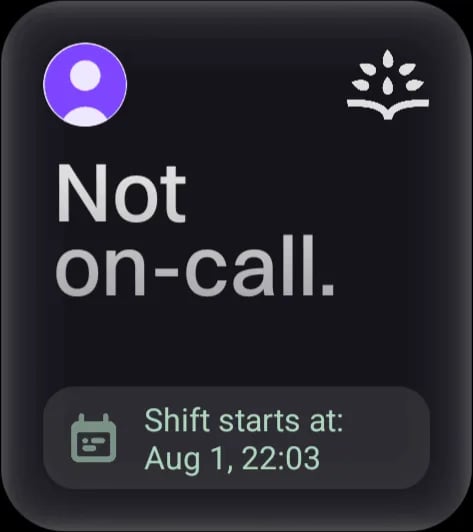
| **Not on-call.** | Grey | You have no active shift |
Alongside the status, the widget shows:
* Your Rootly avatar
* **Shift ends at** when you're on call, or **Shift starts at** for your next upcoming shift
* **Always on-call for N Escalation Policies** when that applies
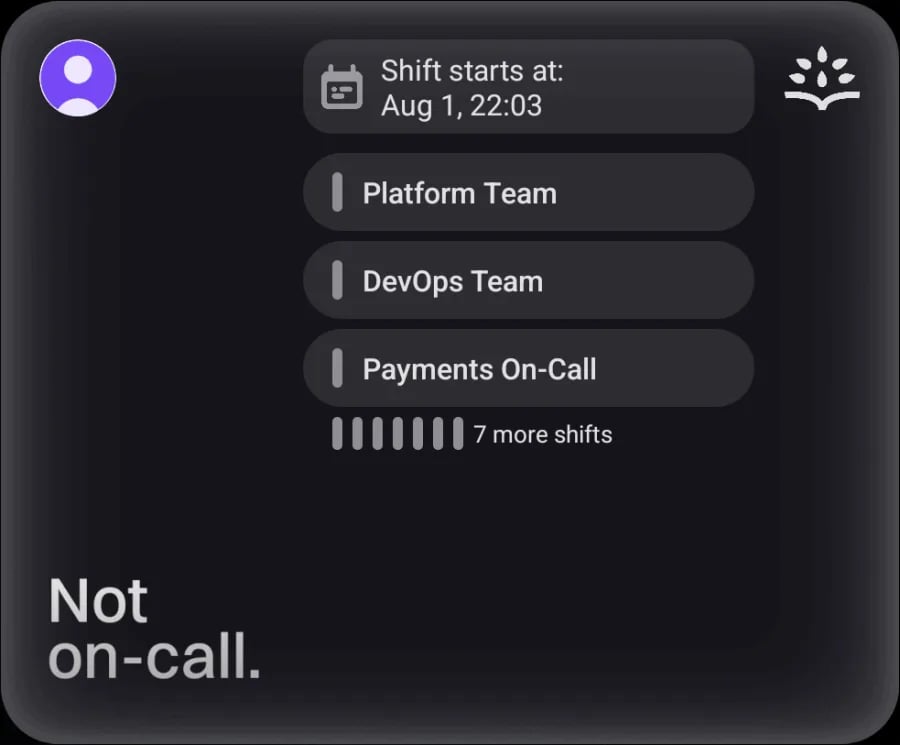
* The names of the schedules you're on call for, and an **N more shifts** row when there are more than fit
***
## What the widget shows
The widget always reflects **your own** on-call status — not your team's. It has three states:
| State | Appearance | When you see it |
| -------------------------- | ---------- | ----------------------------------------------- |
| **You're on-call.** | Green | You're currently on a shift |
| **You're always on-call.** | Green | You're on an escalation policy with no rotation |
| **Not on-call.** | Grey | You have no active shift |
Alongside the status, the widget shows:
* Your Rootly avatar
* **Shift ends at** when you're on call, or **Shift starts at** for your next upcoming shift
* **Always on-call for N Escalation Policies** when that applies
* The names of the schedules you're on call for, and an **N more shifts** row when there are more than fit
 ***
## Widget sizes
All three sizes show your status and either a shift time or, when you're always on call, the **Always on-call for N Escalation Policies** summary. The larger sizes add a list of schedules — the ones you're currently on call for, or the ones your upcoming shifts are on when you're off call — and anything that doesn't fit collapses into an **N more shifts** row.
| Size | What it shows |
| ---------- | ------------------------------------------------------------------------------------ |
| **Small** | Your status and a single shift time or always-on-call summary, with no schedule list |
| **Medium** | Adds the schedule list |
| **Large** | The same list, with room for more entries before they collapse |
On iOS you pick the size when you add the widget, and you can add more than one. On Android there's a single widget you can resize on the home screen — it switches between the layouts above as you make it bigger or smaller.
***
## Widget sizes
All three sizes show your status and either a shift time or, when you're always on call, the **Always on-call for N Escalation Policies** summary. The larger sizes add a list of schedules — the ones you're currently on call for, or the ones your upcoming shifts are on when you're off call — and anything that doesn't fit collapses into an **N more shifts** row.
| Size | What it shows |
| ---------- | ------------------------------------------------------------------------------------ |
| **Small** | Your status and a single shift time or always-on-call summary, with no schedule list |
| **Medium** | Adds the schedule list |
| **Large** | The same list, with room for more entries before they collapse |
On iOS you pick the size when you add the widget, and you can add more than one. On Android there's a single widget you can resize on the home screen — it switches between the layouts above as you make it bigger or smaller.
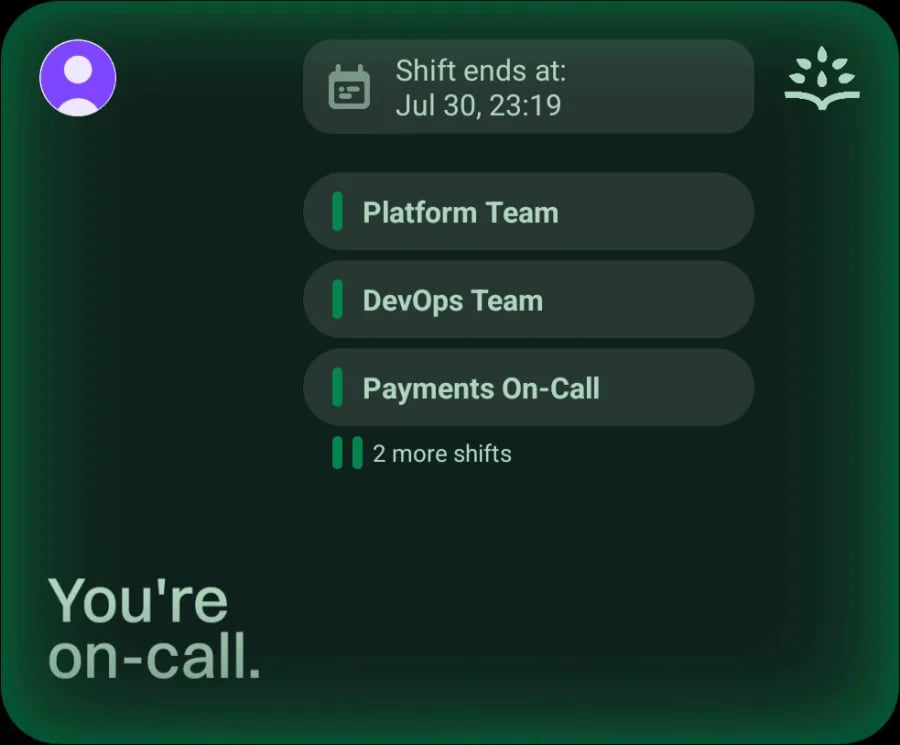 When you're off call, the same space lists the schedules your upcoming shifts are on instead.
 ***
## Add the widget
Touch and hold an empty area of your home screen until the app icons jiggle, then tap **+** — or **Edit → Add Widget** on newer iOS versions — in the top-left corner.
Search for **Rootly** and select it. The widget is listed as **On-Call Widget**.
Swipe between the small, medium, and large previews, tap **Add Widget**, then drag it where you want it and tap **Done**.
Touch and hold an empty area of your home screen, then tap **Widgets**.
Scroll to **Rootly** and touch and hold the widget preview.
Drag the widget onto your home screen. Touch and hold it, then drag the handles to resize — the layout adapts as it grows.
Steps vary slightly between Android manufacturers and launchers.
***
## Requirements
* Rootly mobile app **2.0.0 or later** — see [Mobile App](/on-call/mobile-app) for download links and supported operating systems.
* You must be signed in to the app. Open Rootly at least once after adding the widget so it has your schedule data — until then it appears empty.
* An on-call seat, like all mobile app functionality.
***
## Frequently Asked Questions
No. The widget follows whichever organization is currently selected in the app. If you switch organizations, the widget shows the one you switched to.
The widget needs data from the app. Make sure you're signed in, then open Rootly and go to the home screen. If it stays empty, remove the widget and add it again.
No. Tapping the widget opens the Rootly app. There are no buttons or tappable areas within the widget itself.
No — the widget is for your home screen only. While your alert notifications are muted, Rootly does show a countdown outside the app — a Lock Screen Live Activity on iOS, an ongoing notification on Android — but that's a separate feature. See [Alert Muting](/on-call/alert-muting).
Yes. You can add several widgets in different sizes, but they all show the same account and the same on-call status.
No. It shows your on-call status and shifts only — it doesn't change when a page arrives. For alerts and incidents, open the app, where you'll also see a **You've been paged** card. The [On-Call Widget](/on-call/on-call-widget) in the web sidebar does show a paged state.
***
## Related Pages
Download, sign in, and set up push notifications for on-call responders.
The equivalent status card in the Rootly web app's sidebar.
How shifts, rotations, and overrides determine what the widget shows.
***
## Add the widget
Touch and hold an empty area of your home screen until the app icons jiggle, then tap **+** — or **Edit → Add Widget** on newer iOS versions — in the top-left corner.
Search for **Rootly** and select it. The widget is listed as **On-Call Widget**.
Swipe between the small, medium, and large previews, tap **Add Widget**, then drag it where you want it and tap **Done**.
Touch and hold an empty area of your home screen, then tap **Widgets**.
Scroll to **Rootly** and touch and hold the widget preview.
Drag the widget onto your home screen. Touch and hold it, then drag the handles to resize — the layout adapts as it grows.
Steps vary slightly between Android manufacturers and launchers.
***
## Requirements
* Rootly mobile app **2.0.0 or later** — see [Mobile App](/on-call/mobile-app) for download links and supported operating systems.
* You must be signed in to the app. Open Rootly at least once after adding the widget so it has your schedule data — until then it appears empty.
* An on-call seat, like all mobile app functionality.
***
## Frequently Asked Questions
No. The widget follows whichever organization is currently selected in the app. If you switch organizations, the widget shows the one you switched to.
The widget needs data from the app. Make sure you're signed in, then open Rootly and go to the home screen. If it stays empty, remove the widget and add it again.
No. Tapping the widget opens the Rootly app. There are no buttons or tappable areas within the widget itself.
No — the widget is for your home screen only. While your alert notifications are muted, Rootly does show a countdown outside the app — a Lock Screen Live Activity on iOS, an ongoing notification on Android — but that's a separate feature. See [Alert Muting](/on-call/alert-muting).
Yes. You can add several widgets in different sizes, but they all show the same account and the same on-call status.
No. It shows your on-call status and shifts only — it doesn't change when a page arrives. For alerts and incidents, open the app, where you'll also see a **You've been paged** card. The [On-Call Widget](/on-call/on-call-widget) in the web sidebar does show a paged state.
***
## Related Pages
Download, sign in, and set up push notifications for on-call responders.
The equivalent status card in the Rootly web app's sidebar.
How shifts, rotations, and overrides determine what the widget shows.