> ## Documentation Index
> Fetch the complete documentation index at: https://docs.rootly.com/llms.txt
> Use this file to discover all available pages before exploring further.
# Shift Reminders
> Configure reminders that notify you before your on-call shift starts and when it ends — by email, SMS, push, or Slack. Covers timing options, nested schedule behavior, and troubleshooting reminders that don't fire.
## Overview
Shift Reminders notify you before your on-call shift starts and when your shift ends. Unlike notification rules (which page you about incidents), reminders are about **operational awareness** — knowing when you're going on-call so you can wind down other commitments, and knowing when you're going off-call so you can hand off cleanly.
Reminders are especially useful when you rotate frequently, cover multiple schedules, or switch between teams.
Shift Reminders are configured in **Account Settings → Notifications → On-Call Notifications**, alongside your audible and quiet notification rules. See [On-Call Notifications](/on-call/on-call-notifications) for the broader notification setup.
***
## Supported Delivery Channels
Shift reminders can be delivered through any of:
* **Email** — most teams' default; supports any verified email address.
* **SMS** — requires a verified mobile phone number.
* **Push notification** — requires a connected mobile device.
* **Slack** — requires your Slack account to be connected to Rootly.
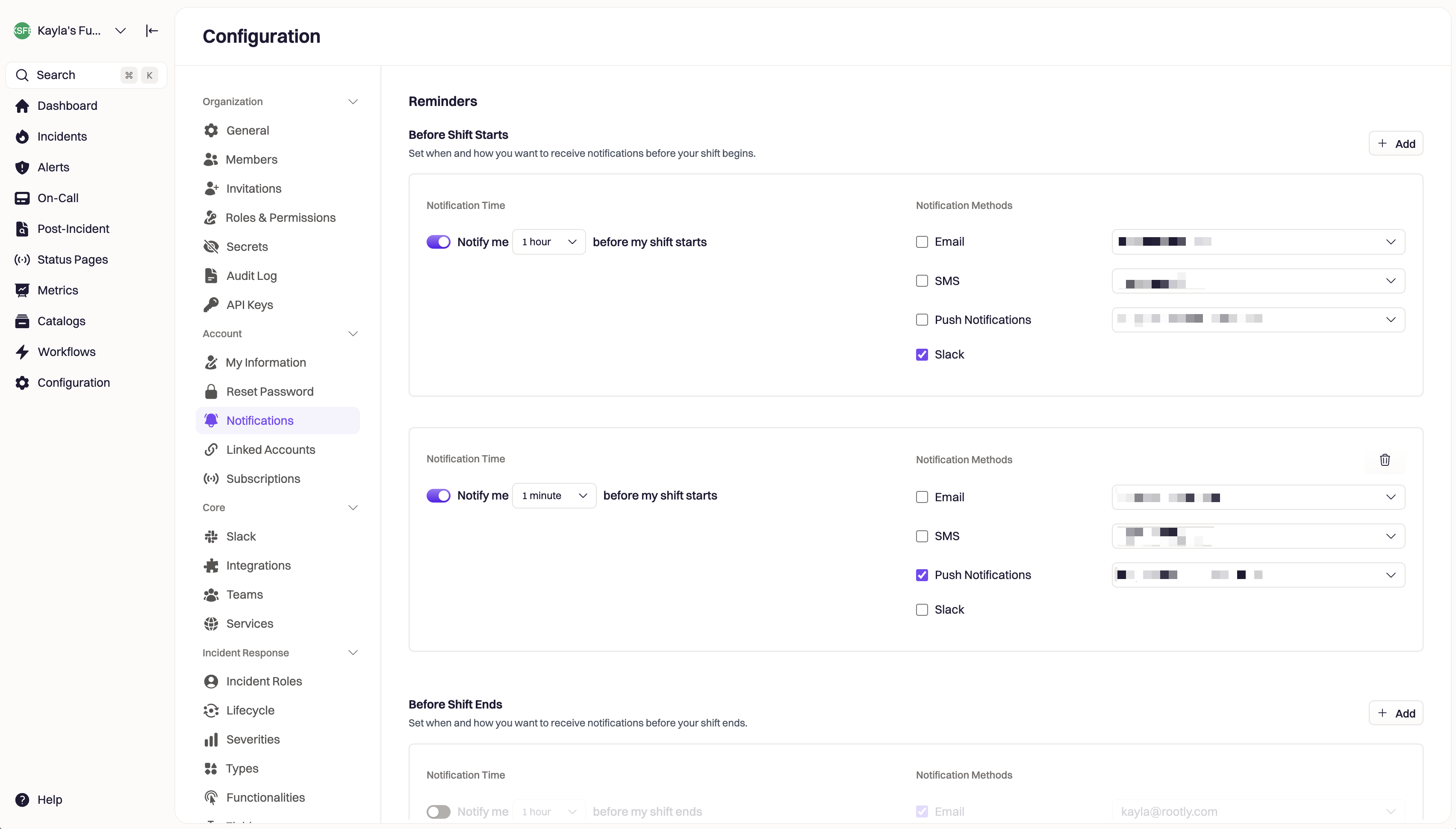 Reminder delivery methods must be verified when the reminder is enabled. Unverified phone numbers and email addresses will block save until verification completes — the same principle applies to notification rules.
***
## Reminder Timing
Reminders are configured by **delay** — how long before (or after) a shift boundary you want to be notified.
| Default Timing Options | Notes |
| ---------------------- | ------------------------------------------------------------------------------------------------- |
| **3 days** | Useful for shifts that require pre-planning — e.g., switching travel plans or arranging coverage. |
| **1 day** | The most common pre-shift reminder. Lets you mentally prepare without being too far ahead. |
| **1 hour** | The "you're about to be paged" warning. Useful for finishing up other tasks before going on-call. |
Some workspaces also support additional reminder options — **30 minutes**, **15 minutes**, and **1 minute** — for short rotations or handoff-heavy teams. When the expanded options are enabled, you can configure up to **three reminders per reminder type** (e.g., three reminders before shift start). Without the expanded options, reminders are typically limited to one reminder per type.
If you only see one reminder available for start/end, your workspace may not have the additional shift reminder options enabled. Contact Rootly support to enable the expanded options.
***
## Slack Reminders
Slack delivery is available for shift reminders, but only when your Slack account is connected to Rootly. If Slack isn't connected, the UI prevents enabling Slack reminders because Rootly has no valid user destination to deliver to.
Connect your Slack account from your **user profile → Linked Accounts** — see [User Profile: Linked Accounts](/user-profile#linked-accounts) for the personal chat-connection flow. (This is separate from the org-level Slack installation your admin performs from Configuration → Integrations.)
***
## Nested Schedules
Shift reminders fire for shifts where you are **directly on-call** for the schedule. If your schedule is included in another schedule (a "parent schedule" pattern, where Schedule B is on rotation for Schedule A), reminders do not fire for the indirect coverage layer.
You won't receive shift reminders for shifts where your schedule is on-call indirectly through a parent schedule. This is intentional — it prevents duplicate reminders when multiple schedules layer on the same person.
If you need reminders for parent-schedule coverage, the only path is to be **directly rotated** on the parent schedule itself. Reminders are per-user (see the FAQ below), so there is no schedule-level reminder configuration to change — the coverage layer you're directly on is the layer that triggers reminders.
***
## Default Setup
When you first join an organization, Rootly creates a safe baseline so you aren't left without reminders — typically two shift reminders (one before shift start, one at shift end), both delivered via email. These defaults are starting points, not best-possible-forever configurations. Adjust the timing and delivery channels to match how you actually want to be reminded.
***
## Best Practices
* **Stack two reminders if you have the option.** A 1-day-out reminder for planning + a 1-hour-out reminder for "phone in hand" covers both bases. If your workspace only supports one reminder per type, the 1-hour-out reminder is usually more valuable.
* **Use email for the long-lead reminder and push or Slack for the short-lead reminder.** Email is durable and searchable; push/Slack are immediate but ephemeral.
* **Don't rely on Slack alone for shift end.** Shift-end reminders matter for handoff — if Slack is the only channel and Slack is having a bad day, you'll miss the handoff window. Pair Slack with email or SMS as a backup.
* **Verify every channel you enable.** Rootly blocks saves with unverified contact methods, but it's worth confirming verification status before you depend on a channel.
* **Audit your reminders after a schedule change.** If you switch teams or get added to a new rotation, your prior reminder configuration may not match the new schedule's cadence.
***
## Troubleshooting
Three common causes:
1. **Nested schedule coverage** — if your on-call coverage comes from a parent schedule rather than direct rotation, reminders won't fire for the indirect layer. Check whether the schedule you're on is the one you're directly rotated through.
2. **Reminder disabled** — confirm the reminder is enabled in Account Settings → Notifications → On-Call Notifications.
3. **Channel verification** — verify the contact method (email, phone) used for delivery, or (for Slack reminders) confirm your Slack account is connected.
Some workspaces support additional reminder timing options and allow up to three reminders per start/end type. If your workspace doesn't have that enabled, you may be limited to one reminder per type. Pick the single timing that best matches your handoff needs (1 hour before shift start is a common choice). Contact Rootly support to ask about enabling the expanded options.
Enabled shift reminders require verified contact methods. Rootly blocks saves on configurations that depend on unverified email addresses or phone numbers because delivery would fail at runtime. Verify the contact method (Account Settings → Notifications) and try saving again.
Slack delivery requires your personal Slack account to be linked from your user profile. Go to your profile menu → **My Profile → Linked Accounts** and connect Slack there (see [User Profile: Linked Accounts](/user-profile#linked-accounts)). Once linked, return to Shift Reminders and Slack will appear as a delivery option.
Duplicate reminders usually mean you've configured the same reminder on multiple delivery channels (e.g., both email and SMS at the same timing). If you want a single notification per timing, choose one channel per reminder. If you want multi-channel coverage but no duplicates within a single channel, audit the reminders list and remove any redundant entries.
***
## Frequently Asked Questions
Yes. Reminders fire for the user actually on-call at the time, so if you take over someone else's shift via a trade or override, you'll receive their shift's reminders.
No. Reminders are personal to the user who is on-call. If you need awareness of teammates' shifts, use the schedule view in Rootly Web or sync the schedule to your calendar — see [Schedules](/on-call/schedules).
Push notification reminders respect Do Not Disturb by default. To make them ring through DND, enable **Critical Alerts** on the device contact method (the same mechanism used for quiet incident notifications). SMS and email reminders behave according to your phone's OS-level rules for those channels.
Reminders are per-user, not per-schedule, so you have one set of reminder configurations that applies to every schedule you're on. If you need different timing for different rotations, set the longest-lead reminder you need and rely on schedule awareness from the calendar sync for the rest.
***
## Related Pages
The companion configuration — audible and quiet notification rules for actual incident paging.
Creating and managing the on-call schedules that reminders fire against.
Required for push notification delivery — includes setup for Critical Alerts.
Reminder delivery methods must be verified when the reminder is enabled. Unverified phone numbers and email addresses will block save until verification completes — the same principle applies to notification rules.
***
## Reminder Timing
Reminders are configured by **delay** — how long before (or after) a shift boundary you want to be notified.
| Default Timing Options | Notes |
| ---------------------- | ------------------------------------------------------------------------------------------------- |
| **3 days** | Useful for shifts that require pre-planning — e.g., switching travel plans or arranging coverage. |
| **1 day** | The most common pre-shift reminder. Lets you mentally prepare without being too far ahead. |
| **1 hour** | The "you're about to be paged" warning. Useful for finishing up other tasks before going on-call. |
Some workspaces also support additional reminder options — **30 minutes**, **15 minutes**, and **1 minute** — for short rotations or handoff-heavy teams. When the expanded options are enabled, you can configure up to **three reminders per reminder type** (e.g., three reminders before shift start). Without the expanded options, reminders are typically limited to one reminder per type.
If you only see one reminder available for start/end, your workspace may not have the additional shift reminder options enabled. Contact Rootly support to enable the expanded options.
***
## Slack Reminders
Slack delivery is available for shift reminders, but only when your Slack account is connected to Rootly. If Slack isn't connected, the UI prevents enabling Slack reminders because Rootly has no valid user destination to deliver to.
Connect your Slack account from your **user profile → Linked Accounts** — see [User Profile: Linked Accounts](/user-profile#linked-accounts) for the personal chat-connection flow. (This is separate from the org-level Slack installation your admin performs from Configuration → Integrations.)
***
## Nested Schedules
Shift reminders fire for shifts where you are **directly on-call** for the schedule. If your schedule is included in another schedule (a "parent schedule" pattern, where Schedule B is on rotation for Schedule A), reminders do not fire for the indirect coverage layer.
You won't receive shift reminders for shifts where your schedule is on-call indirectly through a parent schedule. This is intentional — it prevents duplicate reminders when multiple schedules layer on the same person.
If you need reminders for parent-schedule coverage, the only path is to be **directly rotated** on the parent schedule itself. Reminders are per-user (see the FAQ below), so there is no schedule-level reminder configuration to change — the coverage layer you're directly on is the layer that triggers reminders.
***
## Default Setup
When you first join an organization, Rootly creates a safe baseline so you aren't left without reminders — typically two shift reminders (one before shift start, one at shift end), both delivered via email. These defaults are starting points, not best-possible-forever configurations. Adjust the timing and delivery channels to match how you actually want to be reminded.
***
## Best Practices
* **Stack two reminders if you have the option.** A 1-day-out reminder for planning + a 1-hour-out reminder for "phone in hand" covers both bases. If your workspace only supports one reminder per type, the 1-hour-out reminder is usually more valuable.
* **Use email for the long-lead reminder and push or Slack for the short-lead reminder.** Email is durable and searchable; push/Slack are immediate but ephemeral.
* **Don't rely on Slack alone for shift end.** Shift-end reminders matter for handoff — if Slack is the only channel and Slack is having a bad day, you'll miss the handoff window. Pair Slack with email or SMS as a backup.
* **Verify every channel you enable.** Rootly blocks saves with unverified contact methods, but it's worth confirming verification status before you depend on a channel.
* **Audit your reminders after a schedule change.** If you switch teams or get added to a new rotation, your prior reminder configuration may not match the new schedule's cadence.
***
## Troubleshooting
Three common causes:
1. **Nested schedule coverage** — if your on-call coverage comes from a parent schedule rather than direct rotation, reminders won't fire for the indirect layer. Check whether the schedule you're on is the one you're directly rotated through.
2. **Reminder disabled** — confirm the reminder is enabled in Account Settings → Notifications → On-Call Notifications.
3. **Channel verification** — verify the contact method (email, phone) used for delivery, or (for Slack reminders) confirm your Slack account is connected.
Some workspaces support additional reminder timing options and allow up to three reminders per start/end type. If your workspace doesn't have that enabled, you may be limited to one reminder per type. Pick the single timing that best matches your handoff needs (1 hour before shift start is a common choice). Contact Rootly support to ask about enabling the expanded options.
Enabled shift reminders require verified contact methods. Rootly blocks saves on configurations that depend on unverified email addresses or phone numbers because delivery would fail at runtime. Verify the contact method (Account Settings → Notifications) and try saving again.
Slack delivery requires your personal Slack account to be linked from your user profile. Go to your profile menu → **My Profile → Linked Accounts** and connect Slack there (see [User Profile: Linked Accounts](/user-profile#linked-accounts)). Once linked, return to Shift Reminders and Slack will appear as a delivery option.
Duplicate reminders usually mean you've configured the same reminder on multiple delivery channels (e.g., both email and SMS at the same timing). If you want a single notification per timing, choose one channel per reminder. If you want multi-channel coverage but no duplicates within a single channel, audit the reminders list and remove any redundant entries.
***
## Frequently Asked Questions
Yes. Reminders fire for the user actually on-call at the time, so if you take over someone else's shift via a trade or override, you'll receive their shift's reminders.
No. Reminders are personal to the user who is on-call. If you need awareness of teammates' shifts, use the schedule view in Rootly Web or sync the schedule to your calendar — see [Schedules](/on-call/schedules).
Push notification reminders respect Do Not Disturb by default. To make them ring through DND, enable **Critical Alerts** on the device contact method (the same mechanism used for quiet incident notifications). SMS and email reminders behave according to your phone's OS-level rules for those channels.
Reminders are per-user, not per-schedule, so you have one set of reminder configurations that applies to every schedule you're on. If you need different timing for different rotations, set the longest-lead reminder you need and rely on schedule awareness from the calendar sync for the rest.
***
## Related Pages
The companion configuration — audible and quiet notification rules for actual incident paging.
Creating and managing the on-call schedules that reminders fire against.
Required for push notification delivery — includes setup for Critical Alerts.