> ## Documentation Index
> Fetch the complete documentation index at: https://docs.rootly.com/llms.txt
> Use this file to discover all available pages before exploring further.
# User Profile
> Manage your Rootly account settings, contact details, notification preferences, linked accounts, and subscriptions from your personal user profile page.
Your user profile is where you manage your personal account settings in Rootly. This includes your contact information, notification preferences, password settings, linked accounts, and subscriptions.
## Access Your User Profile
You can open your user profile in either of these ways:
* From the Dashboard, click your **profile photo** next to the greeting
* From the left sidebar, open **Configuration** and select one of your account settings pages, such as **My Information**
 From your profile, you can manage the following areas:
* **My Information**
* Update your personal details, contact information, and account preferences
* **Reset Password**
* Change your password if your organization does not use SSO
* **Notifications**
* Manage your incident and on-call notification settings
* **Linked Accounts**
* View connected accounts such as Slack or Mattermost
* **Subscriptions**
* Manage broadcast group subscriptions and communication preferences
## My Information
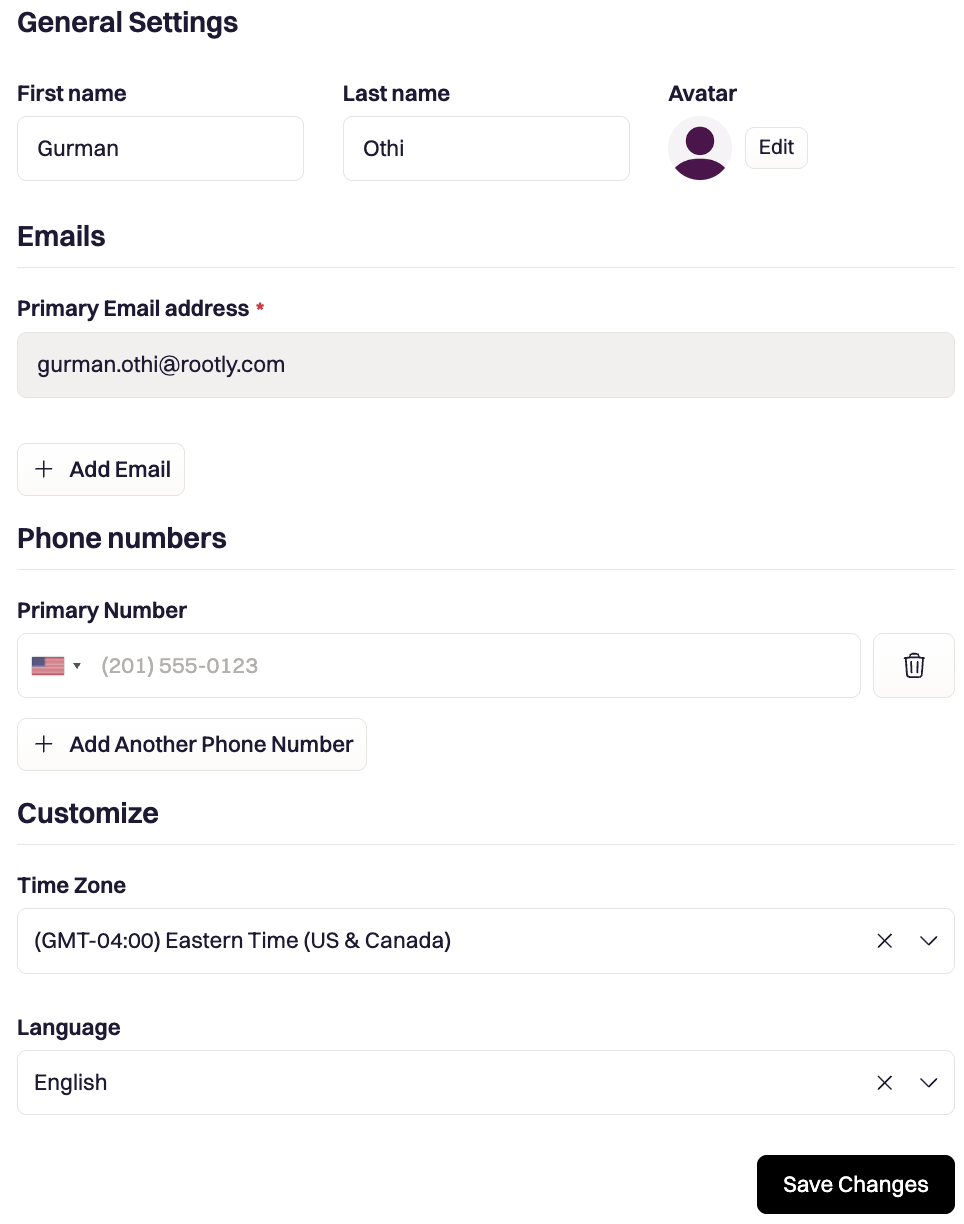
The **My Information** section is where you manage your personal and account details.
This section includes settings such as:
* Name and profile photo
* Email addresses
* Phone numbers
* Mobile devices
* Time zone
* Theme and other account preferences
From your profile, you can manage the following areas:
* **My Information**
* Update your personal details, contact information, and account preferences
* **Reset Password**
* Change your password if your organization does not use SSO
* **Notifications**
* Manage your incident and on-call notification settings
* **Linked Accounts**
* View connected accounts such as Slack or Mattermost
* **Subscriptions**
* Manage broadcast group subscriptions and communication preferences
## My Information
The **My Information** section is where you manage your personal and account details.
This section includes settings such as:
* Name and profile photo
* Email addresses
* Phone numbers
* Mobile devices
* Time zone
* Theme and other account preferences
 ## Reset Password
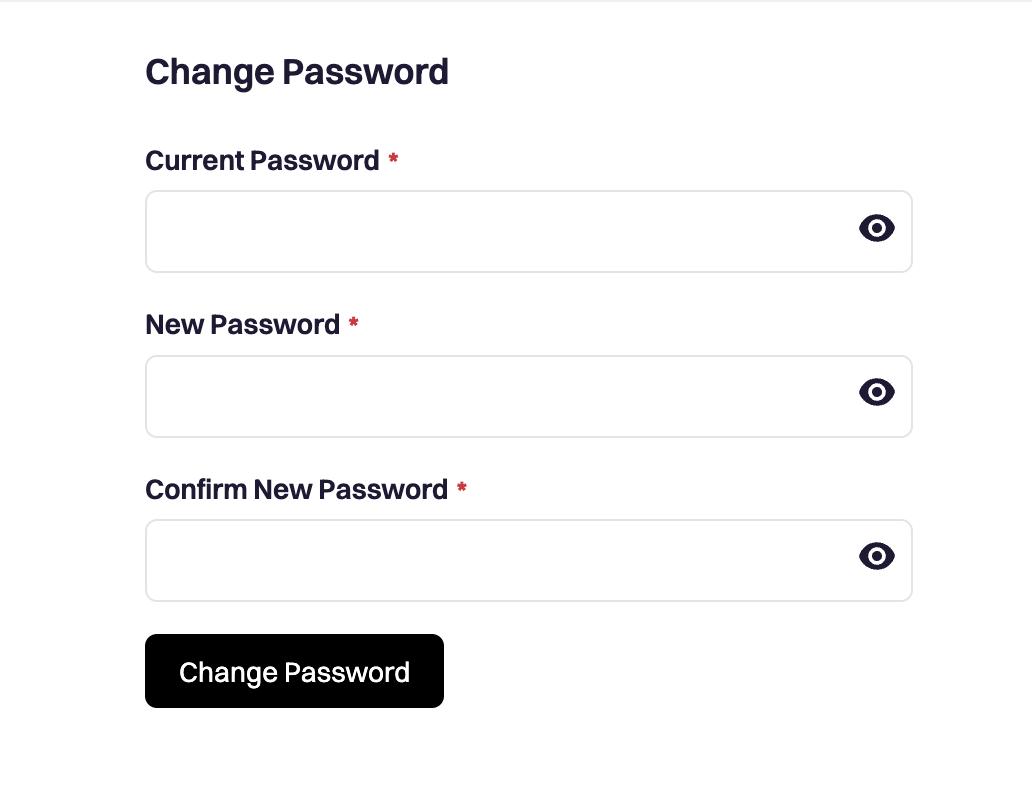
Use **Reset Password** to change your current password.
To update your password, enter your current password and your new password, then save your changes.
If your organization uses **SSO**, this section is not available for password changes. In that case, your password is managed by your identity provider.
## Reset Password
Use **Reset Password** to change your current password.
To update your password, enter your current password and your new password, then save your changes.
If your organization uses **SSO**, this section is not available for password changes. In that case, your password is managed by your identity provider.
 ## Notifications
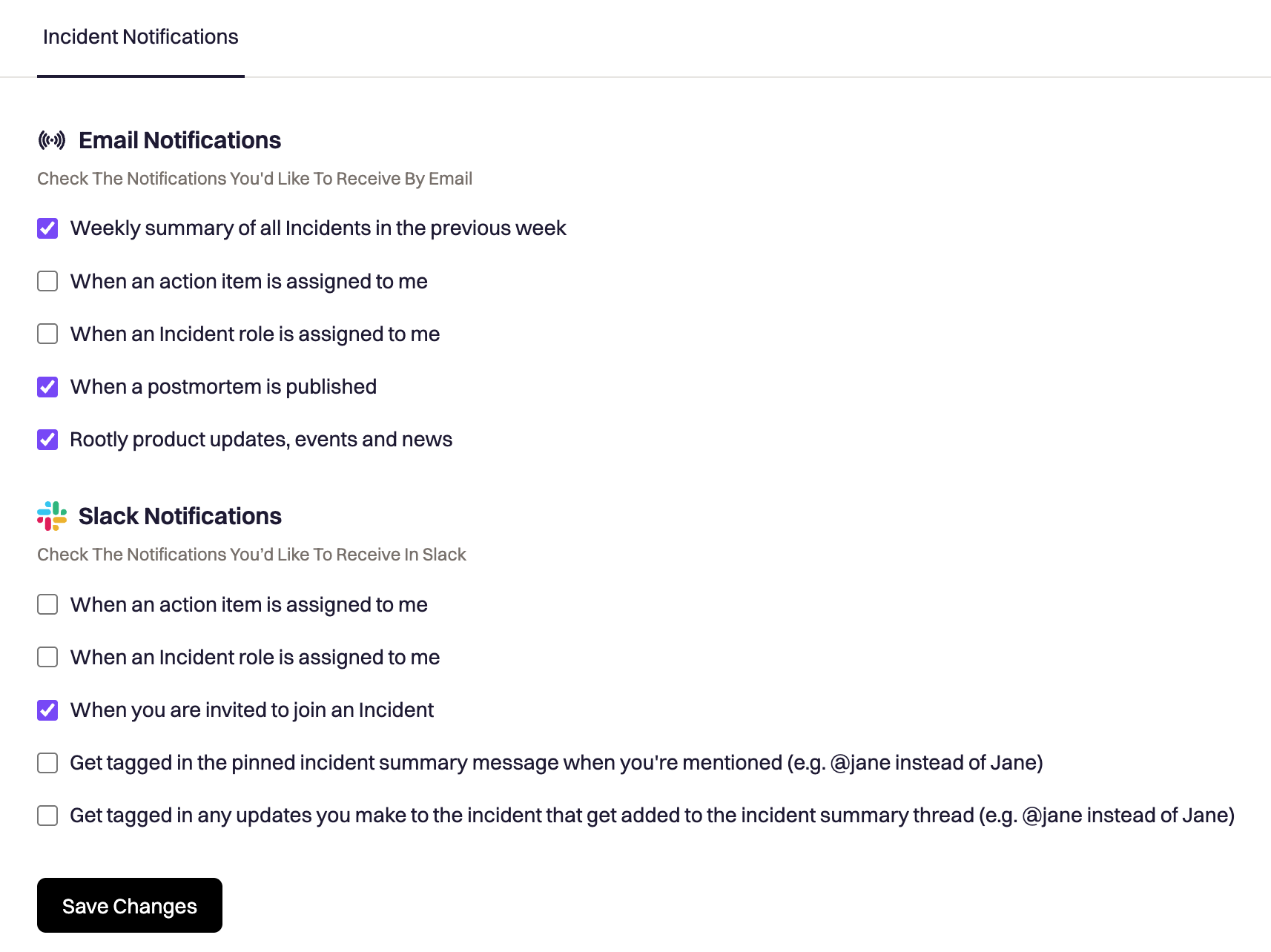
Use the **Notifications** section to control how Rootly contacts you.
Depending on your plan and permissions, this section may include:
* **Incident Notifications** for email, Slack, and related incident updates
* **On-Call Notifications** for paging and on-call delivery settings
If you have access to on-call features, you may also be able to send test notifications to verify your setup.
## Notifications
Use the **Notifications** section to control how Rootly contacts you.
Depending on your plan and permissions, this section may include:
* **Incident Notifications** for email, Slack, and related incident updates
* **On-Call Notifications** for paging and on-call delivery settings
If you have access to on-call features, you may also be able to send test notifications to verify your setup.
 ## Linked Accounts
The **Linked Accounts** section shows chat accounts connected to your profile, such as **Slack** or **Mattermost**.
This section is available only when your organization has those integrations enabled.
## Linked Accounts
The **Linked Accounts** section shows chat accounts connected to your profile, such as **Slack** or **Mattermost**.
This section is available only when your organization has those integrations enabled.
 ### Connect your Slack account
Linking your Slack account lets Rootly recognize you in Slack, so you can run slash commands, receive pages, and act on incidents without leaving the conversation. Connect it ahead of time so you are ready before an incident starts, rather than linking under pressure once one is underway.
1. Go to **Configuration → Linked Accounts**.
2. Click **Sign in with Slack**.
3. Authorize the request in Slack to finish linking.
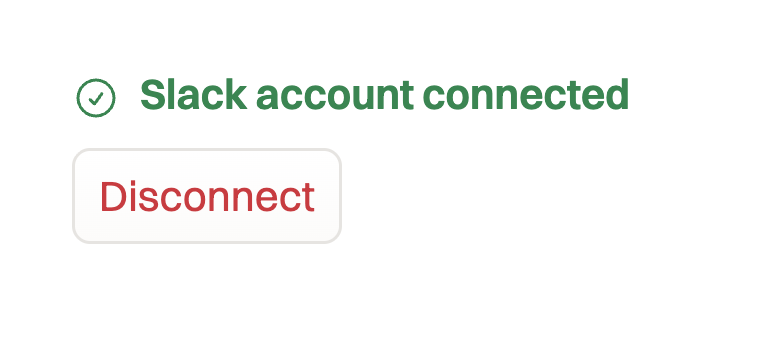
Once linked, the section shows a green confirmation that your account is connected. You can unlink from the same page at any time.
Run `/rootly connect` in Slack and follow the prompt to link your account.
The Slack option appears only when your organization has the [Slack integration](/integrating-with-slack) enabled.
## Subscriptions
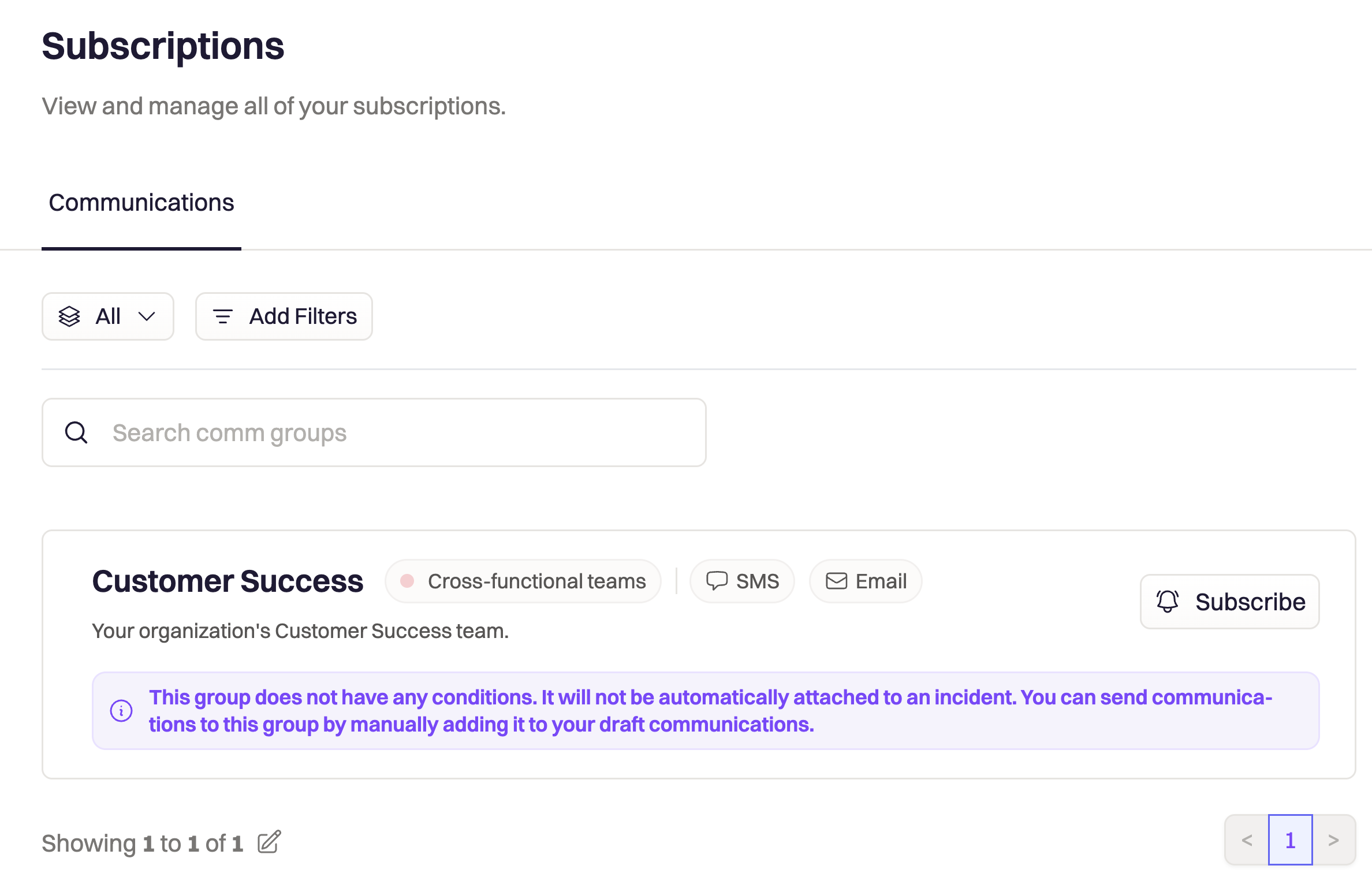
In **Subscriptions**, you can manage your **broadcast groups** and choose which communications you want to receive.
This section is available when your organization has **Incident Communications** enabled.
Use it to control which updates and communication groups you are subscribed to.
### Connect your Slack account
Linking your Slack account lets Rootly recognize you in Slack, so you can run slash commands, receive pages, and act on incidents without leaving the conversation. Connect it ahead of time so you are ready before an incident starts, rather than linking under pressure once one is underway.
1. Go to **Configuration → Linked Accounts**.
2. Click **Sign in with Slack**.
3. Authorize the request in Slack to finish linking.
Once linked, the section shows a green confirmation that your account is connected. You can unlink from the same page at any time.
Run `/rootly connect` in Slack and follow the prompt to link your account.
The Slack option appears only when your organization has the [Slack integration](/integrating-with-slack) enabled.
## Subscriptions
In **Subscriptions**, you can manage your **broadcast groups** and choose which communications you want to receive.
This section is available when your organization has **Incident Communications** enabled.
Use it to control which updates and communication groups you are subscribed to.
 ## Frequently Asked Questions
You can open your user profile by clicking your profile photo from the Dashboard or by opening Configuration in the left sidebar and selecting one of your account settings pages.
If your organization uses SSO, your password is managed by your identity provider instead of Rootly. In that case, the Reset Password section will not allow password changes.
My Information includes your personal and account settings, such as your name, profile photo, email addresses, phone numbers, mobile devices, time zone, and other account preferences.
If you have access to on-call features, Rootly may show both notification types. Incident Notifications control general incident updates, while On-Call Notifications are used for paging and on-call delivery settings.
These sections appear only when the related features are enabled for your organization. Linked Accounts depends on chat integrations such as Slack or Mattermost, and Subscriptions depends on Incident Communications being enabled.
Go to **Configuration → Linked Accounts** and click **Sign in with Slack**, or run `/rootly connect` in Slack. Connecting ahead of time means you are ready to respond before an incident starts. Slack must be enabled for your organization for this option to appear.
## Frequently Asked Questions
You can open your user profile by clicking your profile photo from the Dashboard or by opening Configuration in the left sidebar and selecting one of your account settings pages.
If your organization uses SSO, your password is managed by your identity provider instead of Rootly. In that case, the Reset Password section will not allow password changes.
My Information includes your personal and account settings, such as your name, profile photo, email addresses, phone numbers, mobile devices, time zone, and other account preferences.
If you have access to on-call features, Rootly may show both notification types. Incident Notifications control general incident updates, while On-Call Notifications are used for paging and on-call delivery settings.
These sections appear only when the related features are enabled for your organization. Linked Accounts depends on chat integrations such as Slack or Mattermost, and Subscriptions depends on Incident Communications being enabled.
Go to **Configuration → Linked Accounts** and click **Sign in with Slack**, or run `/rootly connect` in Slack. Connecting ahead of time means you are ready to respond before an incident starts. Slack must be enabled for your organization for this option to appear.