> ## Documentation Index
> Fetch the complete documentation index at: https://docs.rootly.com/llms.txt
> Use this file to discover all available pages before exploring further.
# Action Item Workflows
> Automate follow-up and remediation work by triggering workflows on action item changes—keeping tickets, owners, and notifications in sync across systems.
## Overview
**Action item workflows** automate what happens after work is identified—whether that work comes from an incident, a retrospective, or ongoing operational reviews. In Rootly, action items are first-class objects tied to incidents, and workflows can react whenever those action items are created, updated, assigned, or completed.
These workflows are especially useful for eliminating manual handoffs. Instead of relying on responders to remember to open Jira tickets, assign owners, or notify teams, you can encode those rules once and let Rootly enforce them consistently.
Common use cases include:
* Automatically creating or updating Jira (or other ticketing) issues when an action item is created or completed
* Assigning tickets based on the user or team assigned to the Rootly action item
* Notifying teams or owners when work is assigned, completed, or overdue
Action item workflows are triggered by **action item events**, not incident events. However, you can still use **incident properties as run conditions** (such as severity, services, or teams) to precisely control when the workflow should execute.
***
## Supported Triggers
Action item workflows support the following trigger events:
* **Action Item Created** (`action_item_created`)
* **Action Item Updated** (`action_item_updated`) – catch-all trigger
* **Assigned User Updated** (`assigned_user_updated`)
* **Summary Updated** (`summary_updated`)
* **Description Updated** (`description_updated`)
* **Status Updated** (`status_updated`)
* **Priority Updated** (`priority_updated`)
* **Due Date Updated** (`due_date_updated`)
* **Teams Updated** (`teams_updated`)
* **Incident Updated** (`incident_updated`)
* **Slack Command** (`slack_command`)
### Catch-all trigger behavior
`Action Item Updated` is a catch-all trigger that fires for *any* change to the action item. Do not combine it with more specific field-level triggers (such as Status Updated or Priority Updated), or the workflow may fire more often than intended.
***
## Create an Action Item Workflow
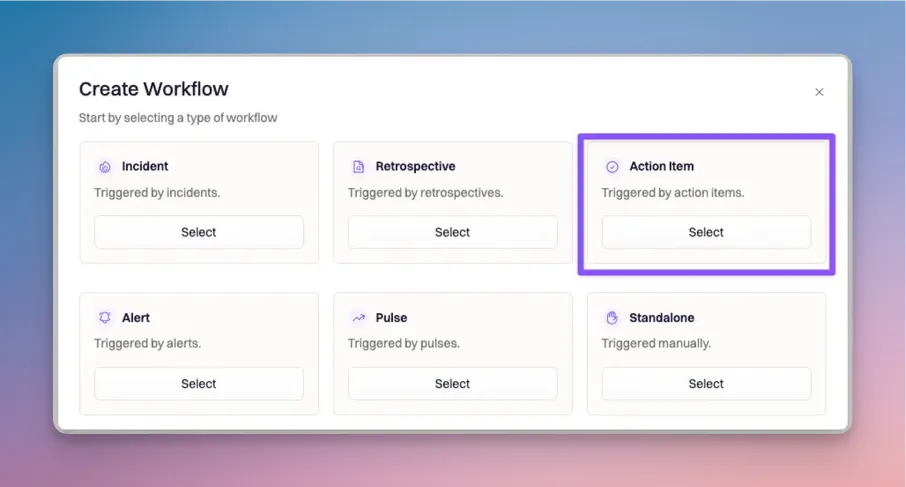
### Step 1: Start a new workflow
Navigate to:
**Workflows → Create Workflow → Action Item**
 ***
### Step 2: Choose trigger event(s)
Select the action item events that should initiate the workflow.
In the example below, the workflow starts when a **new action item is created**:
***
### Step 2: Choose trigger event(s)
Select the action item events that should initiate the workflow.
In the example below, the workflow starts when a **new action item is created**:
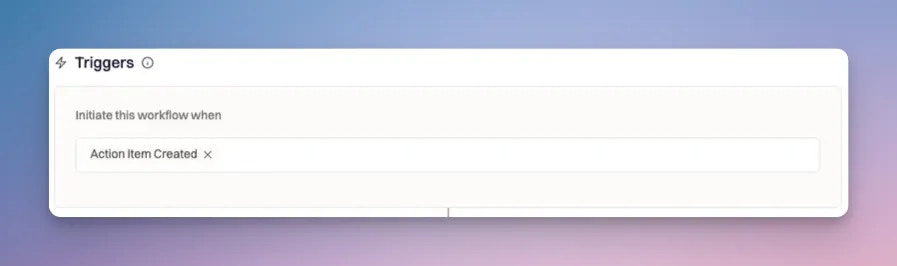 You can also include a **Slack Command** trigger if you want the workflow to be runnable manually.
***
### Step 3: Define run conditions
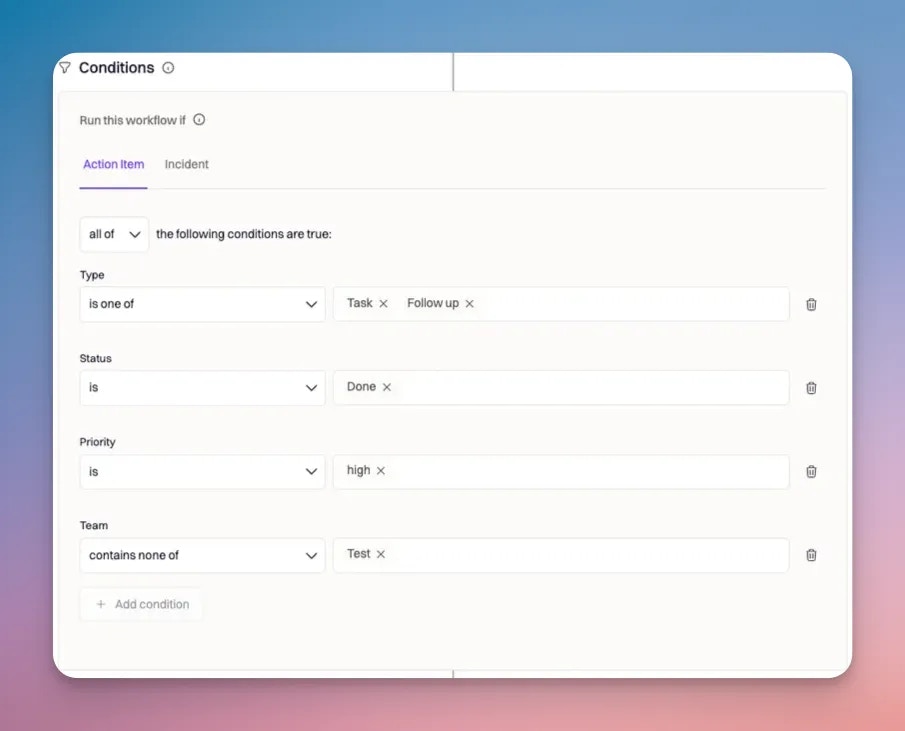
Action item workflows can evaluate **both action item properties and incident properties**. This allows you to build rules like:
* “Only create tickets for high-priority action items”
* “Only notify teams when the parent incident was SEV0 or SEV1”
You can also include a **Slack Command** trigger if you want the workflow to be runnable manually.
***
### Step 3: Define run conditions
Action item workflows can evaluate **both action item properties and incident properties**. This allows you to build rules like:
* “Only create tickets for high-priority action items”
* “Only notify teams when the parent incident was SEV0 or SEV1”
 #### Action item fields
The following action item fields can be used in conditions:
**Type**
* Values: `task`, `follow_up`
* Useful for separating remediation work from informational follow-ups
**Status**
* Values: `open`, `in_progress`, `done`, `cancelled`
* Commonly used to trigger workflows when work is completed
In an action item workflow, “status” always refers to the **action item status**, not the incident status.
**Priority**
* Values: `high`, `medium`, `low`
* Often used to restrict automation to higher-impact follow-ups
Action item priority is distinct from incident severity. They are separate fields and should not be conflated.
**Team**
* Represents the team (group) the action item is assigned to
* This is independent of the incident’s team assignment
An incident can belong to one team while its action items are owned by another. Action item workflows evaluate the **action item’s assigned teams**, not the incident’s.
***
### Step 4: Use incident conditions (optional)
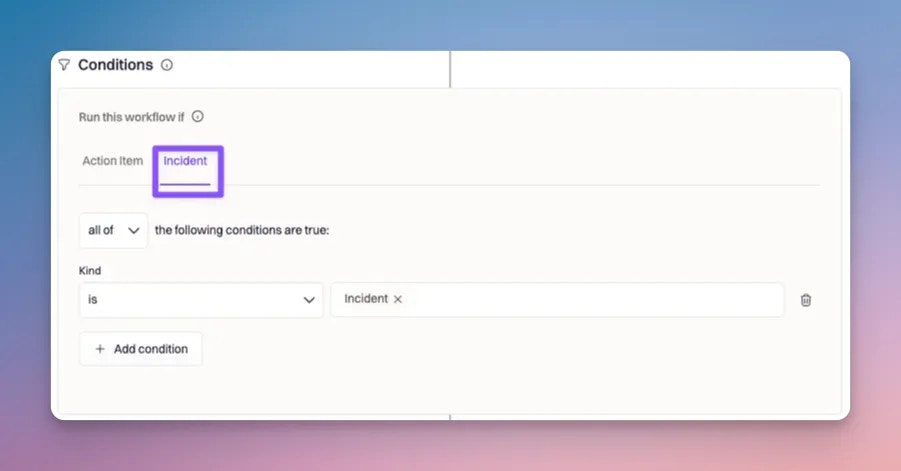
Because action items are tied to incidents, you can further narrow execution using incident properties such as:
* Incident severity
* Impacted services
* Incident teams
* Custom incident fields
#### Action item fields
The following action item fields can be used in conditions:
**Type**
* Values: `task`, `follow_up`
* Useful for separating remediation work from informational follow-ups
**Status**
* Values: `open`, `in_progress`, `done`, `cancelled`
* Commonly used to trigger workflows when work is completed
In an action item workflow, “status” always refers to the **action item status**, not the incident status.
**Priority**
* Values: `high`, `medium`, `low`
* Often used to restrict automation to higher-impact follow-ups
Action item priority is distinct from incident severity. They are separate fields and should not be conflated.
**Team**
* Represents the team (group) the action item is assigned to
* This is independent of the incident’s team assignment
An incident can belong to one team while its action items are owned by another. Action item workflows evaluate the **action item’s assigned teams**, not the incident’s.
***
### Step 4: Use incident conditions (optional)
Because action items are tied to incidents, you can further narrow execution using incident properties such as:
* Incident severity
* Impacted services
* Incident teams
* Custom incident fields
 For details on operators and condition logic, see: [Condition Checks](/workflows/workflows).
***
### Step 5: Configure actions
Once the workflow passes all conditions, its actions are executed. Available actions depend on your integrations, but action item workflows commonly include:
* Ticketing actions (create or update Jira, Linear, Shortcut, Asana, ClickUp, and more)
* Messaging actions (send Slack or Microsoft Teams messages)
* Rootly actions (create or update action items, add timeline entries)
* Notifications (email, SMS, or phone where configured)
For details on operators and condition logic, see: [Condition Checks](/workflows/workflows).
***
### Step 5: Configure actions
Once the workflow passes all conditions, its actions are executed. Available actions depend on your integrations, but action item workflows commonly include:
* Ticketing actions (create or update Jira, Linear, Shortcut, Asana, ClickUp, and more)
* Messaging actions (send Slack or Microsoft Teams messages)
* Rootly actions (create or update action items, add timeline entries)
* Notifications (email, SMS, or phone where configured)
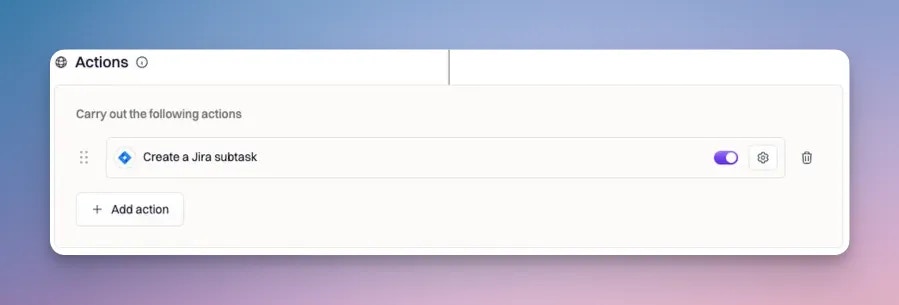 By default, a failing action halts the workflow. Enable **Skip on Failure** on non-critical actions to allow the workflow to continue even if one step fails.
***
## Best Practices
Action item workflows are most effective when they reinforce ownership and accountability without creating noise.
* **Trigger on meaningful changes.** Status transitions (for example, to `done`) are usually better triggers than generic updates.
* **Use priority as a gate.** Many teams only want automation for high-impact action items.
* **Let Rootly be the source of truth.** Use the action item as the canonical object and sync outward to ticketing systems, not the other way around.
* **Avoid catch-all triggers unless necessary.** `Action Item Updated` should almost always be paired with strict run conditions.
* **Create ownership explicitly.** When creating tickets, assign owners and due dates automatically so work does not stall.
***
## Frequently Asked Questions
Yes. They can run automatically based on action item events and can also be triggered manually using a Slack command if that trigger is enabled.
Yes. Action item workflows can evaluate both action item fields and incident fields, allowing very precise control over when the workflow runs.
This is usually caused by using the catch-all `Action Item Updated` trigger without restrictive run conditions. Narrow the workflow using specific triggers or conditions such as status or priority.
No. Action item workflows are triggered by changes inside Rootly. Updates in external tools only trigger workflows if they sync back and modify the Rootly action item.
Yes — this is a common pattern. The **Export to ticketing** modal itself does not support Liquid variables, but the act of exporting fires the `Action Item Updated` trigger (it writes the external ticket reference back to the action item). You can build an action item workflow that runs on that trigger and uses the relevant Update action (Update Jira Issue, Update Linear Issue, Update Asana Task, etc.) to populate a field with `{{ incident.url }}` or any other [incident variable](/liquid/incident-variables). Full walkthrough: [Linking Exported Tasks Back to the Incident](/incidents/action-items/adding-action-items-via-web-ui#linking-exported-tasks-back-to-the-incident).
***
Need help designing reliable follow-up automation? Contact your Rootly onboarding representative or email **[support@rootly.com](mailto:support@rootly.com)**.
By default, a failing action halts the workflow. Enable **Skip on Failure** on non-critical actions to allow the workflow to continue even if one step fails.
***
## Best Practices
Action item workflows are most effective when they reinforce ownership and accountability without creating noise.
* **Trigger on meaningful changes.** Status transitions (for example, to `done`) are usually better triggers than generic updates.
* **Use priority as a gate.** Many teams only want automation for high-impact action items.
* **Let Rootly be the source of truth.** Use the action item as the canonical object and sync outward to ticketing systems, not the other way around.
* **Avoid catch-all triggers unless necessary.** `Action Item Updated` should almost always be paired with strict run conditions.
* **Create ownership explicitly.** When creating tickets, assign owners and due dates automatically so work does not stall.
***
## Frequently Asked Questions
Yes. They can run automatically based on action item events and can also be triggered manually using a Slack command if that trigger is enabled.
Yes. Action item workflows can evaluate both action item fields and incident fields, allowing very precise control over when the workflow runs.
This is usually caused by using the catch-all `Action Item Updated` trigger without restrictive run conditions. Narrow the workflow using specific triggers or conditions such as status or priority.
No. Action item workflows are triggered by changes inside Rootly. Updates in external tools only trigger workflows if they sync back and modify the Rootly action item.
Yes — this is a common pattern. The **Export to ticketing** modal itself does not support Liquid variables, but the act of exporting fires the `Action Item Updated` trigger (it writes the external ticket reference back to the action item). You can build an action item workflow that runs on that trigger and uses the relevant Update action (Update Jira Issue, Update Linear Issue, Update Asana Task, etc.) to populate a field with `{{ incident.url }}` or any other [incident variable](/liquid/incident-variables). Full walkthrough: [Linking Exported Tasks Back to the Incident](/incidents/action-items/adding-action-items-via-web-ui#linking-exported-tasks-back-to-the-incident).
***
Need help designing reliable follow-up automation? Contact your Rootly onboarding representative or email **[support@rootly.com](mailto:support@rootly.com)**.