> ## Documentation Index
> Fetch the complete documentation index at: https://docs.rootly.com/llms.txt
> Use this file to discover all available pages before exploring further.
# Alert Workflows
> Automate responses to incoming alerts by triggering workflows that declare incidents, page responders, create tickets, and notify teams based on alert data.
## Overview
**Alert workflows** allow you to react automatically when external systems send alerts into Rootly. Alerts represent incoming signals from monitoring, ticketing, and paging tools such as Datadog, Grafana, PagerDuty, Jira, and others. Once ingested, those alerts become first-class objects that workflows can evaluate and act upon.
Alert workflows are most commonly used to bridge the gap between raw signals and coordinated incident response. Instead of waiting for a human to interpret an alert, you can codify rules that immediately declare incidents, notify teams, or create follow-up work.
Common use cases include:
* Automatically declaring incidents when critical alerts are received
* Paging on-call responders or notifying shared channels when alerts meet specific criteria
* Creating or updating tickets and action items based on alert lifecycle changes
Alert workflows only run if alerts are successfully flowing into Rootly. Before configuring workflows, verify that your alert integrations are connected and producing alerts.
***
## Supported Triggers
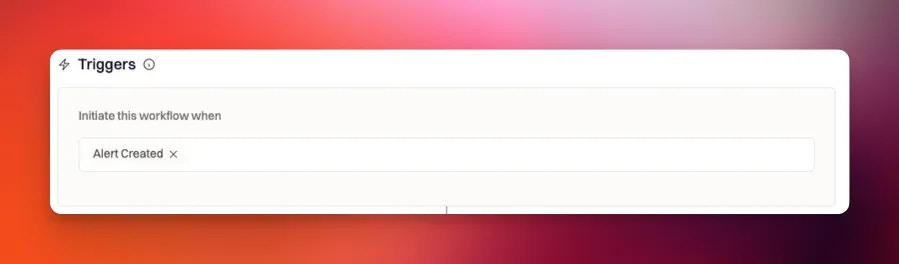
Alert workflows support **two trigger events**:
* **Alert Created** (`alert_created`)\
Fires immediately when a new alert is received in Rootly.
* **Alert Status Updated** (`alert_status_updated`)\
Fires whenever an alert’s status changes (for example, from open to resolved).
 Unlike incident or action item workflows, alert workflows **cannot be triggered manually** via Slack command. They only run in response to alert events.
***
## Configure an Alert Workflow
### Step 1: Confirm alerts are ingested
Ensure alerts are arriving in Rootly by visiting **Alerts** in the Rootly UI.\
If no alerts are present, review your integrations on the [Alerts](/alerts) page.
***
### Step 2: Create a new workflow
Navigate to:
**Workflows → Create Workflow → Alert**
Unlike incident or action item workflows, alert workflows **cannot be triggered manually** via Slack command. They only run in response to alert events.
***
## Configure an Alert Workflow
### Step 1: Confirm alerts are ingested
Ensure alerts are arriving in Rootly by visiting **Alerts** in the Rootly UI.\
If no alerts are present, review your integrations on the [Alerts](/alerts) page.
***
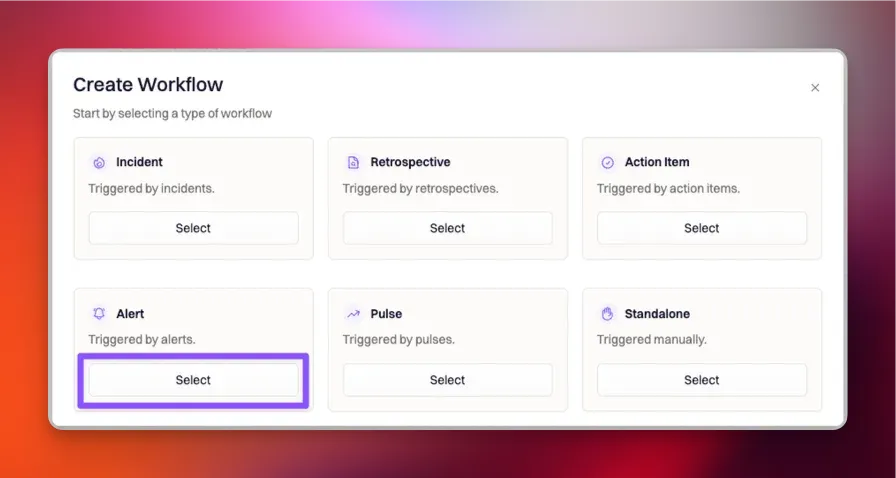
### Step 2: Create a new workflow
Navigate to:
**Workflows → Create Workflow → Alert**
 ***
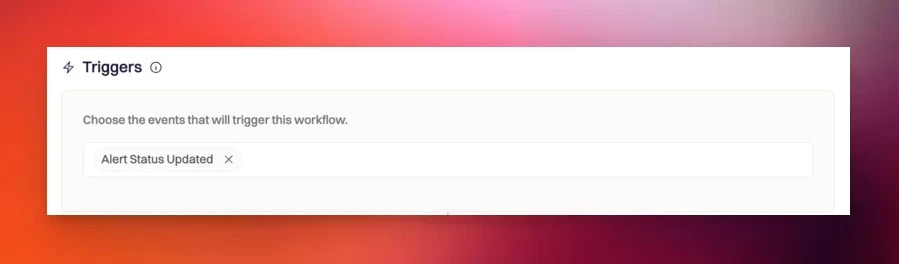
### Step 3: Choose trigger event(s)
Select one or both of the available alert triggers depending on when you want the workflow to run.
* Use **Alert Created** to respond immediately to new alerts
* Use **Alert Status Updated** to respond to acknowledgements or resolutions
***
### Step 3: Choose trigger event(s)
Select one or both of the available alert triggers depending on when you want the workflow to run.
* Use **Alert Created** to respond immediately to new alerts
* Use **Alert Status Updated** to respond to acknowledgements or resolutions
 ***
## Define Run Conditions
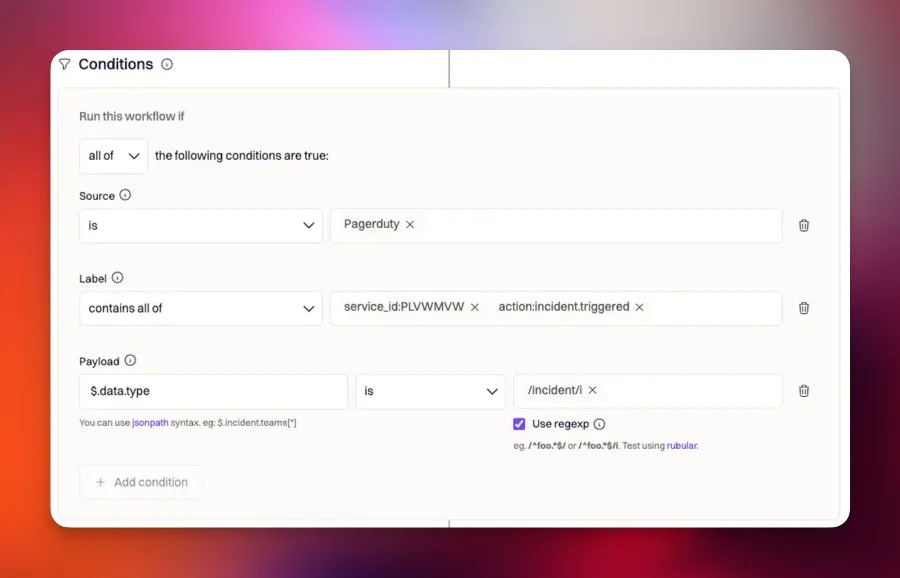
Alert workflows can evaluate multiple properties of an alert. Conditions are optional but strongly recommended to avoid over-triggering.
***
## Define Run Conditions
Alert workflows can evaluate multiple properties of an alert. Conditions are optional but strongly recommended to avoid over-triggering.
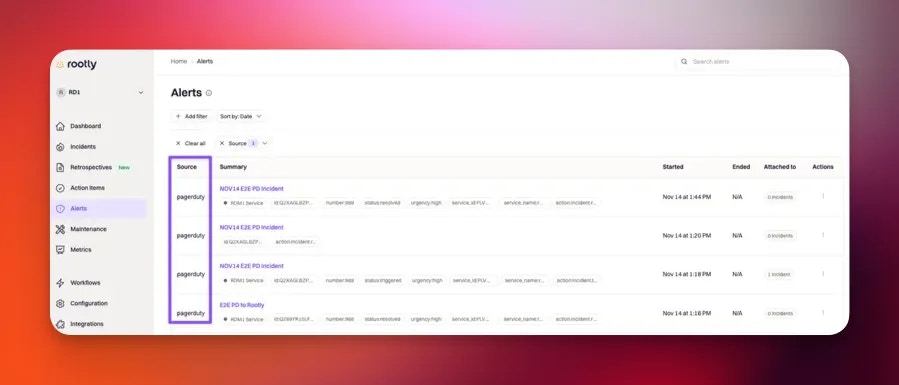
 ### Source
The **source** represents the system that generated the alert (for example, Datadog or PagerDuty).
You can use this to scope workflows to alerts from a specific integration.
### Source
The **source** represents the system that generated the alert (for example, Datadog or PagerDuty).
You can use this to scope workflows to alerts from a specific integration.
 ***
### Status
Alerts move through lifecycle states. Valid values include:
* `open`
* `triggered`
* `acknowledged`
* `resolved`
Status conditions are commonly used with the **Alert Status Updated** trigger to run workflows only when alerts are resolved or acknowledged.
***
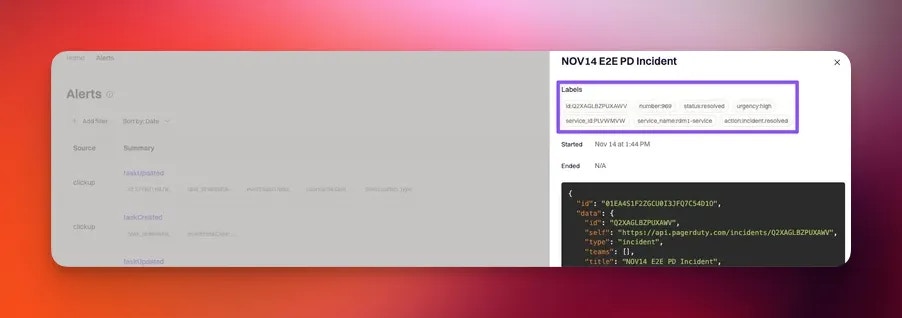
### Labels
Alerts include a set of labels derived from the source system. Labels are stored as an **array of values**.
You can condition on labels using operators such as “contains any of” or “contains all of.”
***
### Status
Alerts move through lifecycle states. Valid values include:
* `open`
* `triggered`
* `acknowledged`
* `resolved`
Status conditions are commonly used with the **Alert Status Updated** trigger to run workflows only when alerts are resolved or acknowledged.
***
### Labels
Alerts include a set of labels derived from the source system. Labels are stored as an **array of values**.
You can condition on labels using operators such as “contains any of” or “contains all of.”
 ***
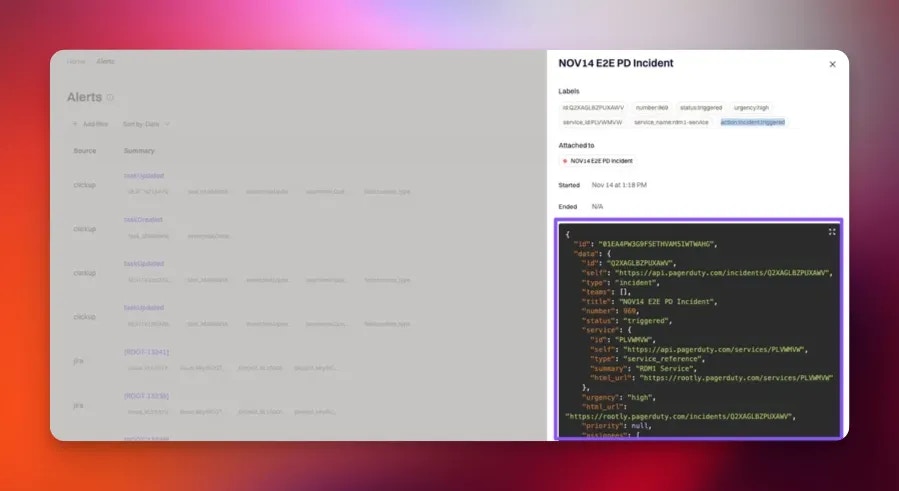
### Payload
Each alert includes a **JSON payload** containing source-specific data. Payload conditions allow advanced filtering using:
* **JSONPath** to extract values from the payload
* Optional **regular expressions** to match extracted values
For example, you can match alerts where `$.data.type` equals `incident`, regardless of case.
***
### Payload
Each alert includes a **JSON payload** containing source-specific data. Payload conditions allow advanced filtering using:
* **JSONPath** to extract values from the payload
* Optional **regular expressions** to match extracted values
For example, you can match alerts where `$.data.type` equals `incident`, regardless of case.
 Payload conditions are powerful but should be tested carefully. A malformed JSONPath or overly broad regex can cause workflows to misfire.
***
## Configure Actions
Alert workflows support a wide range of actions. Available actions depend on which integrations are connected to your workspace.
Common actions include:
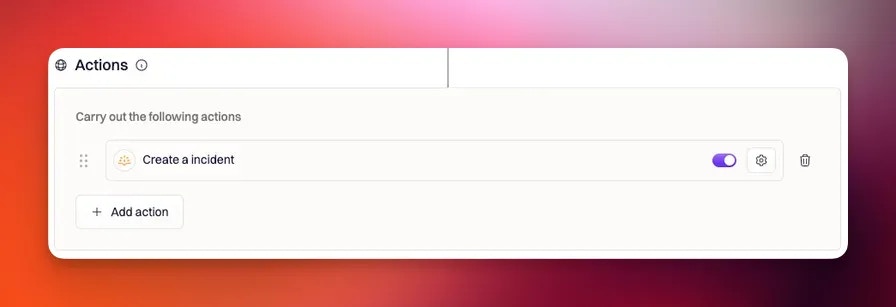
* Declaring incidents in Rootly
* Paging on-call responders
* Sending Slack or Microsoft Teams messages
* Creating or updating tickets in Jira or other systems
* Creating action items for follow-up work
Payload conditions are powerful but should be tested carefully. A malformed JSONPath or overly broad regex can cause workflows to misfire.
***
## Configure Actions
Alert workflows support a wide range of actions. Available actions depend on which integrations are connected to your workspace.
Common actions include:
* Declaring incidents in Rootly
* Paging on-call responders
* Sending Slack or Microsoft Teams messages
* Creating or updating tickets in Jira or other systems
* Creating action items for follow-up work
 ### Downstream workflow cascades
If an alert workflow declares an incident, that will immediately trigger **incident workflows** that listen for “Incident Created” or related events.
When testing alert workflows, it is strongly recommended to:
* Temporarily disable incident workflows, or
* Add restrictive run conditions to prevent unintended cascades.
***
## Best Practices
Alert workflows are most effective when they are precise and conservative.
* **Start narrow.** Use source, status, and payload conditions to target only the alerts that truly require automation.
* **Avoid duplicate incident creation.** Ensure alert grouping or deduplication is considered when declaring incidents from alerts.
* **Test in isolation.** Disable downstream workflows during initial testing to avoid accidental paging or ticket creation.
* **Use status-based triggers intentionally.** “Alert Created” is best for immediate response, while “Alert Status Updated” is better for follow-up automation.
* **Document your logic.** Complex payload conditions should be explained in the workflow description for future maintainers.
***
## Frequently Asked Questions
No. Alert workflows only run in response to alert events. Manual Slack commands are not supported for this workflow type.
Yes. Declaring incidents is a common use case. Be aware that doing so may trigger incident workflows downstream.
Check that alerts are flowing into Rootly, confirm the trigger event fired, and review run conditions—especially payload and label filters.
Yes. Use the source condition to filter by integration and payload or labels to match severity or priority fields provided by the source system.
***
Need help designing safe and effective alert automation? Contact your Rootly onboarding representative or email **[support@rootly.com](mailto:support@rootly.com)**.
### Downstream workflow cascades
If an alert workflow declares an incident, that will immediately trigger **incident workflows** that listen for “Incident Created” or related events.
When testing alert workflows, it is strongly recommended to:
* Temporarily disable incident workflows, or
* Add restrictive run conditions to prevent unintended cascades.
***
## Best Practices
Alert workflows are most effective when they are precise and conservative.
* **Start narrow.** Use source, status, and payload conditions to target only the alerts that truly require automation.
* **Avoid duplicate incident creation.** Ensure alert grouping or deduplication is considered when declaring incidents from alerts.
* **Test in isolation.** Disable downstream workflows during initial testing to avoid accidental paging or ticket creation.
* **Use status-based triggers intentionally.** “Alert Created” is best for immediate response, while “Alert Status Updated” is better for follow-up automation.
* **Document your logic.** Complex payload conditions should be explained in the workflow description for future maintainers.
***
## Frequently Asked Questions
No. Alert workflows only run in response to alert events. Manual Slack commands are not supported for this workflow type.
Yes. Declaring incidents is a common use case. Be aware that doing so may trigger incident workflows downstream.
Check that alerts are flowing into Rootly, confirm the trigger event fired, and review run conditions—especially payload and label filters.
Yes. Use the source condition to filter by integration and payload or labels to match severity or priority fields provided by the source system.
***
Need help designing safe and effective alert automation? Contact your Rootly onboarding representative or email **[support@rootly.com](mailto:support@rootly.com)**.