> ## Documentation Index
> Fetch the complete documentation index at: https://docs.rootly.com/llms.txt
> Use this file to discover all available pages before exploring further.
# Incident Workflows
> Automate incident response in Rootly by triggering workflows on incident events like creation, status changes, severity updates, and field updates.
## Overview
**Incident workflows** are the backbone of automation in Rootly. They run when something meaningful happens to an incident—an incident is created, severity changes, a service is added, a Slack channel is created, responders join the channel, and more. Instead of relying on responders to remember every manual step during a high-stress event, incident workflows let you encode your process once and run it consistently every time.
Incident workflows are especially useful because incidents sit at the center of the response lifecycle. A single workflow can coordinate tooling across chat, paging, ticketing, documentation, and observability—so when an incident changes, everything else stays aligned automatically.
Common use cases include:
* Creating and configuring a Slack or Microsoft Teams channel when an incident begins
* Creating tickets (Jira, Linear, ServiceNow, etc.) based on incident severity, service, or team ownership
* Posting periodic reminders (status updates, stakeholder comms, runbook prompts) while an incident is active
* Paging on-call responders when specific services or severities are involved
* Generating post-incident artifacts (retrospectives, action items) when an incident resolves
* Synchronizing incident metadata to external systems (status page timelines, docs, dashboards)
You can chain workflows across types. For example, an **Alert workflow** can create an incident, which then triggers **Incident Created** or **Incident Started** workflows to run the rest of your incident process.
***
## How Incident Workflows Run
An incident workflow always follows the same execution model:
1. **Trigger event occurs** (for example, *Status Updated*).
2. Rootly evaluates **run conditions** (if configured).
3. If conditions pass, Rootly executes the workflow’s **actions in order**.
Two behaviors are worth calling out early because they shape how you design automations:
* **Triggers are OR’d together.** If you select multiple triggers, *any one* of them can initiate the workflow.
* **Run conditions are your guardrails.** Use conditions to prevent noisy automation and ensure workflows only run when they should (for example, only for SEV0/SEV1, only for certain services, only when visibility is public, etc.).
***
## Create an Incident Workflow
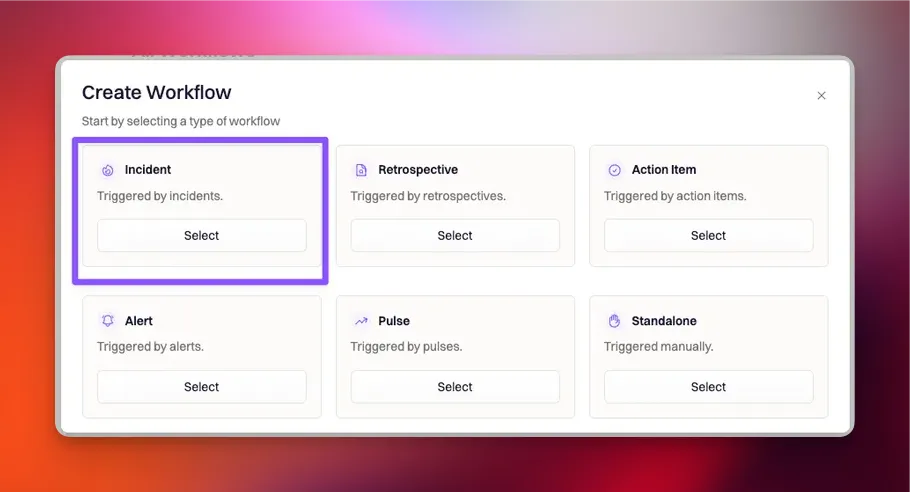
### Step 1: Start a new workflow
Navigate to:
**Workflows → Create Workflow → Incident**
 ***
### Step 2: Choose trigger events
Trigger events define **when** Rootly initiates the workflow. Incident workflows support a broad set of triggers, ranging from lifecycle events (created/started) to field changes (severity/status) to channel and subscriber events.
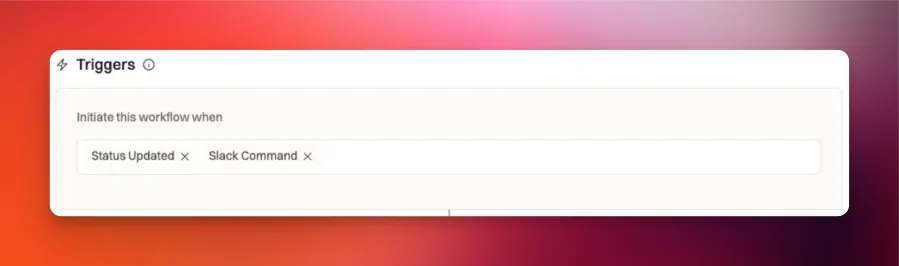
In the example below, the workflow starts when the incident **status changes** or when it is manually run using a **Slack command**:
***
### Step 2: Choose trigger events
Trigger events define **when** Rootly initiates the workflow. Incident workflows support a broad set of triggers, ranging from lifecycle events (created/started) to field changes (severity/status) to channel and subscriber events.
In the example below, the workflow starts when the incident **status changes** or when it is manually run using a **Slack command**:
 #### Incident trigger events available
The following triggers are available for incident workflows:
* `incident_in_triage`
* `incident_created`
* `incident_started`
* `incident_updated` (catch-all update trigger)
* `title_updated`
* `summary_updated`
* `status_updated`
* `severity_updated`
* `visibility_updated`
Field list changes:
* `environments_added`, `environments_removed`, `environments_updated`
* `incident_types_added`, `incident_types_removed`, `incident_types_updated`
* `services_added`, `services_removed`, `services_updated`
* `functionalities_added`, `functionalities_removed`, `functionalities_updated`
* `teams_added`, `teams_removed`, `teams_updated`
* `causes_added`, `causes_removed`, `causes_updated`
Timeline and post timelines:
* `timeline_updated`
* `status_page_timeline_updated`
Role assignment events:
* `role_assignments_added`
* `role_assignments_removed`
* `role_assignments_updated`
Channel and membership events:
* `slack_channel_created`
* `slack_channel_converted`
* `microsoft_teams_channel_created`
* `google_chat_space_created`
* `user_joined_slack_channel`
* `user_left_slack_channel`
### Pick `slack_channel_created` when your workflow's actions need the channel
`incident_created` fires the moment the Rootly incident record is created — which can be a beat *before* the Slack channel is finished being created. If your workflow's actions depend on the channel already existing (posting messages or bookmarks into the channel, inviting users, archiving the channel, setting channel metadata, etc.), use **`slack_channel_created`** as the trigger instead. That trigger fires only after the channel is fully ready, so channel-dependent actions can't race against the channel's creation.
A useful rule of thumb:
* **`incident_created`** — for actions that only touch the incident record itself (set fields, page on-call, create Jira ticket, send an email).
* **`slack_channel_created`** — for actions that interact with the incident's Slack channel.
If your team creates incidents by converting an existing Slack channel instead of auto-creating a new one, pair `slack_channel_created` with `slack_channel_converted` so the workflow fires in both scenarios — the created trigger only fires for auto-created channels.
The same pattern applies to `microsoft_teams_channel_created` and `google_chat_space_created` for those platforms.
Subscriber events:
* `subscribers_added`
* `subscribers_removed`
* `subscribers_updated`
Manual trigger:
* `slack_command`
### Avoid overlapping triggers
Some triggers are “catch-all” events that cover other triggers.
* `incident_updated` is a catch-all trigger for incident updates. If you use it, you should **not** also add field-specific triggers like `status_updated` or `severity_updated` in the same workflow.
* Rootly also prevents certain redundant combinations (for example, selecting triggers that would cause duplicate initiation for the same underlying event).
### Custom field update triggers
In addition to the built-in triggers above, incident workflows can also trigger from **custom field updates**. These appear in the UI as:
`[CustomField] Updated`
Use these when a particular custom field is a critical step in your incident process (for example, “Customer Impacted,” “Root Cause Category,” or “External Status”).
***
### Step 3: Add run conditions
Run conditions define **which incidents the workflow should apply to**. Conditions can be based on standard incident fields (severity, status, service, environment, teams, etc.) or custom fields you’ve configured in your workspace.
A strong incident workflow typically has at least one condition to avoid unnecessary automation. Examples:
* Only run for incidents where severity is SEV0 or SEV1
* Only run when a specific service is impacted
* Only run when the incident is public
* Only run when a particular team is assigned
#### Incident trigger events available
The following triggers are available for incident workflows:
* `incident_in_triage`
* `incident_created`
* `incident_started`
* `incident_updated` (catch-all update trigger)
* `title_updated`
* `summary_updated`
* `status_updated`
* `severity_updated`
* `visibility_updated`
Field list changes:
* `environments_added`, `environments_removed`, `environments_updated`
* `incident_types_added`, `incident_types_removed`, `incident_types_updated`
* `services_added`, `services_removed`, `services_updated`
* `functionalities_added`, `functionalities_removed`, `functionalities_updated`
* `teams_added`, `teams_removed`, `teams_updated`
* `causes_added`, `causes_removed`, `causes_updated`
Timeline and post timelines:
* `timeline_updated`
* `status_page_timeline_updated`
Role assignment events:
* `role_assignments_added`
* `role_assignments_removed`
* `role_assignments_updated`
Channel and membership events:
* `slack_channel_created`
* `slack_channel_converted`
* `microsoft_teams_channel_created`
* `google_chat_space_created`
* `user_joined_slack_channel`
* `user_left_slack_channel`
### Pick `slack_channel_created` when your workflow's actions need the channel
`incident_created` fires the moment the Rootly incident record is created — which can be a beat *before* the Slack channel is finished being created. If your workflow's actions depend on the channel already existing (posting messages or bookmarks into the channel, inviting users, archiving the channel, setting channel metadata, etc.), use **`slack_channel_created`** as the trigger instead. That trigger fires only after the channel is fully ready, so channel-dependent actions can't race against the channel's creation.
A useful rule of thumb:
* **`incident_created`** — for actions that only touch the incident record itself (set fields, page on-call, create Jira ticket, send an email).
* **`slack_channel_created`** — for actions that interact with the incident's Slack channel.
If your team creates incidents by converting an existing Slack channel instead of auto-creating a new one, pair `slack_channel_created` with `slack_channel_converted` so the workflow fires in both scenarios — the created trigger only fires for auto-created channels.
The same pattern applies to `microsoft_teams_channel_created` and `google_chat_space_created` for those platforms.
Subscriber events:
* `subscribers_added`
* `subscribers_removed`
* `subscribers_updated`
Manual trigger:
* `slack_command`
### Avoid overlapping triggers
Some triggers are “catch-all” events that cover other triggers.
* `incident_updated` is a catch-all trigger for incident updates. If you use it, you should **not** also add field-specific triggers like `status_updated` or `severity_updated` in the same workflow.
* Rootly also prevents certain redundant combinations (for example, selecting triggers that would cause duplicate initiation for the same underlying event).
### Custom field update triggers
In addition to the built-in triggers above, incident workflows can also trigger from **custom field updates**. These appear in the UI as:
`[CustomField] Updated`
Use these when a particular custom field is a critical step in your incident process (for example, “Customer Impacted,” “Root Cause Category,” or “External Status”).
***
### Step 3: Add run conditions
Run conditions define **which incidents the workflow should apply to**. Conditions can be based on standard incident fields (severity, status, service, environment, teams, etc.) or custom fields you’ve configured in your workspace.
A strong incident workflow typically has at least one condition to avoid unnecessary automation. Examples:
* Only run for incidents where severity is SEV0 or SEV1
* Only run when a specific service is impacted
* Only run when the incident is public
* Only run when a particular team is assigned
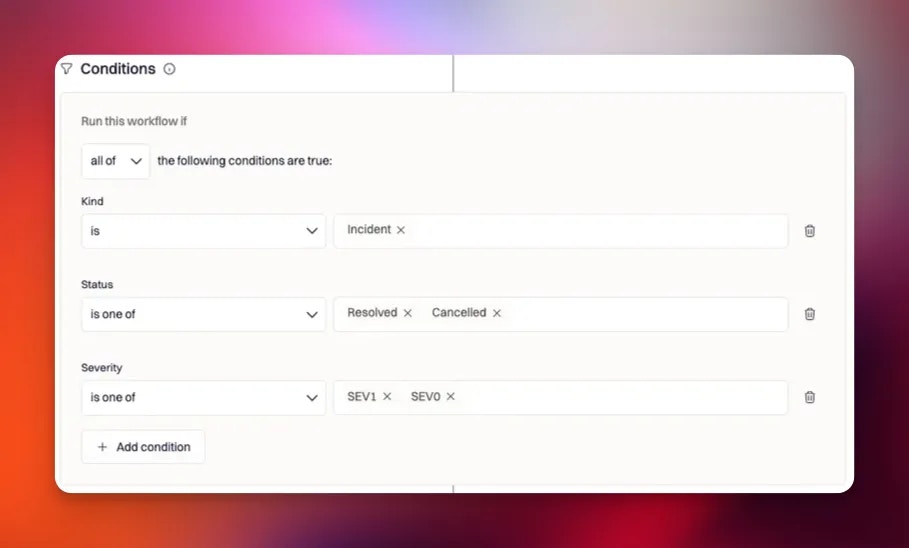 You can learn more about how run condition operators work (including how “all of / any of / none of” behaves) in the main workflows overview: [Condition Checks](/workflows/workflows).
***
### Step 4: Configure actions
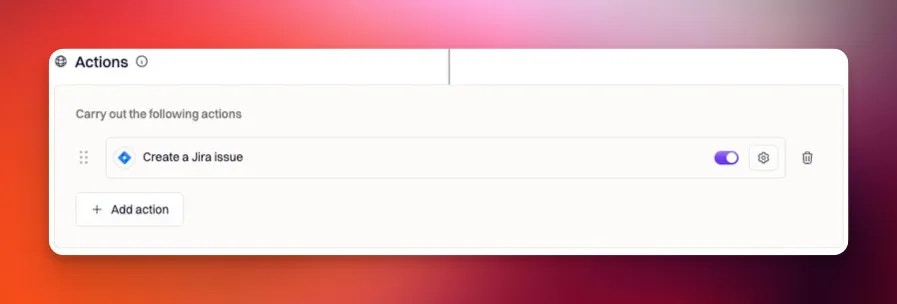
Actions define **what the workflow does** once it has initiated and conditions pass. Available actions depend on the applications integrated with your Rootly workspace.
For example, after connecting Jira, Jira actions become available and can be configured to create issues, set fields, assign owners, and link incidents.
You can learn more about how run condition operators work (including how “all of / any of / none of” behaves) in the main workflows overview: [Condition Checks](/workflows/workflows).
***
### Step 4: Configure actions
Actions define **what the workflow does** once it has initiated and conditions pass. Available actions depend on the applications integrated with your Rootly workspace.
For example, after connecting Jira, Jira actions become available and can be configured to create issues, set fields, assign owners, and link incidents.
 #### What actions can an Incident workflow run?
Incident workflows support actions across Rootly and common incident tooling, including (not exhaustive):
* Rootly actions (update incident fields, add timeline entries, create action items, create post-mortems, trigger other workflows)
* Slack and Microsoft Teams actions (create/configure channels, send messages/reminders, update channel metadata, manage channel settings)
* Paging actions (page responders through integrated on-call providers)
* Ticketing/PM tools (Jira, Linear, ServiceNow, Zendesk, etc.)
* Documentation and collaboration tools (Google Drive/Docs, Confluence, Notion, SharePoint, etc.)
* Observability tools (Datadog, New Relic, Grafana, and others depending on integration availability)
Actions run **in order** from top to bottom. If the order matters (for example, create a Slack channel before posting a message into it), place the actions in the sequence you want them executed.
### Failure behavior matters
By default, **a single failing action halts the workflow run**. If you want a workflow to continue even if an action fails (for example, “post to Slack” should not block “create a Jira ticket”), enable **Skip on Failure** on the actions where continuing is safe.
***
## Best Practices
The best incident workflows are the ones that remain reliable under real incident pressure. These practices help you build workflows that are both powerful and predictable:
* **Start narrow, then expand.** Begin with specific triggers (like `severity_updated`) and tight conditions. Once you trust the behavior, broaden scope if needed.
* **Use conditions as guardrails.** Treat conditions as the safety layer that prevents noisy automation, especially when you use broad triggers like `incident_updated`.
* **Separate “setup” and “ongoing” automation.** A workflow that sets up Slack/tickets is often different from a workflow that posts reminders every 30 minutes.
* **Be intentional with repeat workflows.** If you use recurring reminders, make sure they stop when conditions are no longer true (for example, when status becomes Resolved).
* **Keep actions resilient.** Enable Skip on Failure for non-critical actions so a partial integration outage doesn’t break your entire process.
* **Name workflows by outcome, not mechanics.** Good names describe intent (for example, “Create incident channel and ticket for SEV0/SEV1”), which makes auditing easier later.
* **Validate manual Slack triggering.** If you rely on Slack commands, document the command and ensure it’s memorable and unique for your team.
***
## Frequently Asked Questions
Triggers define **when** a workflow is initiated (for example, when `status_updated` occurs). Run conditions define **which incidents** the workflow should actually apply to. In practice, triggers start the workflow, and conditions prevent it from executing when it shouldn’t.
Use `incident_updated` when you truly want the workflow to consider **any** incident update, then rely on conditions to narrow behavior. If you only care about specific changes (like severity/status/team/service changes), use the specific trigger to reduce noise and unintended runs.
Yes. Incident workflows can include custom-field update triggers that appear as `[CustomField] Updated`. This is useful when a custom field represents a process milestone or decision point.
Yes, if you include the `slack_command` trigger. When command feedback is enabled, Rootly posts an ephemeral confirmation message in Slack (and will indicate if the workflow is configured with a wait/delay).
By default, workflows fail fast: a failing action halts the run. To allow later actions to continue, enable **Skip on Failure** on the actions that should not block the rest of the workflow.
Rootly prevents overlapping triggers that would cause redundant firing (for example, selecting a catch-all update trigger together with the specific field updates it already covers). This avoids duplicate runs and keeps workflow behavior easier to predict.
**Slack Channel Created.** `incident_created` fires when the Rootly incident record exists, which can be a moment before the Slack channel is fully ready. Any action that depends on the channel — sending a message, inviting users, adding a bookmark, archiving the channel — should run on `slack_channel_created` so it can't race against the channel creation. Use `incident_created` only for actions that touch the incident record itself (set fields, page on-call, create a Jira ticket, send an email). If your team creates incidents by converting an existing Slack channel, also select `slack_channel_converted` so the workflow fires for converted channels too. The same distinction applies to `microsoft_teams_channel_created` and `google_chat_space_created`.
***
Need help designing incident workflows that match your process? Contact Rootly Support at [support@rootly.com](mailto:support@rootly.com) or reach out to your onboarding/customer success representative.
#### What actions can an Incident workflow run?
Incident workflows support actions across Rootly and common incident tooling, including (not exhaustive):
* Rootly actions (update incident fields, add timeline entries, create action items, create post-mortems, trigger other workflows)
* Slack and Microsoft Teams actions (create/configure channels, send messages/reminders, update channel metadata, manage channel settings)
* Paging actions (page responders through integrated on-call providers)
* Ticketing/PM tools (Jira, Linear, ServiceNow, Zendesk, etc.)
* Documentation and collaboration tools (Google Drive/Docs, Confluence, Notion, SharePoint, etc.)
* Observability tools (Datadog, New Relic, Grafana, and others depending on integration availability)
Actions run **in order** from top to bottom. If the order matters (for example, create a Slack channel before posting a message into it), place the actions in the sequence you want them executed.
### Failure behavior matters
By default, **a single failing action halts the workflow run**. If you want a workflow to continue even if an action fails (for example, “post to Slack” should not block “create a Jira ticket”), enable **Skip on Failure** on the actions where continuing is safe.
***
## Best Practices
The best incident workflows are the ones that remain reliable under real incident pressure. These practices help you build workflows that are both powerful and predictable:
* **Start narrow, then expand.** Begin with specific triggers (like `severity_updated`) and tight conditions. Once you trust the behavior, broaden scope if needed.
* **Use conditions as guardrails.** Treat conditions as the safety layer that prevents noisy automation, especially when you use broad triggers like `incident_updated`.
* **Separate “setup” and “ongoing” automation.** A workflow that sets up Slack/tickets is often different from a workflow that posts reminders every 30 minutes.
* **Be intentional with repeat workflows.** If you use recurring reminders, make sure they stop when conditions are no longer true (for example, when status becomes Resolved).
* **Keep actions resilient.** Enable Skip on Failure for non-critical actions so a partial integration outage doesn’t break your entire process.
* **Name workflows by outcome, not mechanics.** Good names describe intent (for example, “Create incident channel and ticket for SEV0/SEV1”), which makes auditing easier later.
* **Validate manual Slack triggering.** If you rely on Slack commands, document the command and ensure it’s memorable and unique for your team.
***
## Frequently Asked Questions
Triggers define **when** a workflow is initiated (for example, when `status_updated` occurs). Run conditions define **which incidents** the workflow should actually apply to. In practice, triggers start the workflow, and conditions prevent it from executing when it shouldn’t.
Use `incident_updated` when you truly want the workflow to consider **any** incident update, then rely on conditions to narrow behavior. If you only care about specific changes (like severity/status/team/service changes), use the specific trigger to reduce noise and unintended runs.
Yes. Incident workflows can include custom-field update triggers that appear as `[CustomField] Updated`. This is useful when a custom field represents a process milestone or decision point.
Yes, if you include the `slack_command` trigger. When command feedback is enabled, Rootly posts an ephemeral confirmation message in Slack (and will indicate if the workflow is configured with a wait/delay).
By default, workflows fail fast: a failing action halts the run. To allow later actions to continue, enable **Skip on Failure** on the actions that should not block the rest of the workflow.
Rootly prevents overlapping triggers that would cause redundant firing (for example, selecting a catch-all update trigger together with the specific field updates it already covers). This avoids duplicate runs and keeps workflow behavior easier to predict.
**Slack Channel Created.** `incident_created` fires when the Rootly incident record exists, which can be a moment before the Slack channel is fully ready. Any action that depends on the channel — sending a message, inviting users, adding a bookmark, archiving the channel — should run on `slack_channel_created` so it can't race against the channel creation. Use `incident_created` only for actions that touch the incident record itself (set fields, page on-call, create a Jira ticket, send an email). If your team creates incidents by converting an existing Slack channel, also select `slack_channel_converted` so the workflow fires for converted channels too. The same distinction applies to `microsoft_teams_channel_created` and `google_chat_space_created`.
***
Need help designing incident workflows that match your process? Contact Rootly Support at [support@rootly.com](mailto:support@rootly.com) or reach out to your onboarding/customer success representative.