> ## Documentation Index
> Fetch the complete documentation index at: https://docs.rootly.com/llms.txt
> Use this file to discover all available pages before exploring further.
# Pulse Workflows
> Automate responses to code change events from CI/CD systems in Rootly to pre-declare incidents, notify teams, track deployments, and capture rollback context.
## Overview
**Pulse workflows** run automatically when Rootly receives a **pulse**. Pulses are code-change events (for example, pushes, merges, and deployments) streamed into Rootly from supported source control and CI/CD integrations such as GitHub and GitLab.
Pulse workflows are designed for teams that want to connect delivery signals to operational response. Instead of treating deployments as “background noise,” you can use pulses to proactively notify responders, create artifacts for visibility, and even pre-declare incidents when the change itself represents elevated risk.
Pulse workflows are particularly useful for:
* Pre-declaring incidents when risky changes ship, so responders have a shared coordination space ready if impact appears
* Broadcasting deployments into shared channels (for example, release, infrastructure, or product channels) with consistent formatting and context
* Creating follow-up work automatically when a pulse matches a high-risk pattern (specific repo, branch, environment, or payload value)
Pulse workflows only run if pulses are successfully flowing into Rootly. Before building automation, confirm your pulse integration is connected and producing pulse events.
***
## Supported Trigger
Pulse workflows support **one trigger event**:
* **Pulse Created** (`pulse_created`)\
Fires immediately when a new pulse is received in Rootly.
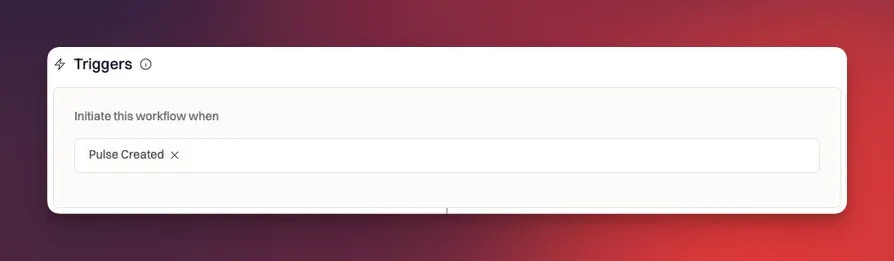 Pulse workflows cannot be triggered manually via Slack command. They only run when Rootly receives a pulse.
***
## Configure a Pulse Workflow
### Step 1: Confirm pulses are ingested
To use a pulse workflow, you must first ensure Rootly is receiving pulses.
Navigate to **Configuration → Pulses** to verify recent pulse events exist. If you do not see pulses, review your integration configuration on the [Pulses](/configuration/pulses) page.
***
### Step 2: Create a new workflow
Navigate to:
**Workflows → Create Workflow → Pulse**
Pulse workflows cannot be triggered manually via Slack command. They only run when Rootly receives a pulse.
***
## Configure a Pulse Workflow
### Step 1: Confirm pulses are ingested
To use a pulse workflow, you must first ensure Rootly is receiving pulses.
Navigate to **Configuration → Pulses** to verify recent pulse events exist. If you do not see pulses, review your integration configuration on the [Pulses](/configuration/pulses) page.
***
### Step 2: Create a new workflow
Navigate to:
**Workflows → Create Workflow → Pulse**
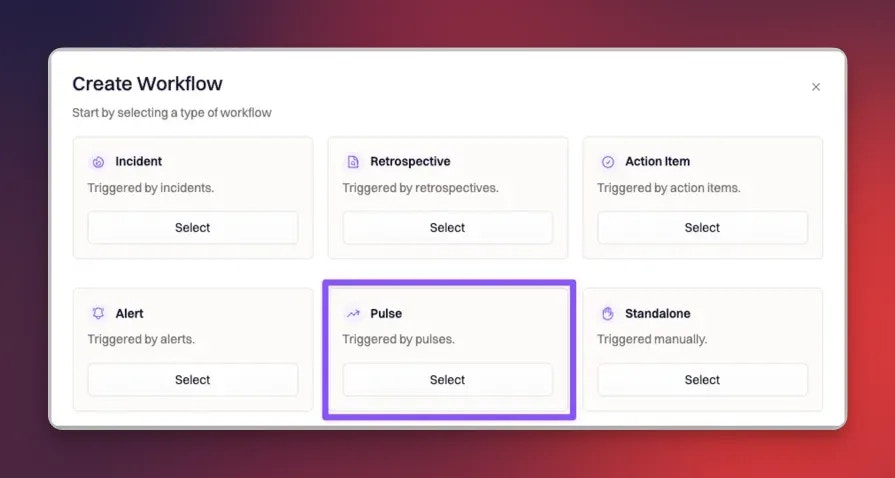 ***
### Step 3: Select the trigger event
Because pulse workflows only support one trigger, choose **Pulse Created**. This causes the workflow to initiate as soon as the pulse arrives in Rootly.
***
## Define Run Conditions
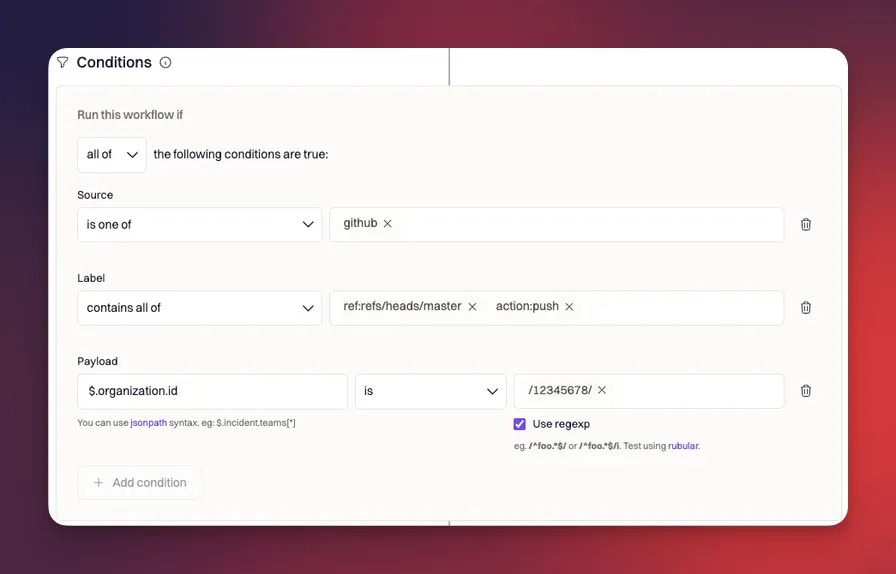
Pulse workflows can be filtered using three pulse properties. These conditions let you target only the pulses you care about (for example, production deploys, changes from a specific repository, or events with a specific payload field).
***
### Step 3: Select the trigger event
Because pulse workflows only support one trigger, choose **Pulse Created**. This causes the workflow to initiate as soon as the pulse arrives in Rootly.
***
## Define Run Conditions
Pulse workflows can be filtered using three pulse properties. These conditions let you target only the pulses you care about (for example, production deploys, changes from a specific repository, or events with a specific payload field).
 ### Source
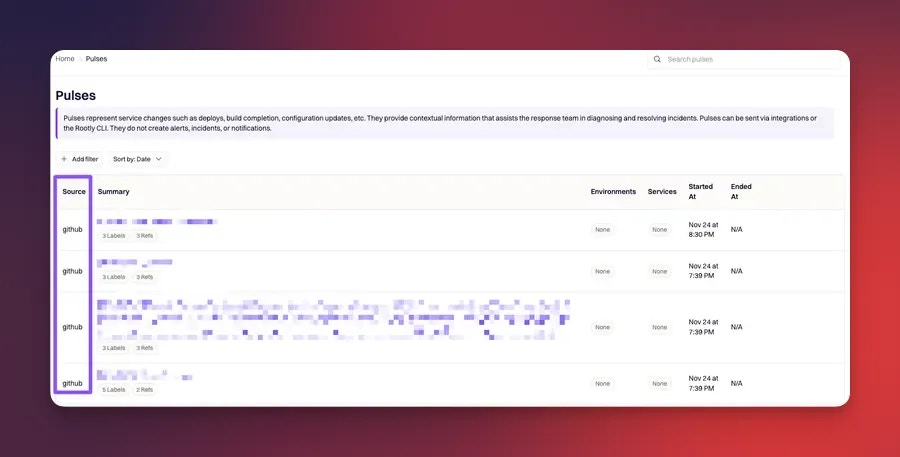
The **source** represents where the pulse originated from (for example, GitHub or GitLab). Source conditions can optionally use regular expressions, which is helpful when your source naming varies by integration or workspace.
You can find the source on the main Pulses page:
### Source
The **source** represents where the pulse originated from (for example, GitHub or GitLab). Source conditions can optionally use regular expressions, which is helpful when your source naming varies by integration or workspace.
You can find the source on the main Pulses page:
 ***
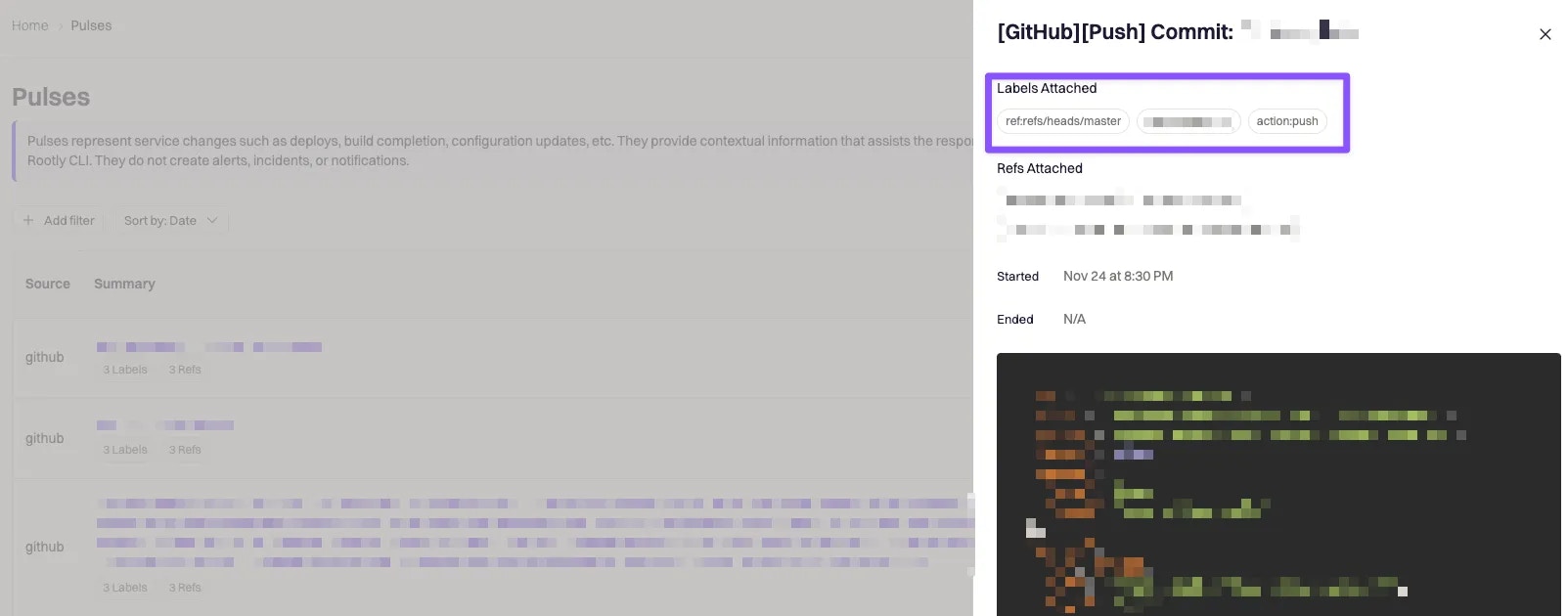
### Label
Each pulse includes a set of **labels** derived from the source system. Labels are stored as an **array of values**, and you can filter on them using operators such as “contains any of” or “contains all of.” Label conditions can also optionally use regular expressions.
You can find labels on the pulse details page:
**Configuration → Pulses → select a pulse**
***
### Label
Each pulse includes a set of **labels** derived from the source system. Labels are stored as an **array of values**, and you can filter on them using operators such as “contains any of” or “contains all of.” Label conditions can also optionally use regular expressions.
You can find labels on the pulse details page:
**Configuration → Pulses → select a pulse**
 ***
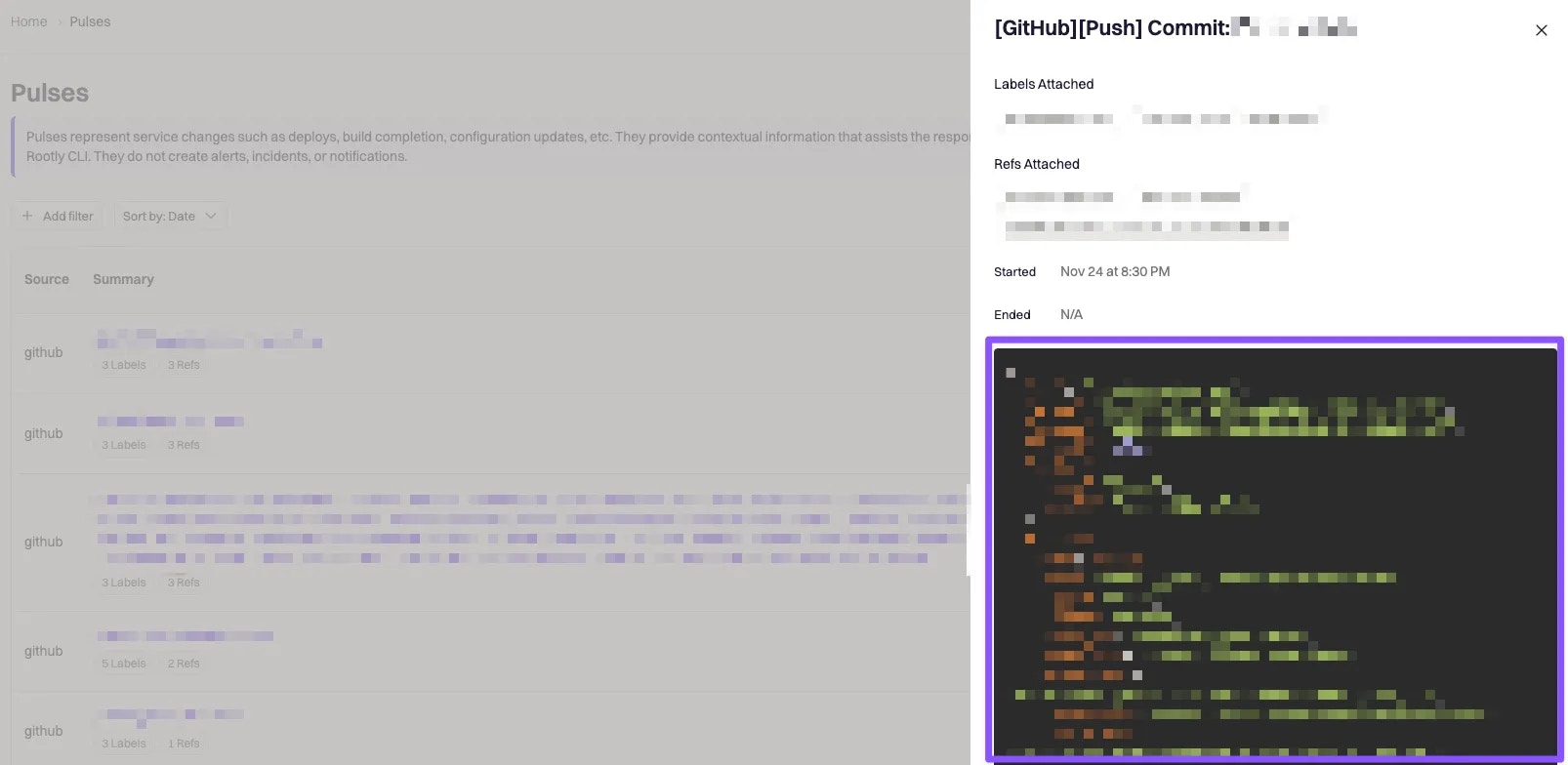
### Payload
Each pulse includes a JSON **payload** containing source-specific data (commit metadata, repository identifiers, environment details, and other fields depending on the integration).
Payload filtering supports:
* **JSONPath** (configured as the payload query) to extract the value you want to evaluate from the pulse JSON
* Optional **regular expression matching** against the extracted value
For example, you can extract a specific field like an environment ID or branch name and require an exact match, partial match, or regex match.
You can find payload data on the pulse details page:
**Configuration → Pulses → select a pulse**
***
### Payload
Each pulse includes a JSON **payload** containing source-specific data (commit metadata, repository identifiers, environment details, and other fields depending on the integration).
Payload filtering supports:
* **JSONPath** (configured as the payload query) to extract the value you want to evaluate from the pulse JSON
* Optional **regular expression matching** against the extracted value
For example, you can extract a specific field like an environment ID or branch name and require an exact match, partial match, or regex match.
You can find payload data on the pulse details page:
**Configuration → Pulses → select a pulse**
 Payload conditions are powerful but should be tested carefully. Incorrect JSONPath expressions or overly broad regex matches can cause workflows to run unexpectedly.
***
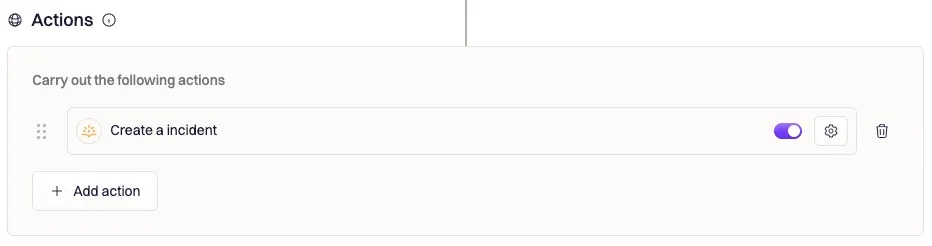
## Configure Actions
Pulse workflows do **not** have a fixed action set. The actions available to your workflow depend on which integrations are connected in your Rootly workspace.
Common actions teams use with pulse workflows include:
* Declaring or updating an incident in Rootly
* Sending Slack or Microsoft Teams messages with structured deployment context
* Creating or updating follow-up work items (tickets, action items, tasks) when a pulse matches a risk condition
* Triggering additional workflows (for example, handing off from a “deployment detected” workflow into a more complex automation chain)
Payload conditions are powerful but should be tested carefully. Incorrect JSONPath expressions or overly broad regex matches can cause workflows to run unexpectedly.
***
## Configure Actions
Pulse workflows do **not** have a fixed action set. The actions available to your workflow depend on which integrations are connected in your Rootly workspace.
Common actions teams use with pulse workflows include:
* Declaring or updating an incident in Rootly
* Sending Slack or Microsoft Teams messages with structured deployment context
* Creating or updating follow-up work items (tickets, action items, tasks) when a pulse matches a risk condition
* Triggering additional workflows (for example, handing off from a “deployment detected” workflow into a more complex automation chain)
 ### Downstream workflow cascades
If a pulse workflow creates or updates an incident, that can immediately trigger **incident workflows** that listen for incident events such as “Incident Created” or “Status Updated.”
When testing pulse workflows that touch incidents, consider temporarily disabling incident workflows or using restrictive run conditions to prevent unintended cascades.
***
## Best Practices
Pulse workflows are most effective when they are scoped intentionally and validated with real examples.
* **Start narrow and expand.** Begin with conditions that target a specific repository, branch, or environment before broadening to all pulses.
* **Prefer labels and payload for precision.** Source-only filters are rarely enough; labels and payload fields usually provide the reliable signal you need.
* **Use pre-declared incidents sparingly.** Pre-declare incidents only when the change itself represents elevated risk, otherwise you may create alert fatigue through too many “false starts.”
* **Test with recent pulses.** Always validate your JSONPath and label logic against real pulse examples visible in the UI.
* **Document intent in the workflow description.** Pulse workflows often encode operational policy (what constitutes a risky change). Make that intent explicit so future maintainers do not guess.
***
## Frequently Asked Questions
No. Pulse workflows run only when Rootly receives a pulse event. Manual Slack commands are not supported for this workflow type.
Pulses are code-change events typically sent by source control or CI/CD systems (for example, GitHub and GitLab). The exact set depends on which integrations your workspace has connected.
Confirm pulses are present in Rootly, verify the workflow is enabled, check that the trigger is Pulse Created, and then review run conditions—especially JSONPath payload filters and label matching.
Yes. Many teams use pulses to pre-declare incidents or create coordination space for risky changes. If you do this, be aware it may trigger incident workflows downstream.
***
Need help designing safe pulse automation? Contact your Rootly onboarding representative or email **[support@rootly.com](mailto:support@rootly.com)**.
### Downstream workflow cascades
If a pulse workflow creates or updates an incident, that can immediately trigger **incident workflows** that listen for incident events such as “Incident Created” or “Status Updated.”
When testing pulse workflows that touch incidents, consider temporarily disabling incident workflows or using restrictive run conditions to prevent unintended cascades.
***
## Best Practices
Pulse workflows are most effective when they are scoped intentionally and validated with real examples.
* **Start narrow and expand.** Begin with conditions that target a specific repository, branch, or environment before broadening to all pulses.
* **Prefer labels and payload for precision.** Source-only filters are rarely enough; labels and payload fields usually provide the reliable signal you need.
* **Use pre-declared incidents sparingly.** Pre-declare incidents only when the change itself represents elevated risk, otherwise you may create alert fatigue through too many “false starts.”
* **Test with recent pulses.** Always validate your JSONPath and label logic against real pulse examples visible in the UI.
* **Document intent in the workflow description.** Pulse workflows often encode operational policy (what constitutes a risky change). Make that intent explicit so future maintainers do not guess.
***
## Frequently Asked Questions
No. Pulse workflows run only when Rootly receives a pulse event. Manual Slack commands are not supported for this workflow type.
Pulses are code-change events typically sent by source control or CI/CD systems (for example, GitHub and GitLab). The exact set depends on which integrations your workspace has connected.
Confirm pulses are present in Rootly, verify the workflow is enabled, check that the trigger is Pulse Created, and then review run conditions—especially JSONPath payload filters and label matching.
Yes. Many teams use pulses to pre-declare incidents or create coordination space for risky changes. If you do this, be aware it may trigger incident workflows downstream.
***
Need help designing safe pulse automation? Contact your Rootly onboarding representative or email **[support@rootly.com](mailto:support@rootly.com)**.