

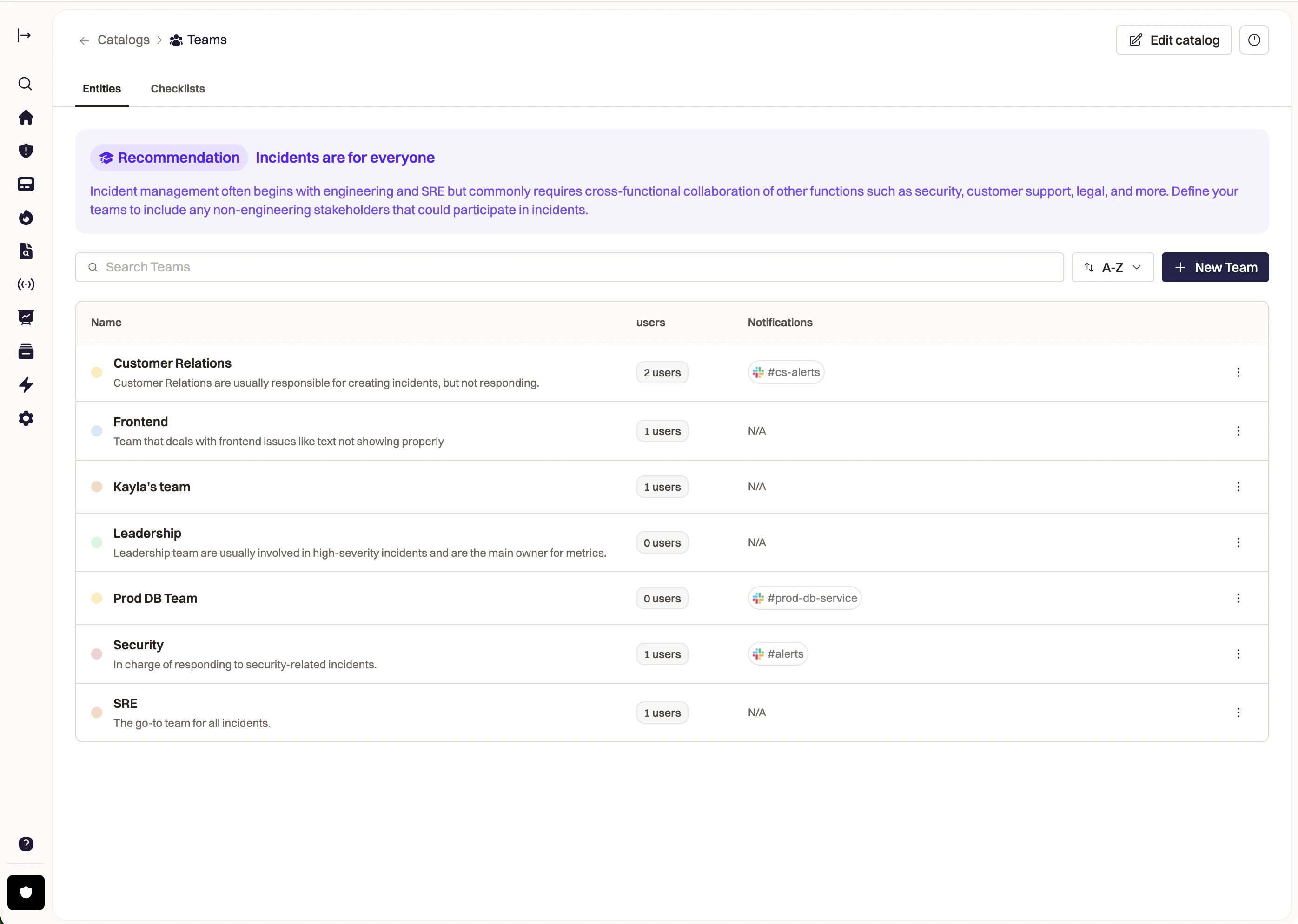
What Teams Can Do
Teams in Rootly enable you to:- Own On-Call Schedules and Escalation Policies
Teams manage their own on-call rotations and escalation policies through Rootly On-Call. - Route Alerts to the Right Responders
Alerts from integrated monitoring tools or email sources can be routed directly to teams to ensure the correct responders are notified immediately. - Configure Slack Automation
Teams can be mapped to specific Slack channels and user groups, enabling automated notifications, incident collaboration, and response workflows.
Managing Teams
Teams can be created and managed directly in the Rootly web interface, where you can assign members, configure team settings, and manage access. Rootly also supports importing teams from third-party platforms to simplify migrations and maintain existing team structures.Supported Imports
- PagerDuty
- Opsgenie
Frequently Asked Questions
Team Membership
Can users belong to multiple teams?
Can users belong to multiple teams?
Yes. Users can belong to multiple teams in Rootly.Each team membership has its own:
- Role (Owner, Admin, Member, etc.)
- On-Call Role
- Permissions
Team Switching: When users switch teams, they only see the data, incidents, and configurations for that team.
How do permissions work across teams?
How do permissions work across teams?
Permissions in Rootly are team-scoped.This means:
- Roles apply only within a specific team
- Permissions in one team do not affect another
- Users can have different roles across teams
How do I manage team members?
How do I manage team members?
Team members can be managed through:
- Web UI: Settings → Teams → Members
- Email Invitations
- SCIM provisioning when SSO is enabled
- API for programmatic management
Can I restrict access by email domain?
Can I restrict access by email domain?
Yes. Teams can restrict membership to specific email domains.To configure this:
- Navigate to Settings → Team Settings
- Configure the Email Domains restriction
- Only users with matching domains can be added
Teams & Organizational Structure
What's the difference between Teams and Groups?
What's the difference between Teams and Groups?
Teams are top-level organizational units that contain users, schedules, alerts, and configurations.Groups are sub-units within a team used for:
Groups = sub-teams within that organization
- On-call rotations
- Alert routing
- Incident assignment
- Slack channel mapping
Groups = sub-teams within that organization
Can teams have different configurations?
Can teams have different configurations?
Yes. Each team can configure its own settings including:
- AI features
- Alert routing
- Incident workflows
- Sub-statuses
- Retrospective templates
- Integrations
- Time zones
What's the difference between a team and an escalation policy?
What's the difference between a team and an escalation policy?
A Team is the organizational container that includes users, schedules, and configuration.An Escalation Policy defines how alerts notify responders within that team, including:
- Who gets notified
- Escalation order
- Notification timing
- Notification methods
Team Management
Can I change a team's name or settings later?
Can I change a team's name or settings later?
Yes. Team settings can be updated at any time.You can modify:
- Team name
- Time zone
- Email domain restrictions
- Feature configurations
- Team logo and branding
What happens when a team is deleted?
What happens when a team is deleted?
Teams are soft deleted rather than permanently removed.When a team is deleted:
- Historical incident data is preserved
- Users immediately lose access
- Integrations are disconnected
Can I duplicate a team?
Can I duplicate a team?
Yes. Teams can be duplicated to quickly create similar team structures.Duplication can include:
- Team settings
- Schedules and escalation policies
- Groups and configurations
- Optional user memberships
How many teams can I create?
How many teams can I create?
The number of teams available depends on your Rootly plan.You can review limits in Settings → Billing or contact your account manager.
Migrations & Integrations
How do I migrate teams from PagerDuty or Opsgenie?
How do I migrate teams from PagerDuty or Opsgenie?
Rootly provides migration tools to import your existing team structure.Supported imports include:PagerDuty
- Teams
- Users
- Schedules
- Escalation policies
- On-call rotations
- Teams
- Schedules
- Routing rules
- Escalation policies
Migration Guide
Learn more about migrating from PagerDuty or Opsgenie
How do I configure Slack channels for teams?
How do I configure Slack channels for teams?
Slack channels can be configured in two ways:
- Team-level mapping for default notifications
- Group-level mapping for more granular routing
- Navigate to Settings → Integrations → Slack
- Configure team-level settings
- Map groups to Slack channels
Slack Integration
Learn more about configuring Slack for teams
Can teams create status pages?
Can teams create status pages?
Yes. Teams can manage their own public or private status pages.Status pages support:
- Custom domains
- Service components
- Incident communication templates
- Automated updates
Status Pages
Learn more about creating and managing status pages