

Before You Begin
Make sure you have:- Access to Settings → Incident Roles
- A team with members already created
- On-call schedules, teams, or escalation policies configured (optional)
- Permission to create or manage Workflows (required for paging automation)
How It Works
Assignments occur when a team is attached to an incident, either:- During incident creation
- When a team is added later
- Applies the Incident Role mappings configured for that team
- Assigns users to the appropriate Incident Roles
- Creates any Default Tasks attached to those roles
- Adds matched on-call users to the incident channel
Create an Incident Role
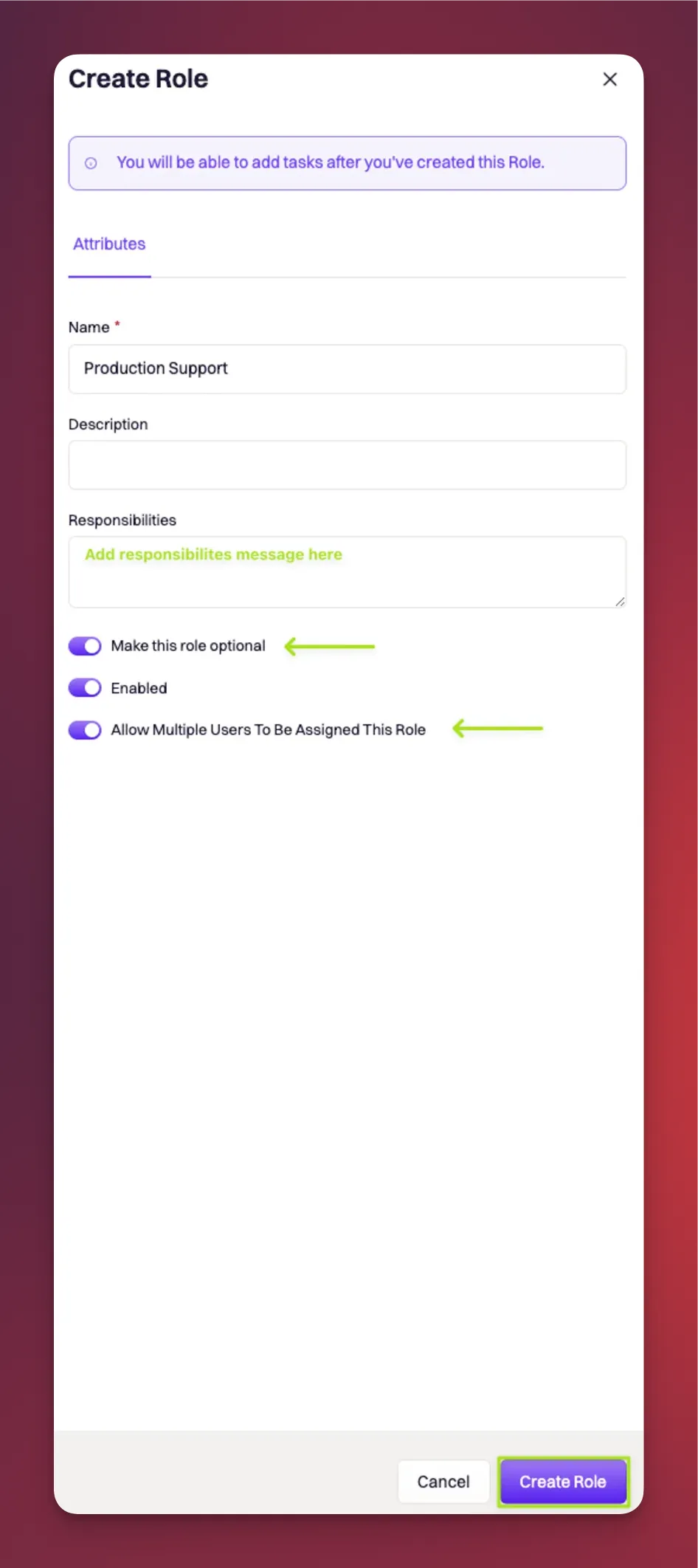
To create a new Incident Role:- Navigate to Settings → Incident Roles
- Click Create Role
- Fill in the role details:
- Name (required)
- Description (optional)
- Responsibilities (optional) — A message shown to the user when they are assigned the role
- Optional role — Allows the role to remain unassigned during an incident
- Allow multiple users — Allows more than one user to be assigned to the role
- Click Create Role
Add Default Tasks
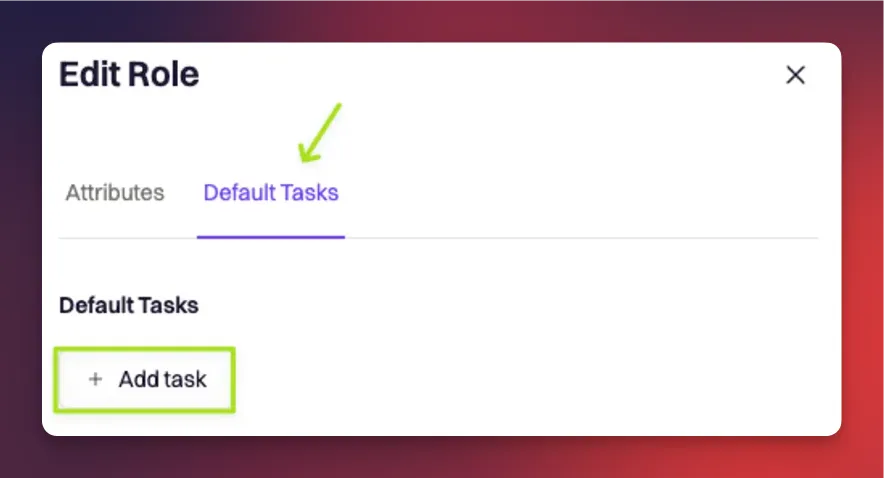
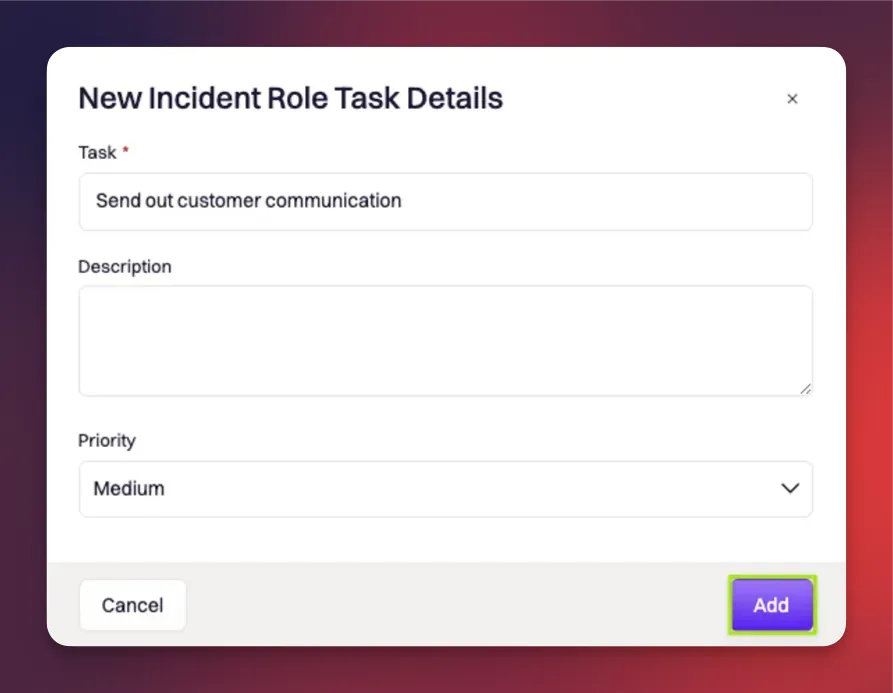
After creating the role, you can add Default Tasks to automatically assign follow-up work when that Incident Role is assigned during an incident. To add Default Tasks:- Open the Incident Role you created
- Edit the role
- Add one or more Default Tasks for this role
- Save your changes
Assign Roles to Team Members
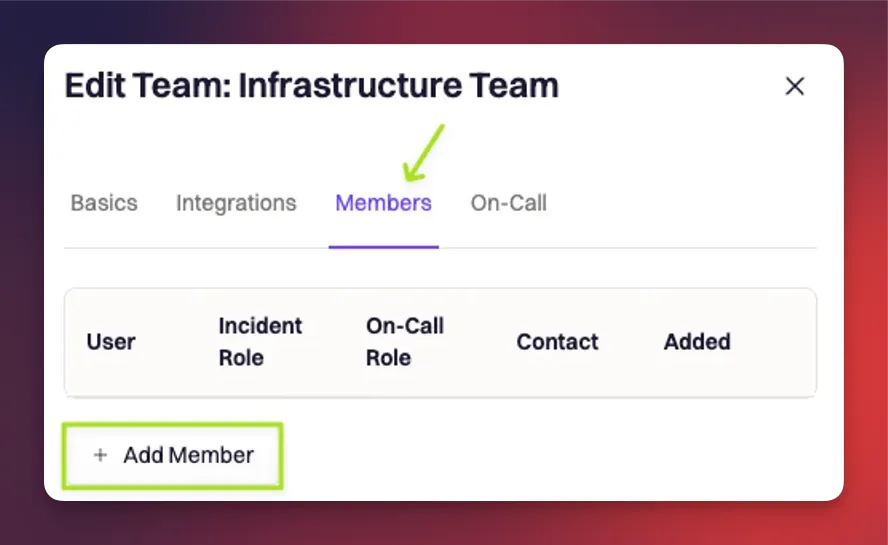
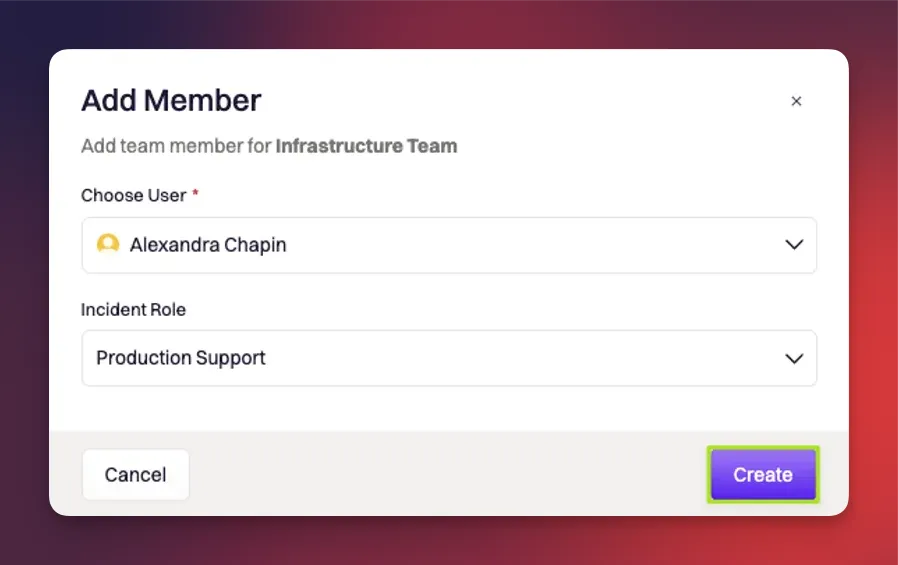
Once the Incident Role is created, assign it to members of the appropriate team.- Navigate to Teams
- Open the team you want to update
- Select the Members tab
- Add or edit team members and choose their Incident Role
- Save your changes
Auto-Assign Roles from On-Call
You can also assign Incident Roles based on who is currently on-call for a:- Schedule
- Team
- Escalation policy
- Assigned to the role
- Added to the incident channel
Role assignment and paging are separate behaviors. Users can be auto-assigned through Incident Role configuration, but paging requires a Workflow action.
Verify Your Setup
Create a test incident and attach the configured team. Then confirm that:- The expected Incident Roles are assigned
- Default Tasks are created
- On-call users are assigned when applicable
- Any related Workflows run as expected
Troubleshooting
No Incident Role assignee appears
Confirm that the configured team was attached to the incident and that team members are mapped to the correct Incident Role. If the role should be assigned from on-call, verify that the on-call source is configured for that role.No on-call user is assigned
Verify the correct schedule, team, or escalation policy is configured and that someone is actively on-call at the time the team is attached. If coverage recently changed, check timezone or shift handoff timing.No Workflow actions run
Confirm that the Workflow is enabled and that its conditions match the incident. Role assignment alone does not notify or page users unless a Workflow action is configured.Frequently Asked Questions
When are Incident Roles assigned, and what happens during assignment?
When are Incident Roles assigned, and what happens during assignment?
Incident Roles are assigned when a team is attached to an incident, either during incident creation or when a team is added later.During assignment, Rootly:
- Applies the Incident Role mappings configured for that team
- Assigns the appropriate users to each role
- Creates any Default Tasks attached to the assigned roles
- Adds matched on-call users to the incident channel
What do Optional role and Allow multiple users mean?
What do Optional role and Allow multiple users mean?
These settings control how flexible an Incident Role assignment can be during an incident:
- Optional role means the role can remain unassigned if no one needs to fill it immediately
- Allow multiple users means more than one user can hold the same Incident Role at the same time
How do Default Tasks work?
How do Default Tasks work?
Default Tasks are created automatically when the related Incident Role is assigned during an incident.They are useful for standardizing recurring work, such as:
- Posting updates
- Reviewing logs
- Coordinating communications
- Following predefined response steps
How does on-call role assignment work?
How does on-call role assignment work?
If an Incident Role is configured to use an on-call source, Rootly assigns the user who is actively on-call at the time the team is attached to the incident.Supported sources can include:
- A schedule
- A team on-call setup
- An escalation policy
Does assigning a role also notify or page the user?
Does assigning a role also notify or page the user?
Not always. Role assignment and paging are separate actions.
- Role assignment gives the user responsibility within the incident
- Paging and notifications depend on a configured Workflow
Why wasn’t someone assigned to a role?
Why wasn’t someone assigned to a role?
This usually happens because of a configuration issue or because no matching user was available at the time of assignment.Common reasons include:
- The team was not attached to the incident
- The Incident Role mapping is not configured correctly
- No eligible team member matched the role
- No active on-call user matched the configured source
- The wrong schedule, team, or escalation policy is connected
Can one person have multiple Incident Roles?
Can one person have multiple Incident Roles?
Yes. A single user can hold multiple Incident Roles if your configuration supports it.This is especially useful for:
- Smaller teams
- Lightweight incidents
- Situations where one responder needs to cover multiple responsibilities