Where to interact with the assistant
In an incident channel (most common)
@Rootly is able to read details about your incident, make updates, answer questions, generate comms, and page directly in your incident channel (subject to your user permissions in Rootly). The bot is added automatically to incident channels created through Rootly: get started by declaring an incident using the shortcut/rootly new.
Start chatting with the @Rootly by mentioning @Rootly in the channel or thread and asking “catch me up” or “page the database on-call team”
@Rootly always replies back in-thread.
Slack assistant side-pane
Best for: questions related to a specific incident in a private conversation. When there’s an active incident in your view, you can ask the assistant any questions about the incident. The assistant can only answer questions here: it cannot take action on your behalf. This channel is best used when you want to catch up, but don’t want to distract the responding team in the incident’s Slack channel. Note: We recommend asking @Rootly questions in the incident channel when the context might be relevant to other teammates, so they can also benefit from the reply.DM the Rootly bot directly
Best for:- Quick on-call lookups: “Who’s on call for payments right now?”
- Looking up an incident you’re not actively in: “Catch me up on INC-1234.”
- Personal questions: “What action items are assigned to me?”
Interacting with the assistant
Once you’ve asked the assistant a question (starting with @Rootly), you’ll see a “Thinking…” indicator as the assistant gathers context and builds a plan to help. These thinking indicator messages rotate every few seconds as the assistant continues to work. Tip: The thinking indicator messages give a hint at what the assistant is planning on doing next! For example, if you see “Checking who’s on call”, the assistant is gathering context for who’s on-call based on your question.
Giving feedback
Note: Use the Helpful (👍) and Not helpful (👎) to rate your assistant’s replies. One click captures whether the answer was useful, and helps Rootly continuously improve your assistant. Your feedback flows into Rootly’s evaluation pipeline and does not directly fine-tune the underlying model. If you spot something the bot got wrong, the most useful thing you can do is clickNot helpful and provide additional feedback. That signal goes straight into our regression set.

Providing clarifications
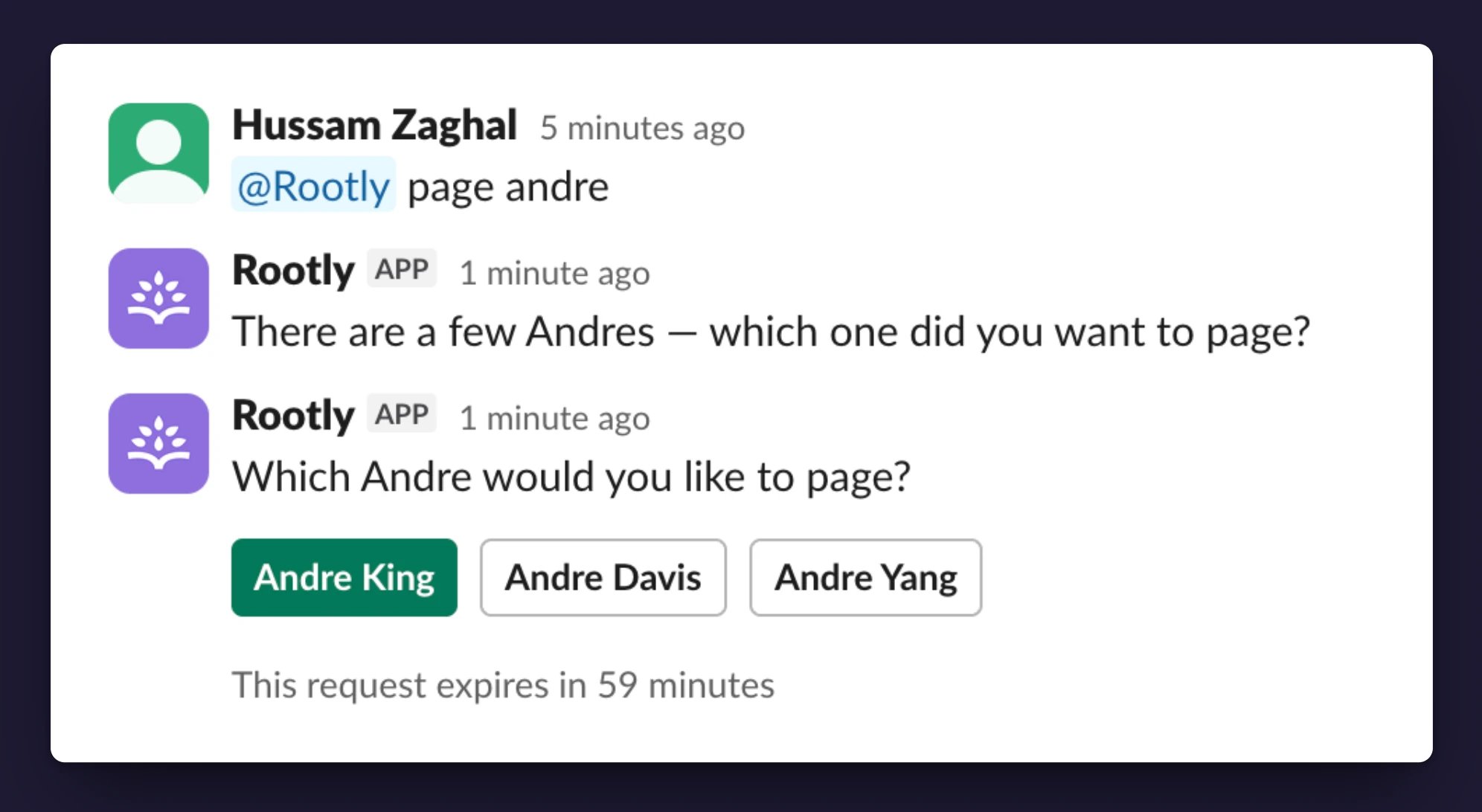
Clarification cards are the only structured place where the assistant pauses for your input on how to proceed: if something is ambiguous or data is required to continue, the assistant will ask for your input rather than guessing. Examples of clarifications include:- Ambiguous person. “Page David.” → “Which David did you want to page?” with options to select the David you want to page.
- Ambiguous severity. “Escalate this.” → “What severity should I set?” with buttons for the team’s configured severities.
- Missing required field. Moving to a status that requires a cause, environment, or other field e.g. “What environment is affected?”, with fields to provide the necessary data.

Using clarification cards
Based on how much input the assistant needs, you’ll be able to provide clarification via:- Up to 5 options → rendered as buttons. The first button is highlighted as the primary choice.
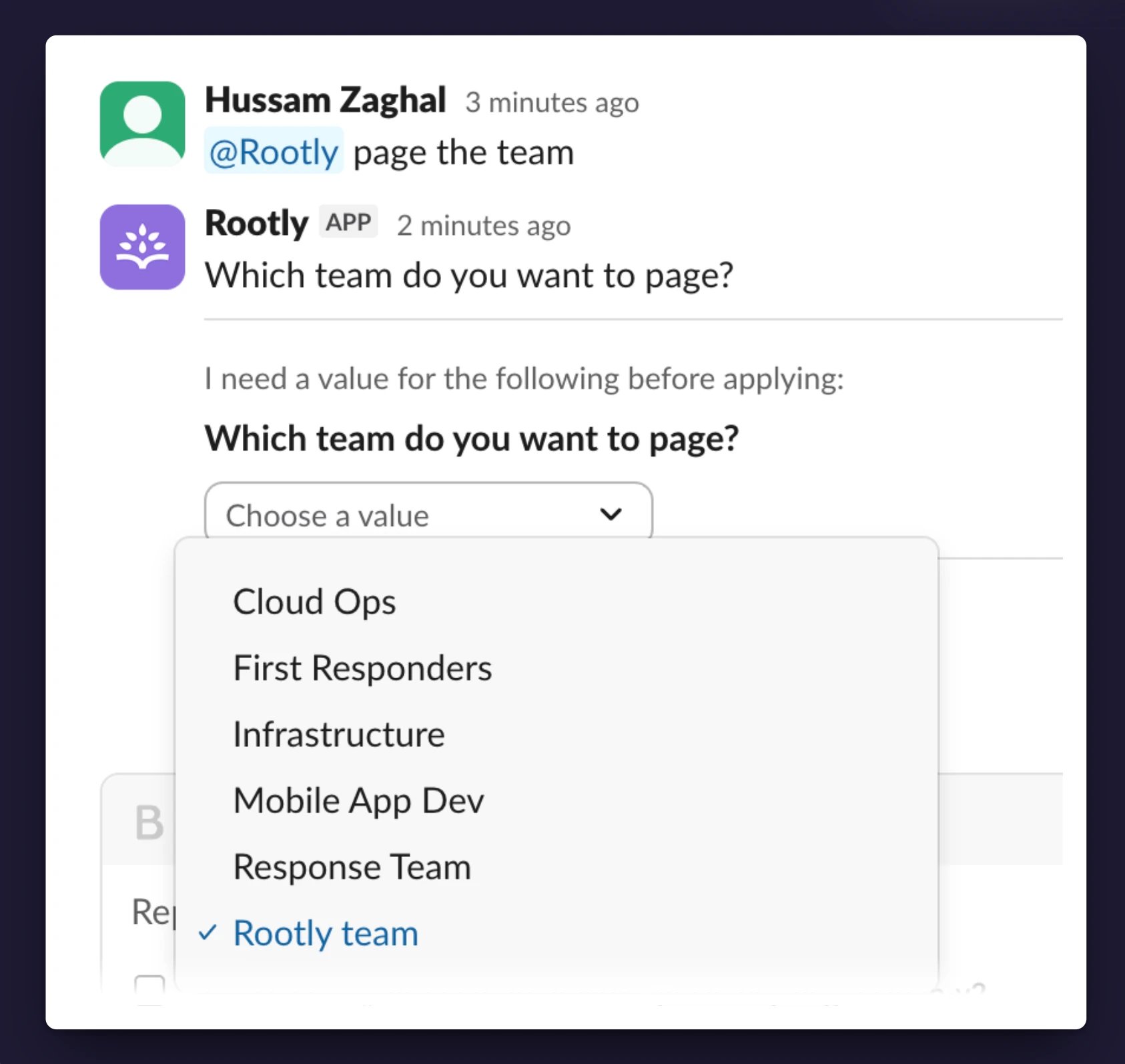
- 5 to 25 options → rendered as a dropdown (single-select).
- More than 25, or a question that doesn’t have a fixed answer set → free-text mode; reply in the thread.
After you respond
A small task pill appears in the thread reading User answered with the question and your chosen label, e.g.Which David did you want to page? → David Chen. The assistant picks up from where it left off.
Expiry
Clarification cards expire after 60 minutes. If you click an expired card, you’ll be notified with this response:⌛ This question has expired.If you’d like to continue the conversation with the assistant after 60 minutes, simply re-ask your same question to get a fresh card.
Taking action with the assistant
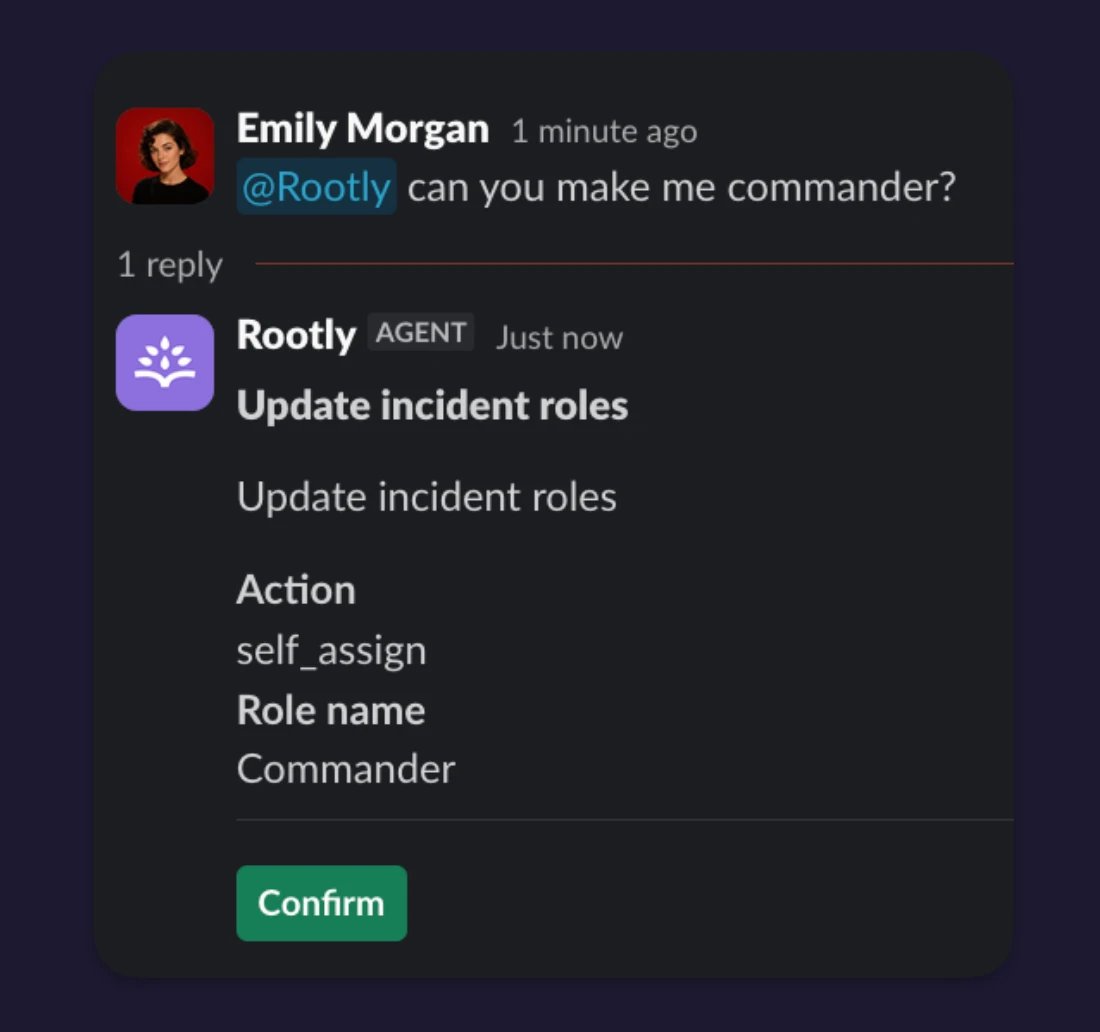
Actions like severity changes, status transitions, role assignments, paging, will be executed immediately by the assistant when you ask for them. The assistant will confirm what it did in its reply. For example:- “I’ll take commander.” → “You’re now the commander.”
- “Escalate to SEV1.” → “Set severity to SEV1.”
- “Page the SRE on-call.” → “Paged the SRE team via their escalation policy.”
Assistant examples:
“Catch me up”
The most common ask. Walking through what you see:- Type
@Rootly catch me upin the incident channel - The thinking indicator appears, then “Pulling up incident details…” → “Checking incident status…” → “Gathering incident data…”
- A short structured summary appears: what happened, current status, what’s been tried, who’s involved, what’s open.
- The Helpful / Not helpful feedback buttons sit at the bottom.
- Ask follow-ups in the same thread. The assistant remembers what it just pulled e.g. “What caused it?” / “Who’s been paged?” / “Show me similar past incidents.” all work as continuations.

”Page on-call team”
This shows the clarification flow in action:- Type
@Rootly page the on-call teamin the incident channel. Status shows “Looking up schedules…” → “Checking who’s on call…” - The assistant searches your Rootly catalog for a team matching “database.”
- If multiple teams match “team,” the assistant posts a clarification card:
"Which team did you mean?"with a dropdown to select the relevant team. You pick one and click Confirm.
- The assistant pages via Rootly On-Call to the team’s current on-call, using whatever notification preferences they’ve configured. The assistant replies:
"Paged the Rootly team via the Default Escalation escalation policy."The audit trail attributes the page to you, not the assistant.
- If you don’t have permission to page in Rootly, the assistant tells you so and stops. The action runs as your user, so it can’t do anything you couldn’t do yourself.