

- Slack
- Opsgenie
- PagerDuty
- Splunk On-Call (formerly VictorOps)
The integration must be configured before users can be imported or invited.
Invite Users From an Integration
1
Open Organization Settings
In the top-left corner, click the drop-down next to your organization name and select Organization Settings.
2
Open the Integration Invite Flow
Select Members, then choose Invite from [Integration].Depending on the integrations configured for your organization, you may see:
- Invite from Slack
- Invite from Opsgenie
- Invite from PagerDuty
- Invite from Splunk On-Call
3
Select Users
Rootly loads a list of users from the selected integration.Use the search field to filter users by name or email (or username for Opsgenie).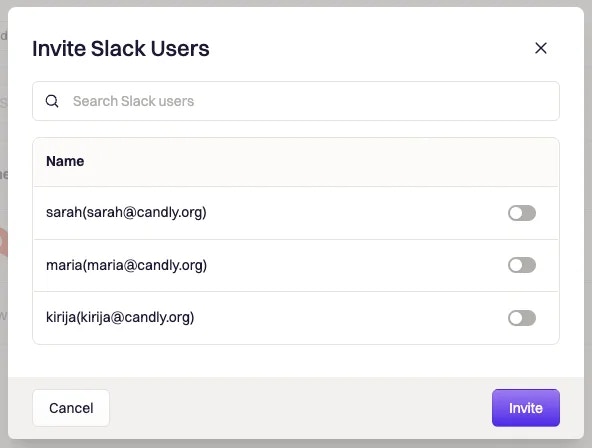
4
Send Invitations
Select the users you want to invite and click Invite.Invitation emails are sent automatically to the selected users.
Role Assignment
Users invited through third-party integrations are assigned roles the same way as standard invitations. You can assign:- Incident Response roles for incident management permissions
- On-Call roles for schedules, alerting, and escalation workflows
Configure default roles in Organization Settings to standardize permissions for new users.
Integration Behavior
Slack
Slack invitations may be limited by your configured email domain restrictions. If your organization restricts invitations by email domain, only Slack users with matching email addresses will appear in the list.PagerDuty, Opsgenie, and Splunk On-Call
Users are pulled from the connected integration account. If expected users do not appear, verify the integration connection and permissions.Browsing and Searching Users
The integration user list supports:- Search to filter users by name, email, or username
- Pagination for navigating large user lists
- Sorting by user name
User Acceptance and Sign-Up
After an invitation is sent, the user receives an email with a link to join your Rootly organization. Accepting the invite takes them to the sign-up page:
- Slack
- SSO
- Email and password
- At least 10 characters
- One lowercase letter
- One uppercase letter
- One number
- One special character
Best Practices
- Confirm integrations are configured before inviting users
- Review your default role configuration before onboarding users
- Use integration-based invitations to onboard large teams faster
- Use search to locate specific users in large integration lists
Troubleshooting
The integration invite option does not appear
The integration invite option does not appear
Ensure the integration is configured and connected in Organization Settings → Integrations.
No users appear in the list
No users appear in the list
Verify the integration connection and permissions. If the integration cannot access user data, the list may appear empty.
Some Slack users are missing
Some Slack users are missing
Slack user visibility may depend on your configured email domains. Only users with matching domains may appear.
An invitation failed
An invitation failed
Invitations may fail if the email address is invalid, the user is already a member, or a duplicate invitation already exists.
I cannot assign roles when inviting
I cannot assign roles when inviting
Role assignment depends on your organization permissions and configuration. If roles are not set, default roles will be applied automatically.
Related Documentation
Inviting Users
Invite users manually by entering email addresses.
Managing Invitations
View, resend, or delete pending invitations.
Slack Integration
Configure Slack for user imports and collaboration.
PagerDuty Integration
Configure PagerDuty before inviting users from it.