

Overview
Slack is one of the fastest ways to record timeline events during an incident.Rootly supports multiple Slack-based methods so responders can capture actions, observations, and decisions without leaving the incident channel. You can add events using:
- The
/rootly timelineslash command - Message actions (the Slack hamburger menu)
- Configurable pin or emoji reactions
Methods for Adding Timeline Events
1
Use the /rootly Timeline Command
In the incident Slack channel, type:
/rootly timeline <event>This opens the Add Event modal pre-filled with your text, allowing you to set visibility and optional details before submitting.2
Use the Message Action (Hamburger Menu)
You can capture any message directly into the timeline:
- Hover over a message
- Click the hamburger icon
- Select Add event
3
Use Pin or Emoji Reactions
Rootly can automatically create timeline entries whenever specific reactions are added to a message.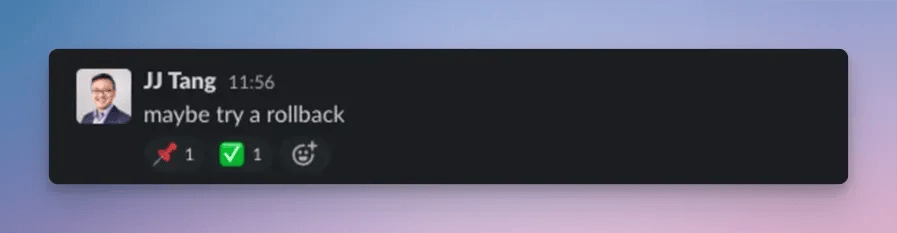
- Pin reactions (📌)
- Any custom emoji your team configures for timeline ingestion
How Slack-Captured Events Behave
- Events created from a command or message action open a modal so you can review details
- Events created from pin/emoji reactions are added automatically — no modal
- Reaction-based events use the original Slack message timestamp as the event’s
occurred_atvalue - All entries include a Slack permalink and optional user-attribution
- Deduplication prevents duplicate events from repeat reactions
Emoji triggers, follow-up creation, and task creation each use separate emoji lists and cannot overlap. Configure them in Integrations → Slack.
Troubleshooting
The slash command didn’t open the modal
The slash command didn’t open the modal
Make sure you ran the command inside the incident channel.
Running it anywhere else will result in a non-incident error.
Running it anywhere else will result in a non-incident error.
My emoji reaction didn’t create a timeline event
My emoji reaction didn’t create a timeline event
Verify that:
- Emoji ingestion is enabled
- The emoji is included in the Add to Timeline emoji list
- You are in a recognized incident channel
The event timestamp looks wrong
The event timestamp looks wrong
For emoji/pin reactions, occurred_at is taken from the Slack message timestamp, not the moment you reacted.
A message action option isn’t appearing
A message action option isn’t appearing
You may not have permission to update the incident timeline, especially for private incidents.
Can't pin messages to incident timelines 📌
Can't pin messages to incident timelines 📌
If you’re on Slack Enterprise Grid and pinning messages to the incident timeline isn’t working, this is a sign that your Slack integration was installed as a non-Grid (single-workspace) installation rather than at the organization level.
Solutions:
Solutions:
- Disconnect the Slack integration from Rootly
- Reconnect it, making sure to select Slack Enterprise Grid during installation and authorize at the organization level (not a single workspace)