

Overview
Documentation is the first casualty of a real incident. AI Summaries writes it for you, from what the incident already knows: metadata, alerts, timeline events, action items, and (when permitted) Slack messages and meeting transcripts.
Every output is grounded in the incident record. When there isn’t enough context to say something true, Rootly AI says so instead of guessing.
These are single-turn generators: one click or command, one result. For a conversation you can question, refine, and act from, talk to Rootly AI in Slack.
Incident Summaries
Run/rootly summary in the incident channel. When configured, the summary appends a structured attributes list: meeting links, severity, affected environments and services, and selected form field values.
Catch Up Mid-Incident
/rootly catchup (also catch up, catch-up, or summarize) returns an expanded summary as an ephemeral message.
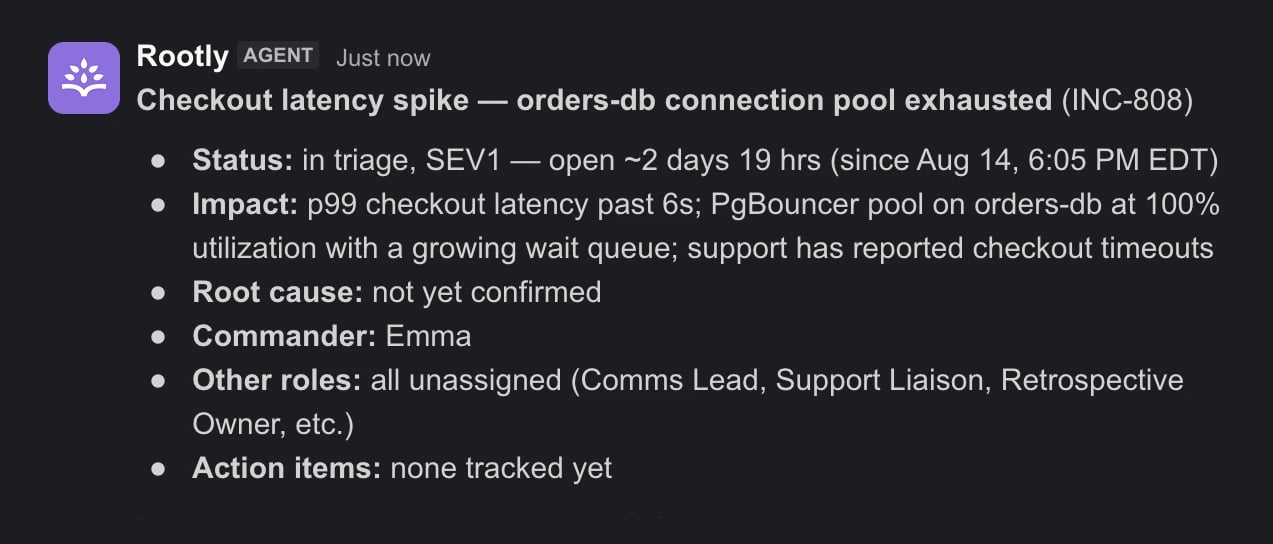
Generated Titles
Run/rootly update in the incident channel and click Generate with AI. Rootly AI reads the summary, alerts, and early timeline to produce the title. Regenerate as the picture sharpens.
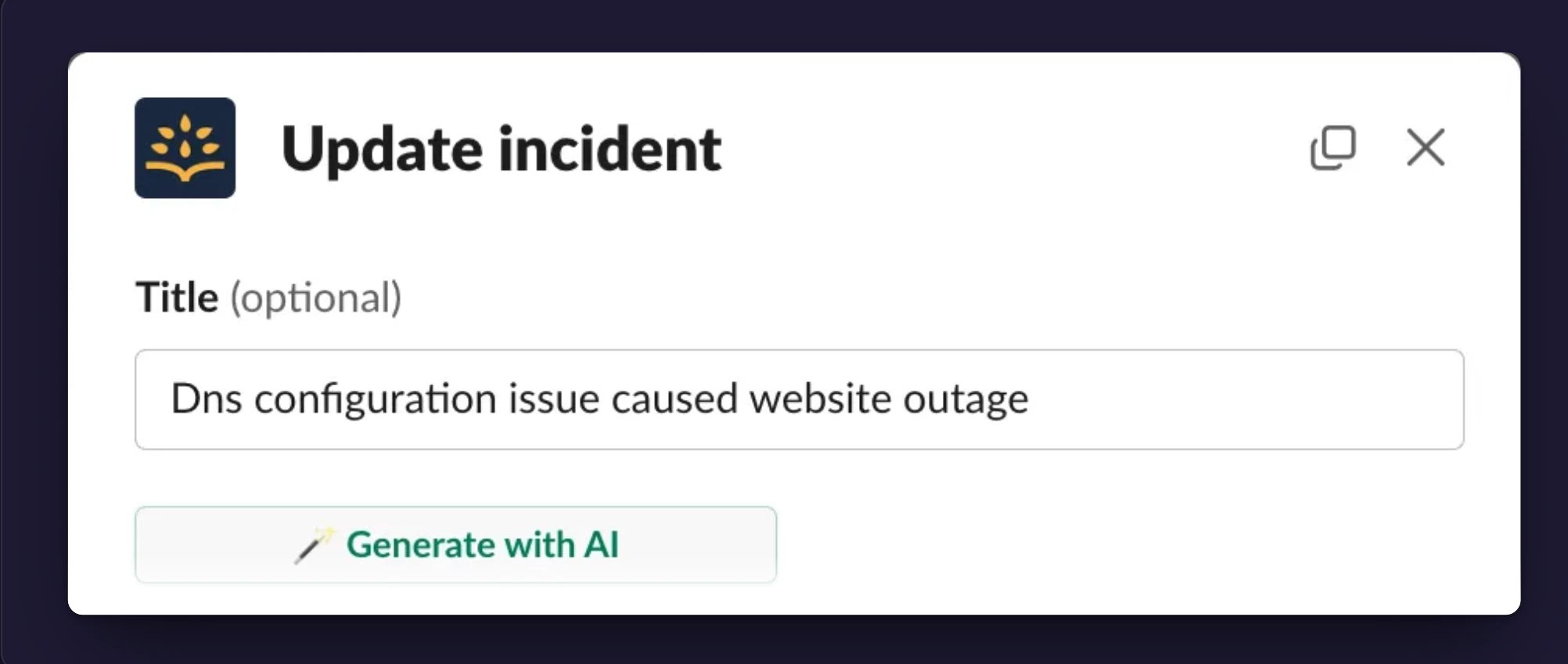
Status Summaries
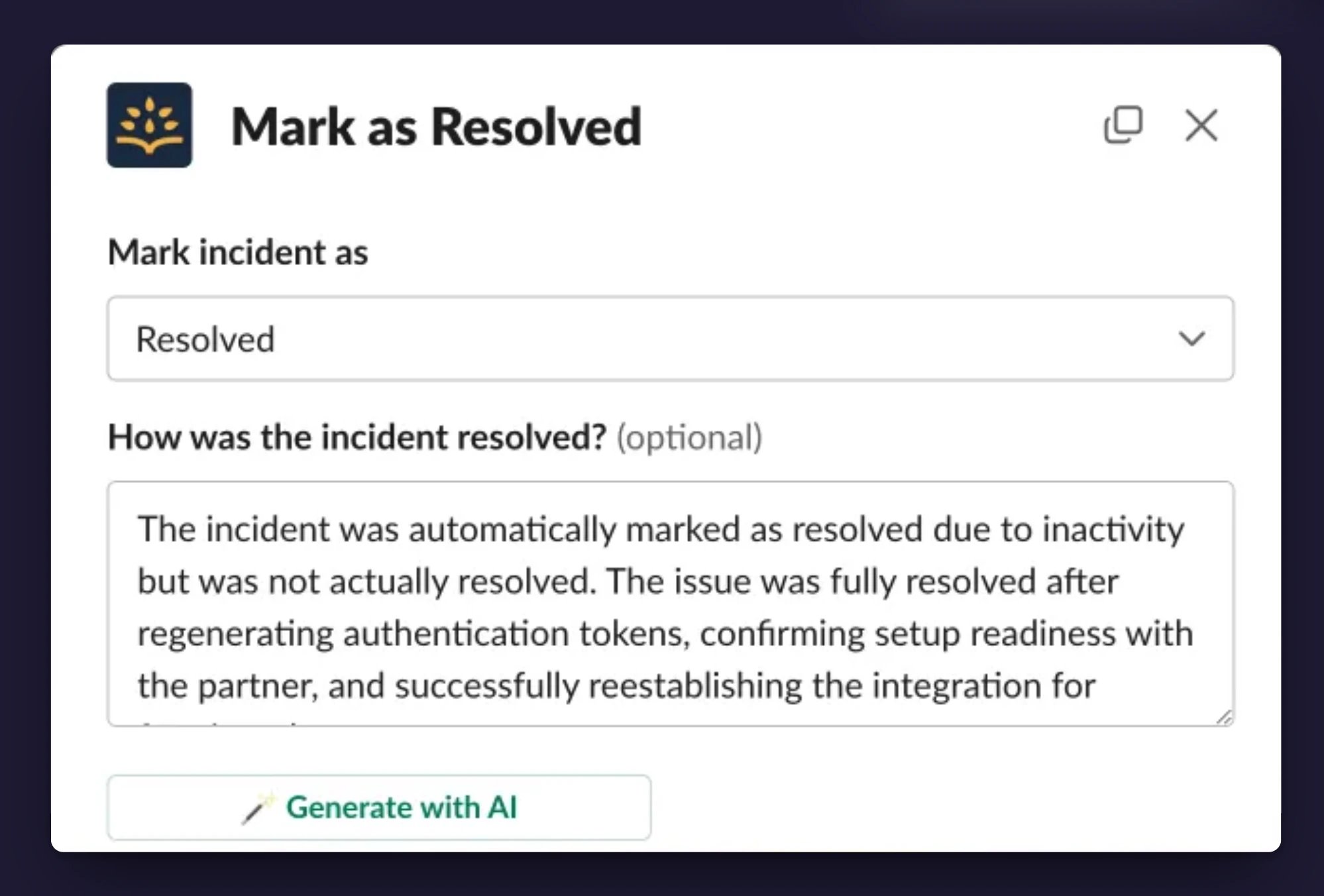
When an incident changes status, Rootly AI drafts the explanation, focused on what the transition needs:
In the web app, click Generate with AI next to the status message field when updating status. In Slack,
/rootly mitigate or /rootly resolve opens the same dialog. You review and edit the draft before submitting.
Setup
All four features are part of Rootly AI, behind the team-wide opt-in. Only Incident Response Owners and Admins with an Incident Response seat on the current team can change these AI settings.- Open AI & Agents and turn on Opt in to Rootly AI capabilities. Titles and status summaries are available immediately; they have no separate toggle.
- Under Features, toggle Incident summarization on. This enables both summaries and catchup.
In private incidents, these features read the incident’s own record. Slack channel messages are included only when your message visibility setting covers private incidents.
Frequently Asked Questions
Why did I get "not enough information to summarize"?
Why did I get "not enough information to summarize"?
The incident record is too thin. Add a description, alerts, timeline events, or action items, then generate again. In private incidents, confirm your message visibility settings allow Rootly AI access.
Why is the output missing something important?
Why is the output missing something important?
Generation only sees what the incident knows at that moment. Record the missing detail (a timeline event, a resolution note, an action item), then regenerate. If Slack messages or transcripts should be included, check your visibility settings.
Why didn't my catchup appear in the channel?
Why didn't my catchup appear in the channel?
It did, privately. Catchup summaries are ephemeral and visible only to the person who ran the command.
Why can't I run /rootly catchup?
Why can't I run /rootly catchup?
Confirm Incident summarization is toggled on under AI & Agents, and that you have permission to generate summaries on the incident or to update it.
Related Pages
Rootly AI in Slack
The conversational agent that answers questions and takes actions.
Related Incidents
Ranked matches from your own incident history.
AI Settings
Self-service controls and Rootly-managed AI SRE boundaries.