Responding to Incidents in Slack
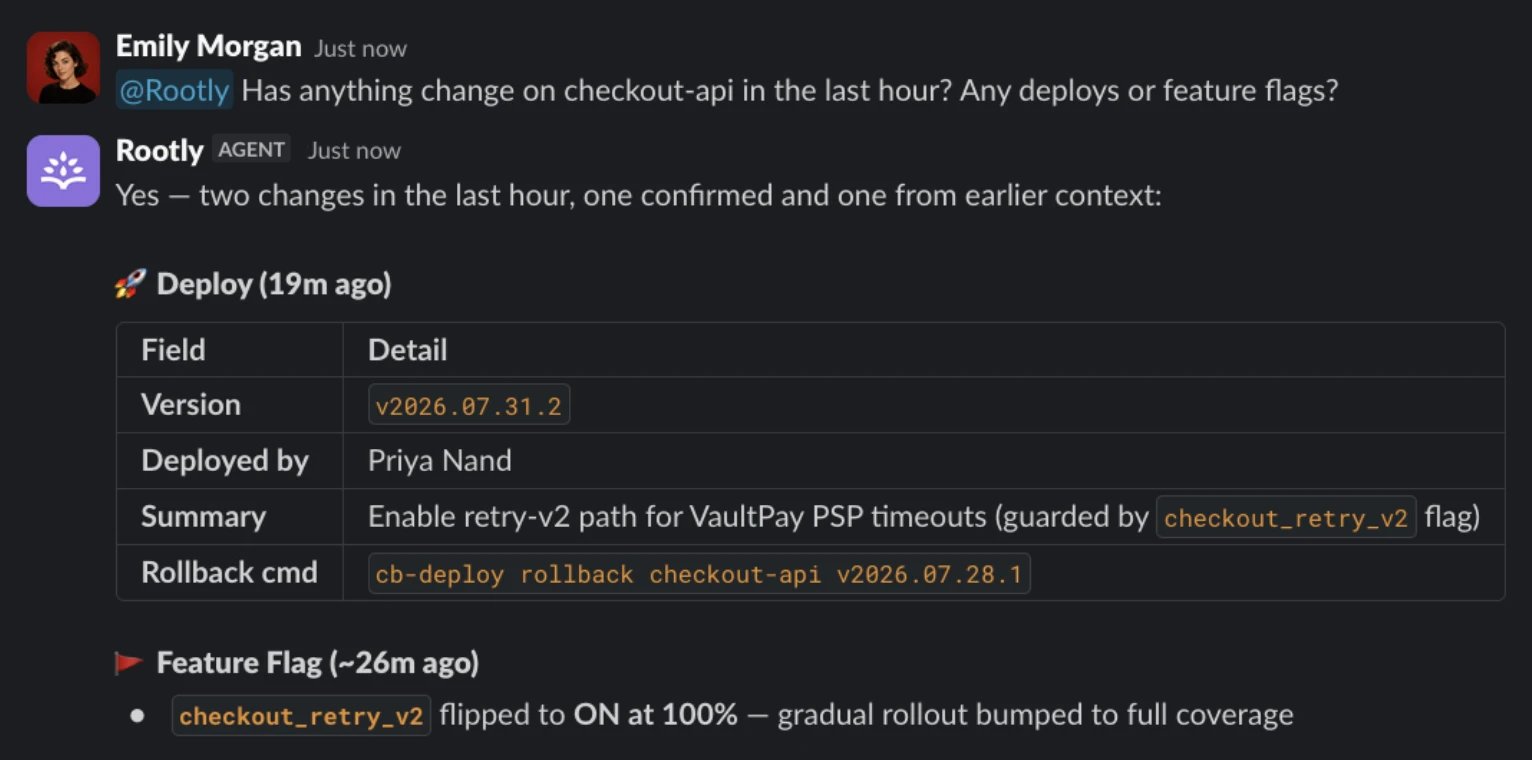
@Rootly in Slack brings the parts of Rootly you reach for during an incident directly into where your teams are already operating: Slack! @Rootly can be used in any incident channel, Slack AI assistant pane, or in a direct DM to the Rootly assistant. Ask @Rootly to:- “This is now a SEV1. Update the incident severity.”
- “Draft a comms to our high value customers, letting them know the impact of the incident on their product experience.”
- “Page the security team, and convert this to a private incident.”
How @Rootly in Slack works
The hardest part of running an incident isn’t just the work to mitigate and resolve the incident: it’s also keeping your teams and stakeholders up-to-date so they can quickly support you. However, responders join late, miss key learnings, and take time to catch up: comms leads need to draft customer updates while still triaging, commanders need to pull in the right stakeholders and leadership must be aware of major updates. To collaborate effectively, everyone needs to have all the context they need, while minimizing distractions on other teammates. @Rootly in Slack collapses context into a single conversational surface directly in the channel where the incident is being run. @Rootly reads from your Rootly data, channel messages, bridge call transcripts (if available), to take actions on your behalf. To start, type@Rootly in Slack, and then ask your question. The assistant leverages context in real-time to decide how to take action. It replies in-thread to keep you aware of any actions taken.
Learn more about how to use @Rootly in Slack
Key Capabilities at a Glance
| Capability | Description | Example question |
|---|---|---|
| Catch me up | Structured brief of an incident’s state, key events, current responders, and open action items | @Rootly what’s going on right now? |
| Who’s on call | Look up current and historical on-call across teams, services, schedules, and escalation policies | @Rootly who’s on call for the Security team? |
| Page responders | Page a team, user, escalation policy, service, or Slack user group via Rootly On-Call | @Rootly page the Search Experience team. |
| Update an incident | Change severity, status, title, services, custom fields, or roles — with the assistant confirming what it did | @Rootly add the Prod DB Team to the incident and bump up the severity to a SEV2. |
| Manage action items | Create, update, list, or delete action items from natural-language requests | @Rootly create an action item for all of the next steps we discussed on the bridge. |
| Find similar incidents | Embedding-based similarity search across past incidents, scoped to your tenant | @Rootly I remember an incident similar happened last week that impacted this service. Summarize it for me. |
| Draft customer updates | Generate Slack-ready or status-page-ready update copy from the current incident state | @Rootly write a draft to send to the leadership team and our partners. |
How Permissions Work
The assistant uses each user’s existing Rootly permissions. If a user can’t see a private incident in the web app, the assistant won’t surface it for them in Slack. If a role doesn’t allow paging, the assistant declines to page when that user asks.Permissions are managed in Configuration → Roles & Permissions in the Rootly web app. The assistant respects whatever role assignments are already in place — there’s no separate AI permission system.
Where to Go Next
These pages cover specific aspects of using and configuring Rootly AI in Slack:- Getting Started: Enable Rootly AI for your workspace and walk through your first interaction
- Using @Rootly in Slack: Hands-on guide to the three surfaces, suggested prompts, and how the assistant communicates
- What To Use @Rootly For: What @Rootly in Slack can do to help responders during an ongoing incident, with concrete examples of how to ask
- Data Privacy for @Rootly in Slack: Security, privacy, RBAC, audit, and reliability answers for security review
- Troubleshooting: Common symptoms and how to resolve them
FAQs
What does it take to turn on the assistant?
A Rootly admin enables it in Configuration → Rootly AI by toggling Enable @Rootly in Slack on. A Slack workspace admin then needs to reconnect the Slack integration for the update to take effect.
Where can I use the assistant?
The assistant works best inside an incident channel: where the assistant has full access to incident data. You can also use the assistant via Slack’s AI assistant pane pointed at an incident channel in the main view, or by messaging it directly in Slack. For the latter two surfaces, the assistant can only read information, not take actions.
Does the assistant respect our roles and permissions?
Yes. The assistant uses the requesting user’s existing Rootly permissions for every action. It cannot do anything in Slack that the user couldn’t already do in the Rootly web app.
What about private incidents and private channels?
The Rootly assistant has to be invited to a channel before it sees anything there and can take actions. User permission still applies: a user who can’t see a private incident in the web app can’t ask the assistant about it from any surface.
Can the assistant page using vendors outside of Rootly On-Call?
Paging happens through Rootly On-Call only. If you have a third-party paging integration configured elsewhere in Rootly, the assistant will not fall back to it.
What models does the assistant use?
Claude Sonnet 4.6 from Anthropic by default, with automatic failover to GPT-5 from OpenAI. Both providers are accessed through a managed gateway.