

Prerequisites
- The Slack integration is installed and connected to your Rootly workspace.
- You are an Incident Response Owner or Admin with an Incident Response seat.
Turn On Rootly AI in Slack
Setup is one toggle in Rootly plus a Slack reconnect. Reconnecting reinstalls the app with the scopes Rootly AI needs; your existing channels and workflows are unaffected.1
Turn on Rootly Agent in Slack
In Rootly, open AI & Agents. Confirm Opt in to Rootly AI capabilities is on under Global, then toggle Rootly Agent in Slack on under Features.
2
Refresh the Slack Connection
Go to Settings → Integrations → Slack and click Refresh Connection in the banner at the top of the page. A Slack workspace admin clicks Allow to re-grant the scopes Rootly AI needs.There is no need to disconnect first. Refreshing reinstalls the app with its current scopes and leaves your workspace selection, channels, Smart Defaults, and workflows intact. See Refresh and Reconnect for the full walkthrough.
Your First Interaction
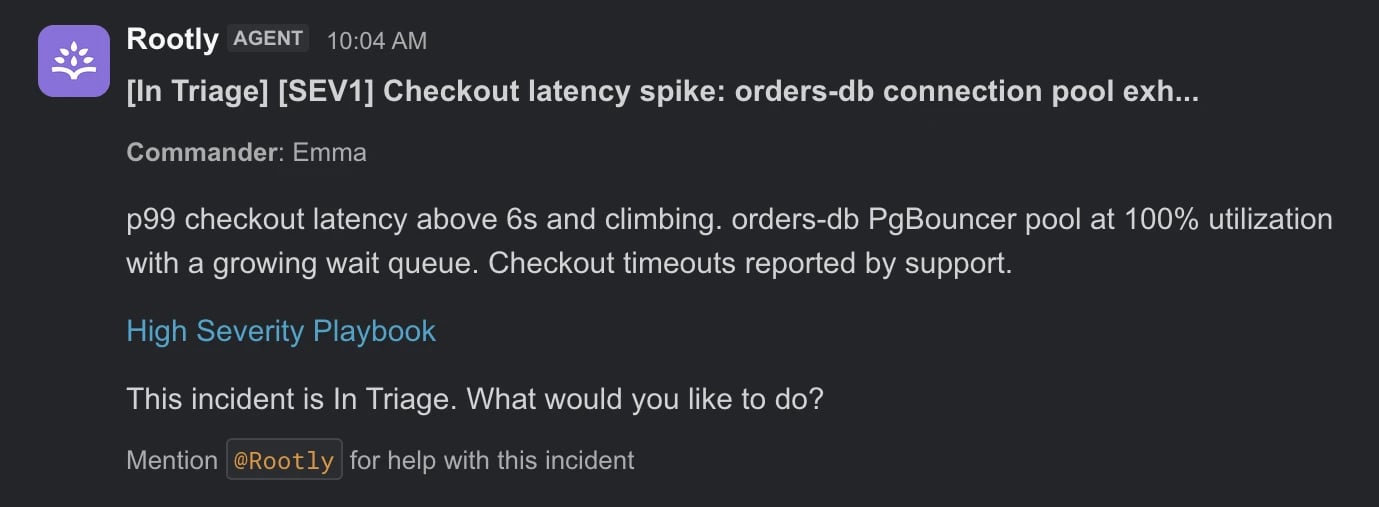
Rootly AI is automatically present in incident channels created by Rootly. In any channel it’s a member of, type@Rootly and ask a question.
Try These First
- “Catch me up”
- “Who’s on call?”
- “Escalate to SEV1”
- “What are the open action items?”