

Overview
While most alerts in Rootly arrive programmatically from monitoring tools, responders often need to page someone on the fly — escalating to another team, looping in a subject matter expert, or starting a page for an issue a monitor hasn’t caught. Manual paging lets users trigger the same escalation policies and paging behavior as a programmatic alert, from Rootly Web, Slack, Microsoft Teams, or the mobile app. Manual alerts can target any of five destination types:direct page
Page a specific person directly.
escalation policy
Kick off the team’s escalation policy.
escalation policy
Kick off the service’s escalation policy.
escalation policy
Kick off the functionality’s escalation policy.
direct page
Page a policy directly.
Customizing Paging Targets
Rootly lets users page across all five target types by default, but seeing every option in an urgent moment can lead to decision paralysis. If your responders only ever page teams (or only ever page services), narrow the picker to the targets they actually use. To configure:1
Open the Alerts Page
Navigate to the Alerts page in Rootly Web.
2
Open Settings
Click Settings in the top-right corner.
3
Open the Manual Paging Options Tab
Open the Manual Paging Options tab.
4
Toggle Target Types
Toggle on or off the target types you want available to your users.
At least one paging option must remain enabled. The targets you leave on are the only targets your users will see when escalating from Rootly Web, Slack, or Microsoft Teams.
Paging in Slack
Rootly exposes two Slack paging commands — pick the one that matches what you’re doing:/rootly page— page a Rootly On-Call target (schedule, team, service, functionality, escalation policy, or user). Works in any channel shared with the Rootly bot./rootly escalate— escalate an incident to an external paging provider (PagerDuty, Opsgenie, VictorOps). Only available inside an incident channel.
@-mention users after the command to prefill target users — for example, /rootly page @alice @bob.
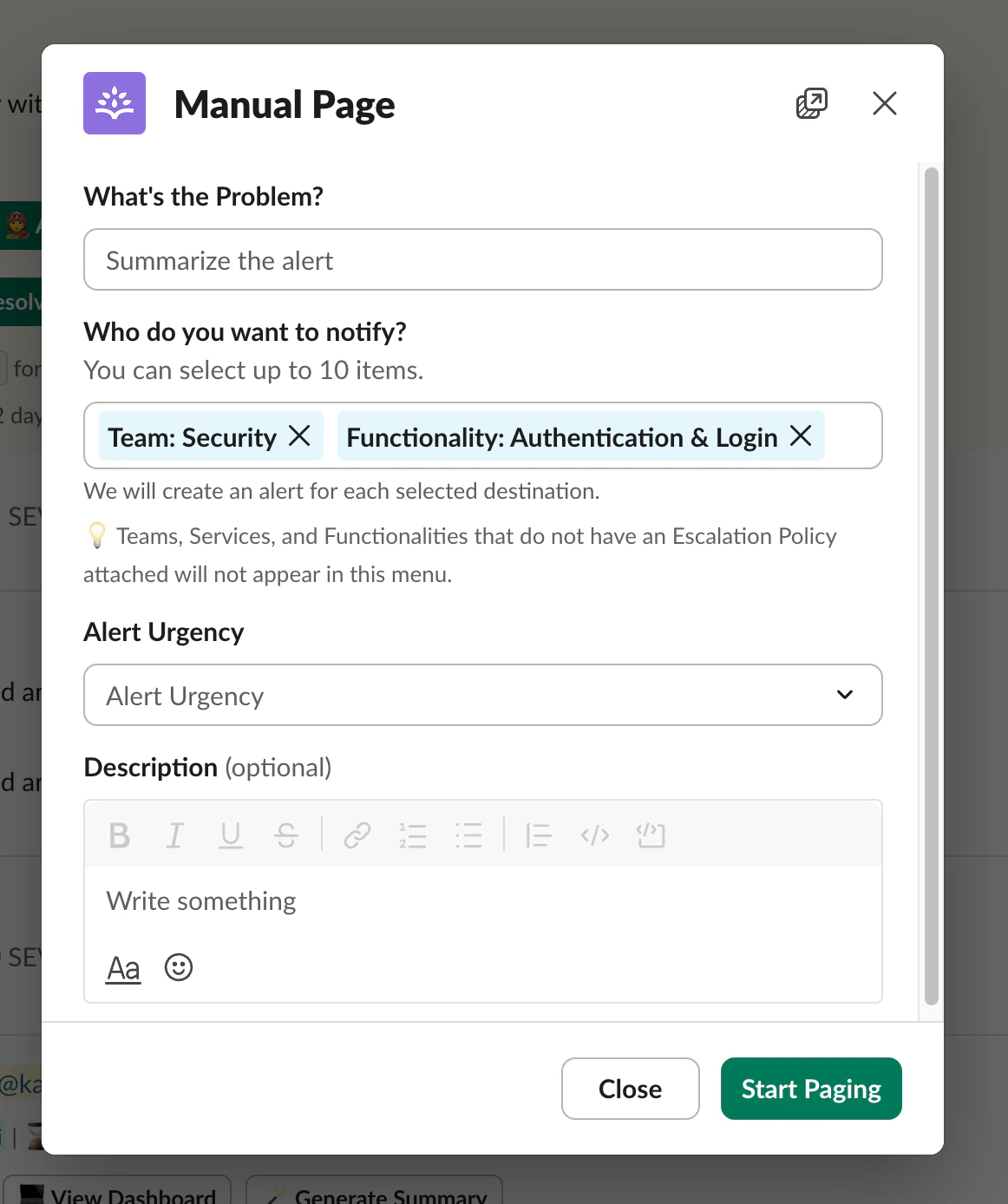
If your team has disabled the Rootly on-call slash commands (via Team Settings → Custom Slack paging workflow),
/rootly page won’t be available. Ask an admin to re-enable the commands if you need them.Paging in Microsoft Teams
With the Microsoft Teams integration connected, responders can page any Rootly On-Call target without leaving Teams.- In any Teams channel where the Rootly app is installed, use the Rootly app’s Page command
- Select your Rootly organization and search for a target: a team, service, functionality, escalation policy, or user. Schedules can’t be paged from Teams.
- Add a title and description, then submit the form
The Teams Page form doesn’t prefill the default alert message yet. Type the title and description directly in the form.
Paging in Web
You can start a manual page from Rootly Web in three places:- Left-hand navigation — click Start Paging at any time.
- Alerts page — click Start Paging in the top-right corner.
- Incident page — click Escalate to page someone into the current incident.
Paging in Mobile
The Rootly mobile app supports manual paging with the same target types available in Web. From the app, tap the paging action, pick the target type, fill out the form, and send the page — the flow mirrors what you see in Web so you don’t have to learn a second mental model when you’re paging from your phone. Mobile paging is especially useful during weekend or off-hours coverage when you may not have Rootly Web open, and when you need to escalate quickly without opening a laptop.Default Alert Message
If your team frequently pages with similar context, configure a default title and description template so users don’t have to type the same boilerplate every time. Liquid templating lets you populate fields dynamically. To configure:1
Open the Alerts Page
Open the Alerts page in Rootly Web.
2
Open Settings
Click Settings in the top-right corner.
3
Enable Default Alert Message
Toggle on Default alert message.
4
Author the Template
Author the title and description, using Liquid expressions where dynamic values are needed. Users can still edit the populated text before sending the page.
Best Practices
- Give the person you’re paging as much context as possible. A clear title and description shortens time-to-acknowledgement and helps responders prioritize. Use a default alert message template to enforce a minimum bar.
- Narrow the paging picker to what your responders actually use. If teams never page individual users directly, turn that target type off — every option you remove is one less decision in a high-stress moment.
- Invoke the paging command from inside an incident channel when you’re extending an existing incident. In an incident channel, the dialog attaches the resulting page to the current incident automatically. Outside a channel, the page is unattached — use this for ad-hoc paging that isn’t tied to an existing incident.
- Reach for manual paging when programmatic monitoring missed something. If a customer-reported issue isn’t covered by an existing monitor, manual paging is the fast path to get someone on it.
Troubleshooting
I can't see the target type I want to page
I can't see the target type I want to page
The Manual Paging Options tab on the Alerts settings page controls which target types are visible to your users. If users, teams, services, functionalities, or escalation policies are missing from the form, ask an admin to re-enable that target type. At least one target type is always enabled.
The Slack command doesn't return a form
The Slack command doesn't return a form
Confirm the Rootly bot is installed in the channel where you’re running the command. Also check whether an admin has disabled the on-call slash commands under Team Settings → Custom Slack paging workflow (the setting disables
/rootly page, /rootly escalate, /rootly oncall, /rootly alerts, and /rootly override as a set).The Page command doesn't appear in Microsoft Teams
The Page command doesn't appear in Microsoft Teams
Confirm the Rootly app is installed in the team, and in the channel if it’s a private channel.
My page went out but no one was notified
My page went out but no one was notified
Check the escalation policy attached to the target you paged. If the policy has no on-call user for the current time window, no one will receive a notification. Open the target’s escalation policy and verify that the schedules and steps point at users who are currently on-call.
The default alert message isn't populating
The default alert message isn't populating
Make sure Default alert message is toggled on under Alerts → Settings. If your template uses Liquid expressions that reference fields unavailable at paging time, those variables resolve to blank. Test the template by manually paging a test target and inspecting the populated form.
Frequently Asked Questions
Does manual paging respect on-call schedules?
Does manual paging respect on-call schedules?
Yes. When you page a team, service, functionality, or escalation policy, Rootly runs the attached escalation policy — which routes through the on-call schedule for that target. Paging a specific user bypasses the schedule and contacts that user directly.
Can I page from the mobile app?
Can I page from the mobile app?
Yes. See the Paging in Mobile section above — the mobile app supports the same target types and form as Web. Install and configure the Rootly mobile app if you haven’t already.
Does manual paging create an alert record?
Does manual paging create an alert record?
Yes. Every manual page creates an alert in Rootly with the title, description, and target you specified, so the page is tracked alongside programmatic alerts.
How is manual paging different from /rootly new?
How is manual paging different from /rootly new?
/rootly new opens a new incident. Manual paging triggers a page (and the corresponding escalation policy) without necessarily declaring an incident, though you can attach the resulting alert to an existing incident or create one from it.Related Pages
Alerts Overview
The umbrella page covering programmatic alert ingestion, sources, and noise reduction.
Escalation Policies
How Rootly decides who to page and when, based on schedules and steps.
Alert Urgency
Control which alerts page on-call immediately and which can wait.