Why this mattersWhen an incident hits, responders need to quickly capture what’s impacted — which service, which region, which team. Without Catalog, this is manual and error-prone. With Catalog, that data is structured, consistent, and can even be filled in automatically.
Key Concepts
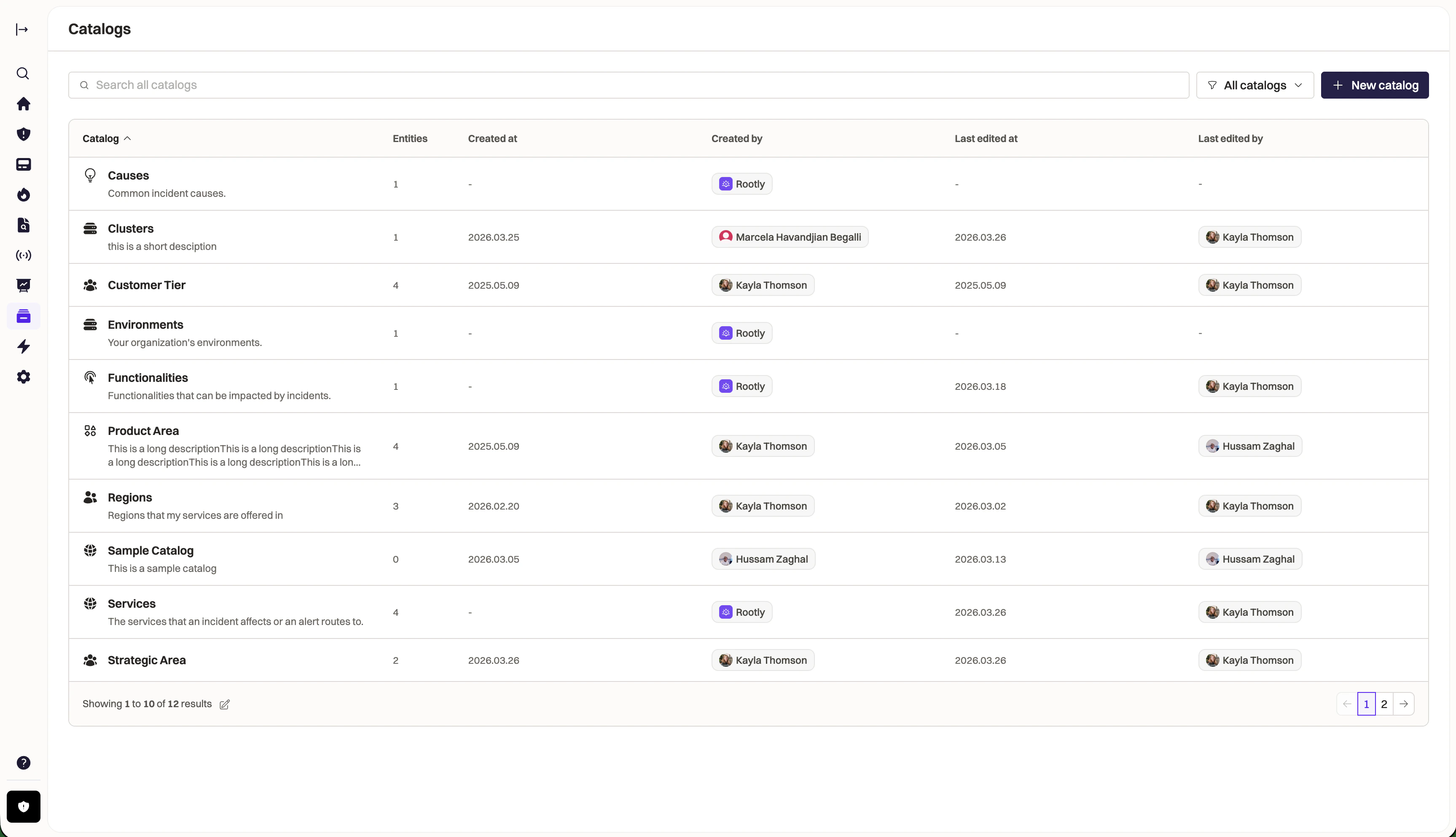
Here are the main building blocks you’ll work with:- Catalog: A collection of related entities. For example, a “Services” Catalog contains all the services your organization runs.
- Entity: A single item within a Catalog. For example, “Payments API” is an entity in the Services Catalog.
- Properties: Attributes that describe each entity. For example, each Service might have an “Owning Team” property.
Getting Started
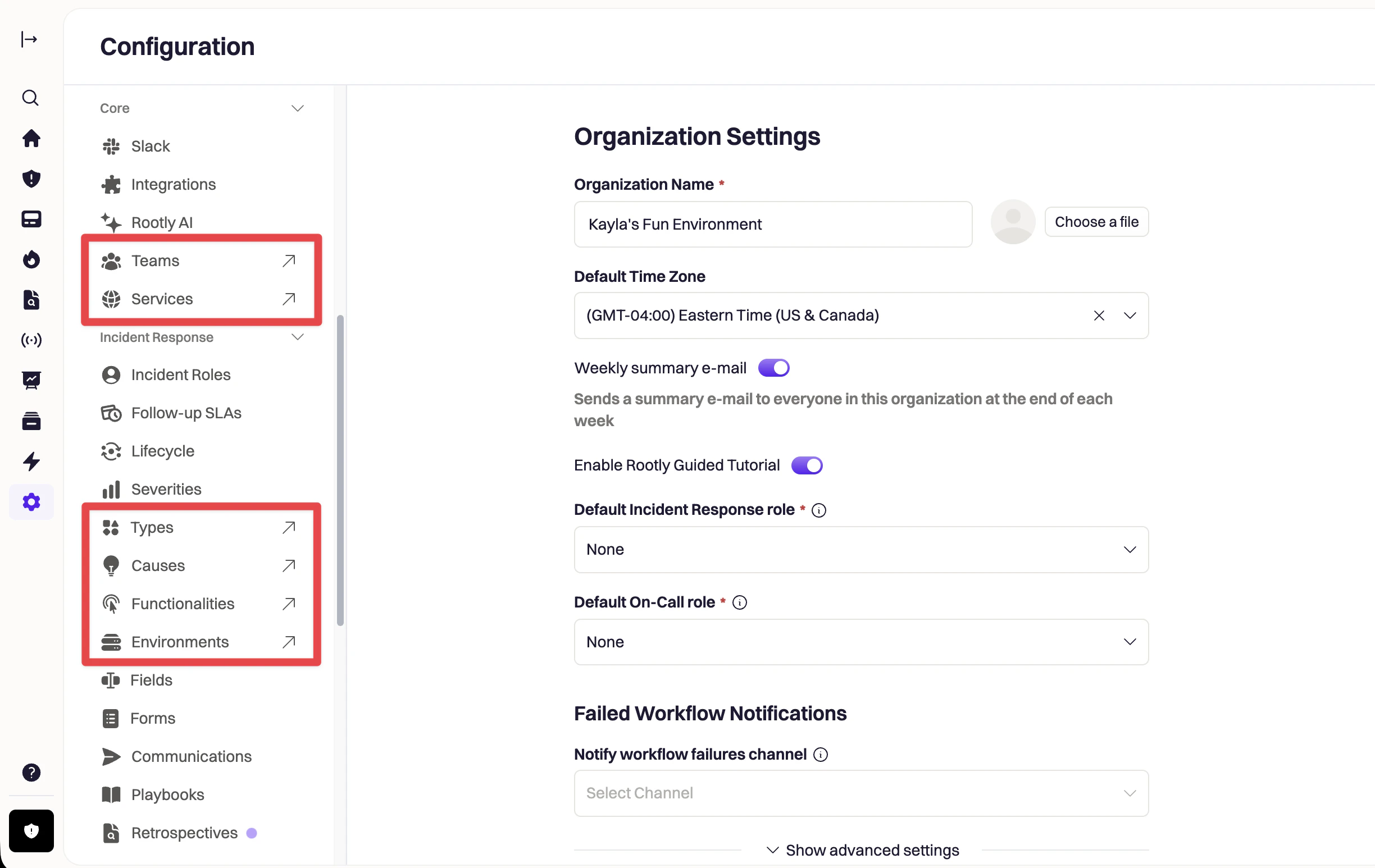
Begin setting up your Catalogs by navigating to the Catalog section from the left-hand navigation. When you open the Catalog for the first time, Rootly comes pre-loaded with a set of common Catalogs to help you hit the ground running: Services, Teams, Functionalities, Causes, Types, and Environments. These should look familiar to you: all of your existing Services, Teams, Functionalities etc. are now accessible from the Catalog page. You can also access these Catalogs from the Rootly > Settings section. Now, you can continue to use these built-in Catalogs as is, or customize them to match your setup. Nothing is locked in, everything is editable.