

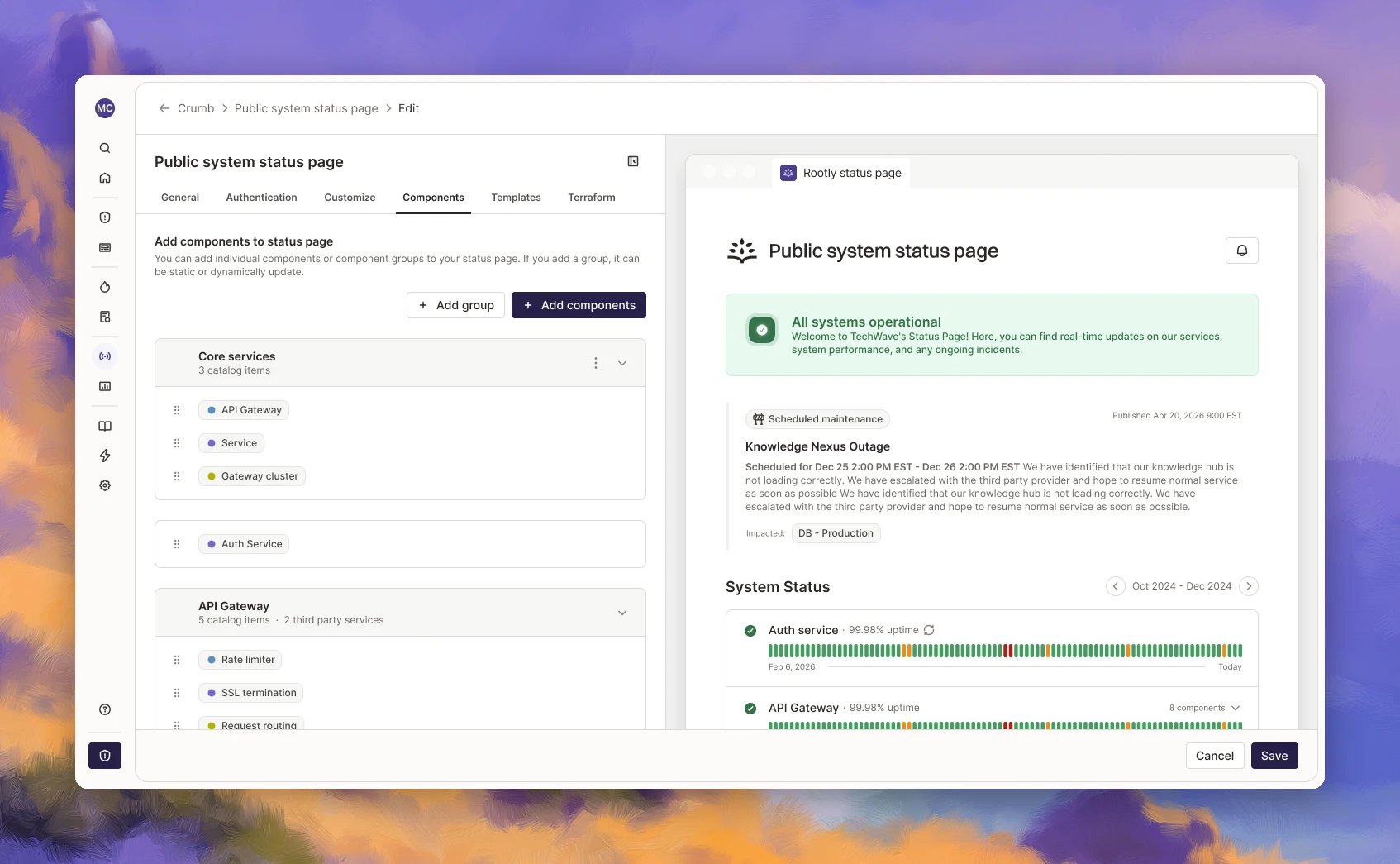
Add Components
- Open your status page and click Edit.
- Go to the Components tab.
- Click Add components, then choose a source:
- Add from catalog: Pick services from your Rootly catalog.
- Add custom item: Create a component by hand for anything that isn’t a catalog service, like “Login” or “Checkout”.
- Click Save.
How Component Status Works
Component status is driven by the updates you post, not by the incident alone.- When you post an update, you choose which components are affected and set an impact level for each: Operational, Degraded performance, Partial outage, or Major outage.
- Components linked to the incident are preselected as suggestions. You can remove them or add others.
- Components you add while posting sync back to the incident.
- Adding a service to an incident doesn’t mark it affected on the page. Only the update does that.
- Components you don’t select keep their current status.
Grouping and Ordering
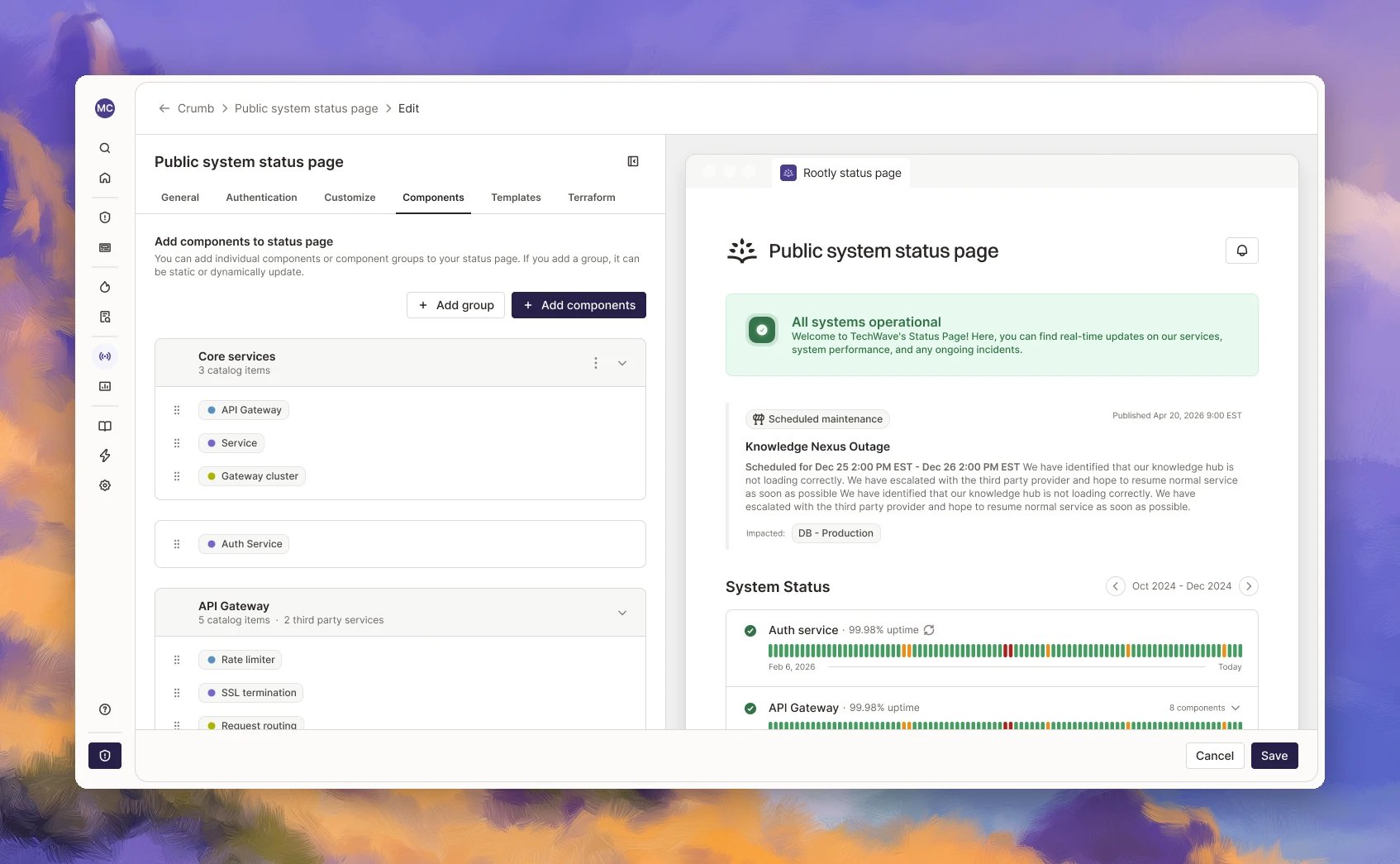
Group related components so customers can scan the page quickly and see exactly what’s affected. If one region goes down, customers see one degraded region, not a page full of red.Create a Group
- Open your status page, click Edit, and go to the Components tab.
- Click Add group.
- Name the group, like “Core services” or “EU region”.
- Add catalog services or custom items to the group.
- Click Save.
Organize the Components
- Drag groups to reorder them.
- Drag components to reorder them within a group, or move them between groups.
- Groups can nest up to two levels, for example a product with regions inside it.
How Status Rolls Up
- A group shows the status of its most affected component.
- Other groups stay operational, so one regional issue doesn’t turn the whole page red.
- On the public page, visitors expand or collapse groups to see the components inside.
Related Pages
Creating a Status Page
Set up a status page after picking a type.
Custom Domain Names
Point your own domain at a status page with CNAME + CAA records.
Publishing Incidents
Push incident updates to a status page from Web or Slack.