

Overview
Rootly’s Zoom integration automatically creates a Zoom meeting when an incident starts and posts the link directly in the incident’s Slack channel. Responders can join instantly without manual setup — no time wasted creating or sharing meeting links during a critical incident.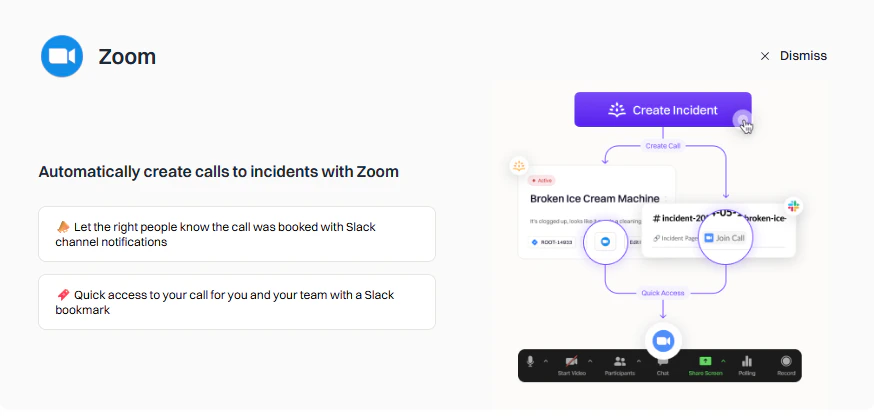
Features
Instant Meetings
Zoom calls created automatically when incidents start.
Slack Integration
Meeting links posted directly in the incident Slack channel.
Recording Options
Configure local or cloud recording and AI meeting capture.
Customizable Behavior
Configure triggers, conditions, hosts, and recording options per workflow.
Meeting Scribe on Zoom
The Zoom integration powers Rootly AI Meeting Scribe on your Zoom incident bridges — automatic recording, live transcription, PII-redacted transcripts, and Rootly AI meeting summaries fed straight into the incident’s post-incident artifacts. To enable:- Go to Integrations → Zoom in Rootly.
- Toggle on Meeting transcript and summary.
- Enable Auto-join bot — highly recommended. Without this, someone needs to manually admit the scribe on every call, and it drops off after 10 minutes if no one does.
Before You Begin
Installation
To connect Zoom to Rootly, you will authorize Rootly via OAuth. This grants Rootly the permissions it needs to create and manage meetings on your behalf.1
Open Rootly Integrations
Navigate to Configuration → Integrations in Rootly.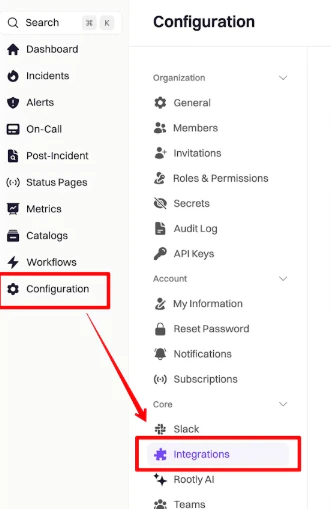
2
Find and set up Zoom
Search for Zoom and click Setup.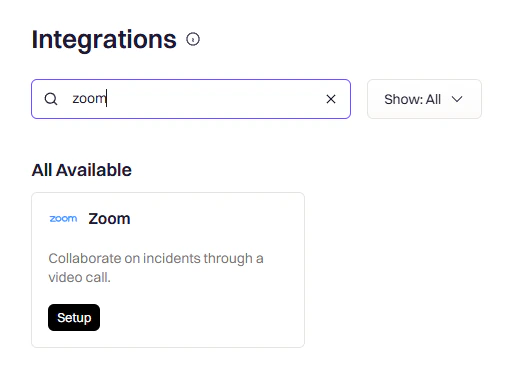
3
Sign in to Zoom
Select your sign-in method — Google, SSO, or email and password.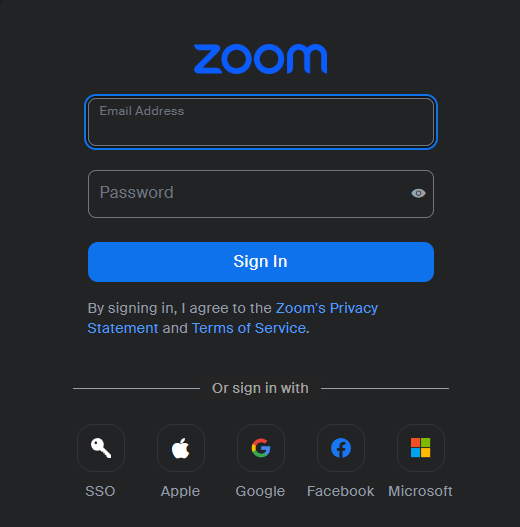
4
Select your account
Choose the Zoom account you want to connect to Rootly.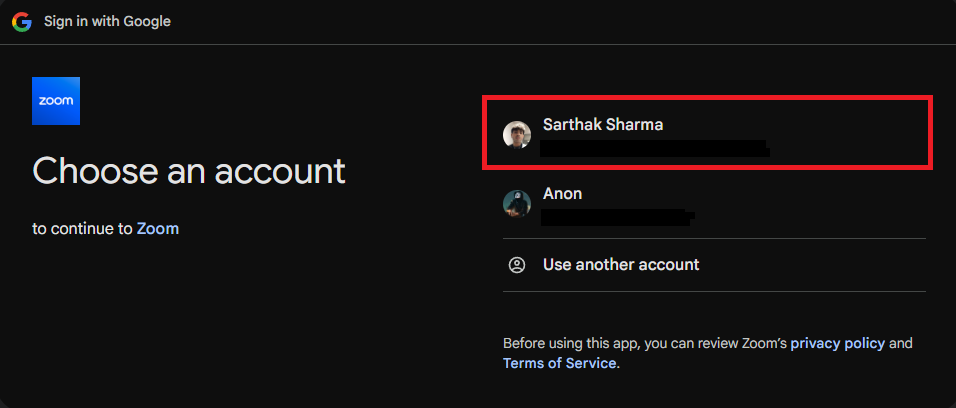
5
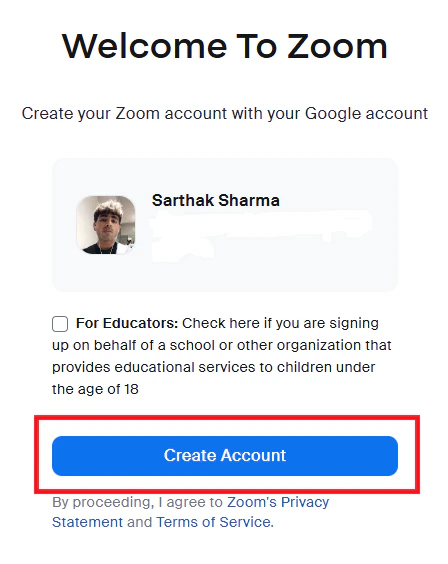
Create or confirm your Zoom account
If no Zoom account exists for this email, you will be prompted to create one.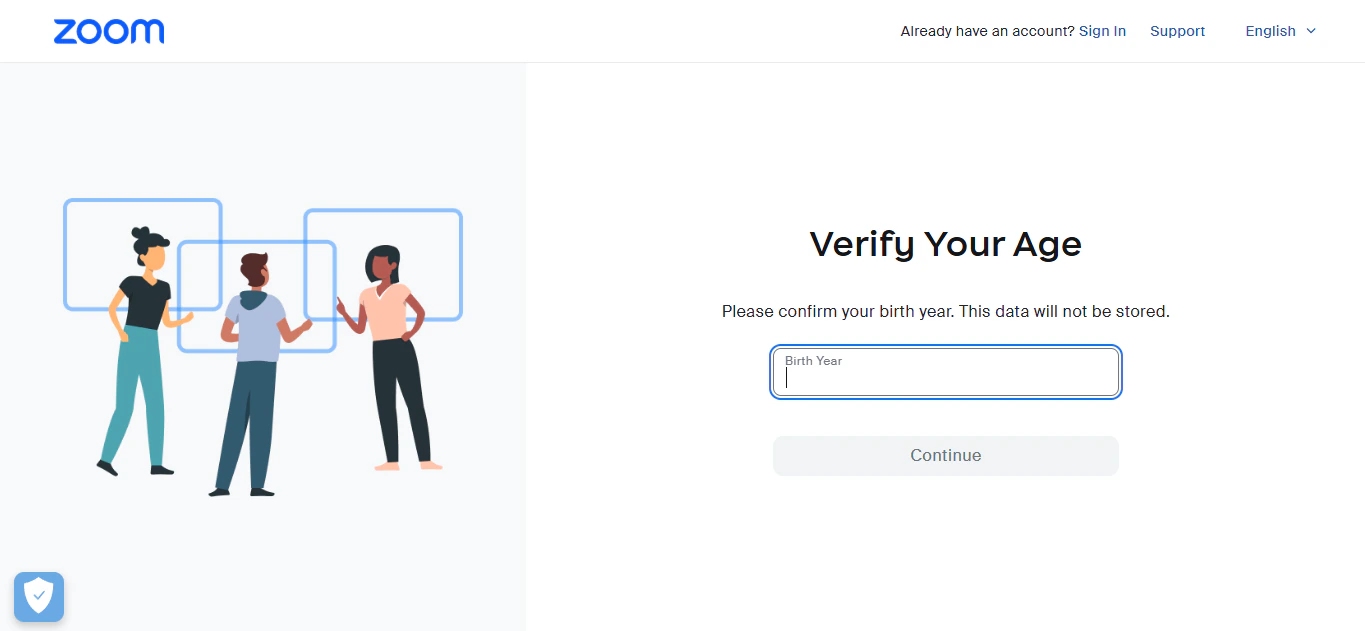
6
Authorize Rootly
Review and accept the OAuth permissions to grant Rootly access to your Zoom account.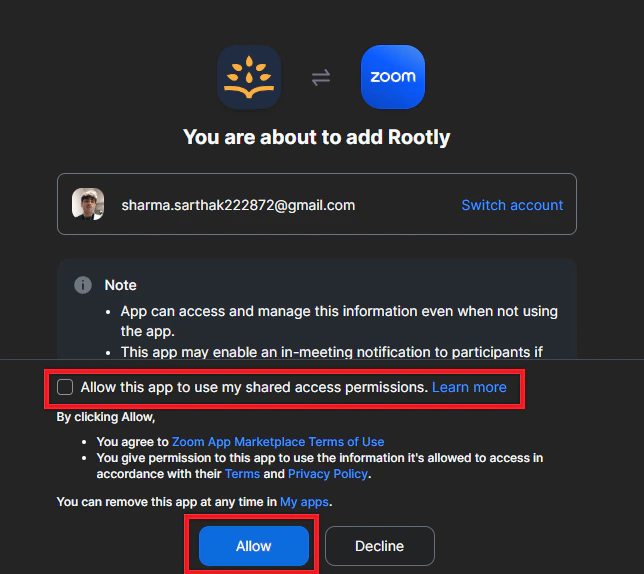
7
Confirm connection
You will be redirected back to Rootly with a success message. The integration status will show Connected with your Zoom account email.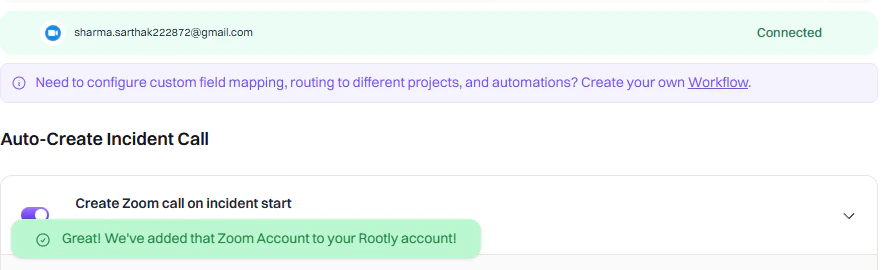
Your Zoom account is now connected to Rootly. You can configure meeting name defaults and recording preferences from the integration settings page.
OAuth Scopes
Rootly requests the following Zoom permissions during authorization:Creating the Incident Meeting
Rootly workflows automatically create Zoom meeting rooms when incidents occur. You can use the built-in Auto-Create Incident Call setting for quick setup, or build a custom workflow when you need conditional logic, specific triggers, or advanced routing.Rootly enforces one Zoom meeting per incident. Running the same automation multiple times updates the existing link rather than creating a new one. For additional meetings, create a sub-incident.
Option 1: Auto-Create Incident Call
The Auto-Create Incident Call setting lets you automatically generate a Zoom meeting when an incident begins — no workflow required.
Use Auto-Create for quick setup. Build a custom workflow when you need conditions, specific triggers, or advanced routing.
Option 2: Custom Workflow
For more control — such as only creating meetings for SEV-1 incidents or routing to specific hosts — build a custom Incident workflow.1
Open workflow creation
Navigate to Workflows in Rootly and click Create Workflow.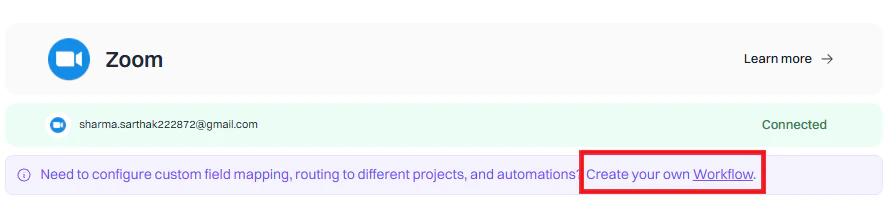
2
Choose workflow type
Select Incident as the workflow type.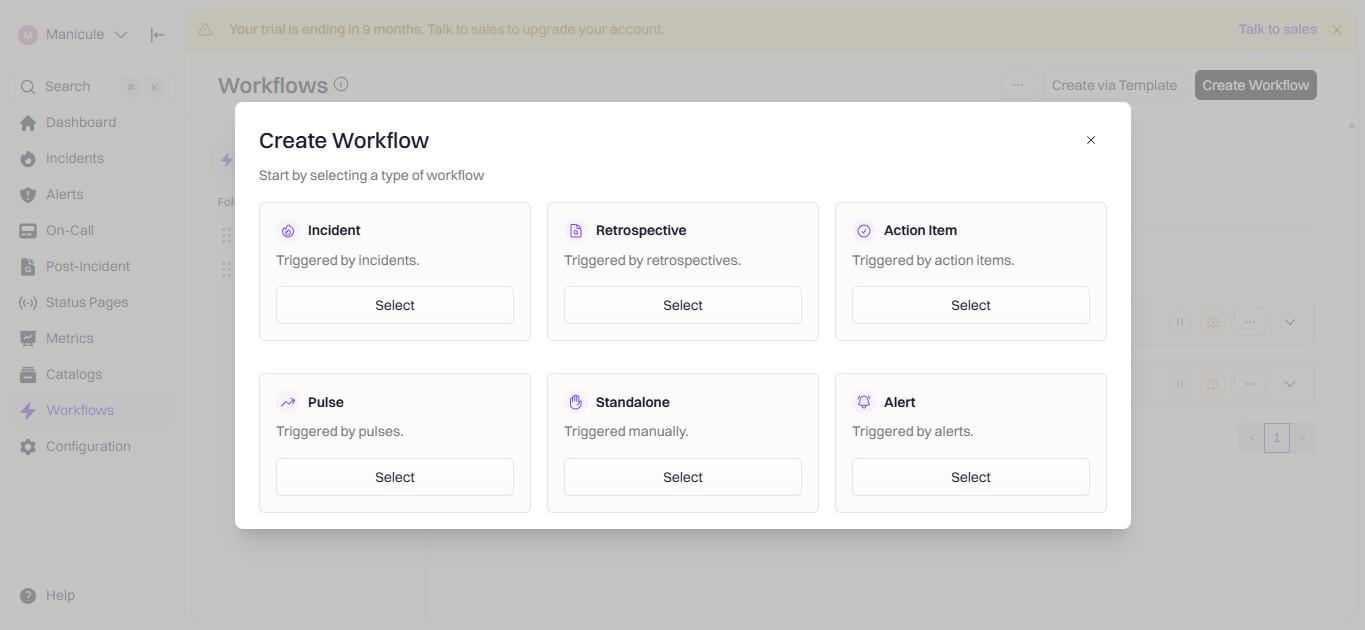
3
Configure triggers
Choose when the workflow fires. Common triggers for Zoom meeting creation: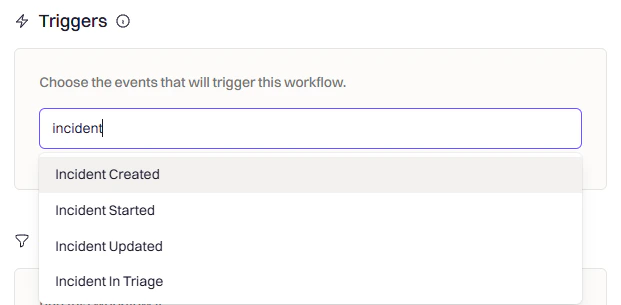
4
Add conditions (optional)
Use conditions to control when the workflow should run after triggering.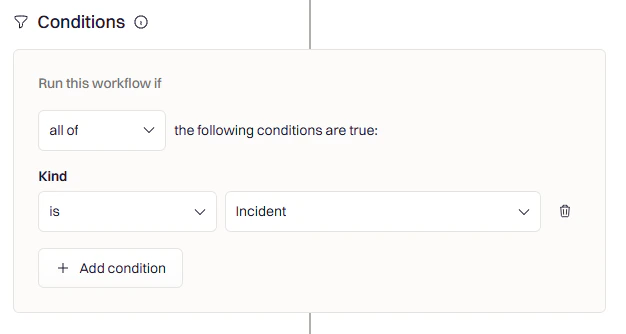
- Severity filter — Only create calls for SEV-1 or SEV-2 incidents
- Team filter — Only for incidents affecting specific teams
- Incident type — Only when Kind is set to Incident
5
Add the Create Zoom Room action
Click Add Action, search for Zoom, and select Create Room.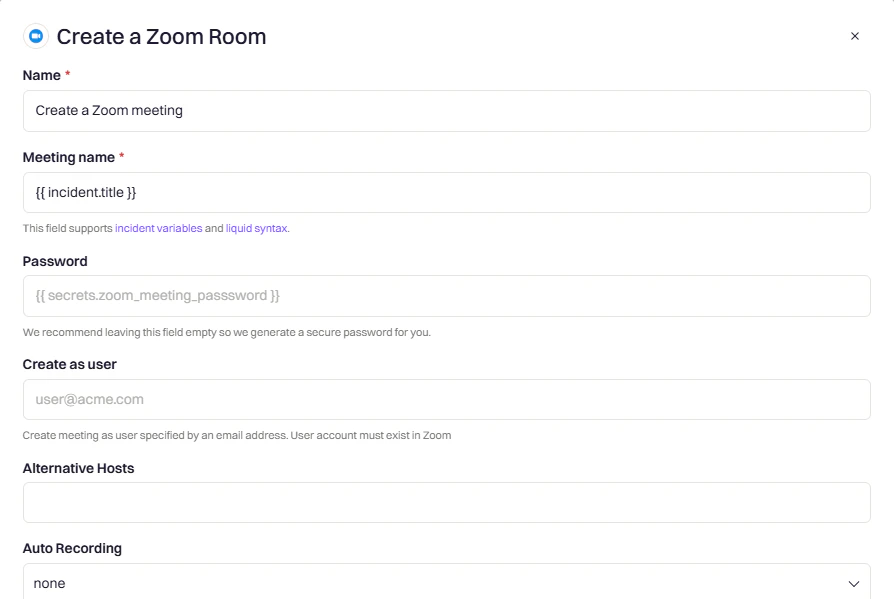
For Create as User, use the incident creator’s email via Liquid syntax, or set a dedicated service account like
zoom@yourcompany.com to ensure meetings are always owned by a known account.6
Save the workflow
Name the workflow clearly (for example,
Create Zoom Call for SEV-1 Incidents) and click Create Workflow.Variable Reference
Use the Liquid Variable Explorer to test variables with real incident data.Zoom Variables
Incident Variables
Troubleshooting Meeting Scribe
Nearly every “the scribe didn’t join our Zoom call” report traces back to one of a small set of causes. Work through them in this order. For the full Meeting Scribe reference (limitations, retention, subprocessors), see Rootly AI Meeting Scribe.The Scribe Never Joins the Meeting
Auto-join isn’t enabled
The single most common cause. Without Auto-join bot on, someone has to manually admit the scribe — it appears as Rootly Scribe in Zoom’s participant list — on every call. Fix: In Rootly, go to Integrations → Zoom and toggle Auto-join bot on.The Zoom account doesn’t have permission to bypass the waiting room
Rootly’s Auto-join relies on Zoom’s “bypass waiting room” feature. Some Zoom account tiers or admin configurations don’t allow it. Fix: Ask your Zoom admin to confirm your account supports bypass tokens (typically Business, Education, and Enterprise plans). If it doesn’t, either upgrade the plan or leave Auto-join off and admit the scribe manually — the fallback still works, it just needs a human.The meeting URL isn’t attached to the incident
The scribe joins the meeting URL attached to the incident. If a personal-meeting-room link is being used and it hasn’t been attached, the scribe doesn’t know about it. Fix: Either use the Rootly-generated meeting link pinned in the incident’s Slack channel (works automatically), or attach the URL you’re using via Updating incident integration links.The scribe is in the waiting room and no one admitted it in time
The scribe waits 10 minutes in a Zoom waiting room. If no one admits it, it disconnects. Fix: Reinvite the scribe from the Scribe tab on the incident and admit it promptly. Prevention: enable Auto-join.The Scribe Joined but Left Early
Nobody-joined timeout (5 minutes)
If the scribe enters the meeting but no other participants show up within 5 minutes, it leaves. Fix: Start the meeting on your side first, then reinvite the scribe. Alternatively, invite the scribe after your team is already on the call.The host removed the scribe
Zoom hosts can eject any participant, including the scribe. If a host removed it (intentionally or by accident), the scribe leaves and does not auto-rejoin. Fix: Reinvite from the Scribe tab. Consider giving your team a heads-up that the scribe should stay.Network / Zoom-side disconnect
Rare, but the scribe can be disconnected by Zoom for reasons outside Rootly’s control (network blip, Zoom service issue, plan-level restriction changing mid-call). Fix: Reinvite. If it happens repeatedly across incidents, check Zoom’s status page and open a support ticket with Rootly if the issue is inside Rootly.Transcript or Summary Missing
Post-meeting processing is still running
Transcripts and Rootly AI meeting summaries are generated after the meeting ends. Processing typically completes within a few minutes. Fix: Wait ~5–10 minutes and refresh the Scribe tab.The scribe never actually recorded
If the recording icon didn’t appear in-meeting, the scribe was likely in a waiting room the whole time or was removed early. Fix: Check the incident timeline for a “Recording started” event. If it isn’t there, the scribe didn’t record. Reinvite for the next session.Recording was paused and not resumed
The Meeting Scribe supports pausing mid-call (useful for sensitive topics). If it was paused and no one resumed, that segment isn’t captured. Fix: Check the recording session status in the Scribe tab. Resume any paused session.Uninstall
In Rootly:- Go to Configuration → Integrations and find Zoom
- Click the Connected button to reveal the disconnect option
- Click Delete
- Log in to your Zoom account and navigate to the Zoom App Marketplace
- Click Manage → Apps on Account or search for the Rootly app
- Click the Rootly app and select Remove or Disable
Frequently Asked Questions
Can I create multiple Zoom meetings for one incident?
Can I create multiple Zoom meetings for one incident?
Rootly enforces one Zoom meeting per incident. If you need additional meetings, declare a sub-incident from the main incident and create a separate Zoom link for it.
The Zoom meeting was created but not posted to Slack
The Zoom meeting was created but not posted to Slack
Ensure the Slack Channels field in the workflow action is configured with the correct channel. You can use Liquid syntax to reference the incident channel dynamically. Also confirm the Slack integration is connected under Configuration → Integrations.
How do I use Liquid variables in meeting names?
How do I use Liquid variables in meeting names?
The Meeting Name field supports Liquid syntax. Use the Liquid Variable Explorer to preview available variables. Common examples include the incident title, severity, and ID.
What happens if the Create as User email is not a Zoom account?
What happens if the Create as User email is not a Zoom account?
The meeting creation will fail if the email is not associated with a valid Zoom account. Use a dedicated service account email or verify the Liquid variable resolves to a known Zoom user.
Meeting Scribe Questions
What's the difference between Auto-join and manual admission?
What's the difference between Auto-join and manual admission?
With Auto-join on, Rootly uses a Zoom bypass token so the scribe skips the waiting room. Without it, the scribe enters the waiting room like any external participant and needs a host or co-host to admit it. Auto-join is the recommended setup for reliable incident bridge coverage.
Does Auto-join work for external / cross-account meetings?
Does Auto-join work for external / cross-account meetings?
Auto-join works for meetings hosted on your own connected Zoom account. If your team joins someone else’s Zoom meeting (an external partner, a vendor call), the scribe would need that host to admit it — Auto-join tokens don’t carry across Zoom accounts.
Can I test the scribe outside of an incident?
Can I test the scribe outside of an incident?
Yes — declare a test incident (
/rootly test in Slack) and the scribe will join the resulting bridge just like a real one. Test incidents are excluded from production metrics.The scribe joined but appears twice in the Scribe tab
The scribe joined but appears twice in the Scribe tab
Each time the scribe joins or rejoins is a new recording session. Up to 10 sessions per platform per incident. Both sessions are valid — the transcripts and recordings are attached chronologically.