

Overview
The bridge call is where incidents actually get solved, and the first place that context is lost. Meeting Scribe joins the bridge automatically and preserves the call as a live, searchable, speaker-labeled record attached to the incident. Late responders catch up from the live transcript instead of interrupting the call. Transcripts flow straight into AI Summaries and retrospectives. Supported platforms: Zoom, Google Meet, Microsoft Teams, Webex, and GoToMeeting.What You Get
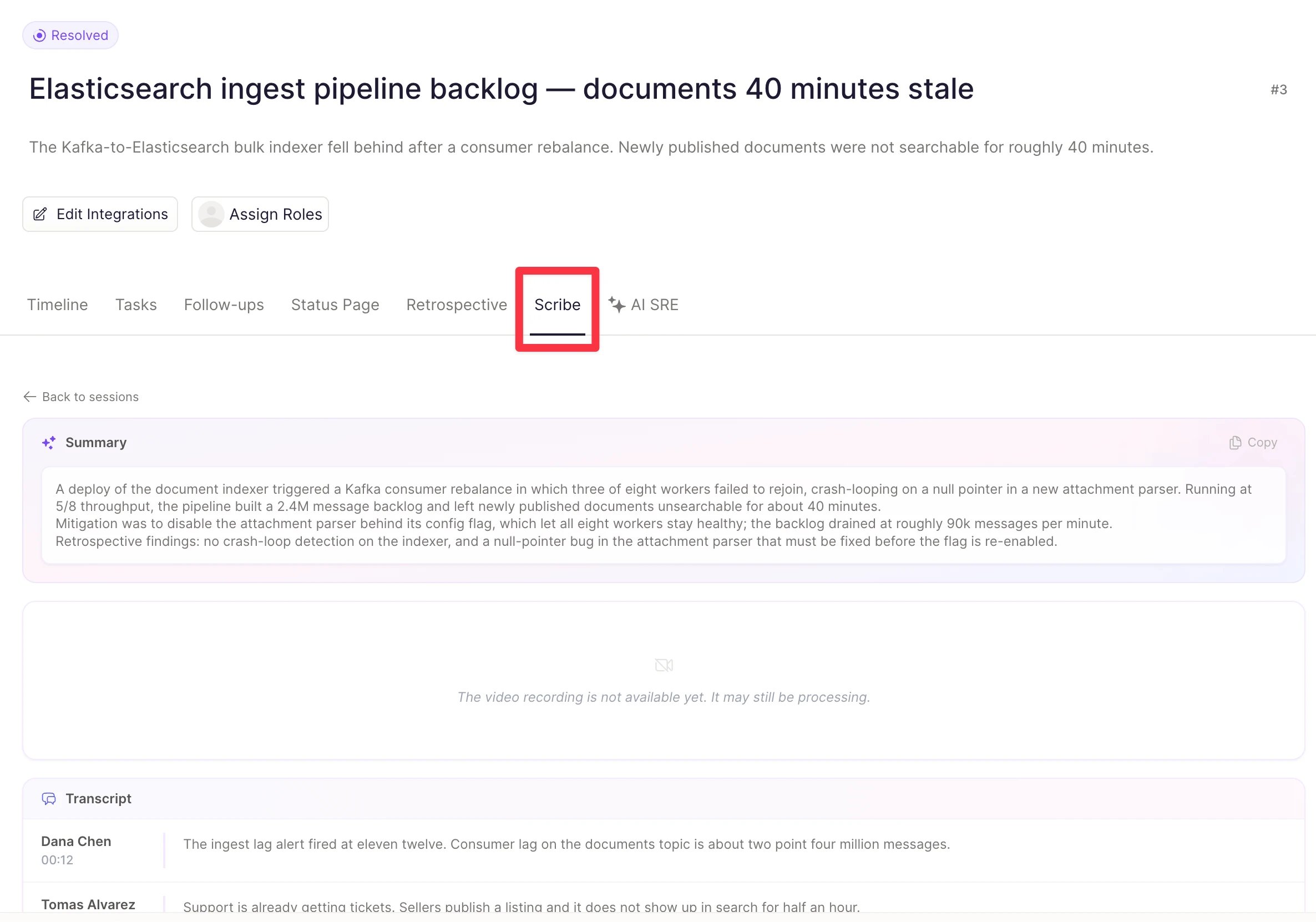
During the call, the scribe joins as Rootly Scribe in the participant list, announces itself, then provides:- Live transcription, streamed back to Rootly in real time with speaker identification
- Audio recording, and video where the platform supports it
- Slack notifications in the incident channel when recording starts and when the transcript is ready
- Live context for catchup, so
/rootly catchupalready knows what the bridge discussed
Setup
Meeting Scribe rides on your existing meeting-platform integration: connect the platform, then enable the scribe toggle.Prefer the Rootly-generated meeting URL. When an incident starts, Rootly creates the meeting room and pins the link in the incident’s Slack channel; the scribe is created automatically for that meeting. You can also attach a different meeting URL to the incident and the scribe will target it, but the Rootly-generated link works with zero extra steps.
- Zoom
- Google Meet
- Microsoft Teams
- Webex
- GoToMeeting
1
Install the Zoom Integration
Follow Zoom → Installation to connect your Zoom account via OAuth.
2
Enable Transcript and Summary
Go to Integrations → Zoom, then toggle on Meeting transcript and summary.
3
Turn on Auto-Join Bot (Recommended)
In the same settings pane, enable Auto-join bot. The scribe then joins without waiting for a host to admit it, so it never sits in a waiting room while the call starts without it.
Limits and Scribe Behavior
Recording Sessions
Sessions appear chronologically in the Scribe tab, each with its own transcript, summary, and optional video. Session numbers are per platform, so a Zoom bridge and a Google Meet bridge on the same incident each count from 1. Every session carries the same set of controls, available from the Scribe tab and from Slack:
Session actions live behind the ... menu on the session card
Re-inviting the Scribe
The scribe does not rejoin on its own once it has left, so putting it back on the call is always a deliberate action. Every route below is held to the same permission: update on the incident, the same one that lets you edit the incident itself.Ask @Rootly
The quickest route, and the one that works from wherever the conversation already is. Mention@Rootly in the incident channel and ask it to re-add the meeting scribe.
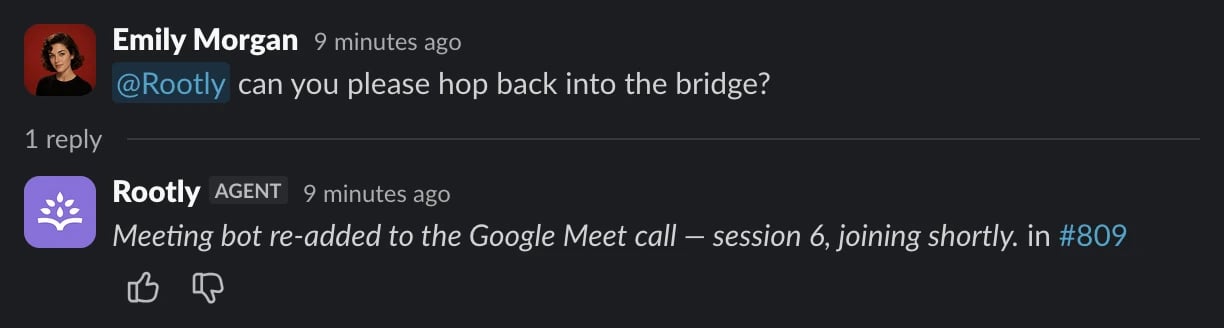
This route needs Rootly AI in Slack enabled for your workspace, and it runs in the incident channel only. It can only do what you can do, so it is capped at your own Rootly permissions like every other Rootly AI action.
Other routes
- Scribe tab
- API
1
Open the incident's Scribe tab
Each connected platform gets its own card with its own session list.
2
Press the invite button
It reads Invite Scribe before the first session for that platform and Start New Session after. Greyed out and reading Cannot Start Session means something is blocking the re-invite, covered in When re-invite is blocked.
3
Confirm
Rootly confirms that a new session will be created and that previous transcripts are preserved. The new session appears in the list and the scribe joins shortly after.

The Scribe tab before the first session on a Google Meet bridge

Retrying a session that captured nothing
Everything above starts a new session, numbered one higher than the last, with earlier transcripts left untouched. That is what re-invite means almost everywhere. There is a second, narrower behavior for a session that ended without recording anything, such as one that timed out in a waiting room or was refused recording permission. Retrying reuses that session instead of adding another, so a dead row does not sit in the session list forever. Find that session’s card in the Scribe tab and press its own Invite Scribe button. Sessions that did record show no such button. Over the API, the same thing isPOST /v1/meeting_recordings/{id}/reinvite_bot, which is rejected if the session holds recording data, so it cannot overwrite a transcript.
Linux
When re-invite is blocked
An invite that never reached the recording service at all does not count against the 10-session cap, so a failed attempt does not cost you a session.
Multilingual Support
The scribe transcribes 20+ languages, auto-detecting the language spoken and producing the transcript in it. Your Rootly account team enables it for your workspace.Privacy and Security
The short version:Processing and storage flow
- Recall.ai joins the meeting and captures the audio and, where supported, video.
- Recall.ai sends the audio to AssemblyAI with transcript PII redaction enabled. Rootly requests redaction for 26 categories of sensitive personal data before accepting the transcript for storage.
- Rootly stores the redacted, speaker-labeled transcript with the incident. If video recording is enabled, Rootly also attaches a copy of the recording to the Scribe session. Rootly sends the redacted transcript through its managed model path to produce the meeting summary.
- AssemblyAI and OpenAI don’t retain the data after processing. Recall.ai media follows a separate Rootly-managed retention setting; some teams are configured to delete that provider copy after transcript processing. Deleting the provider copy doesn’t remove the transcript or an attached recording already stored in Rootly.
- Rootly doesn’t currently apply an automatic expiry to stored Meeting Scribe transcripts. Delete a transcript or recording from the Scribe tab when you no longer need it.
PII categories redacted before transcript storage
PII categories redacted before transcript storage
Rootly requests redaction for account numbers, banking information, blood types, credit-card verification values, credit-card expiration dates, credit-card numbers, dates of birth, driver’s licenses, drugs, email addresses, gender and sexuality, healthcare numbers, injuries, IP addresses, medical conditions, medical processes, nationalities, passport numbers, passwords, ages, phone numbers, political affiliations, religions, US Social Security numbers, usernames, and vehicle IDs.Names, dates, locations, organizations, occupations, URLs, money amounts, events, languages, and general number sequences stay in the transcript so responders and Rootly AI can read service, vendor, region, and timing details.Rootly AI prompts built from the transcript still pass through outgoing prompt scrubbing, which removes email addresses, phone numbers, credit-card numbers, US Social Security numbers, IP and MAC addresses, and passwords embedded in URLs.
Troubleshooting
For platform-specific issues, start with the dedicated pages:Zoom Troubleshooting
Auto-join, waiting rooms, host controls, and Zoom-specific failure modes.
Google Meet Troubleshooting
Service account setup, admin console settings, and admission failures.
The scribe isn't joining the meeting
The scribe isn't joining the meeting
Check in order: the meeting URL is attached to the incident (the pinned Rootly-generated link works out of the box; a manually added URL must be attached to the incident); Meeting transcript and summary is toggled on under Integrations → [platform]; and the scribe is being admitted. Zoom without Auto-join needs a human to admit it, and Google Meet Host management can hold it in the waiting room even with a service account.
The scribe joined but left before I did
The scribe joined but left before I did
One of the two timeouts fired. Either no one admitted the scribe within 10 minutes, or it got in and no responders joined within 5. Re-invite the scribe by whichever route is closest to hand, and enable Zoom Auto-join to prevent the first case.
No transcript or summary after the meeting
No transcript or summary after the meeting
Post-meeting processing takes a few minutes. Check the Scribe tab and refresh. Past 10 minutes with nothing, confirm the scribe actually recorded: there should be a Recording started event in the incident timeline.
Scribe joins the wrong meeting
Scribe joins the wrong meeting
The incident is probably carrying a personal meeting room or a manually generated link. The scribe is scoped to the meeting attached to the incident. Start a fresh meeting from the incident’s Slack channel, then re-invite the scribe.
Usage limit error
Usage limit error
Your team exceeded its monthly recording cap. Ask your Rootly admin to review usage or raise the limit.
Related Pages
Data Privacy for Rootly AI
How Rootly AI can use an attached transcript, including retention and processing boundaries.
AI Summaries
Where transcripts turn into summaries and catchups.
AI in Retrospectives
Bridge transcripts as retrospective source material.