

Prerequisites
- The Microsoft Teams integration is connected via OAuth, and the Rootly bot is installed in each team where you want to use Rootly AI.
- You are an Incident Response Owner or Admin with an Incident Response seat.
Turn On Rootly AI in Microsoft Teams
Setup is one toggle in Rootly. There’s no need to reconnect the Microsoft Teams integration or re-approve permissions.1
Turn on Rootly Agent in Microsoft Teams
In Rootly, open AI & Agents. Confirm Opt in to Rootly AI capabilities is on under Global, then toggle Rootly Agent in Microsoft Teams on under Features.
The Microsoft Teams toggle is separate from Rootly Agent in Slack, so admins can turn Rootly AI on or off in each chat tool independently.
Link Your Microsoft Teams Account
Each user links their own Microsoft Teams account to Rootly before using Rootly AI in Teams. This is how Rootly AI knows who’s asking and applies that person’s Rootly permissions.1
Open Linked Accounts
In the Rootly web app, open your profile and go to the Linked Accounts tab.
2
Connect Microsoft Teams
Under Microsoft Teams, sign in with your Microsoft 365 work account. Once linked, the section confirms your account is connected.
Where to Use Rootly AI in Microsoft Teams
Mention@Rootly and ask in plain language. Rootly AI replies in the same conversation.
Changes to an existing incident, such as its severity, status, roles, and action items, happen in that incident’s own channel. Private incidents can only be discussed inside their own channel and stay hidden everywhere else.
Every surface requires an Incident Response role. Your Rootly permissions govern which incidents and Rootly records you can see.
Choosing a Rootly Organization
If your Microsoft 365 tenant is connected to more than one Rootly organization, Rootly AI asks which organization you mean when it can’t tell from context, rather than guessing. Pick the organization from the card and Rootly AI continues with your request.Manual Paging
You can still page without the agent. Use the Page command from the Rootly app’s + / Actions menu in any Teams channel where the Rootly app is installed. See Page from Microsoft Teams.Long Forms
When a request needs more than six required fields, such as resolving an incident with many required custom fields, Rootly AI sends you to the Rootly tab in Teams to finish the form there.Your First Interaction
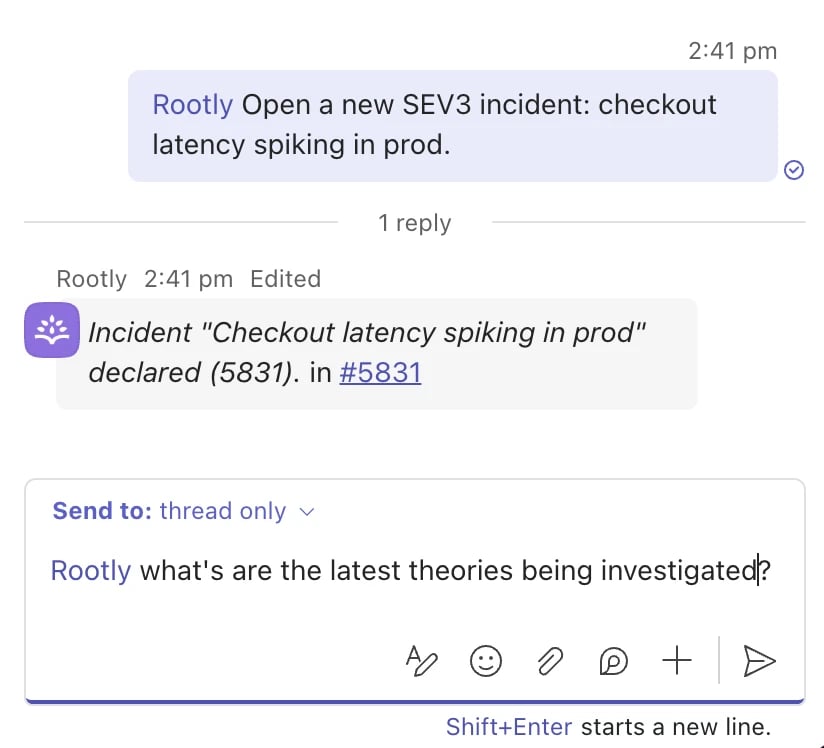
Mention@Rootly in a team channel and ask it to declare an incident. Rootly AI replies in the thread with a link to the new incident’s channel. Keep asking in the same thread, or move to the incident channel to run the incident.
Try These First
- “Catch me up”
- “Who’s on call?”
- “Escalate to SEV1”
- “What are the open action items?”
Teams-Specific Troubleshooting
For issues that apply on every platform, see Troubleshooting.
Related Pages
AI Agent in Communication Channels
What Rootly AI is and everything it can do.
Using Rootly AI
How clarification cards work and how actions run.
What to Use Rootly AI For
The full catalog of prompts, grouped by use case.
Microsoft Teams Integration
Connect Teams, install the Rootly bot, and set up On-Call in Teams.