

How Action Item Creation Works in Slack
Slack is where most real-time incident collaboration occurs, which makes it the perfect place to quickly capture tasks and follow-ups as they emerge. Rootly lets you turn conversations directly into structured action items so nothing is missed. You can create action items using:- Slash commands
- Emoji reactions
- Slack’s More Actions message menu
All of these features require that you are inside a Rootly incident channel and have permission to create or manage action items.
For private incidents, you must also have access to the incident itself.
For private incidents, you must also have access to the incident itself.
Slash Commands
Slash commands are the fastest and most flexible way to create or update action items. Run these commands inside an incident channel:Create New Items
/rootly taskCreates a new task for the current incident.
/rootly followupCreates a new follow-up item intended for post-incident improvement work.
Slash-command creation opens a Slack modal, allowing you to set priority, assignee, description, reminders, and more before submitting. Task and follow-up modals also display any custom fields placed on the matching Slack form (Incident Task or Incident Follow Up).
Manage or Review Items
/rootly actionOpens the action-item management menu, allowing you to:
- View all action items for the incident
- Create a new task or follow-up
- Change the status
- Assign or reassign a user or group
- Edit descriptions or details
- Delete action items
- Convert between task ↔ follow-up
/rootly todoDisplays tasks assigned specifically to you, making personal follow-up easy.
The
/rootly todo command is especially helpful for engineers rotating through on-call — it ensures no assigned work is forgotten after the incident.Emoji Reactions
Emoji reactions turn Slack messages directly into action items with minimal interruption to the conversation. When enabled under Settings → Integrations → Slack, reacting to a message triggers auto-creation:Task Creation
React with a ⭐️ star emoji to turn the message into a task.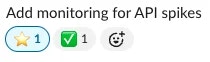
Follow-Up Creation
React with a 🔧 wrench emoji to convert the message into a follow-up.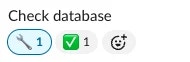
Emoji used for tasks and follow-ups must not overlap with emojis configured for:
timeline events, incident follow-ups, or task creation.
Rootly enforces this to ensure each emoji has a single clear purpose.
timeline events, incident follow-ups, or task creation.
Rootly enforces this to ensure each emoji has a single clear purpose.
Slack “More Actions” Menu
You can also create action items using Slack’s built-in message menu:1
Hover Over a Message
Hover over any message in the incident channel.
2
Open More Actions
Click More actions (•••).
3
Select Add Action Item
Select Add Action Item.
4
Fill in the Modal
A modal opens with the message text pre-filled as the summary.
This option is ideal when turning longer discussions, decisions, or troubleshooting notes into structured work without retyping.
What Happens When an Action Item Is Created
Action items created from Slack:- Appear immediately on the incident timeline
- Include the original Slack message text when created from a message
- Support Markdown formatting in descriptions
- May trigger workflows (for example, create Jira tickets, notify owners)
- Sync with retrospectives and analytics
- Can be assigned to users or groups
Some organizations restrict task creation after incidents are resolved or closed.
Follow-ups, however, typically remain available for use in post-incident improvement.
Follow-ups, however, typically remain available for use in post-incident improvement.
Best Practices
-
Capture tasks early
Adding tasks in real time prevents important work from getting lost in conversation. -
Assign owners immediately
Tasks without owners are often forgotten — assignment drives accountability. -
Use follow-ups for long-term improvements
These items support durable reliability gains after the incident. -
Use priorities intentionally
High-priority items should be reviewed in retrospectives, weekly ops syncs, or technical leadership meetings. -
Keep emoji intuitive
Choose emojis your team naturally reaches for during conversations. -
Use
/rootly todo
Helps responders keep track of what’s on their plate throughout and after the incident. -
Automate recurring work
Use workflows to auto-create tasks like “Prepare retrospective document” or “Notify customer support.”
The strongest incident programs treat action items as part of a continuous improvement loop — not just a list of things to do.
Troubleshooting
My emoji reaction didn't create an action item
My emoji reaction didn't create an action item
Check the following:
- You reacted inside an incident channel
- The emoji is configured in the Slack integration settings
- Emoji aren’t conflicting with other trigger types
- Emoji ingestion is enabled for your Slack workspace
Slash commands show an error or do nothing
Slash commands show an error or do nothing
This usually means:
- You don’t have permission to create or modify action items
- The incident is in a state where new tasks are restricted
- You’re not inside a valid incident channel
The task or follow-up isn’t appearing in the timeline
The task or follow-up isn’t appearing in the timeline
- Confirm you created it in the correct incident channel
- Ensure the Slack message wasn’t deleted
- Verify the Rootly Slack app has permission to read and react to messages
Why is a white checkmark added after I react with an emoji?
Why is a white checkmark added after I react with an emoji?
The checkmark is Rootly’s confirmation reaction, letting you know your task or follow-up was created successfully.
Can I still create tasks after an incident is resolved?
Can I still create tasks after an incident is resolved?
This depends on your workspace settings. Some organizations disable new task creation after resolution to preserve process discipline, but follow-ups remain available.