

Overview
Create sub-incidents directly from an incident’s Slack channel using Rootly slash commands.Sub-incidents help teams split large or cross-functional incidents into focused workstreams while keeping everything tied back to the parent incident.
Restrictions
Sub-incident creation is only available when:- You run the command inside an incident channel
- The incident is not already a sub-incident
- You have permission to create incidents
- The incident has no restrictions (for example, cannot split a sub-incident)
How to Create a Sub-Incident in Slack
1. Run the Sub-Incident Command
In the parent incident channel, type any of the following: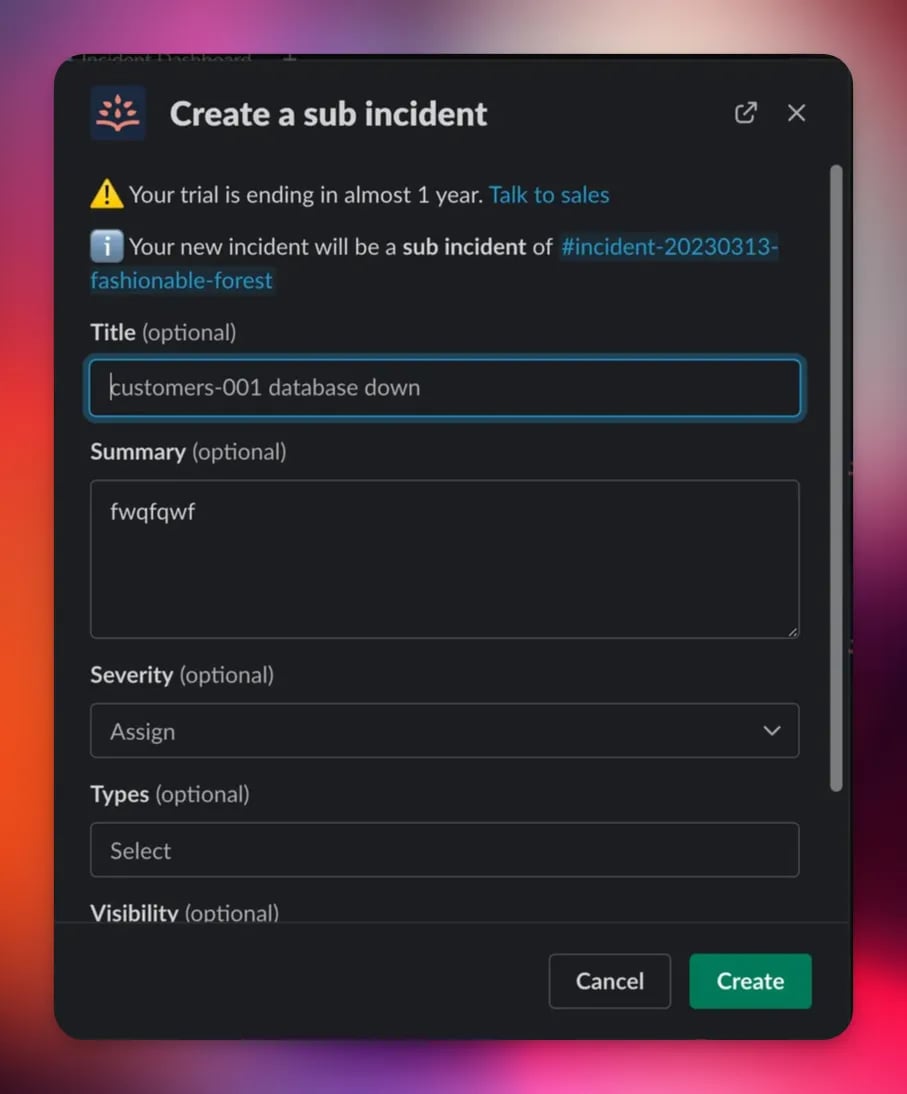
2. Complete the Creation Dialog
Fill in the incident fields as you normally would.Rootly automatically links the new incident as a sub-incident of the channel you ran the command from. After submitting, Slack will confirm that the sub-incident has been created: You’ll then see a reference to the new sub-incident in the parent incident’s summary, Slack channel, and web interface.
What Happens Behind the Scenes
Rootly automatically:- Sets the new incident’s parent_incident_id
- Assigns a sub-incident kind (for example,
normal_sub,scheduled_sub) - Attributes the creation to Slack
- Optionally creates a Slack channel for the sub-incident (team settings apply)
- Triggers any workflows conditioned on
Kind → is one of → normal_sub / scheduled_sub / test_sub
Sub-incidents created via Slack behave exactly the same as those created in the Web UI. They inherit parent properties according to your workspace configuration and any workflows you’ve defined on sub-incident creation.
Demo
Best Practices
- Use sub-incidents to divide ownership across SRE, Security, Networking, or other teams.
- Keep the parent incident customer-facing while sub-incidents track internal or deep-dive workstreams.
- Use workflows to automate structure, such as creating roles or tasks for each new sub-incident.
- Name sub-incidents clearly to reflect their specific investigative track.
- Avoid splitting unless the scope is meaningfully distinct—small tasks are usually better captured as action items.
Troubleshooting
“This command can only be used in an incident channel”
“This command can only be used in an incident channel”
Slack restricts
Run the command inside the relevant incident channel.
/rootly sub to incident channels only.Run the command inside the relevant incident channel.
“Cannot split a sub-incident”
“Cannot split a sub-incident”
Sub-incidents cannot be split further.
Create sub-incidents from parent incidents only.
Create sub-incidents from parent incidents only.
Nothing happens after submitting the dialog
Nothing happens after submitting the dialog
This may occur if:
- Required fields were left blank
- Your Slack integration is temporarily disconnected
- A workflow with a blocking condition prevented sub-incident creation
The sub-incident doesn’t show in the parent incident UI
The sub-incident doesn’t show in the parent incident UI
Ensure that:
- The originating channel was the correct parent incident channel
- The parent incident is not archived or cancelled
- The sub-incident was created successfully (Slack will show a confirmation)