

Overview
Slack is one of the fastest and most natural places to declare an incident. Whether a responder notices an issue in conversation, spots a customer report, or sees a monitoring message posted into a channel, Rootly’s Slack integration lets you create an incident instantly — directly from where your team already works. Use Slack when you need speed, context, and collaboration without switching tools. Slack-based creation supports:- Customizable incident fields
- Required-field validation
- Private incident creation
- Automated Slack channel creation
- Full integration with workflows and lifecycle updates
Need help installing the Rootly Slack app? See the Slack Integration Guide.
Create a New Incident in Slack
1
Method 1 — Use a Slash Command
-
Type:
in any Slack channel.
- Press Enter to open the New Incident form.
- Hover over the message
- Click More actions (three dots)
- Select Create an incident
2
Fill in the Incident Details
The New Incident form appears as a Slack modal and includes the essential fields needed to start coordinated response.Most fields are customizable in Settings → Forms.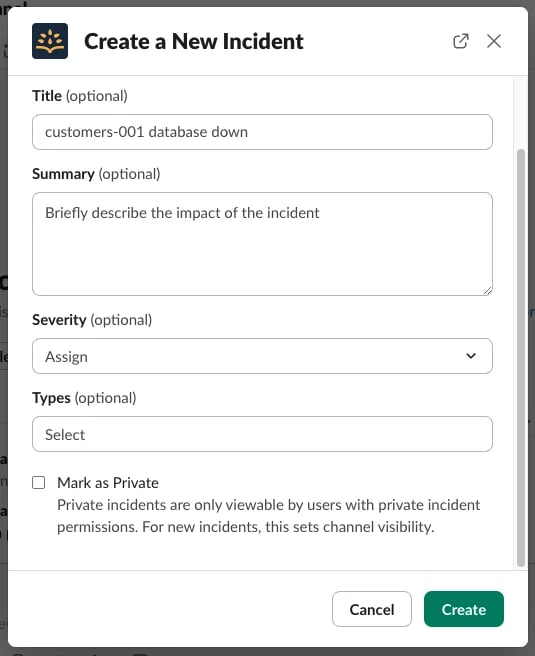
Additional Notes
- Required fields are marked with a *
- Leaving Title blank triggers the Automatic Incident Title Generator
- Only privileged users can create or access Private incidents
- Private mode is ideal for sensitive or security-related issues
If your team uses Mark as In Triage, selecting it will start the incident in Triage instead of Started. See Incident Lifecycle for details.
3
Create the Incident
Click Create.Rootly will immediately:
- Create a dedicated Slack incident channel
- Post the initial system message
- Log the creation event in the Timeline
- Trigger any configured workflows
- Role assignment
- Stakeholder notifications
- Ticket creation
- Checklists
- Channel topic updates
After the Incident Is Created
The Slack incident channel becomes your command center. From here you can:- Update lifecycle status with
/rootly status - Resolve or cancel with
/rootly resolveor/rootly cancel - Add timeline events
- Modify fields using
/rootly edit - Run workflows using
/rootly workflow - Generate an AI summary using
/rootly summary - Invite responders and collaborate in real time
Customizing the Slack Incident Form
Your Slack form can be fully tailored to match your Web UI form.1
Open Form Configuration
To customize: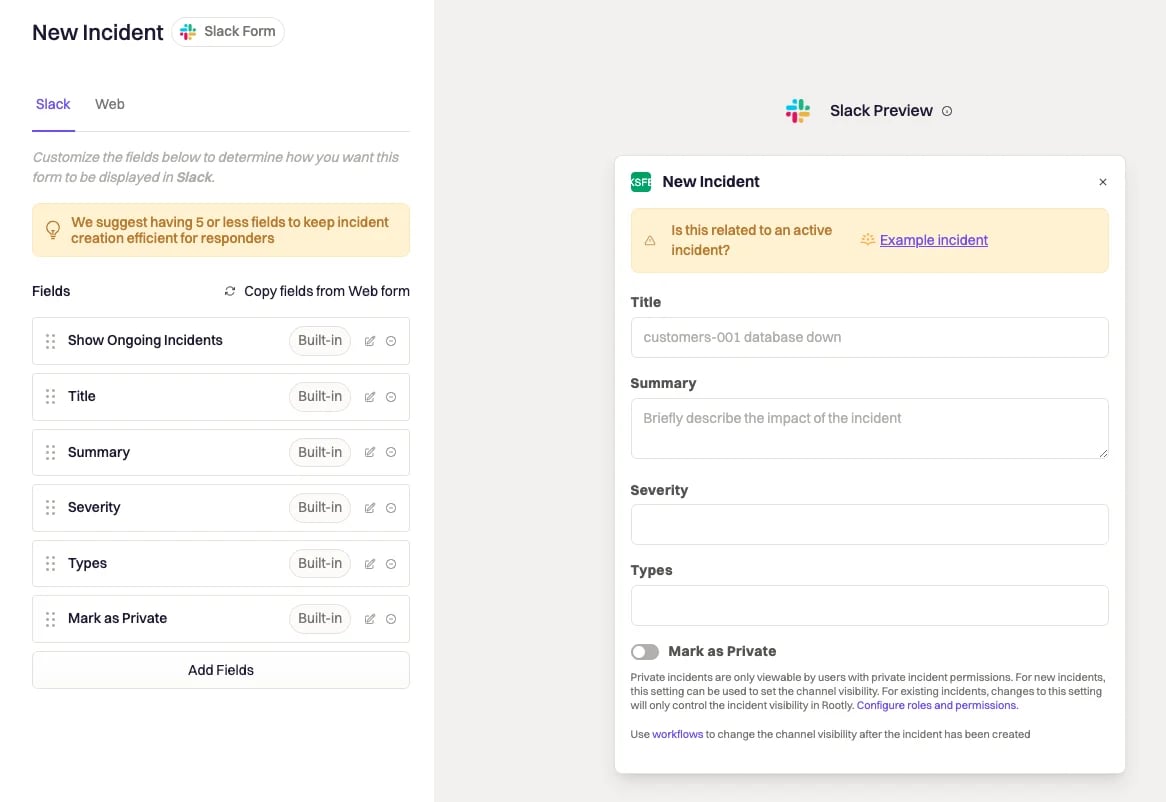
- Go to Settings → Forms
- Under Default Forms, click Configure on New Incident
- Select the Slack tab
- (Optional) Click Copy fields from Web form
- Left side → the form structure
- Right side → real-time preview
2
Edit and Manage Fields
You can customize:
- Field order
- Field visibility
- Required fields
- Custom field types (dropdowns, multi-selects, relations, etc.)
- Drag handle → reorder
- Pencil icon → edit
- Minus icon → remove
- Add Fields → add new fields
Troubleshooting
“Commands aren’t working.”
“Commands aren’t working.”
Make sure you’re inside a Rootly incident channel, not a normal channel.
“I can't create or view a Private Incident.”
“I can't create or view a Private Incident.”
You need the correct permissions (owner/admin/private-incident access).
“/rootly mitigate doesn’t work.”
“/rootly mitigate doesn’t work.”
Your workspace likely uses sub-statuses, which disable the mitigate command.
Use
Use
/rootly status instead.“The form won’t let me create the incident.”
“The form won’t let me create the incident.”
Your workspace may enforce:
- Required fields
- Conditional fields
- Required lifecycle metadata
“The Slack incident channel didn’t get created.”
“The Slack incident channel didn’t get created.”
Check:
- Slack integration is connected
- Auto-create channels is enabled
- Private incident behavior matches workspace rules
Best Practices
- Prefer message-based creation for rich context
- Keep fields minimal but meaningful
- Use Private mode for sensitive incidents
- Train responders to use
/rootly statusfor lifecycle updates - Align Slack + Web forms for consistency
- Automate repetitive tasks (channel setup, assignments, notifications)